Unlock a driver's app
VIEW
If something a driver's app tried to upload fails, the app locks and they cannot carry on. This page is where you find the code that gets them going again.
Where to find it: Fleets › your fleet › Overview › Settings › Unlock Code. You can also reach it from the fleet row's ⋮ menu, under Fleet › Delivery Plan Unlock Code. The screen is titled Delivery Plan Unlock Code.
What you need
The driver on the phone, so you can read the code to them.
1. Find the driver – VIEW
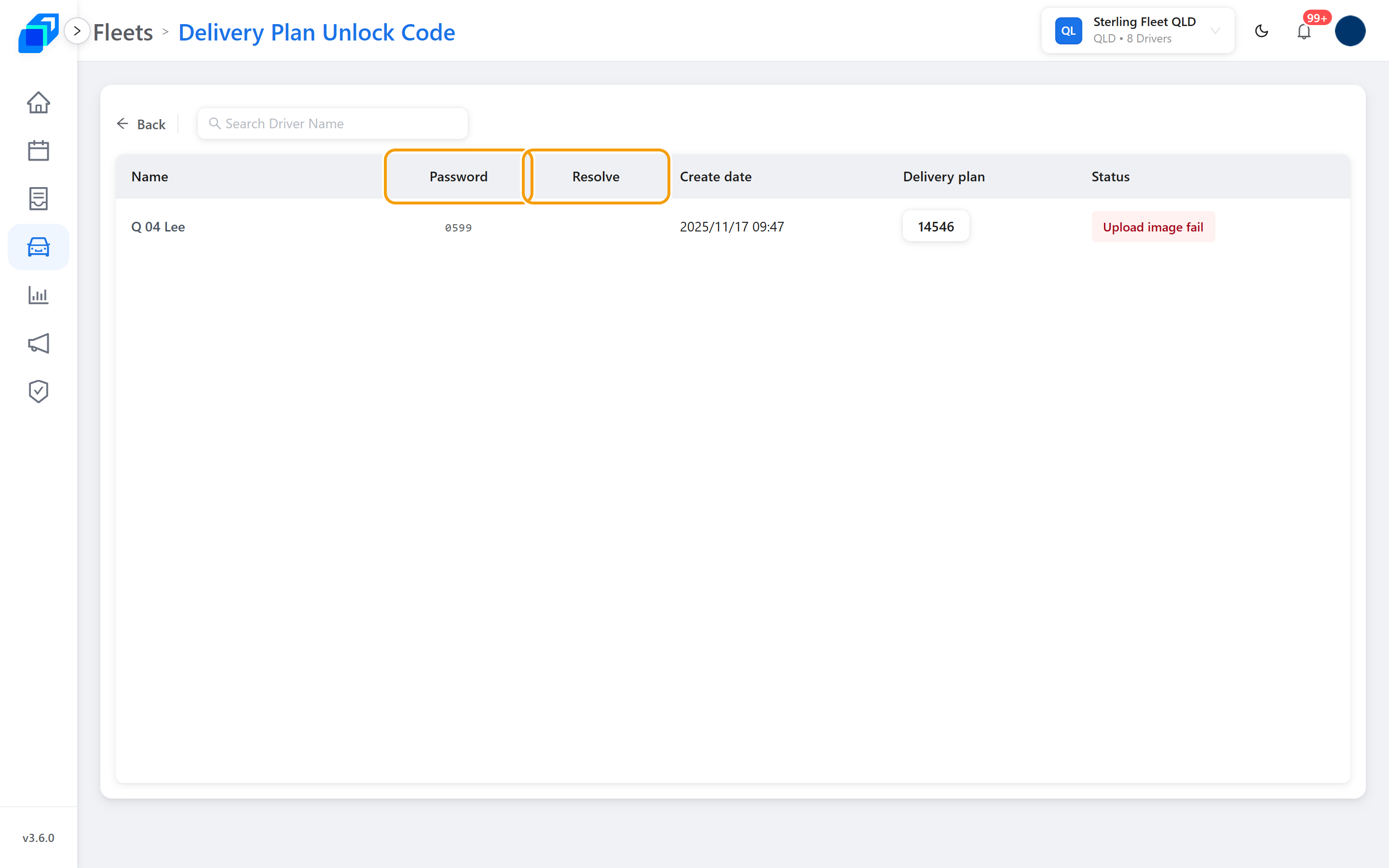
Type their name in Search Driver Name. Each row is one lock:
- Name – the driver
- Password – the code you read out
- Resolve – a green tick once the driver is back in; blank means still locked
- Create date – when the app locked
- Delivery plan – the run they were on
- Status – what failed
2. Read the code to the driver – VIEW
Give them the Password from their row. On the phone they type the four digits into the Route Locked screen and tap Unlock, then carry on with the same run.
The Route Locked screen closes on the driver's phone and their run comes back. Reload this page and a green tick sits in the Resolve column against their row.
You do not create these codes. SenditGo issues one when the app locks, and it appears here on its own. There is no button on this page that makes a code.
An empty list is good news – nobody on this fleet is locked.