Account waiting or blocked
After you submit registration – or if an active account has been suspended – the app shows different messages describing where you stand. This page walks you through each message: whether to wait, correct your details, or ask your fleet for help.
Where to find it: open SendItGo (app icon) after registration, or the home screen → Profile.
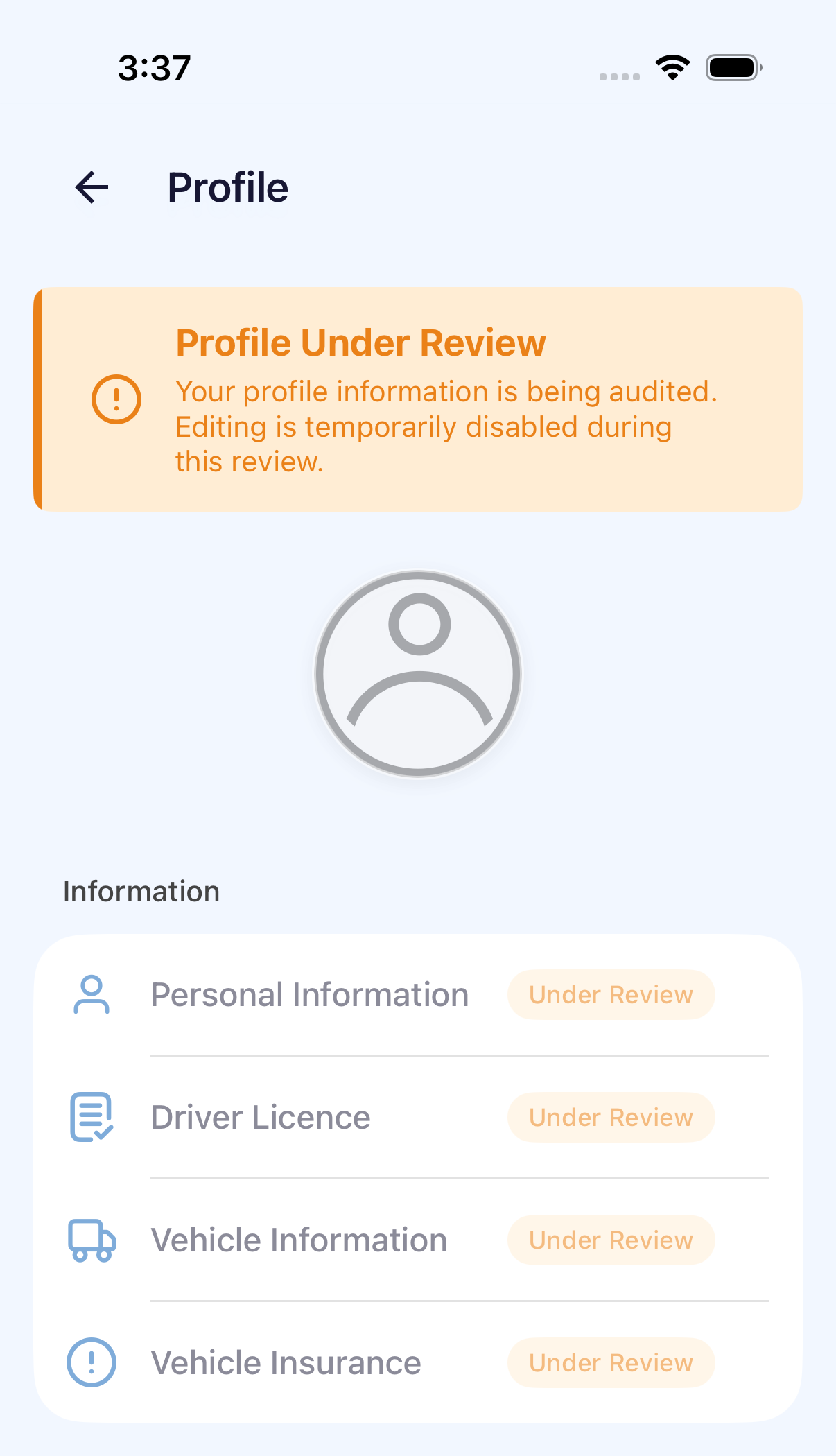
When you see "Profile Under Review"
Your submitted details are waiting for review. Editing may be unavailable until the review finishes. If you need progress updates, contact your fleet.
- Wait for your fleet or administrator to complete the review.
- Keep using the same mobile number. Do not create another account.
- If the status does not change within the period communicated by your fleet, contact the fleet administrator to follow up.
When registration details need correction
On iPhone, if your registration requires changes, signing in opens Verification Update Required – a correction list showing the sections your fleet sent back.
On this step: Verification Update Required after you sign in.
Work through it in order:
- Read the reason, and open each section that needs correction.
- Update the requested details or documents. Tap Next to continue, and Done at the end of the section to return to the correction list.
- Once every requested item is complete, tap Submit.
- Verification in Progress is not on this picture. Do not treat that wording as the banner shown here.
When Profile shows "Action required" or "Rejected"
For an account already using the app, profile corrections happen inside Profile, not on the registration correction list. These are two different entry points – do not confuse them.
On this step: App home screen → bottom Profile tab → the section flagged with a red dot or "Action required" marker.
- Open the affected section in Profile, correct the requested details, and save.
- Return to Profile and tap Submit for Review → Confirm.
- Check that the section status changes to Under Review.
- If sign-in shows only Amendment Required with no correction list, provide the exact message to your fleet administrator.
When the account is blocked
If the app tells you the account has been blocked, contact your fleet administrator or dispatcher with:
- The mobile number you registered with.
- The exact message on screen.
Reinstalling the app or repeatedly requesting verification codes does not reactivate the account, so please don't keep trying.
Common issue: reopening the app still doesn't let you continue
Work through this self-check first – it usually saves a call to your fleet:
- Use your original registered mobile number and keep a stable connection.
- Read the status and reason on screen. The registration-review screen is separate from the signed-in Profile.
- Complete every section requested on the registration amendment list before tapping its Submit. Profile updates use Submit for Review → Confirm instead.
- If only a rejection, closure, or blocked message appears with no correction entry, contact your fleet instead of repeatedly creating another account.
An approved account opens Home directly. A corrected section returns to Under Review after you submit it.
Next steps
- Log in to the app: use your original registered mobile number when signing in again.
- See today's route: once approved and on Home, check your assigned work.
- Edit and submit your profile: update your details after you have started using the app.