Reorder Stops
Reorder stops on Route Stops, or during navigation, when the sequence needs to change.
A driver does this on the phone. A fleet manager decides whether that driver may, from Drivers.
Where to find it: Home › route card › Edit, or during navigation Edit Stop › Start Editing.
Route Stops
Home › route card › Edit.
The save button on this screen is Save Changes.
During navigation
Edit Stop › Start Editing.
The save button on this screen is Save.
Go! starts the route. It does not save a new stop order.
Only pending stops that can still be moved can be dragged. Warehouses, deleted stops, completed stops, and stops whose orders are already complete are left out.
Reorder stops before you leave
Open the route. The heading is Route Stops.
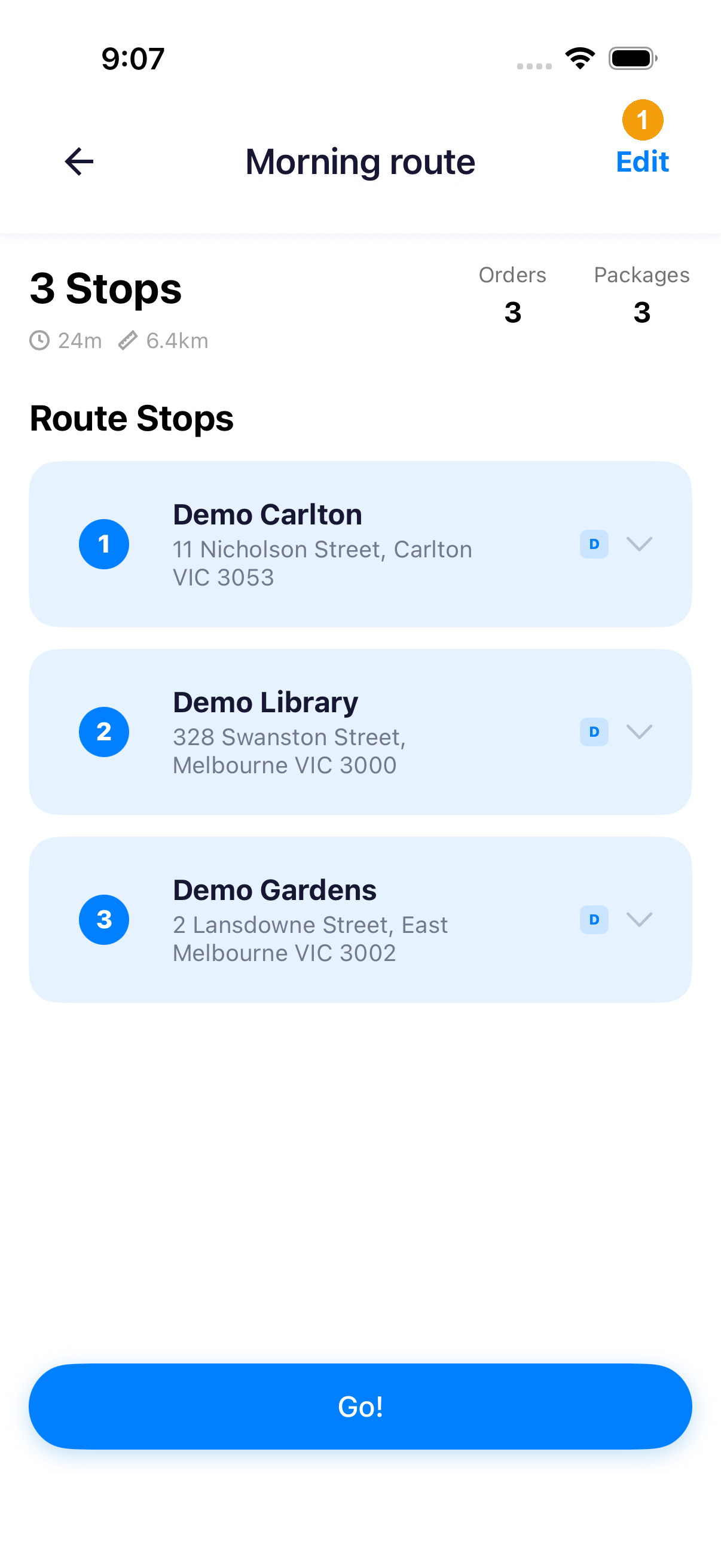
- Tap Edit. On the picture, ① is Edit.
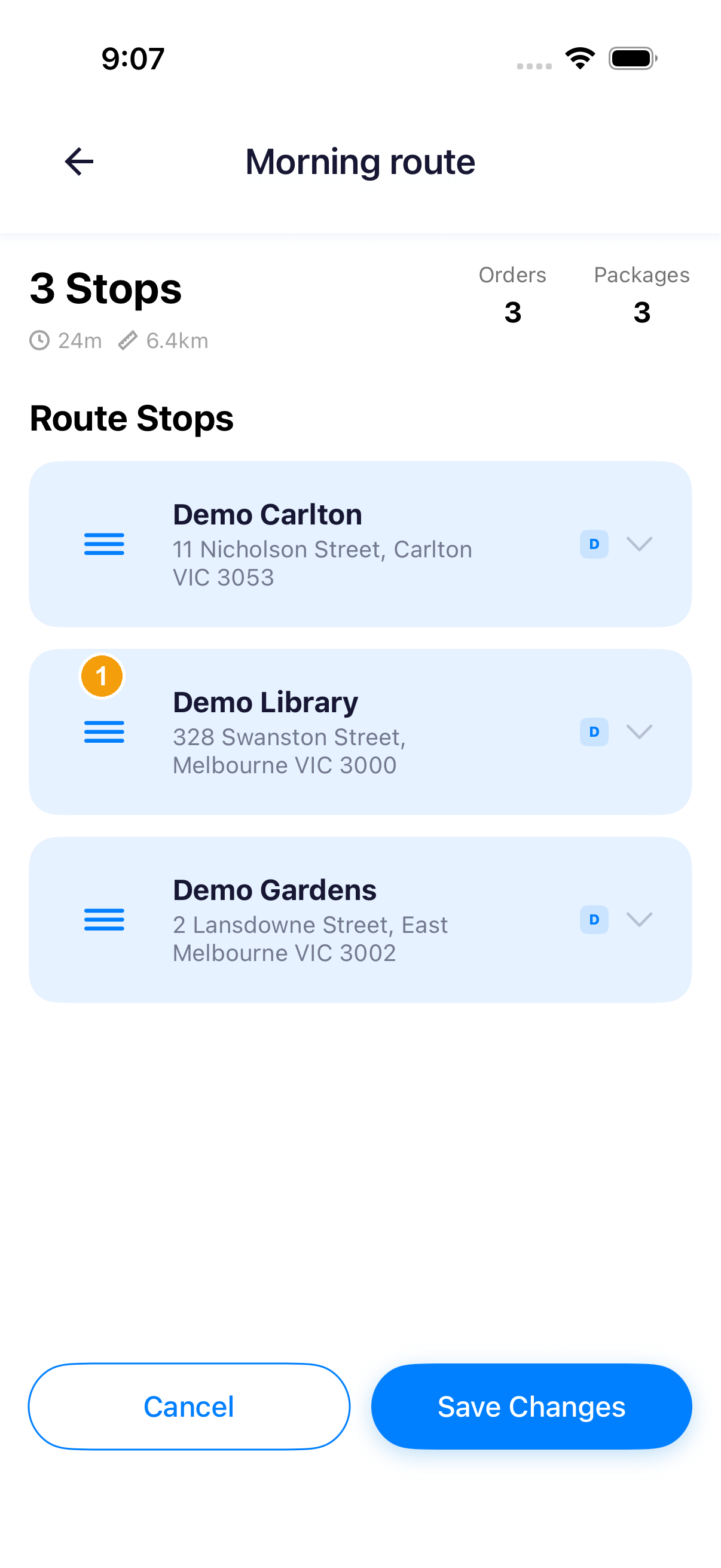
- Press and hold the handle beside the stop, drag it, and release. On the picture, ① is the handle beside Demo Library, and Demo Library is still second. Cancel and Save Changes are both on screen. Dragging moves the stop.
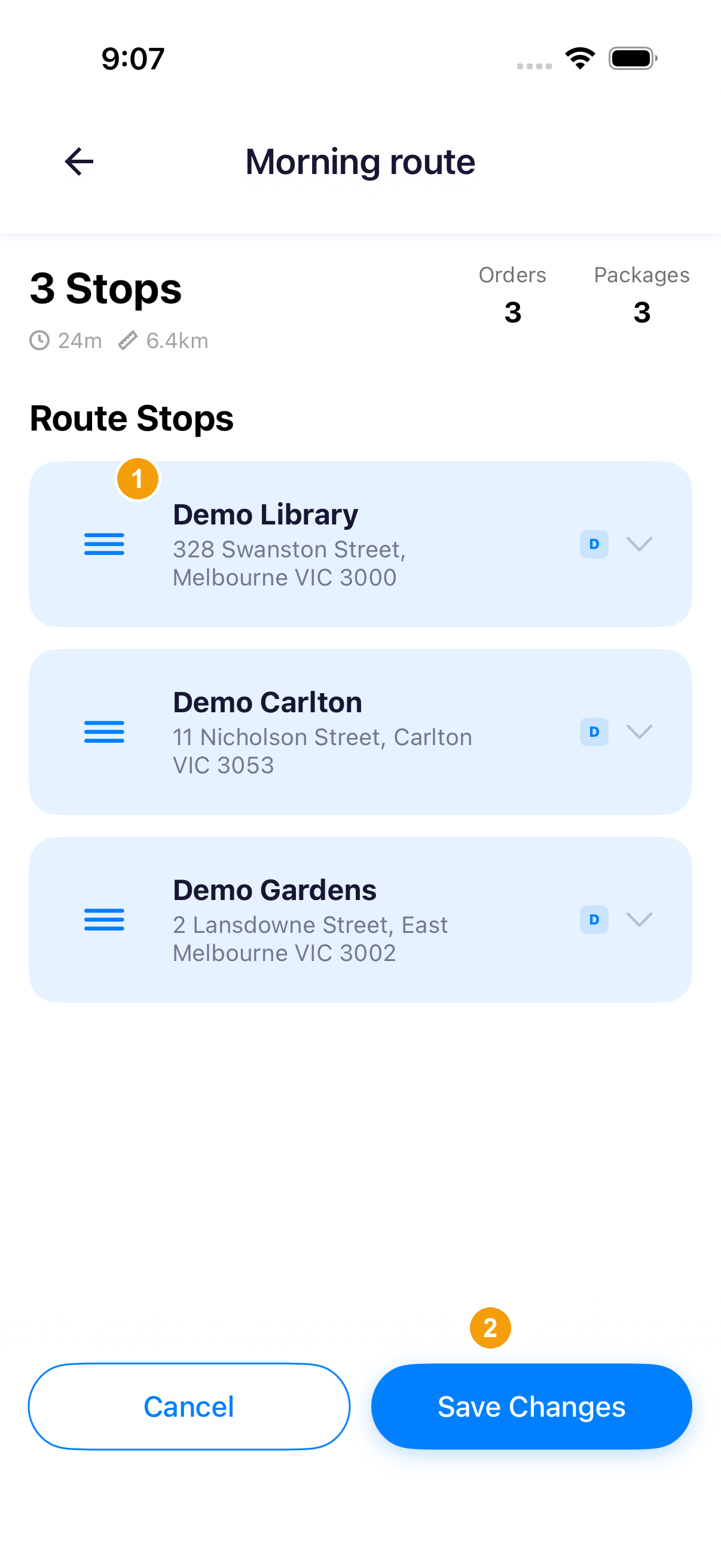
- Check the new order. On the picture, ① is Demo Library, now first, ahead of Demo Carlton.
- Tap Save Changes. On the picture, ② is Save Changes. Cancel is on the left. This picture is the moment before the save. It does not show editing already closed.
Reorder stops during navigation
Park before this step. The safety prompt belongs here.
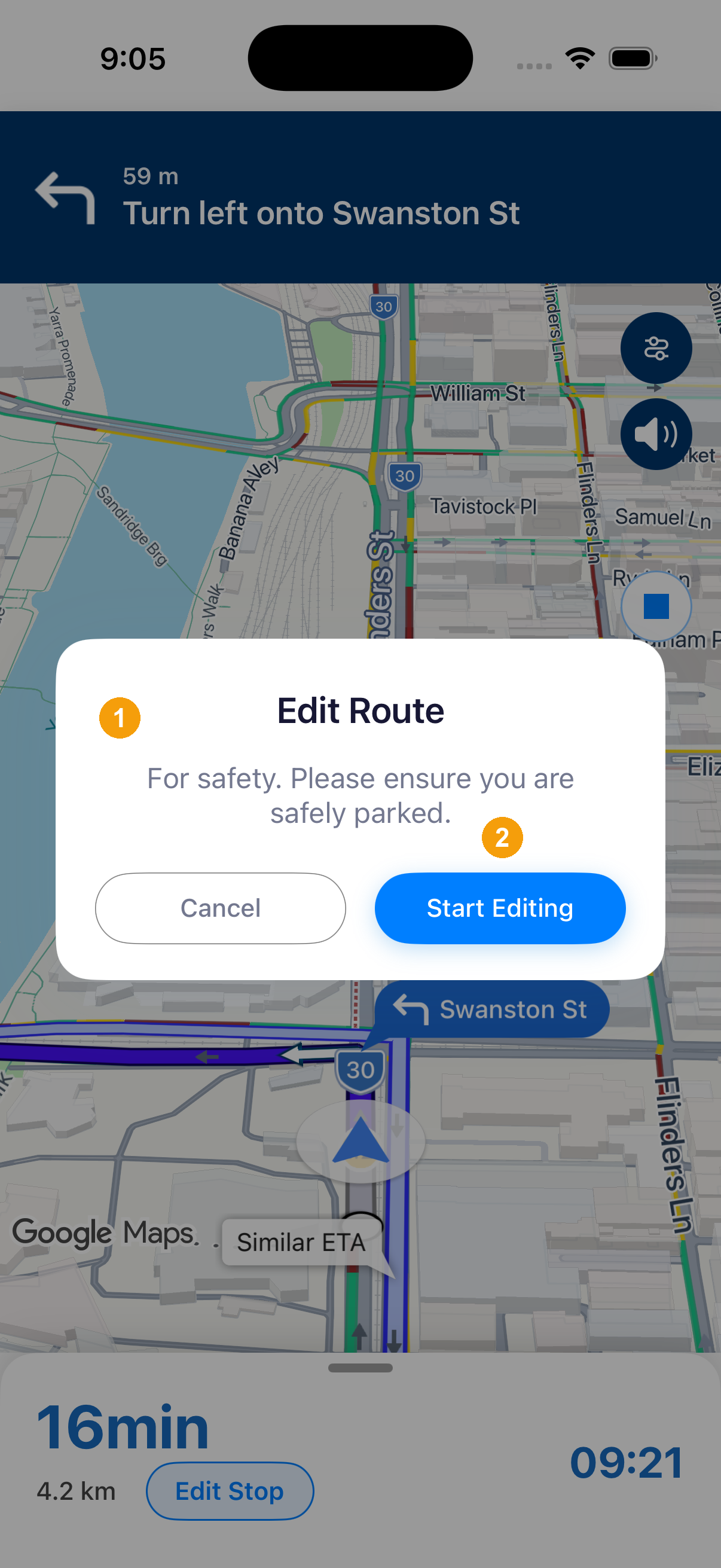
- Tap Edit Stop on the map panel.
- Read Edit Route. It says: "For safety. Please ensure you are safely parked."
- Tap Start Editing. Cancel leaves you in navigation. Edit Stop stays visible on the map panel under the prompt.
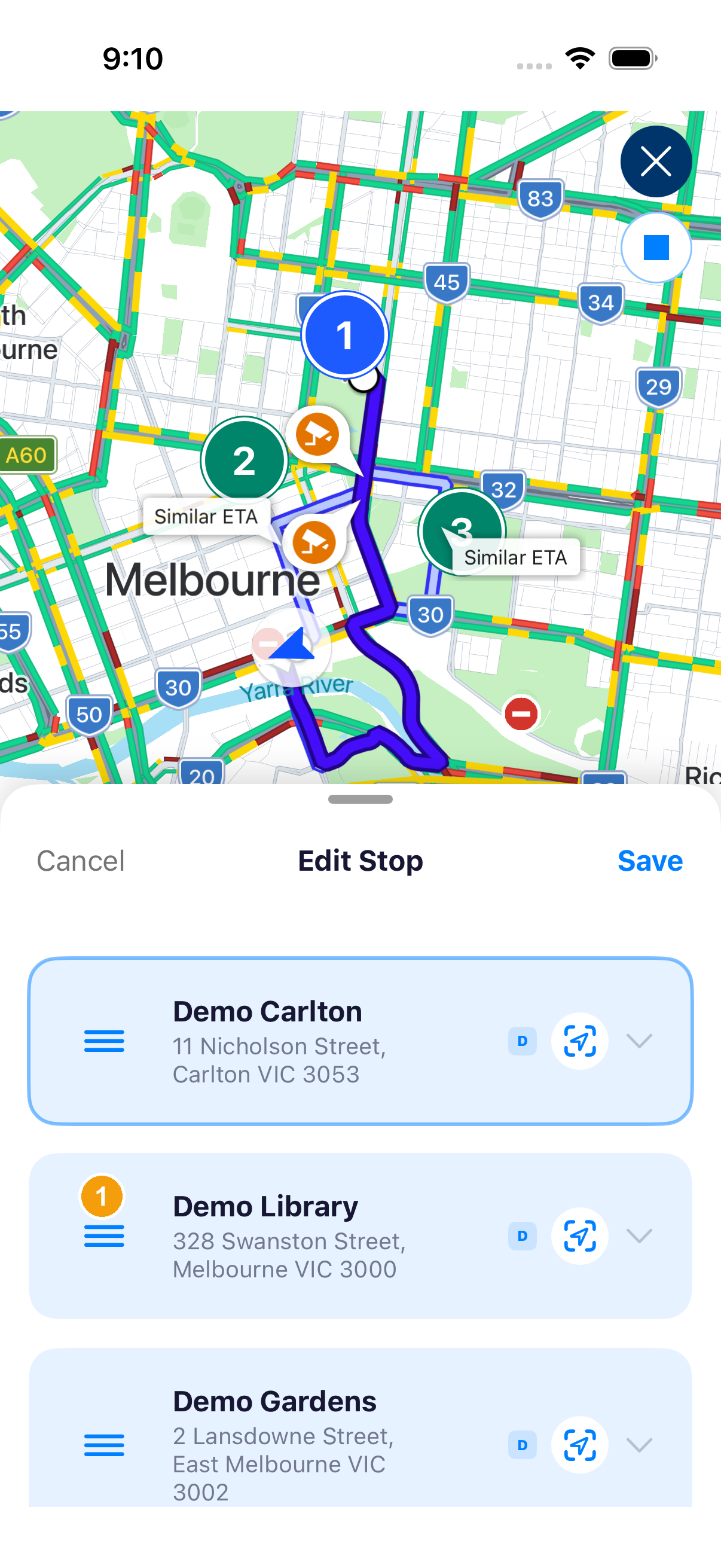
- The sheet title is Edit Stop. Press and hold the handle and drag. On the picture, ① is the handle for Demo Library, and Demo Library is still second. Save is at the top right. The map pins have not moved. If an open order is in the way, tap the arrow on the right to close it before you drag.
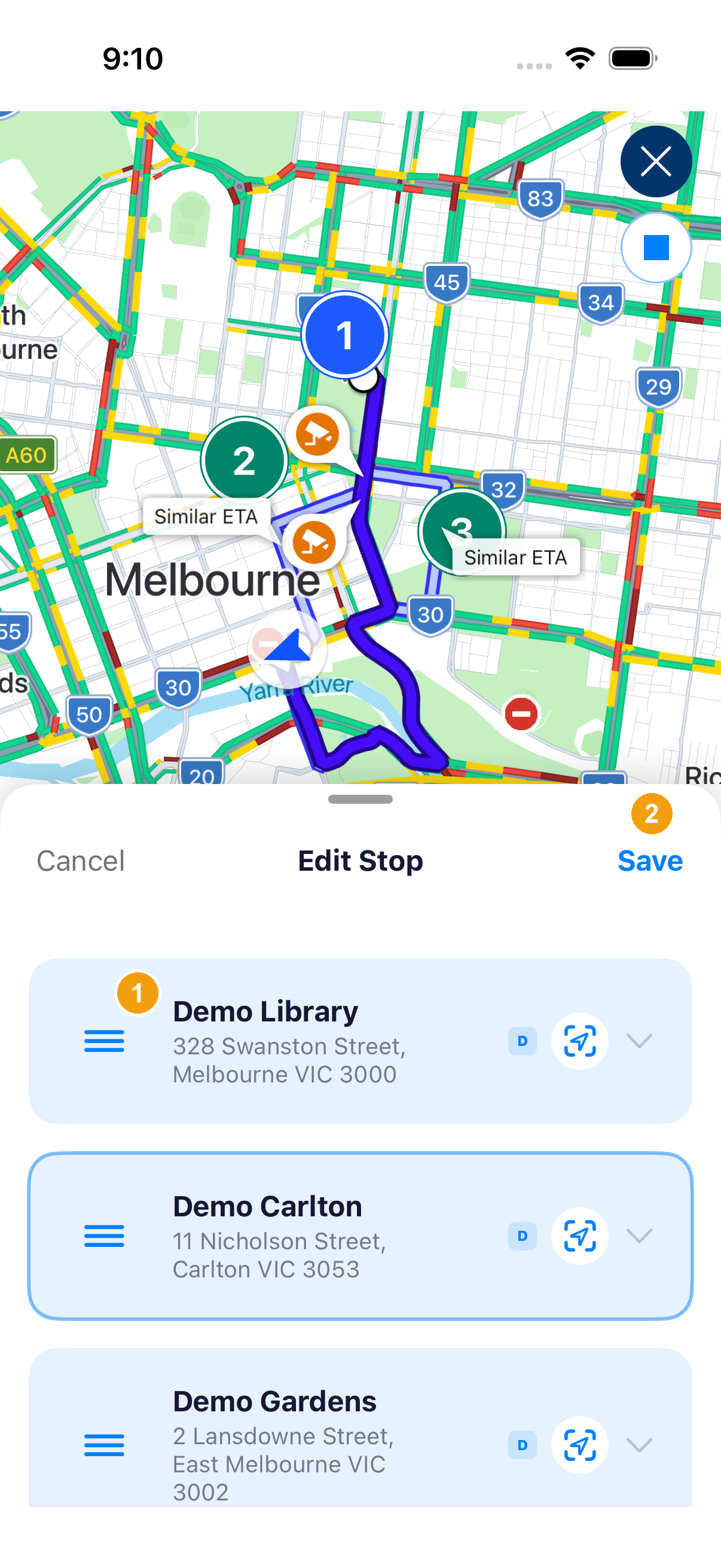
- Check the sheet. On the picture, Demo Library is first. ① is on that stop. ② is on Save. The map pins are still in the old positions. Cancel is on the left. Do not read this picture as an updated map.
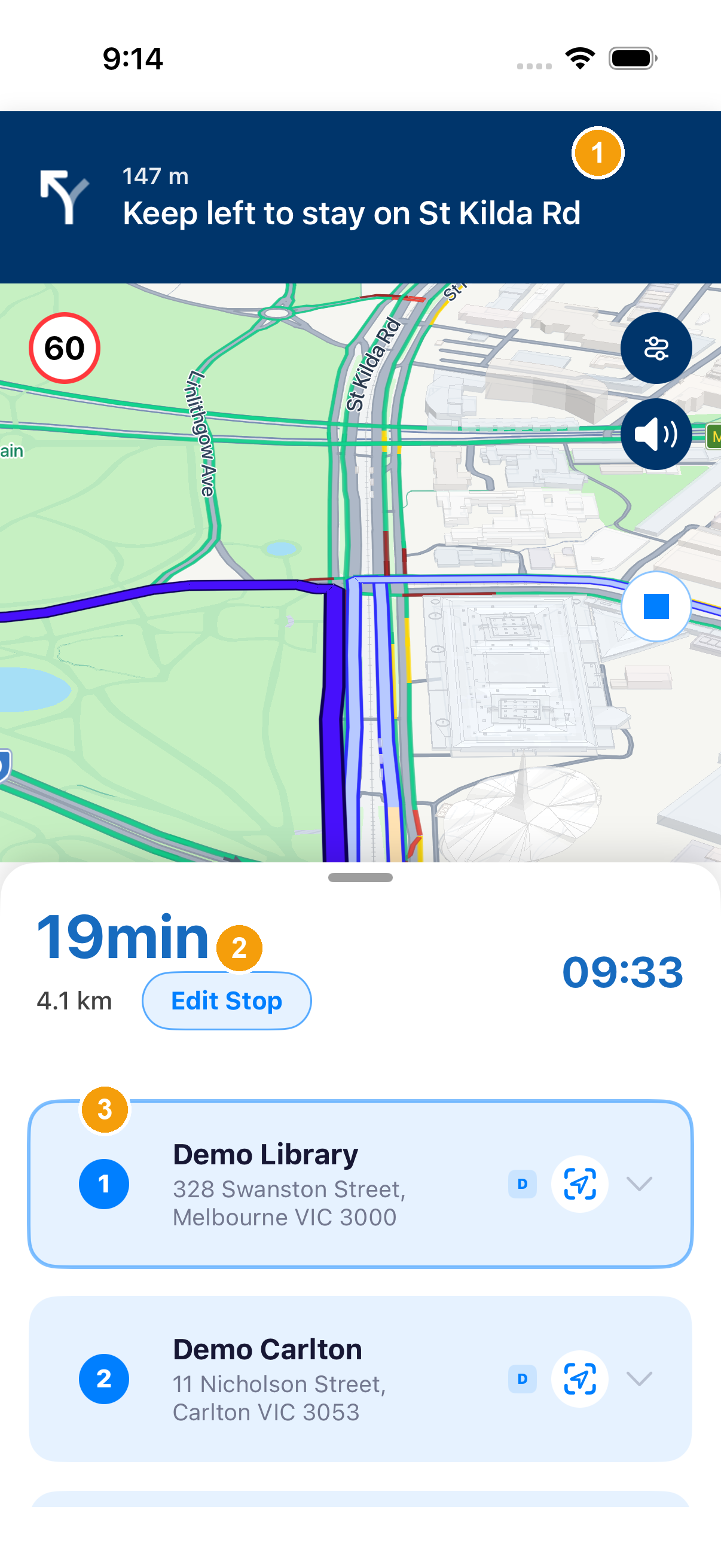
- After Save, the map shows the new first stop. On the picture, ① is the banner "Keep left to stay on St Kilda Rd". ② is 19min, with 4.1 km and 09:33 beside it. ③ is the first stop card, Demo Library.
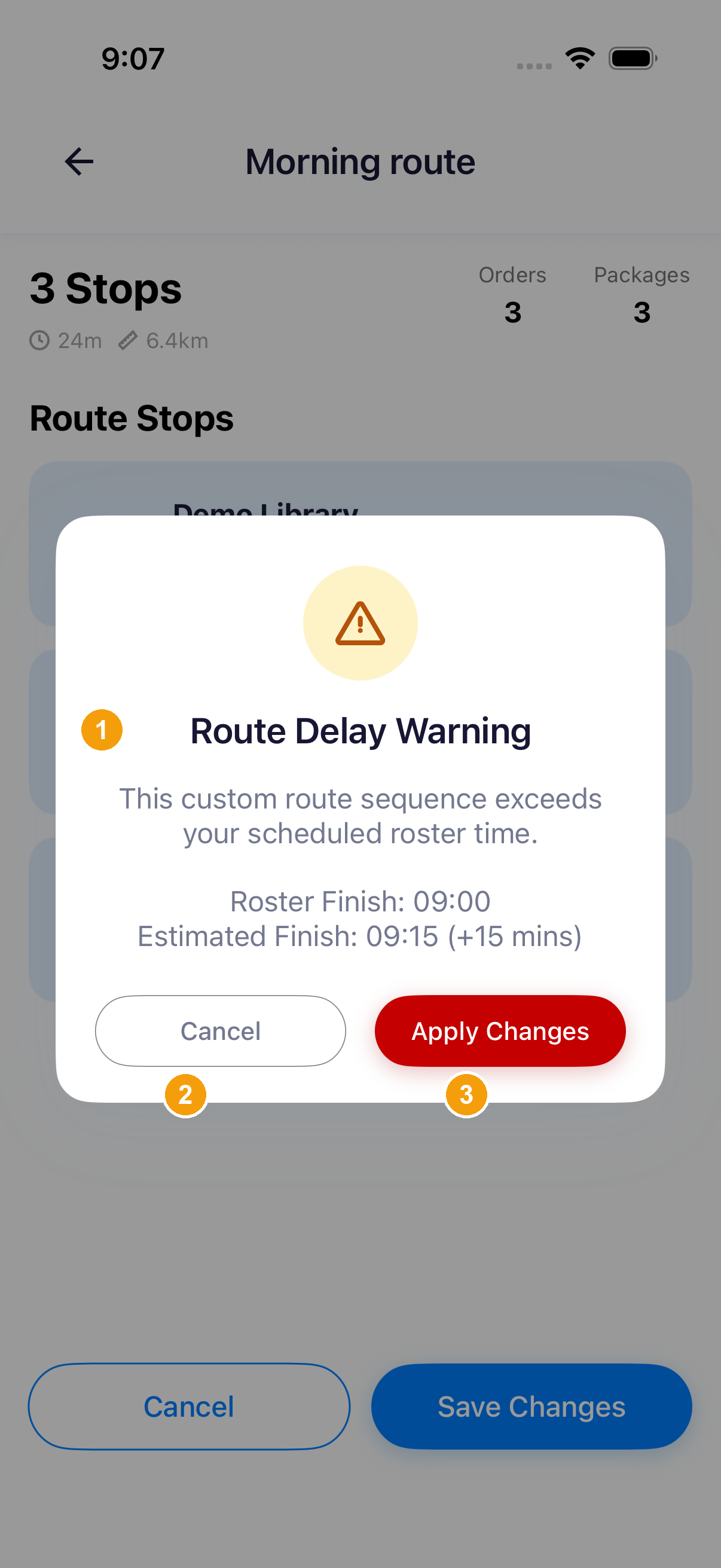
Route Delay Warning
Route Delay Warning appears when the new sequence runs past the roster.
- Compare Roster Finish 09:00 with Estimated Finish 09:15 (+15 mins). On the picture, ① is that dialog.
- Tap Cancel to go back and change the order. On the picture, ② is Cancel.
- Tap Apply Changes to keep the new order. It is the red button. On the picture, ③ is Apply Changes.
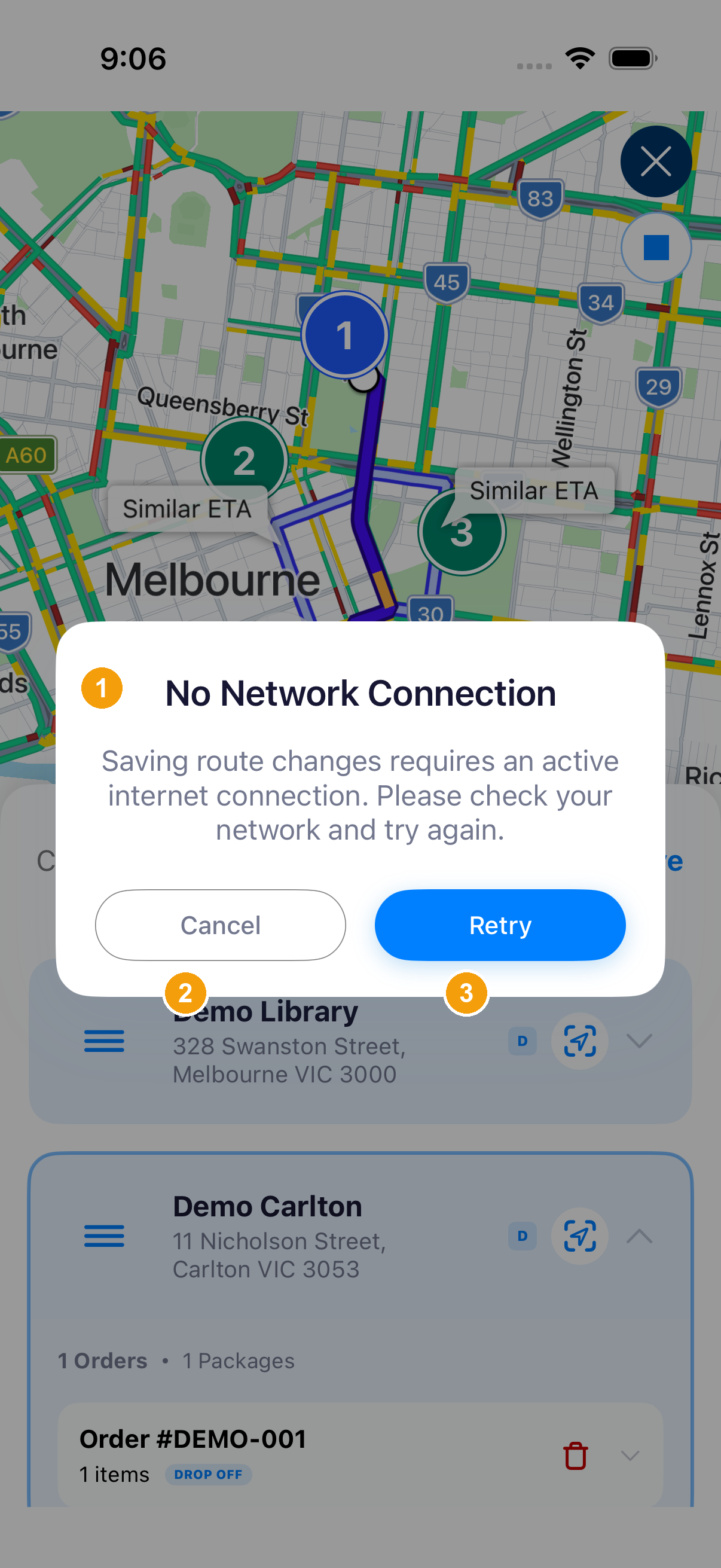
No Network Connection
- No Network Connection says saving route changes needs an active internet connection. On the picture, ① is that dialog.
- Cancel is on the dialog. The list is still on screen behind it. On the picture, ② is Cancel.
- Retry sends the save again once the phone is connected. On the picture, ③ is Retry.
The list behind the dialog still shows Demo Library. An expanded order shows DROP OFF. That is the order type on the screen.
During navigation, after Save, the banner and stop 1 match the new first stop. On the saved picture that is "Keep left to stay on St Kilda Rd", 19min, 4.1 km, and Demo Library as stop 1. On Route Stops, Save Changes is the save. The picture of that screen still shows the button, so it does not show editing already closed. Moving a card does not save the change.
| Situation | What to do |
|---|---|
| Edit or Edit Stop is missing | Whether a Stop Reordering lock hides, disables, or leaves the button has not been checked on a phone. |
| A stop has no drag handle, or it is missing from the navigation sheet | Warehouses, deleted stops, completed stops, and stops whose orders are already complete are left out. |
| Only one stop can still be moved | There is no second stop to place it against. |
| The list changed but the route did not | A rearranged list is not a saved change. Check the connection and tap Retry. |
| There is nothing to save | The order has not changed. Drag the handle, then save. |
| An order was removed and the stop order looks wrong | Removing an order and reordering stops are different tasks. Check each one. |
Allow or lock Reorder Stops for a driver
This is set one driver at a time. It is not a switch on View Fleet Parameters.
Step 1. Open Fleets and select the fleet.
Step 2. Open Drivers. The Stop Reordering column shows Allowed or Locked.
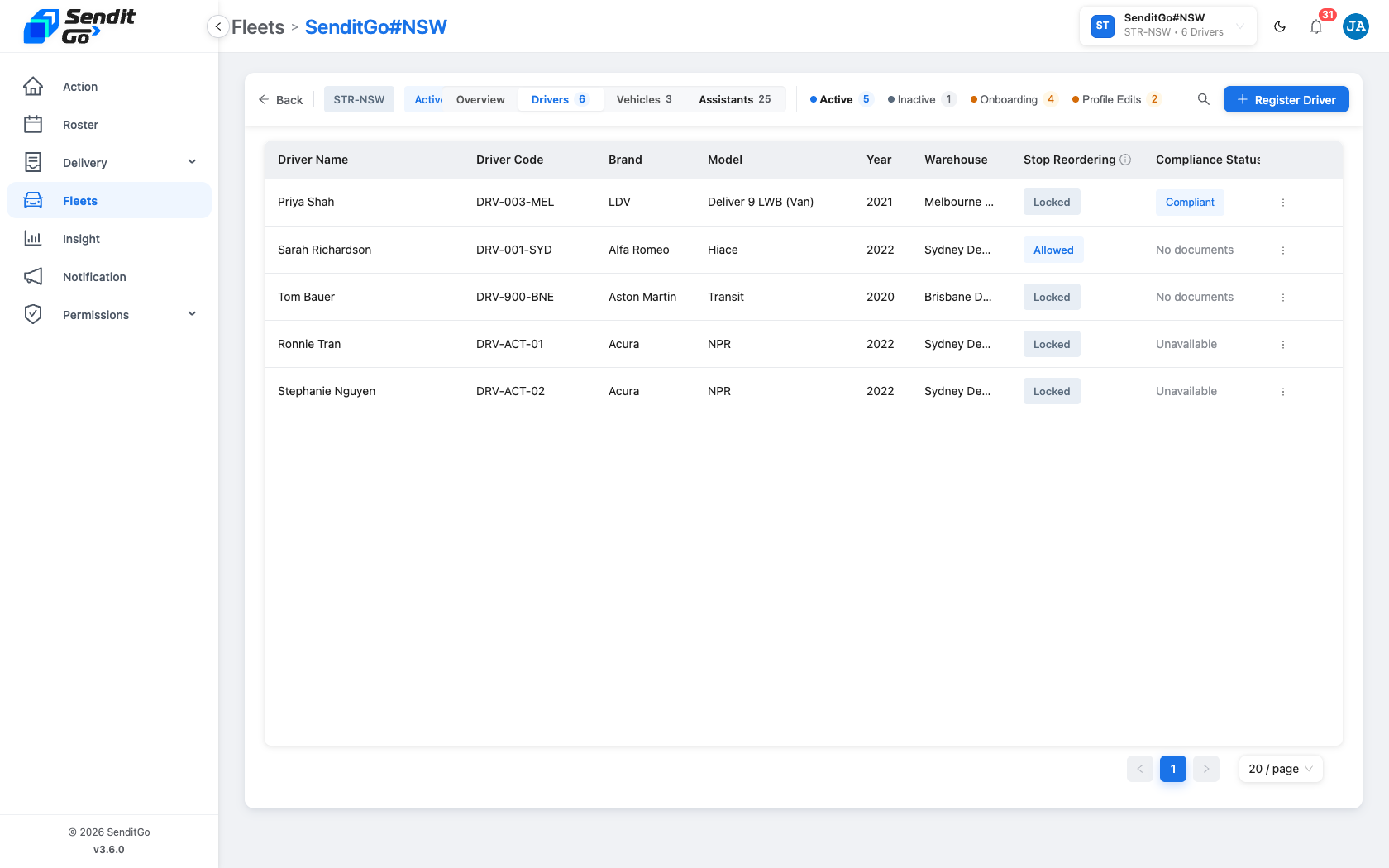
On this picture, Priya Shah, Tom Bauer, Ronnie Tran, and Stephanie Nguyen are Locked. Sarah Richardson is Allowed. The picture is the starting list. It has no marker.
The column info text reads: "When allowed, this driver can change the order of their delivery stops in the driver APP. Reordering by dispatchers is not affected."
Step 3. Open the row menu.
- When the column reads Allowed, the menu includes Lock Stop Reordering.
- When the column reads Locked, the menu includes Allow Stop Reordering.
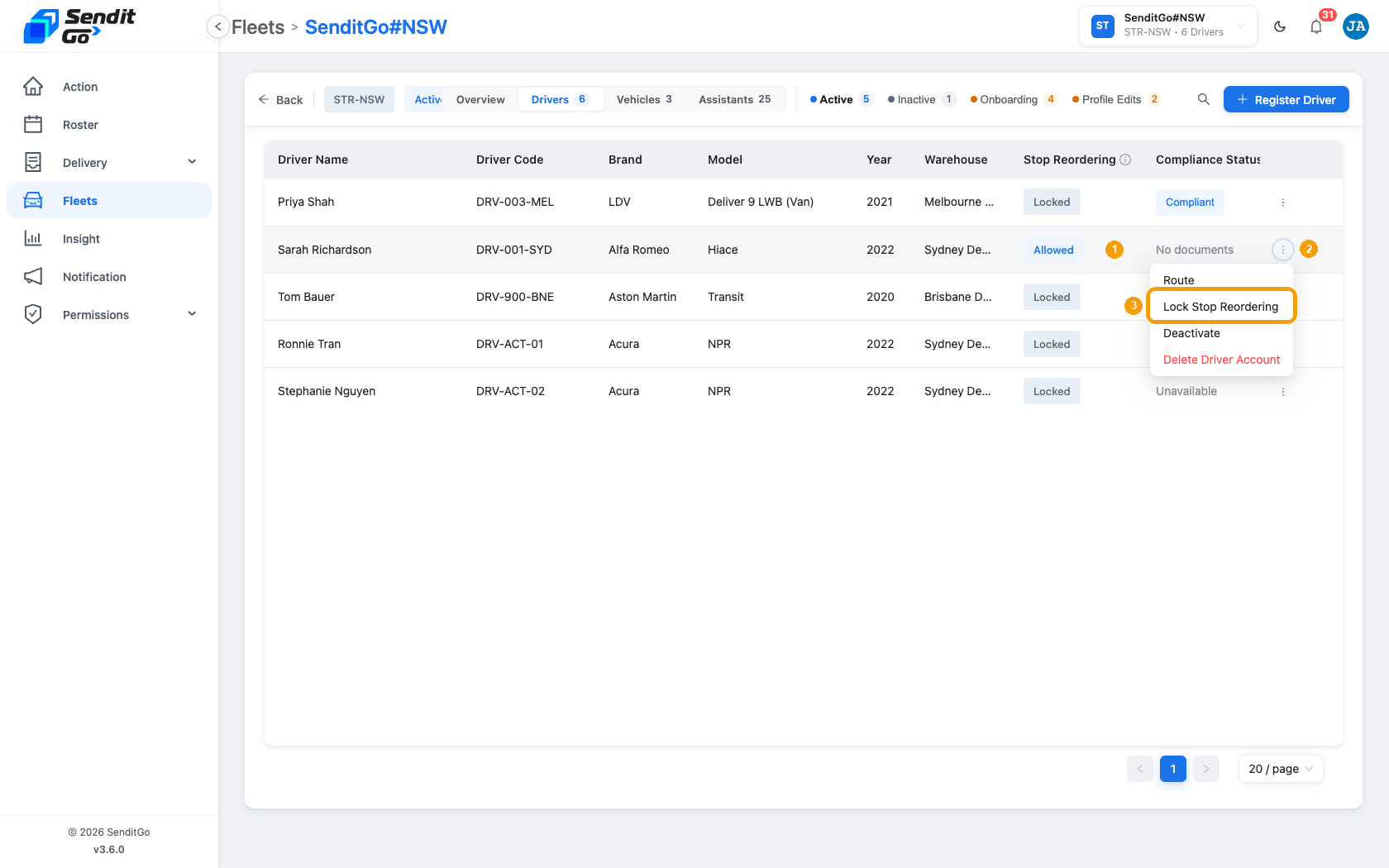
On this picture, ① is Allowed, ② is the menu button, and ③ is Lock Stop Reordering. The yellow box is on Lock Stop Reordering and does not cover the words. The other items are Route, Deactivate, and Delete Driver Account.
Result. There is no confirmation dialogue. On UAT, after Lock Stop Reordering the column reads Locked and the menu reads Allow Stop Reordering. After Allow Stop Reordering the column reads Allowed, and the screen shows Stop Reordering setting saved. That save message was seen on Allow.
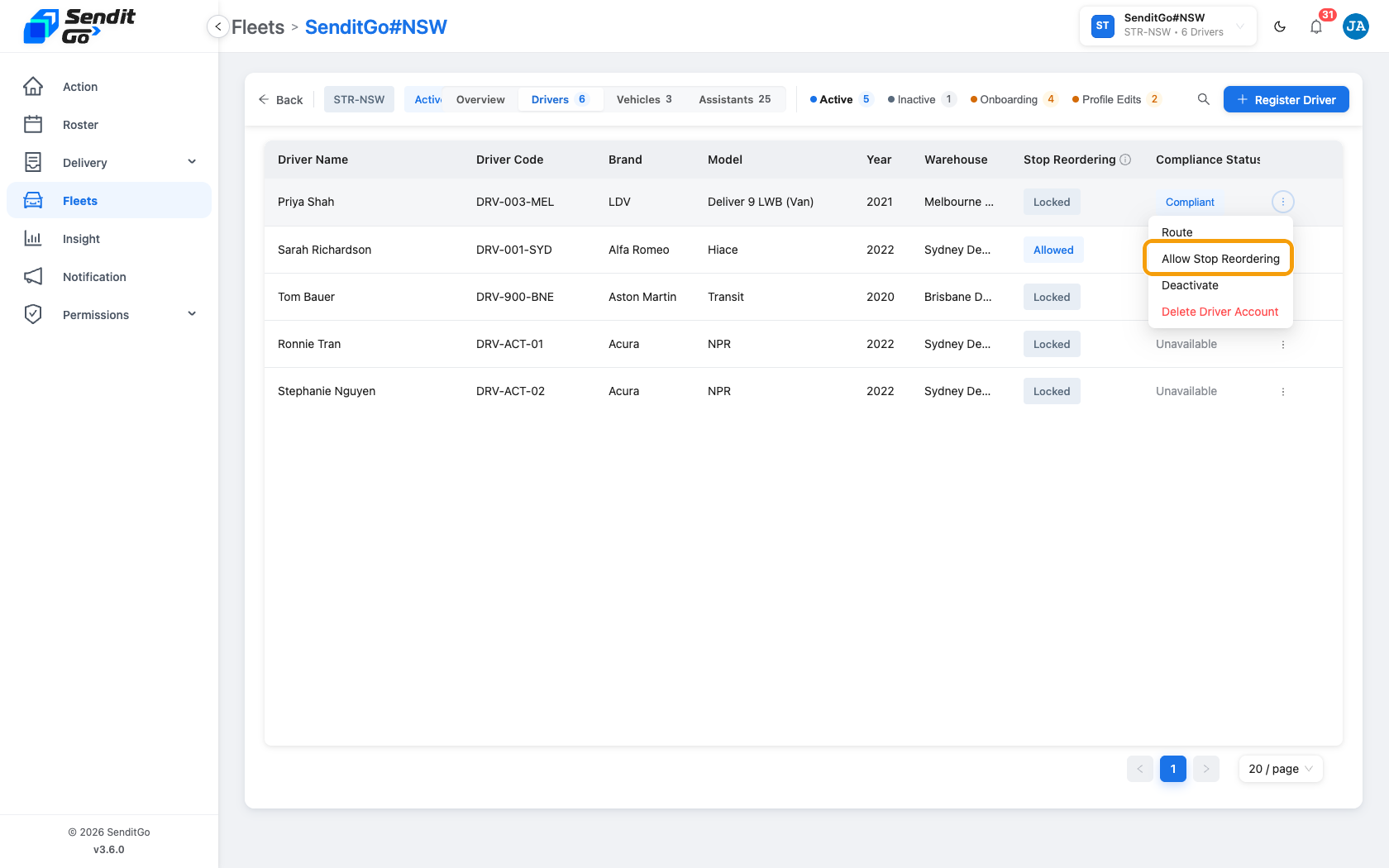
The open menu is on a row that reads Locked. Another row on this picture reads Allowed. Do not use this frame as proof that Allow Stop Reordering belongs to an Allowed row. The live rule is the one in Step 3: Allowed shows Lock Stop Reordering, and Locked shows Allow Stop Reordering.
On a driver record whose Stop Reordering is Allowed, Driver actions includes Lock Stop Reordering, next to Route and Delete Driver Account. The record does not show a switch. That record is not one of the pictures on this page. It was checked on UAT.
View Fleet Parameters is a different screen. Order Settings there is only Only accept company orders and Accept external orders.
Whether Edit or Edit Stop is hidden, disabled, or left on screen after a lock, and whether the driver must refresh the route, has not been checked on a phone.