Create an account
Create a driver account, link it to the correct fleet, and submit your licence, vehicle, and insurance details for review. Each screenshot identifies its platform; follow the step-by-step instructions alongside.
Where to find it: your phone's home screen → SendItGo (app icon) → Welcome aboard. → Create Account.
Before you start
- Ask your fleet for its current Fleet Code.
- Make sure you can receive codes on the mobile number and email address you will register.
- Prepare your driver licence, a clear profile photo, vehicle registration details and photos, and current insurance documents.
- Use a stable connection while verifying your contact details and uploading documents.
Step 1: Verify your mobile number
Fill in your mobile number on the app's Welcome aboard. screen, then enter the code from the SMS. The app moves you on automatically once the code is verified.
On this step: SendItGo (app icon) → Welcome aboard. → Create Account.
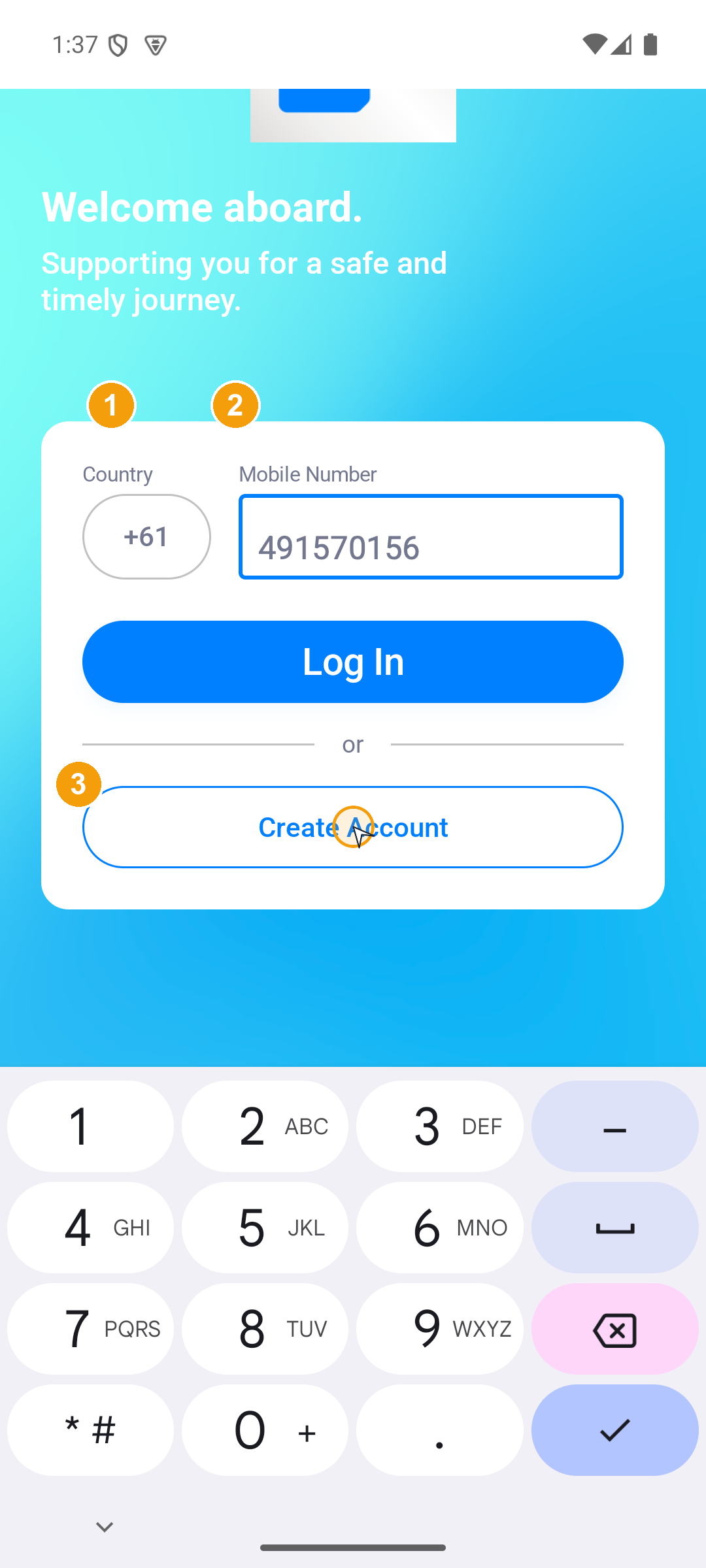
Submit your mobile number
- Country: pick the correct country code (for example +61 for Australia).
- Mobile Number: enter your local mobile number without repeating the country code.
- Create Account: tap the Create Account button below to request the code. If you already have an account, use the blue Log In button above instead.
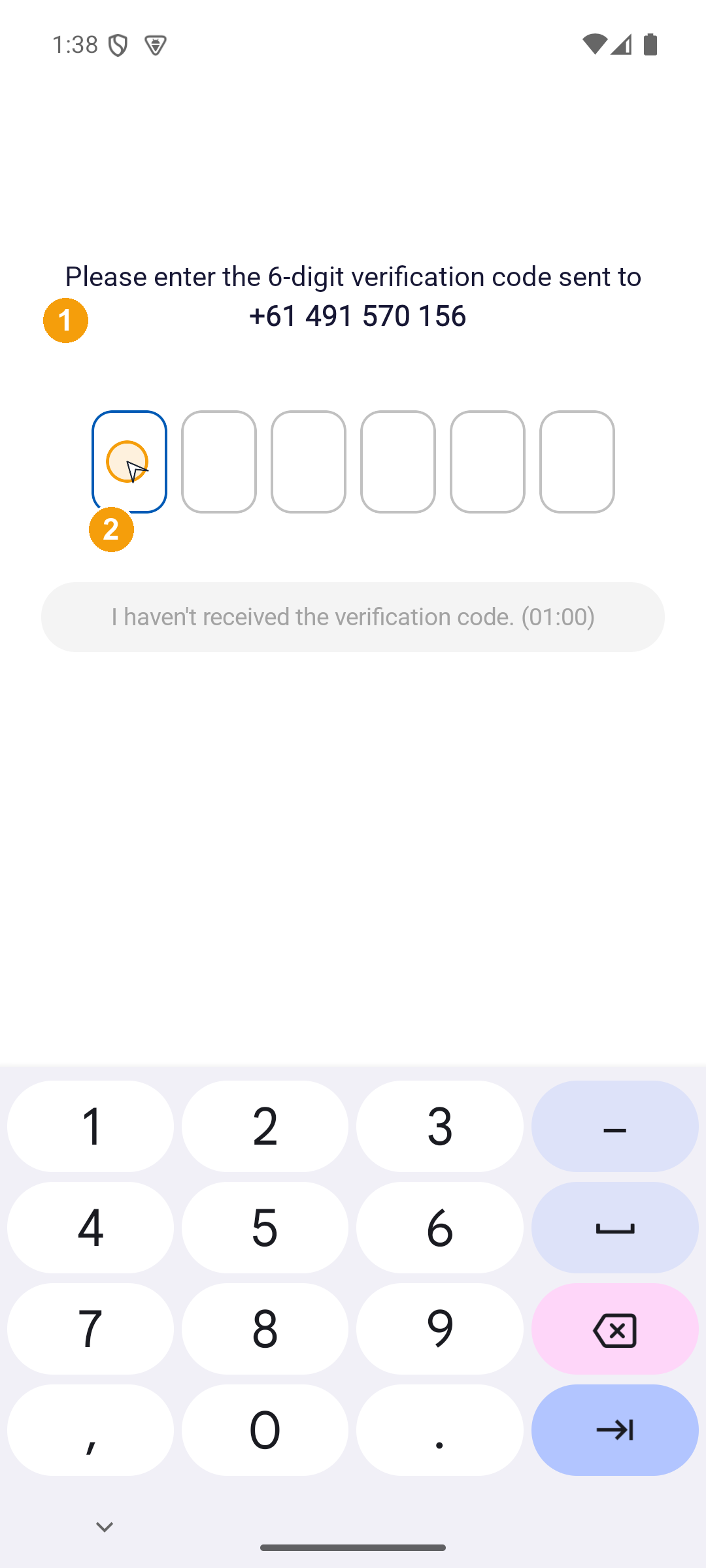
Enter the 6-digit SMS code
- Check the mobile number: confirm the number shown on screen matches the one you just entered.
- Enter the 6-digit code: start typing in the first box; the app verifies automatically once all six boxes are filled. If the SMS does not arrive, wait for the I haven't received the verification code. countdown to finish, then request a resend.
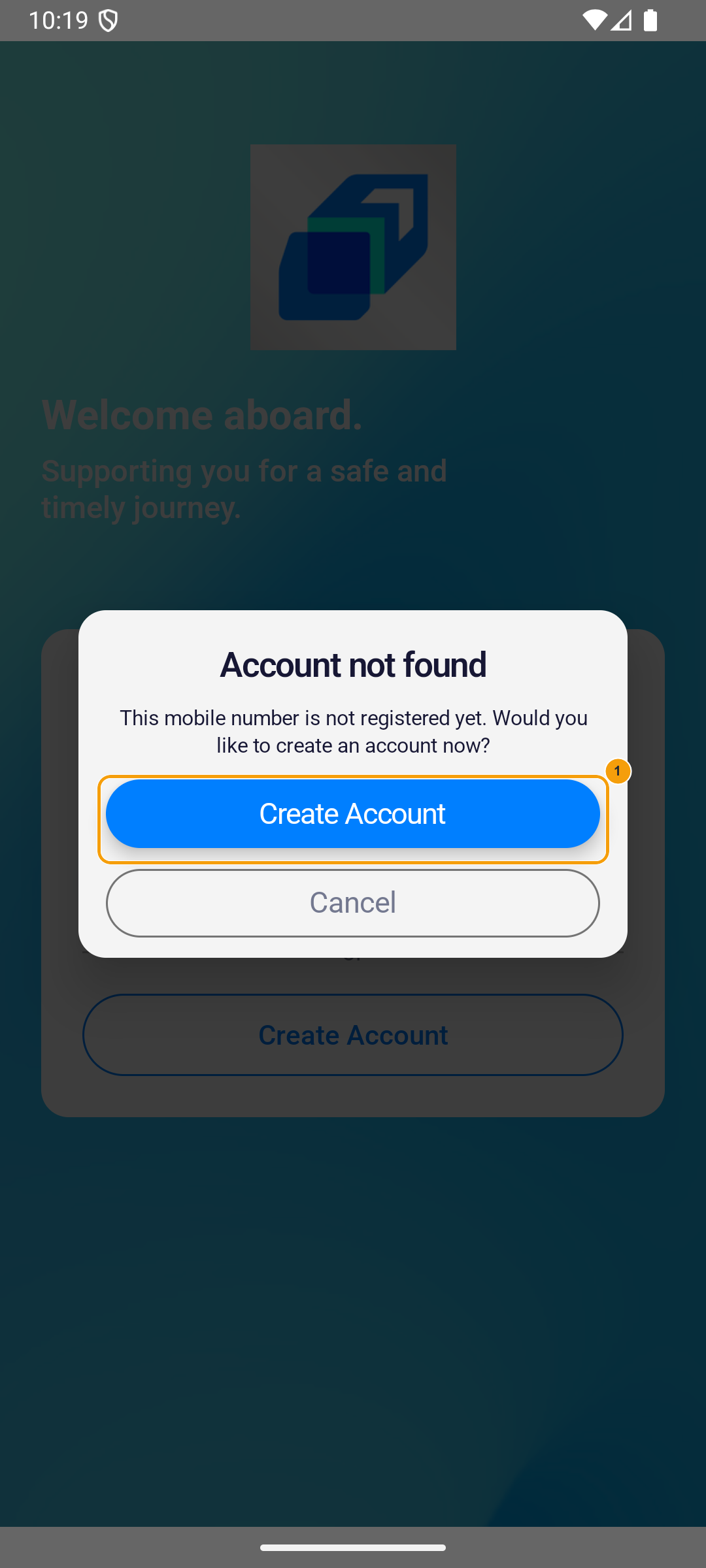
If the "Account not found" dialog appears
- Tap Create Account inside the dialog to start a new registration. Do not start a second parallel registration.
Step 2: Link your fleet
After your mobile is verified, use the Fleet Code your fleet gave you to confirm which fleet to join. Choose I belong to a Fleet / Company on the Driver Type screen, and the app takes you to Link to Fleet.
On this step: The screen after mobile verification → Driver Type → Link to Fleet.
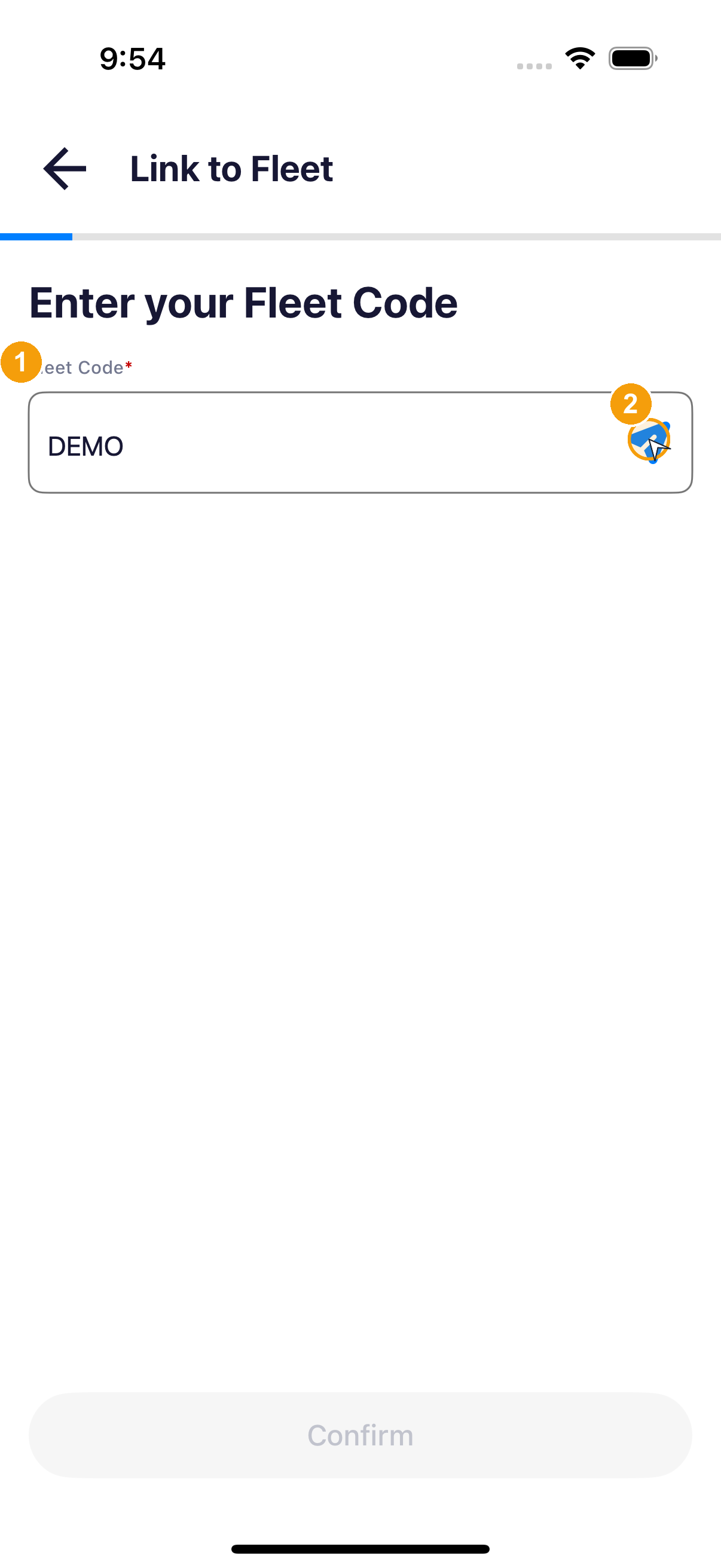
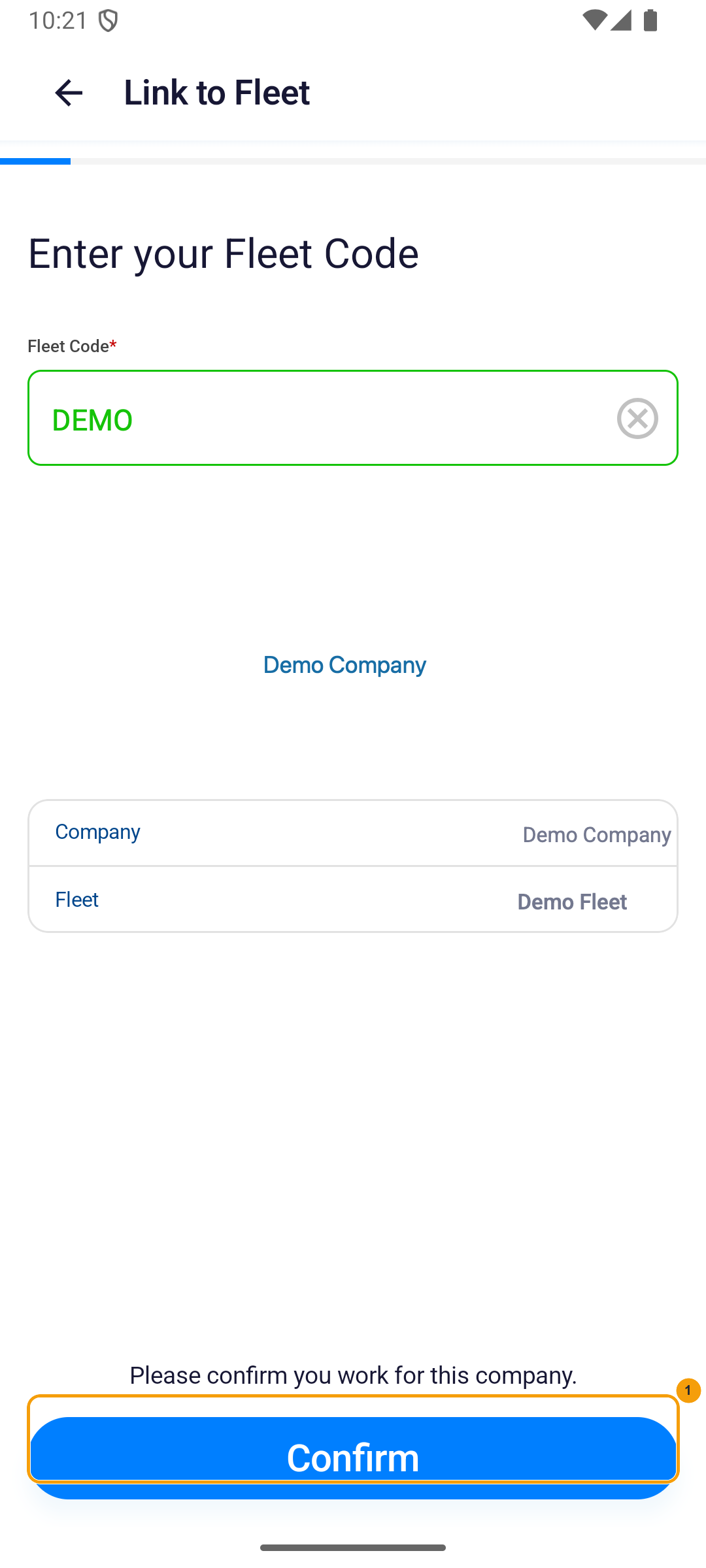
Enter the Fleet Code and search
- Fleet Code: enter the code your fleet gave you (for example DEMO).
- Search arrow: tap the arrow on the right of the field. The app looks up the matching company and fleet.
Check the company details before confirming
- Check company and fleet details: this picture shows Demo Company and Demo Fleet. There is no company logo, and no badge on that text.
- Confirm: the orange badge is on the blue Confirm button. This sample did not tap it.
Do not guess or reuse another company's Fleet Code. If the code isn't found or the displayed company is wrong, stop and ask your fleet for the correct code.
Step 3: Verify your email
After the fleet link succeeds, the app prompts you to verify your contact email. The document sections stay locked until this is done.
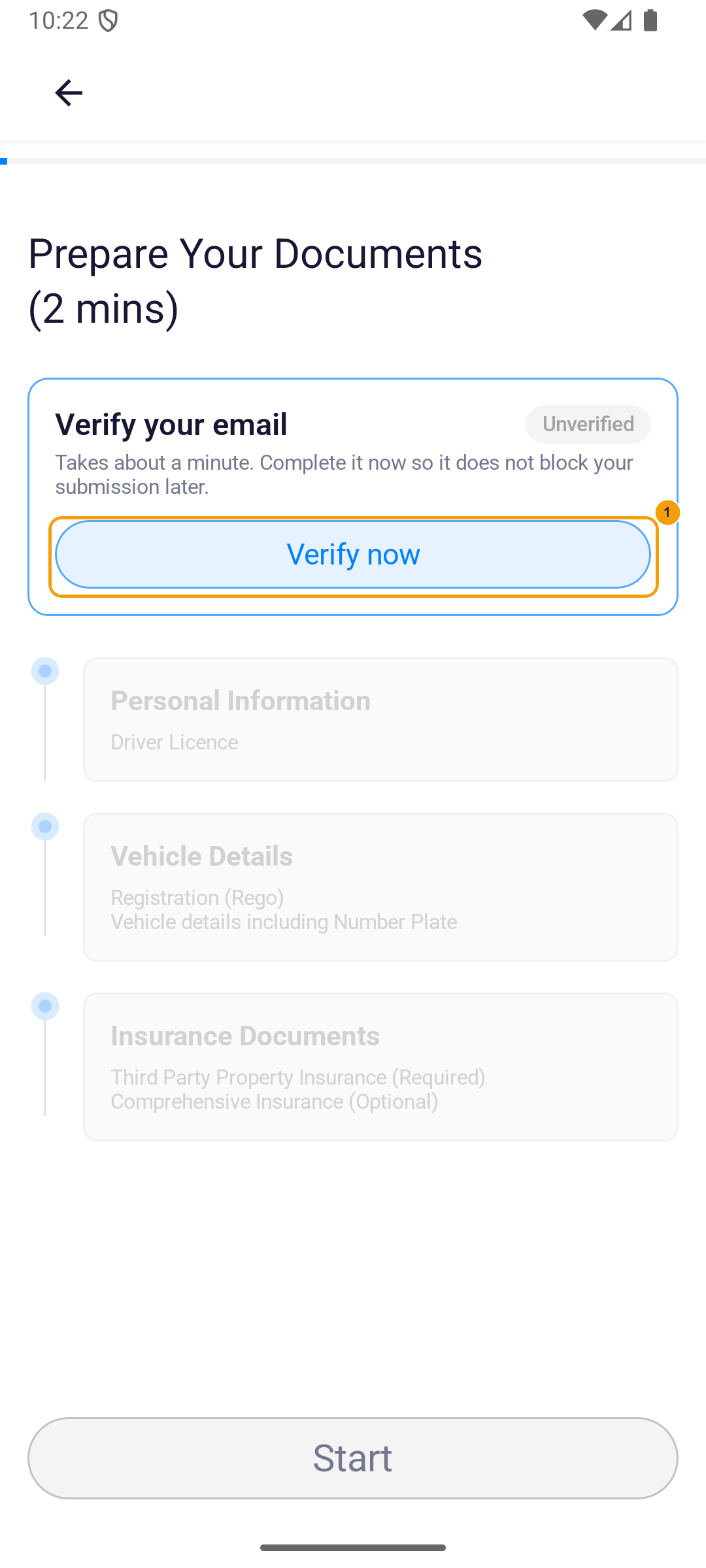
On this step: Prepare Your Documents after linking your fleet → Verify now.
Open the email verification sheet
- Tap Verify now on the Verify your email card to open the verification sheet.
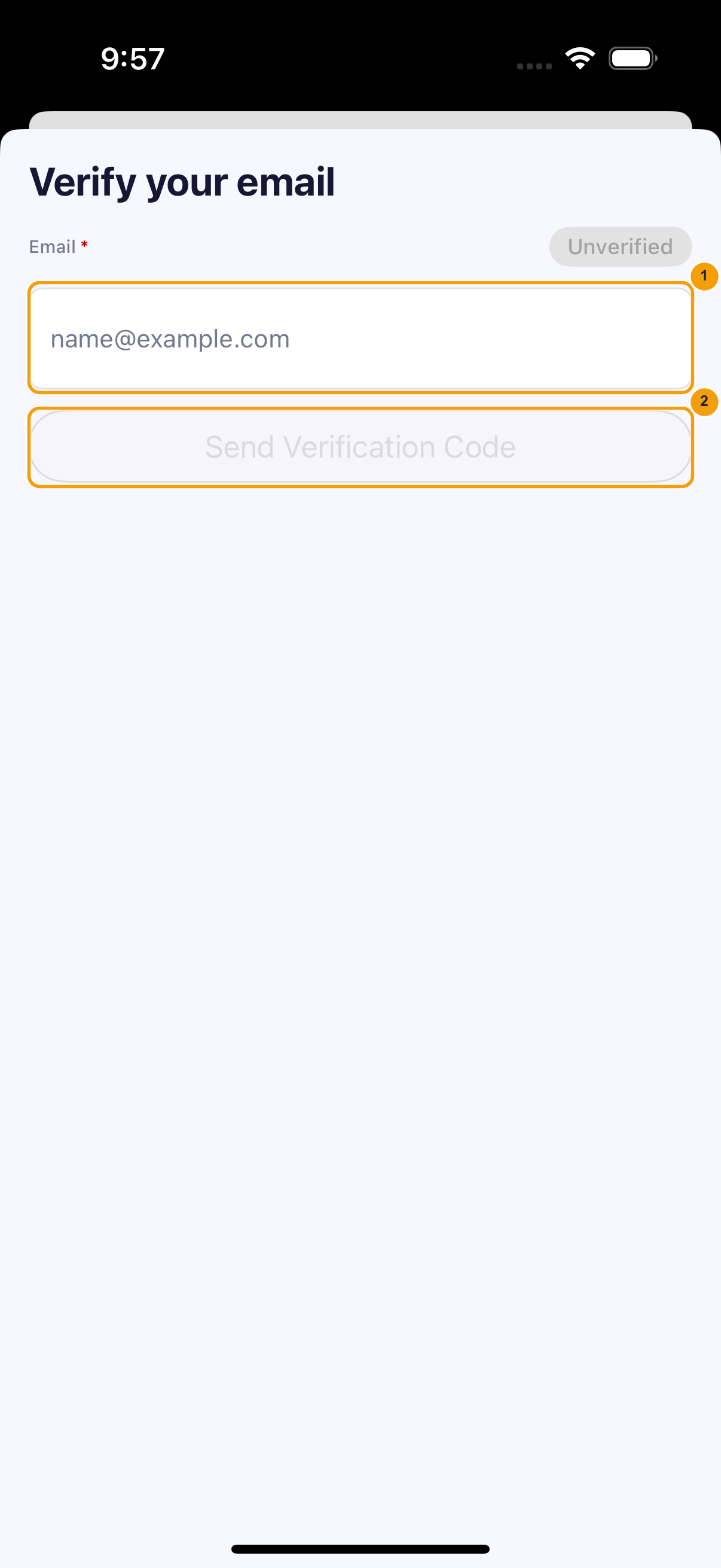
Send the verification code
- Email: enter the email address you can actually access.
- Send Verification Code: tap the button to send. The code arrives in your inbox – bring it back and type it into this sheet. If the code doesn't arrive, check the spam folder before requesting another one.
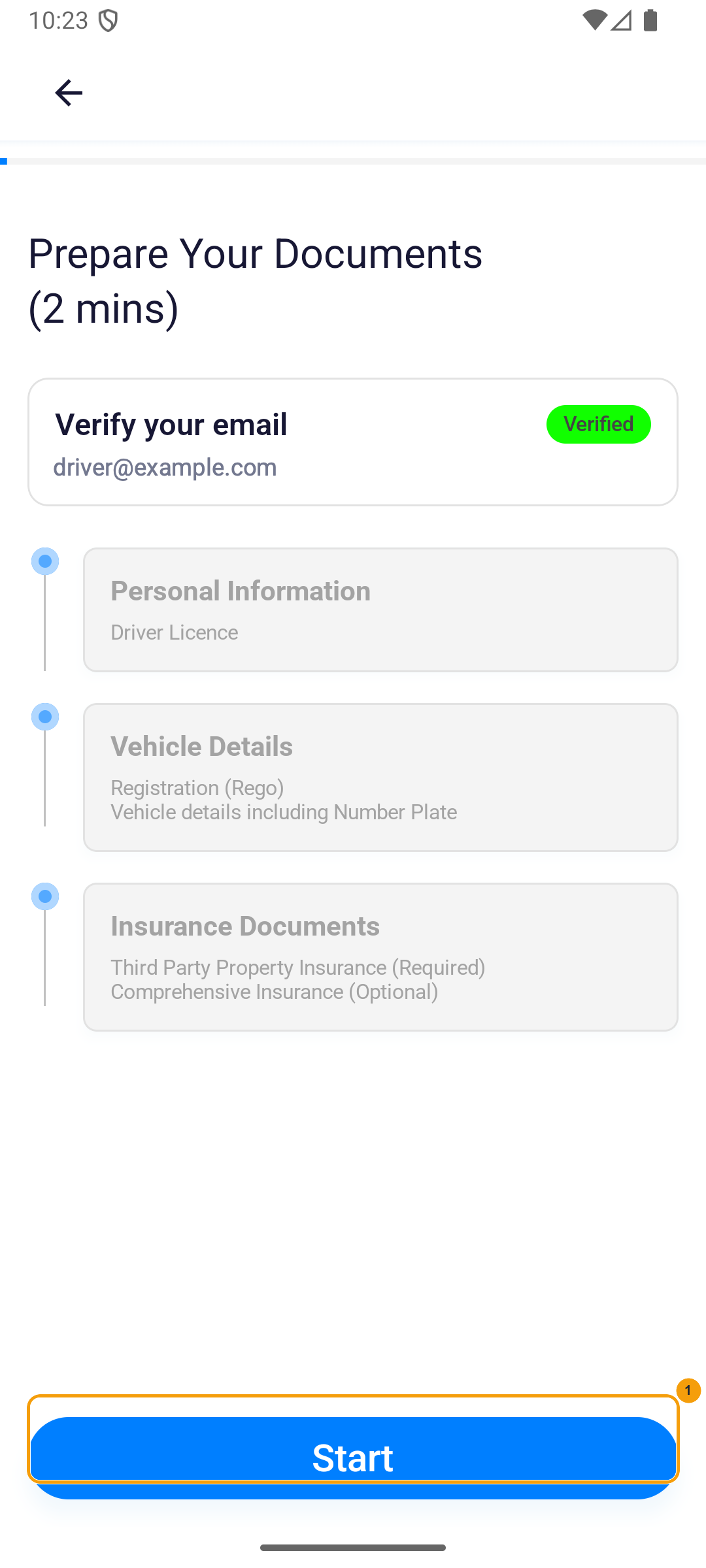
Unlock the document sections
- Once the email card shows Verified (green), tap Start at the bottom to unlock and enter the document sections.
Step 4: Complete the three document sections
Open Personal Information, Vehicle Details, and Insurance Documents in turn from the registration summary. If the app reads a document for you, compare every pre-filled value with the original before saving.
On this step: Prepare Your Documents summary → tap Personal Information / Vehicle Details / Insurance Documents in turn.
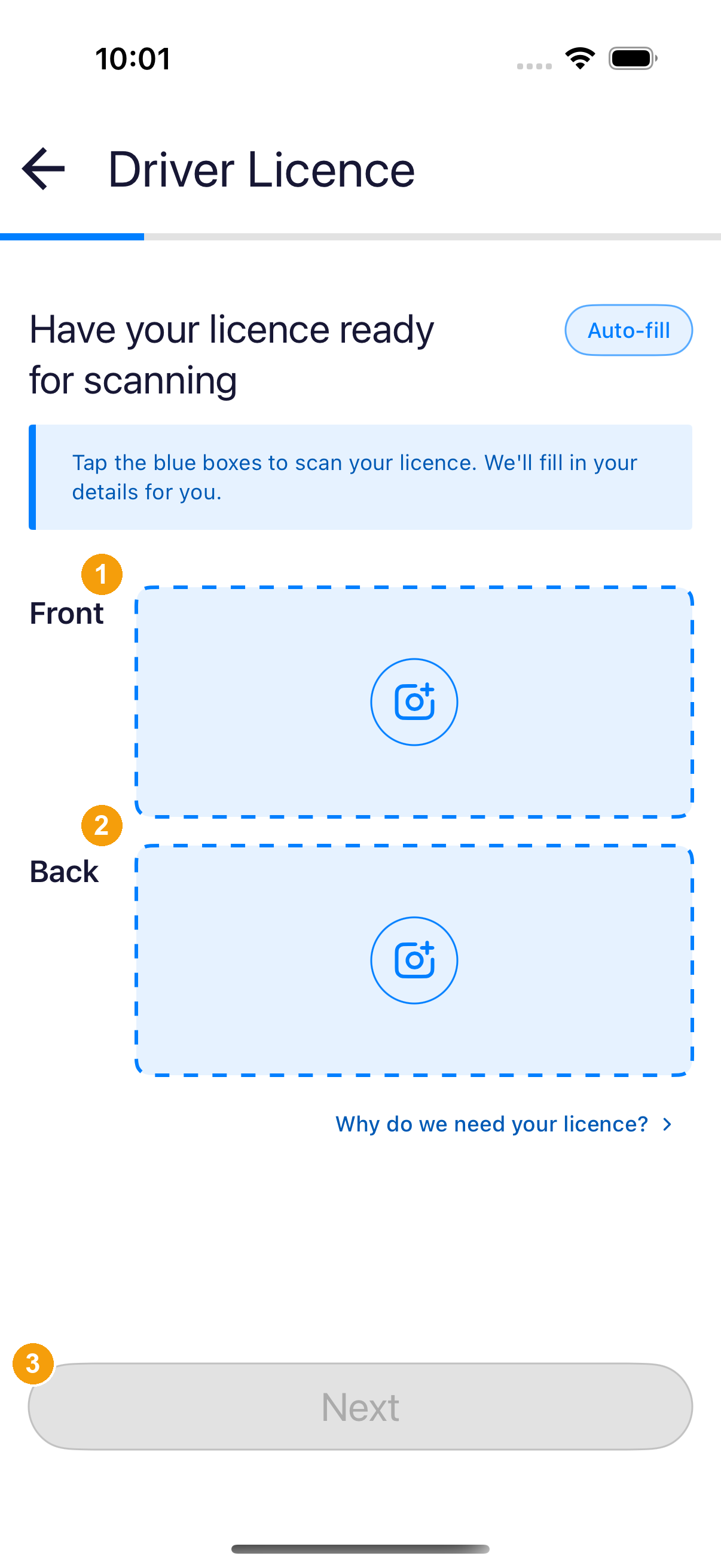
Upload both sides of your driver licence
- Front: tap the blue Front box to capture or upload the front of your driver licence. Keep all four corners visible and avoid glare.
- Back: tap the Back box below and repeat for the back side of the licence.
- Next: enabled once both sides have uploaded. Tap Next to move on to the licence-details form.
Check Personal Details and continue
- Done: after checking all three groups on Personal Details, tap Done at the bottom-right to return to the registration summary. If the button is greyed out, a required field, the birthday, or ABN hasn't passed validation – scroll up and check.
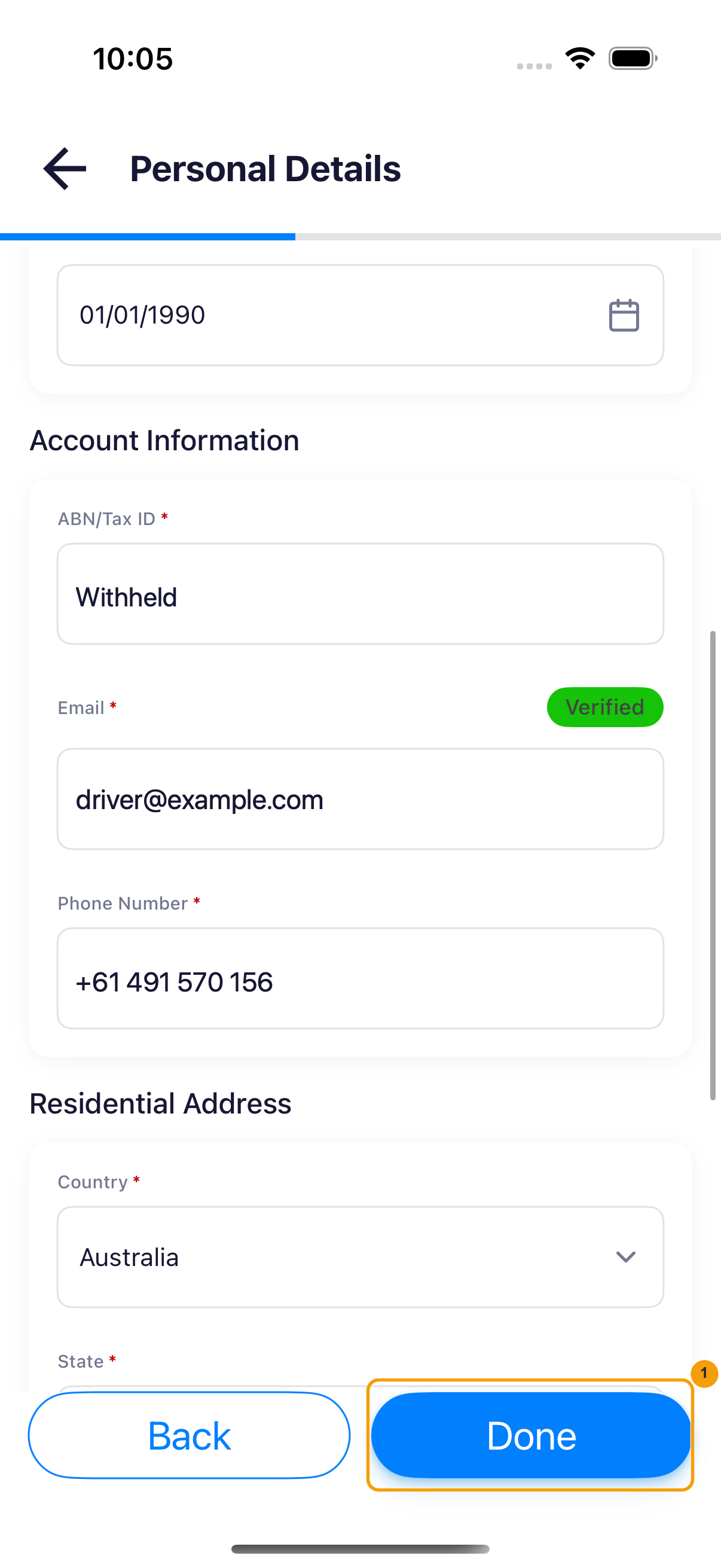
The three groups to check on Personal Details
Driver Licence requires Card Number, Licence Number, Expiry Date, and Licence Class. Card and licence numbers are separate fields. Check recognised values against both sides of the document.
Scroll through all three groups on Personal Details. This table lists what each group requires and what to watch out for:
| Group | Fields and actions |
|---|---|
| Name and birthday | Complete First Name, Last Name, and Date of Birth. Add Middle Name if applicable. The birthday must be earlier than today. |
| Account Information | Enter your own ABN/Tax ID, which must pass the 11-digit check. Email displays the verified address and Phone Number displays the verified mobile; neither is directly editable on this registration form. |
| Residential Address | Choose Country → State → Suburb / City, then complete Post Code and Address Line. Recheck dependent selections after changing a region. |
Email verification belongs to the earlier registration summary. To replace the address, return to its verification sheet, tap Change email and verify again. There is no send-code action on Personal Details.
If Done is unavailable, check required fields, birthday, ABN, and region selections. If the app returns to an earlier document with an expiry warning, update that document before continuing. Withheld in a legacy image is a privacy redaction, not an accepted ABN value.
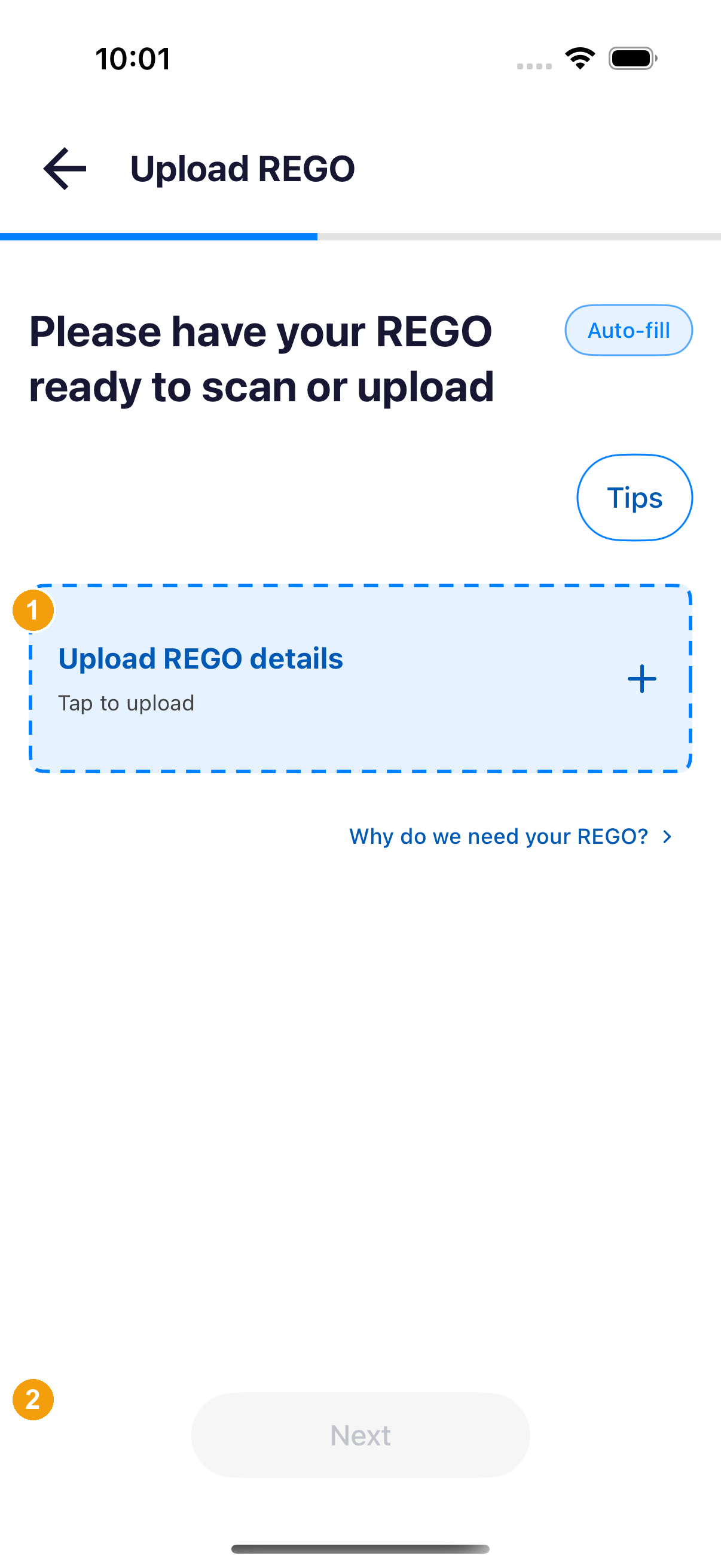
Upload the vehicle registration (REGO)
- Upload REGO details: tap the blue dashed area to capture or select the vehicle registration document. Wait for the thumbnail and progress bar to finish.
- Next: enabled once the upload completes. Tap Next to move on to the vehicle details and cargo capacity forms.
Vehicle Information fields to check
- Under Review and complete vehicle info, check the owner's First Name and Last Name, adding a middle name if applicable.
- Check Date of Mfg and Rego expiry date, then add required Vehicle Inspection Photos.
- Check Number plate, Make, Model, Year, VIN, and Vehicle Colour. Choose the make before the model. Use Enter Vehicle Model if the model is missing.
- Tap Next to move on to Cargo & Capacity. Resolve any expired or expiring-document warning before continuing.
Cargo & Capacity fields to fill in
- Under Internal Dimensions, enter internal length L, height H, and width W in centimetres.
- Enter Payload Capacity (kg). Dimensions and capacity must be greater than zero. Capacity means cargo load, not total vehicle weight.
- Select applicable Special Equipment.
- Choose Fuel Type. Enter Rated Energy Consumption (Wh/km) for an electric vehicle, or Rated Fuel Consumption (L/100km) for other fuel types. The value must be greater than zero.
- Tap Done to return to the summary. Check REGO specs opens an external reference website; it does not complete the form.
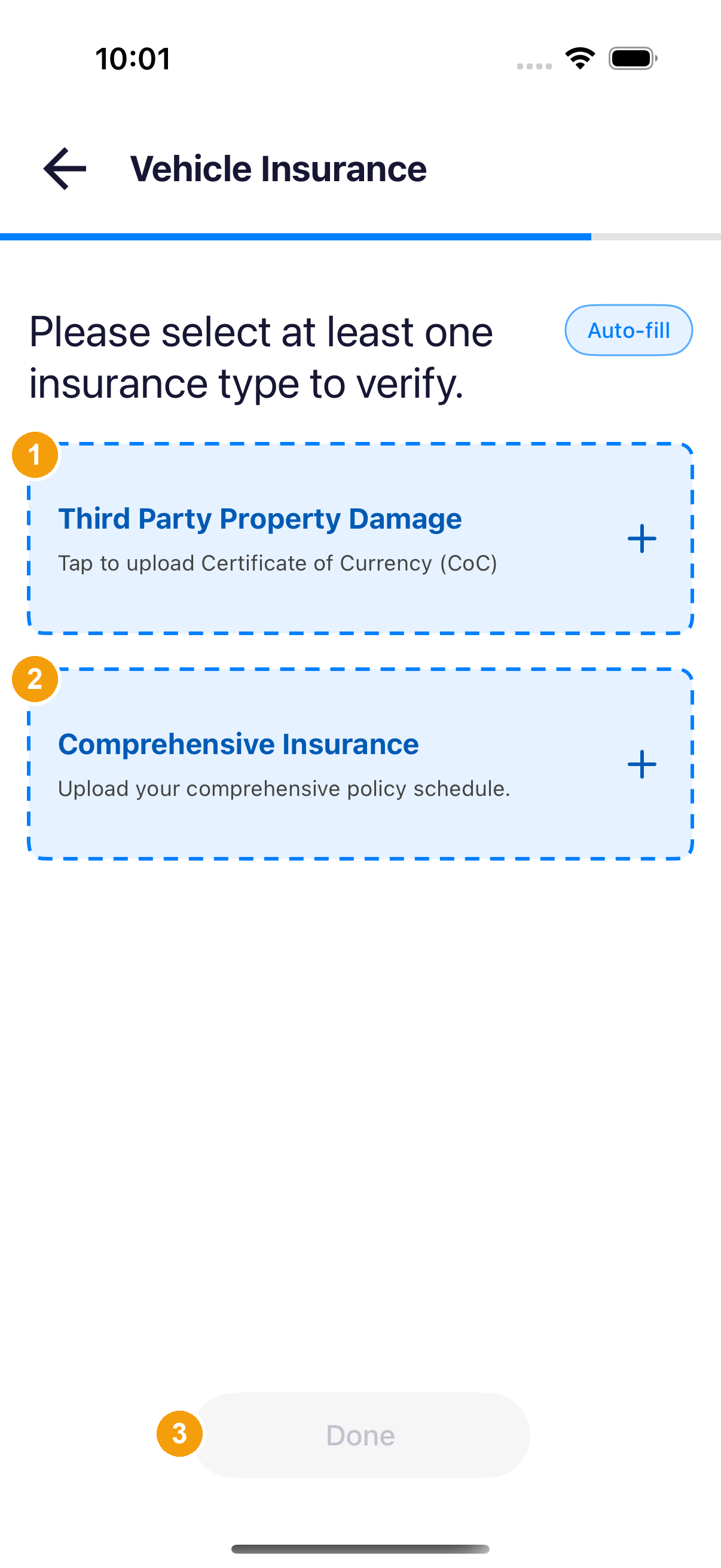
Upload insurance documents
- Third Party Property Damage: tap the blue dashed area to upload the document and complete required fields such as Policy Number and Expiry Date.
- Comprehensive Insurance: if your fleet requires it, upload the comprehensive policy document as well and check its policy number and expiry date.
- Done: enabled once every required policy uploads and shows Uploaded. Tap Done to return to the summary. Resolve expiry warnings rather than changing dates to bypass them.
Step 5: Review details, read the terms, and submit
After completing all three document sections, finish the final checks and consent on the same registration summary, then submit for review.
On this step: Prepare Your Documents summary → agreement block at the bottom of the page → Submit.
Check that all three sections are complete
- Confirm the email card shows Verified and that Personal Information, Vehicle Details, and Insurance Documents each show a green check.
- If any detail differs from your current documents, open that section to correct it, then return to the summary.
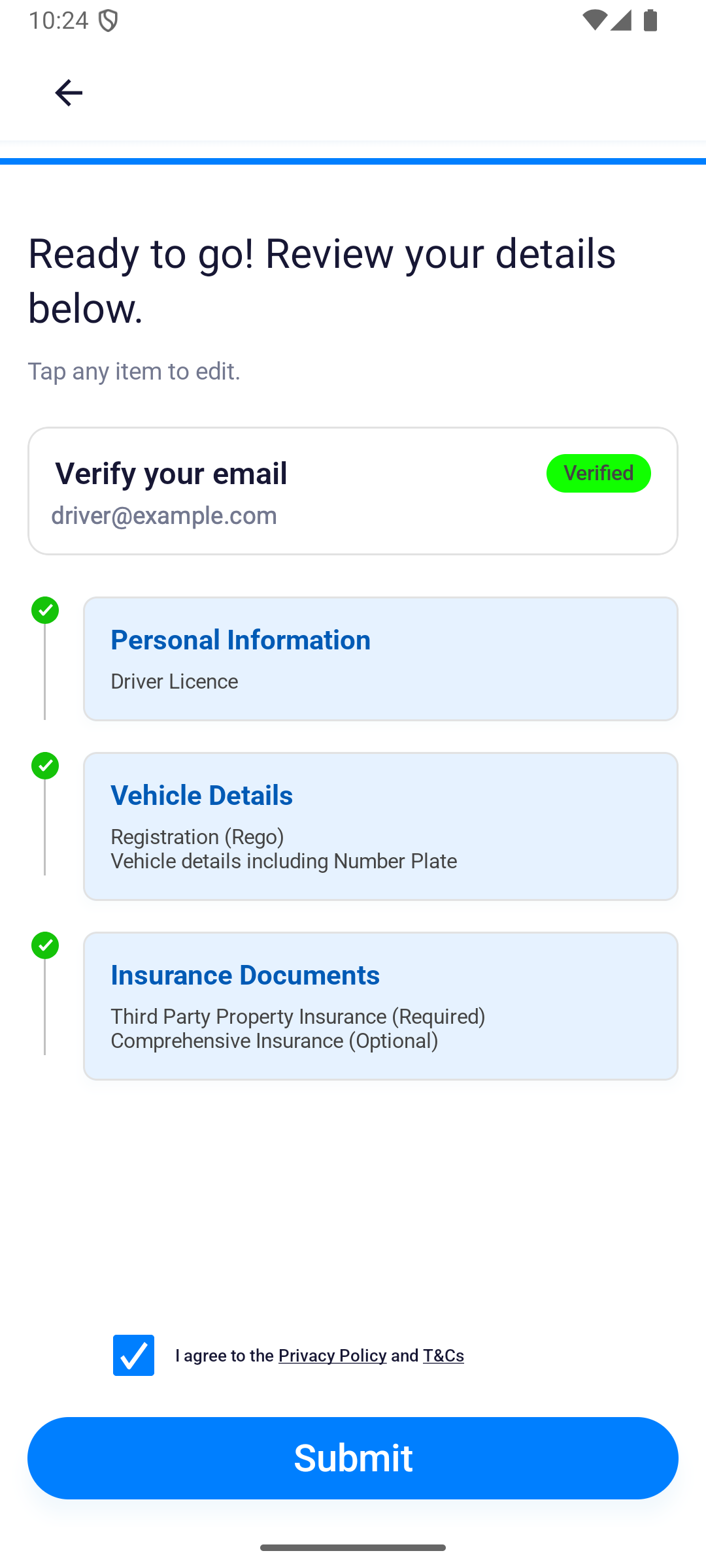
Read the Privacy Policy and T&Cs
- Tap Privacy Policy and read the document, then tap Done to close it.
- Tap T&Cs, read the terms, then tap Done to close them. Use the versions currently displayed in the app.
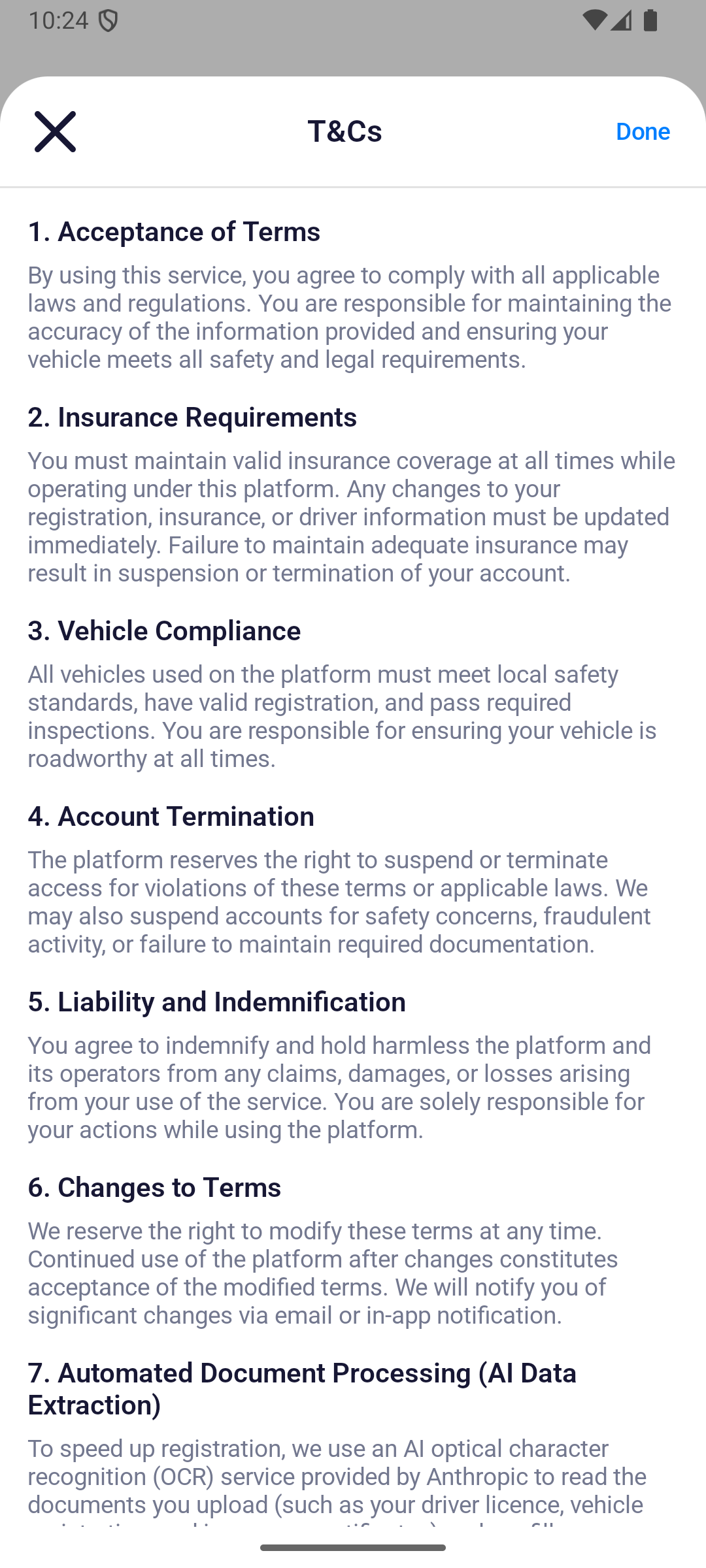
Select the agreement checkbox
- Select the box beside I agree to the Privacy Policy and T&Cs. Opening or closing a document does not select the checkbox for you.
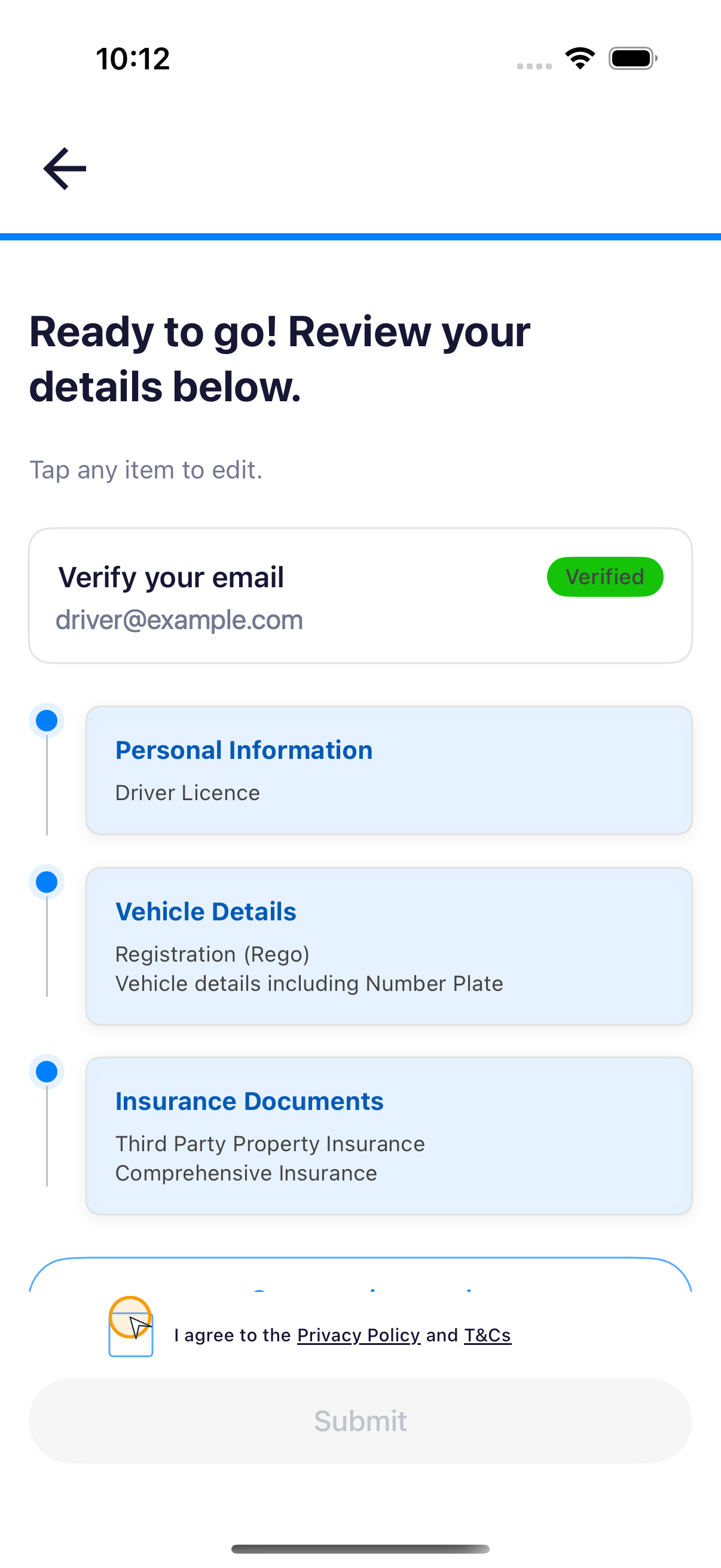
Submit and confirm the review status
- Once Submit turns blue, tap it once. The button only enables after all three sections are complete and the agreement is selected.
- While Submitting appears, wait without closing the app or tapping again.
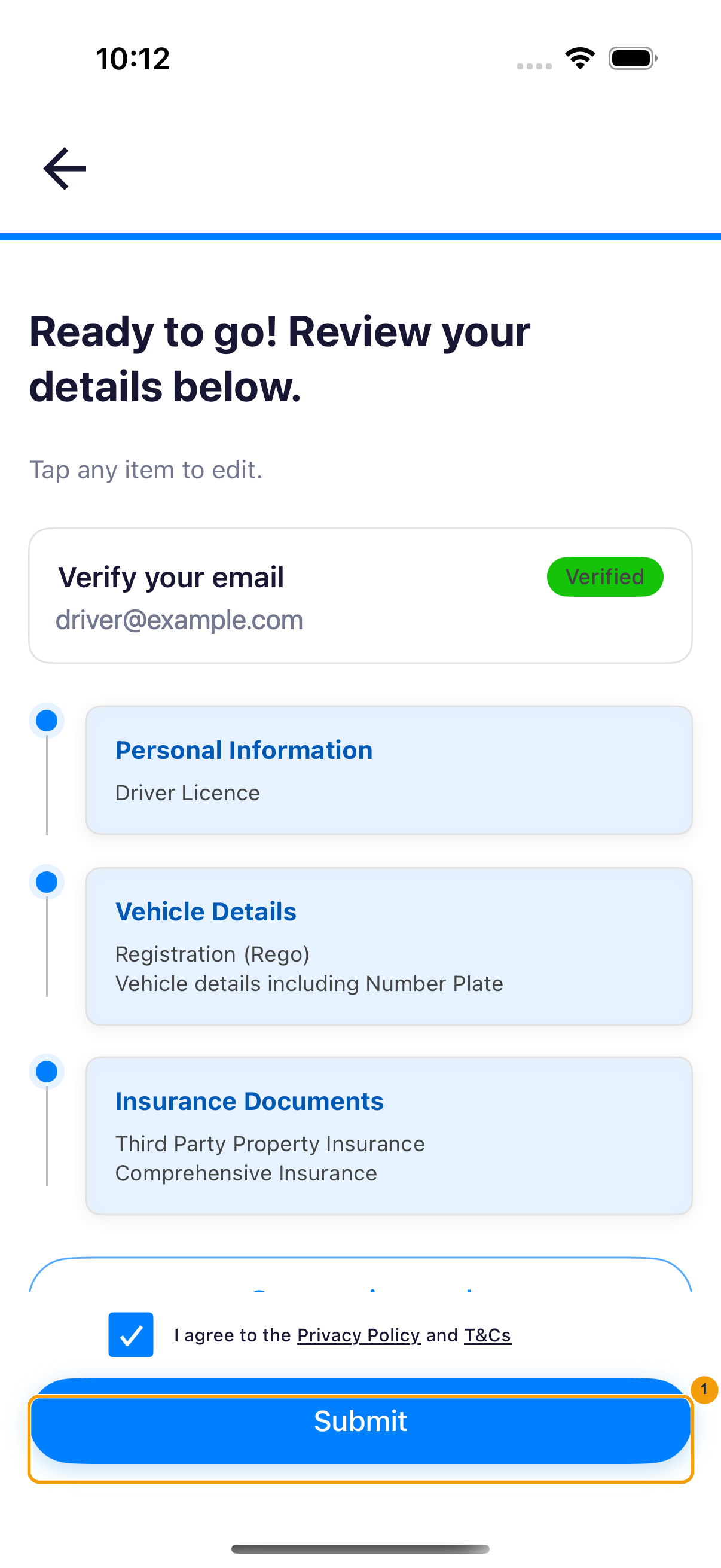
The Profile frame
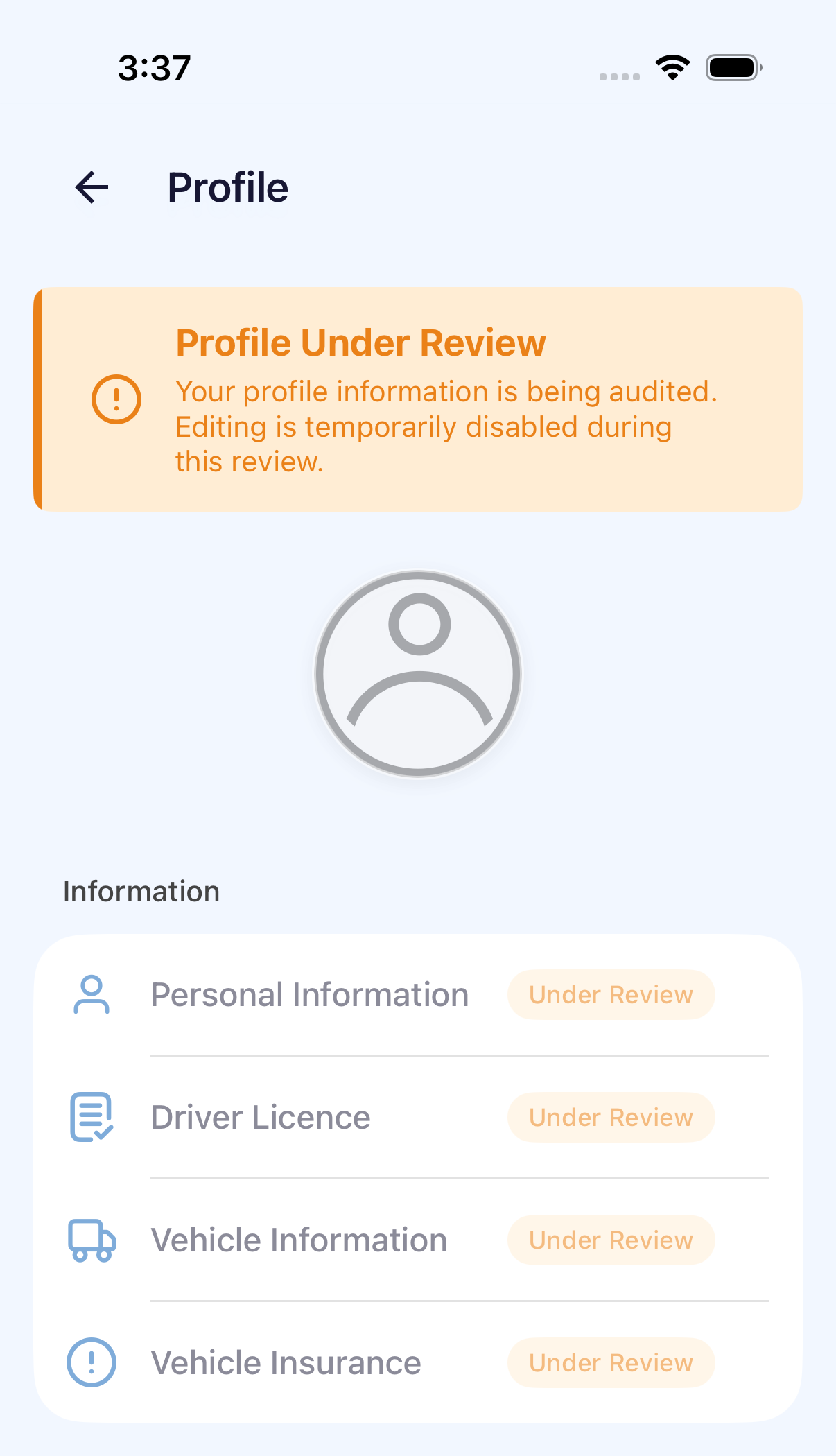
- This frame reads Profile Under Review and Your profile information is being audited. Each section is tagged Under Review. Verification in Progress and Your details are being reviewed. are not on this frame.
- Submit on the previous screen was not tapped in this sample, so this frame is not a recorded result of that tap.
If Submit is unavailable or submission fails
- Check that all three document sections are complete. Resolve missing fields or documents in their section first.
- Check email verification. If the app requests verification again, complete it first.
- Confirm that you have read the documents and separately selected the agreement.
- If Submitting appears, keep waiting. If an error appears, follow it to correct details or restore the connection before retrying.
- This sample did not tap Submit, so a submitted registration was not recorded.
Resume an unfinished registration
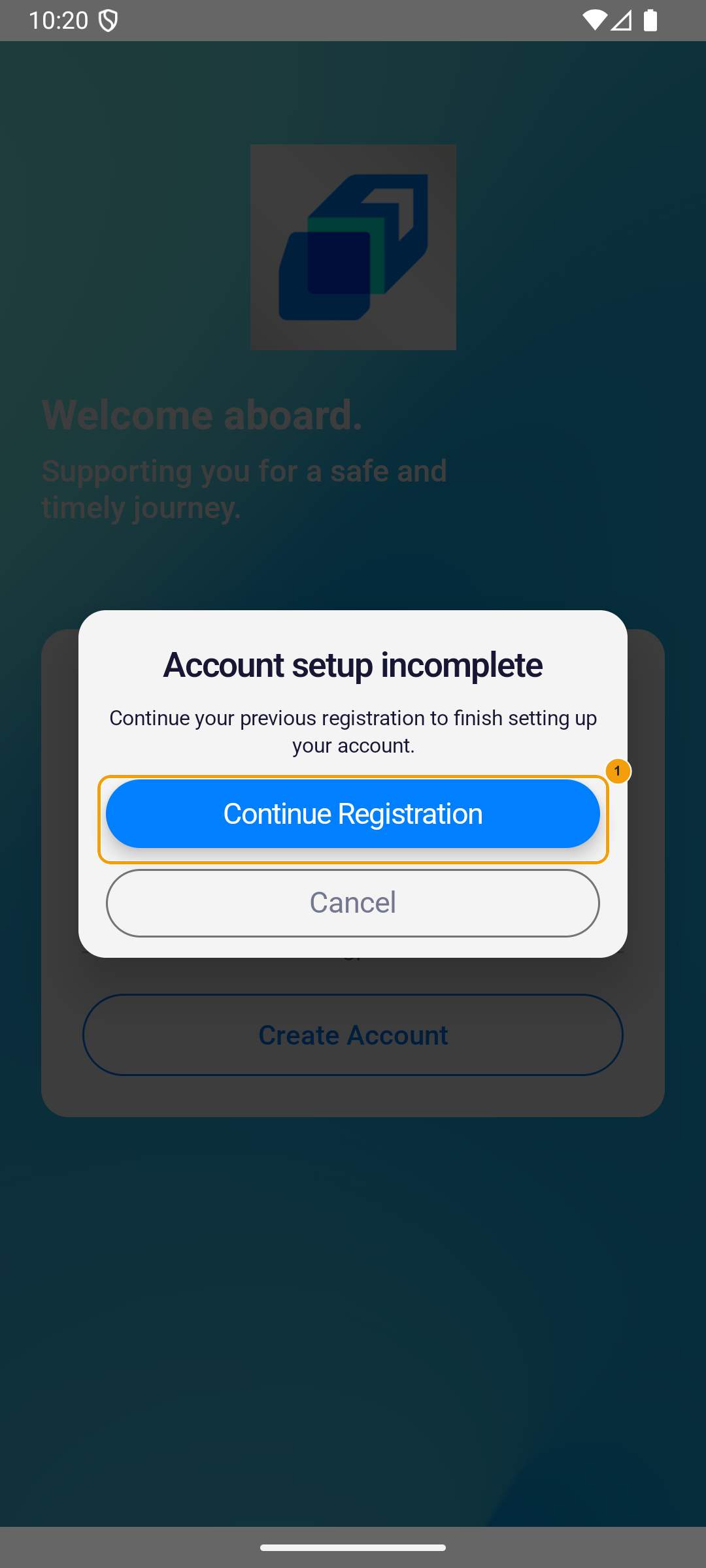
If you leave before submitting, reopen the app on the same device and use the same mobile number.
- When Account setup incomplete appears, tap Continue Registration to resume the existing registration rather than starting a new one.
Interrupted verification or upload
- Document sections and Start / Continue remain unavailable until email verification is complete. Use the email card on the summary.
- If verification expires, follow Verify again or the new-code prompt. Use the latest code received.
- If verification is temporarily locked, wait as instructed instead of repeatedly requesting codes.
- Restore the connection and retry unfinished or failed uploads. A thumbnail alone does not mean the section is complete.
The profile frame shows Profile Under Review. Submit was not tapped in this sample.
What the dispatcher sees after you submit
The console picture shows the application list, including Action required and Waiting on driver, and one open application. It does not show a row created by the Submit above. That Submit was not tapped, and approve, request changes, and reject were not used.
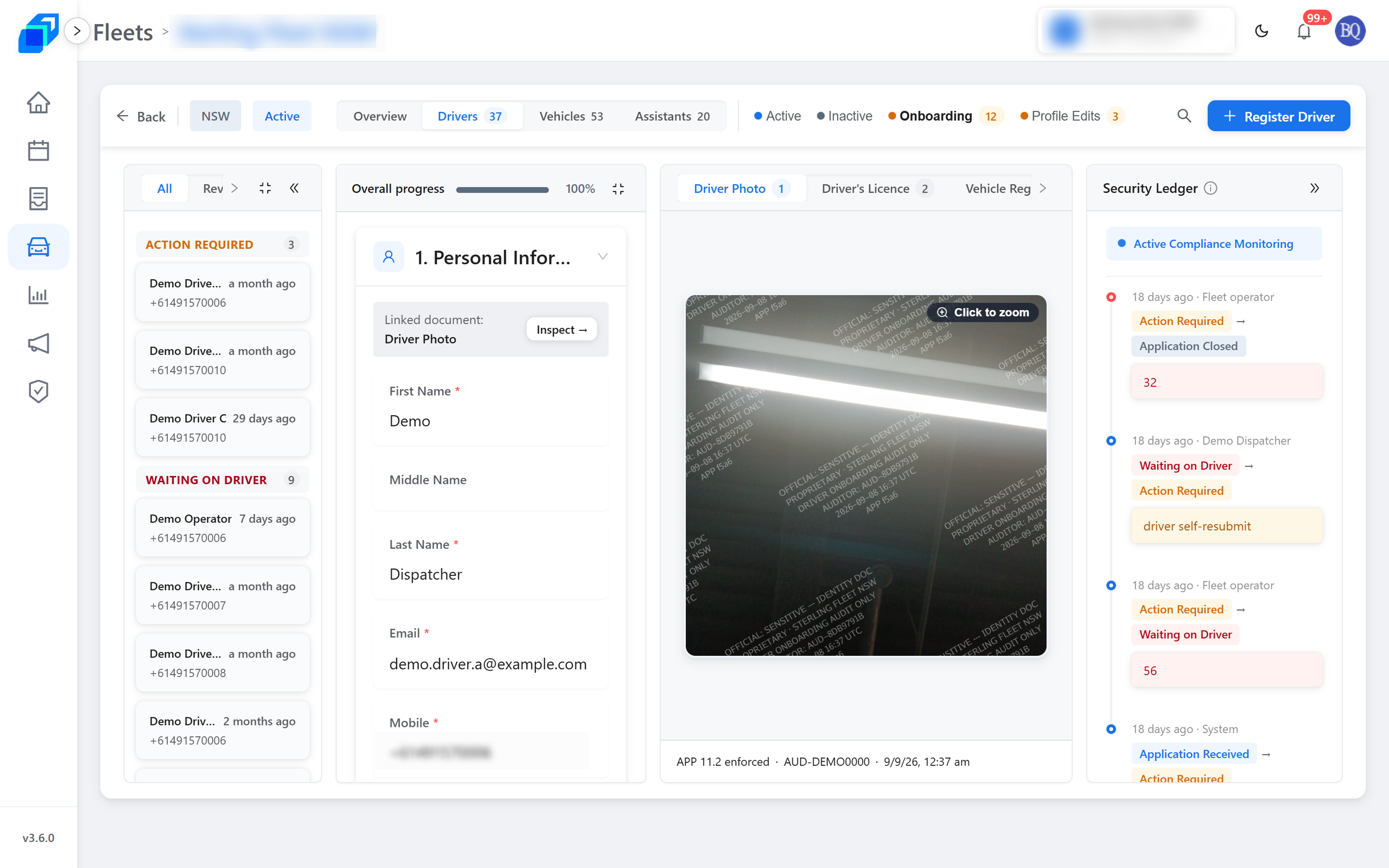
Full details: the Carrier Console review flow is in Review driver applications.
Next steps
- Account waiting or blocked: if you've already submitted, follow your current status to know what's next.
- Log in to the app: once your account is approved, sign in with the same mobile number to start working.