Complete a stop and route
Complete the scans, photos or signature required at the stop, then wait for the app's completion screen before moving on.
Where to find it: current stop › complete the required tasks › Stop Complete!.
Move to the next stop
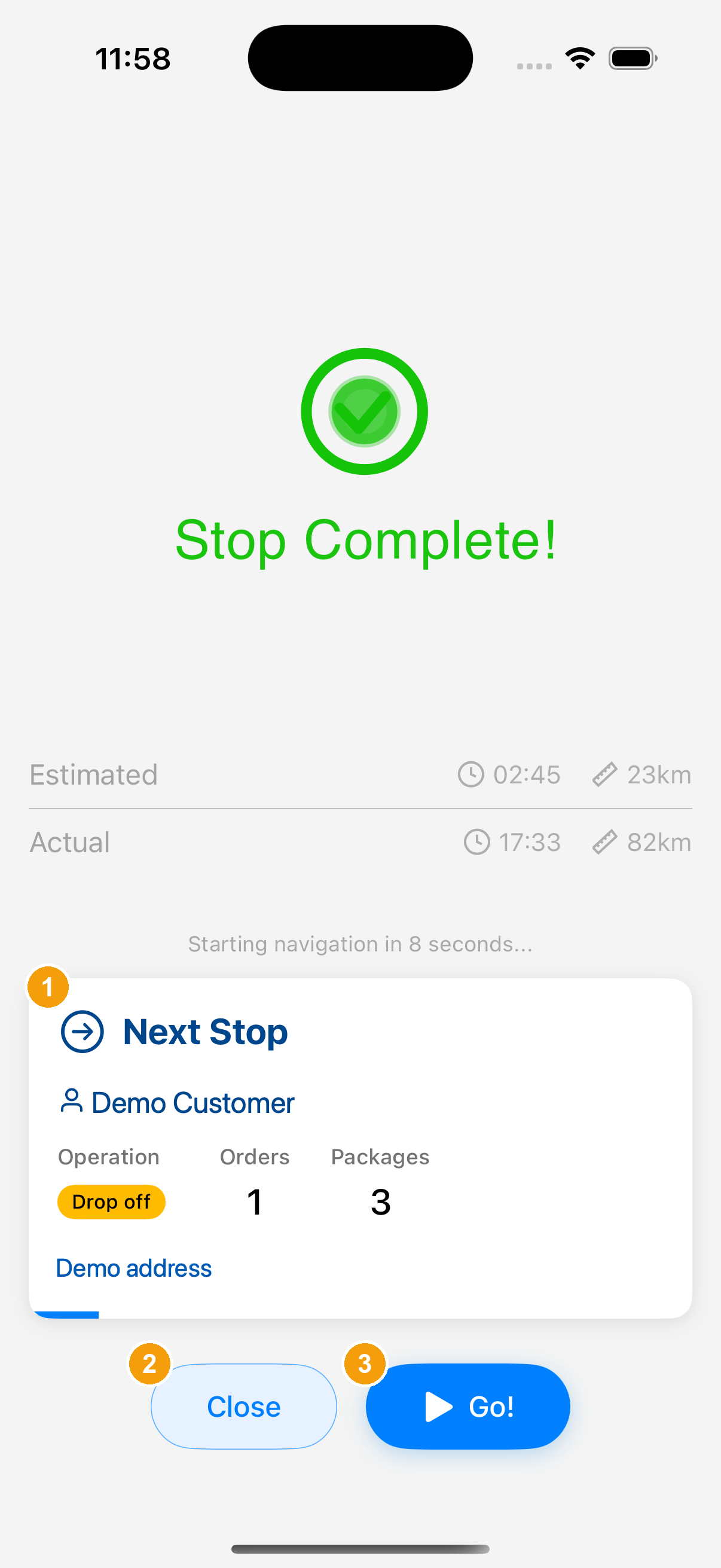
After the required tasks are complete, the screen displays Stop Complete! with the next stop summary card.
- Next stop summary card: Verify the customer name, address, package count, and operation type for the next stop. If a countdown timer is displayed (e.g., 8 seconds), navigation begins automatically when the timer reaches zero.
- Close: Tap to stay parked or remain at the current location and return to the stop list. Tap "Continue" when you are ready to depart.
- Go!: Tap to immediately conclude the current stop and start navigation to the next stop.
Repeat the arrival, scan verification, exception reporting, and proof of delivery steps for subsequent stops.
Finish the route
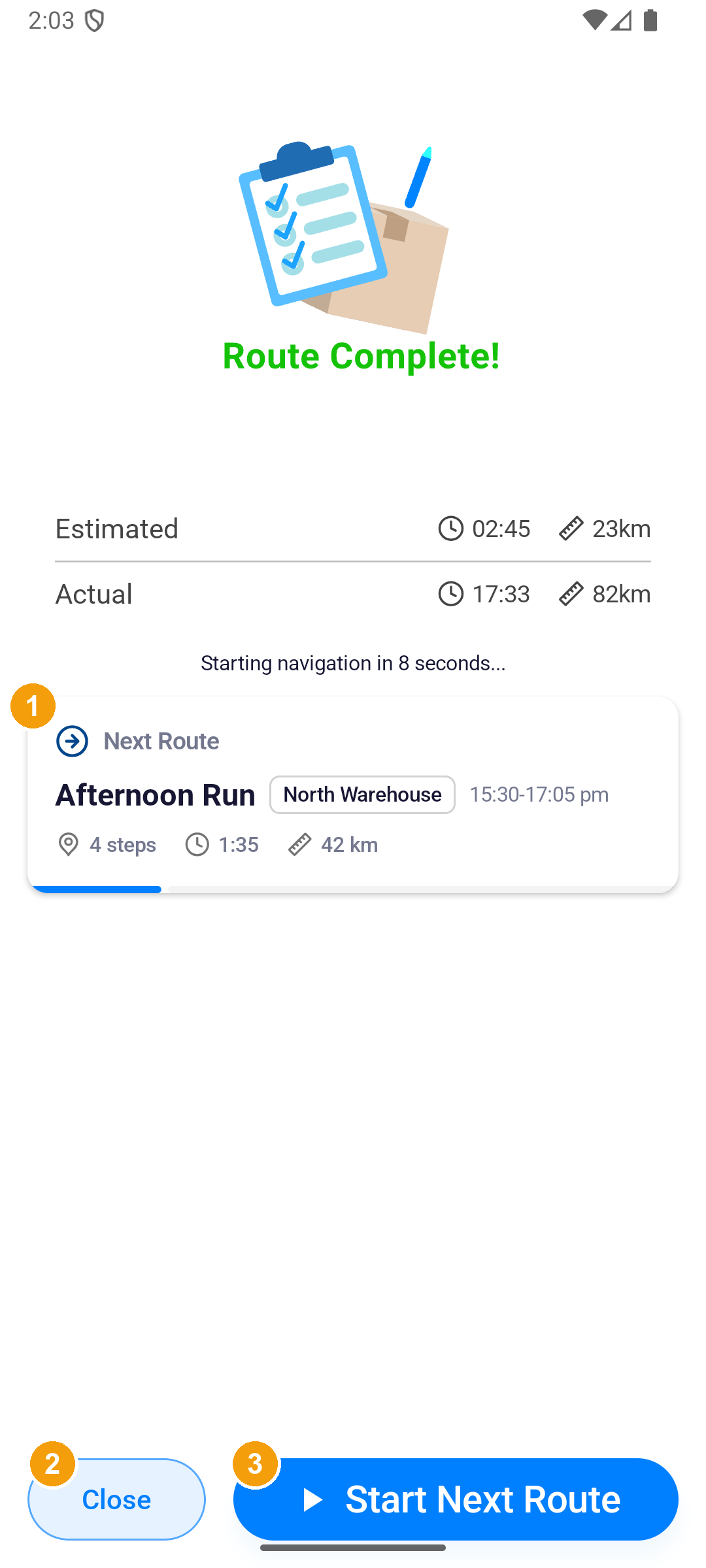
After completing the final stop of the route, wait for the app to display Route Complete!.
- Next route summary card: Sendit Go looks up subsequent assignments. If a route is scheduled, it displays the route name, stop count, estimated duration, and distance. If no route is waiting, it displays "You have no routes scheduled next".
- Close: Tap to return to Home and review today's route cards and remaining work.
- Start Next Route: If another route is available, tap to start it immediately. On this picture the countdown reads 8 seconds. The next route also starts when that countdown reaches zero.
A completion screen does not confirm that every background upload has finished. If pending upload or route locked screens appear, follow the recovery steps below.
Pending data upload
After the final stop, Pending data upload may appear if route data accumulated during offline work still needs to be uploaded, organised, or confirmed. Complete recovery rather than closing the app or re-executing deliveries.
Offline saved state
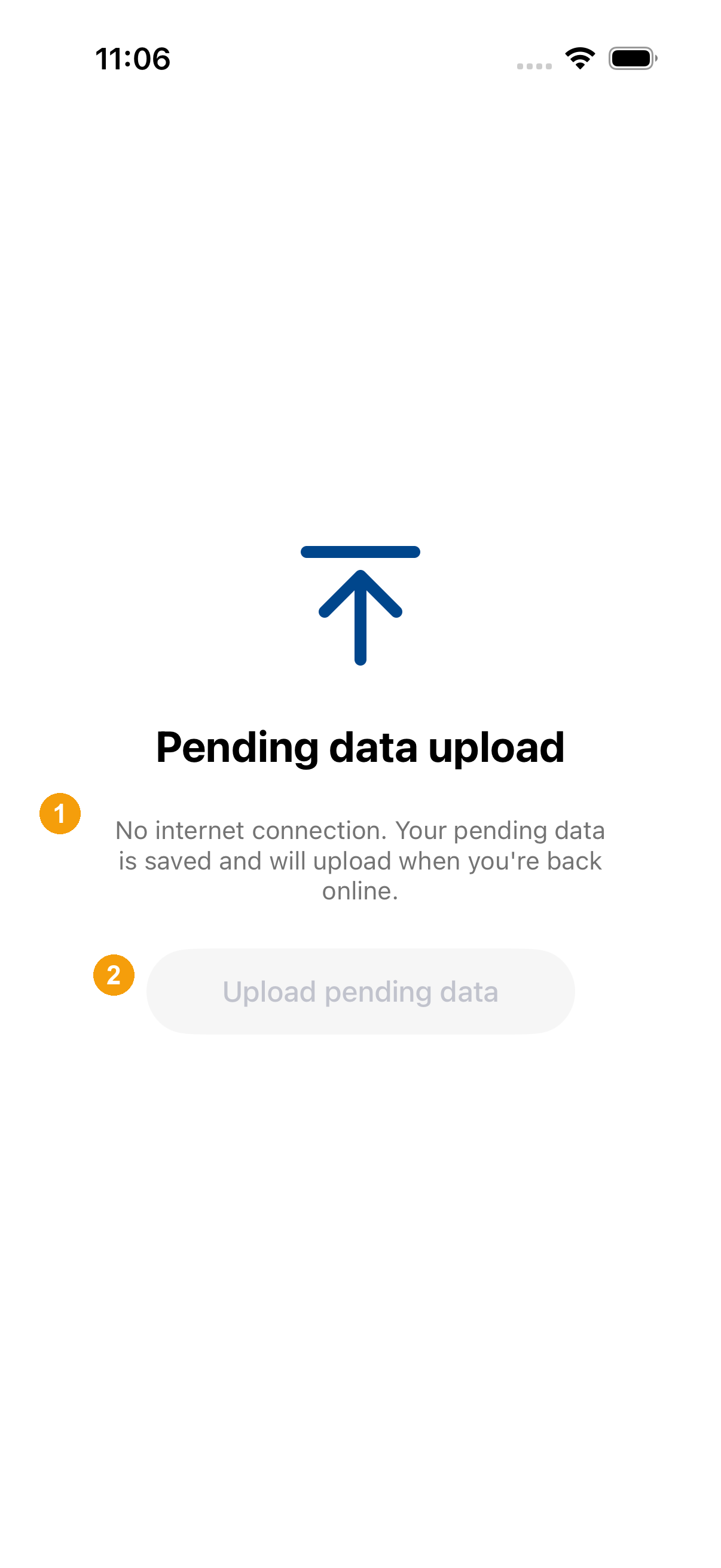
When working without an active connection, the app safely retains unsynced route data locally.
- Offline notification: The screen informs you that "No internet connection. Your pending data is saved and will upload when you're back online.", confirming local retention.
- Disabled upload button: The Upload pending data button remains disabled and greyed out until connectivity is restored. Move to an area with reliable mobile reception or connect to Wi-Fi.
Restore connection and resume upload
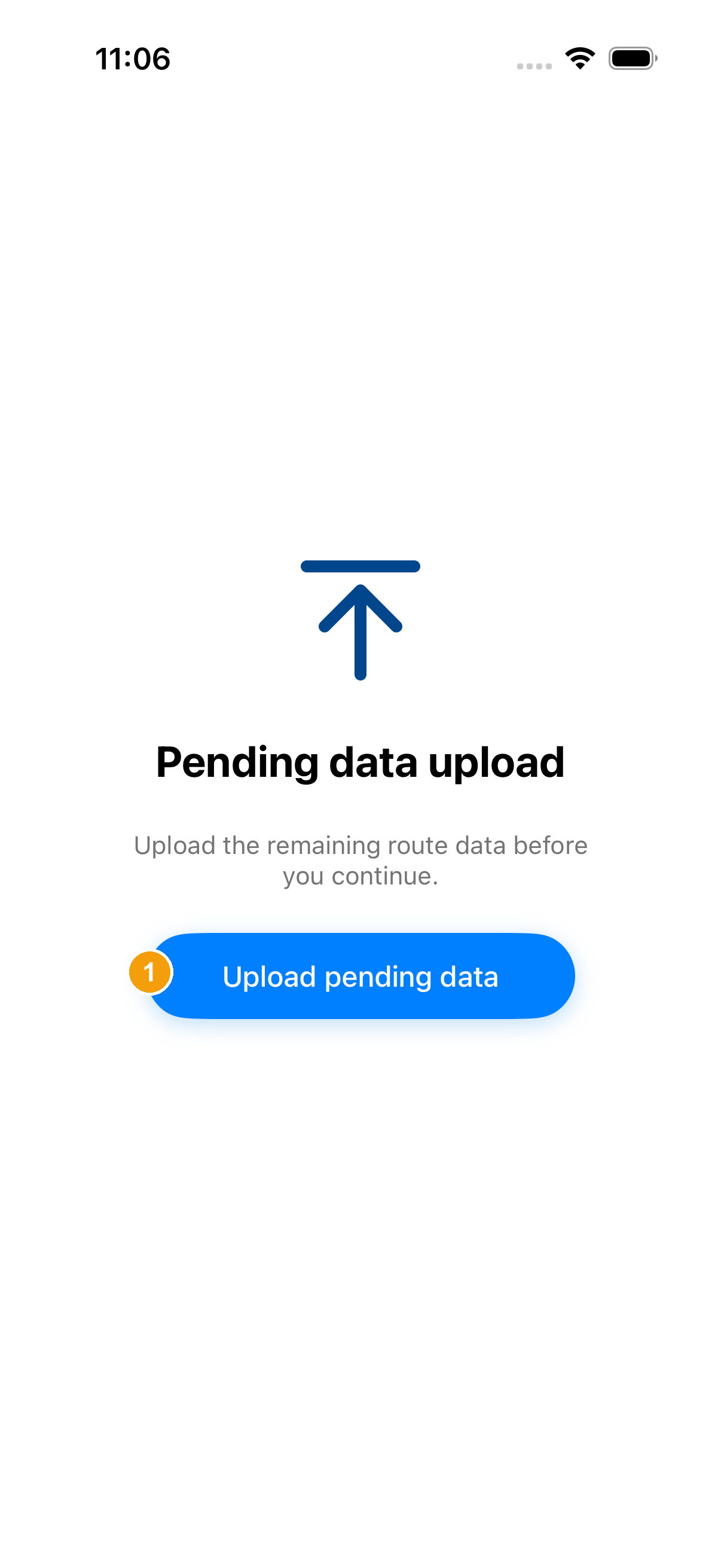
Once connectivity is restored, the app is ready to sync pending route data.
- Upload pending data: After reconnecting, tap the active blue button to synchronise remaining route data with your dispatcher.
Wait for upload and confirmation
Keep the app open in the foreground during the upload process; do not switch apps or turn off the screen.
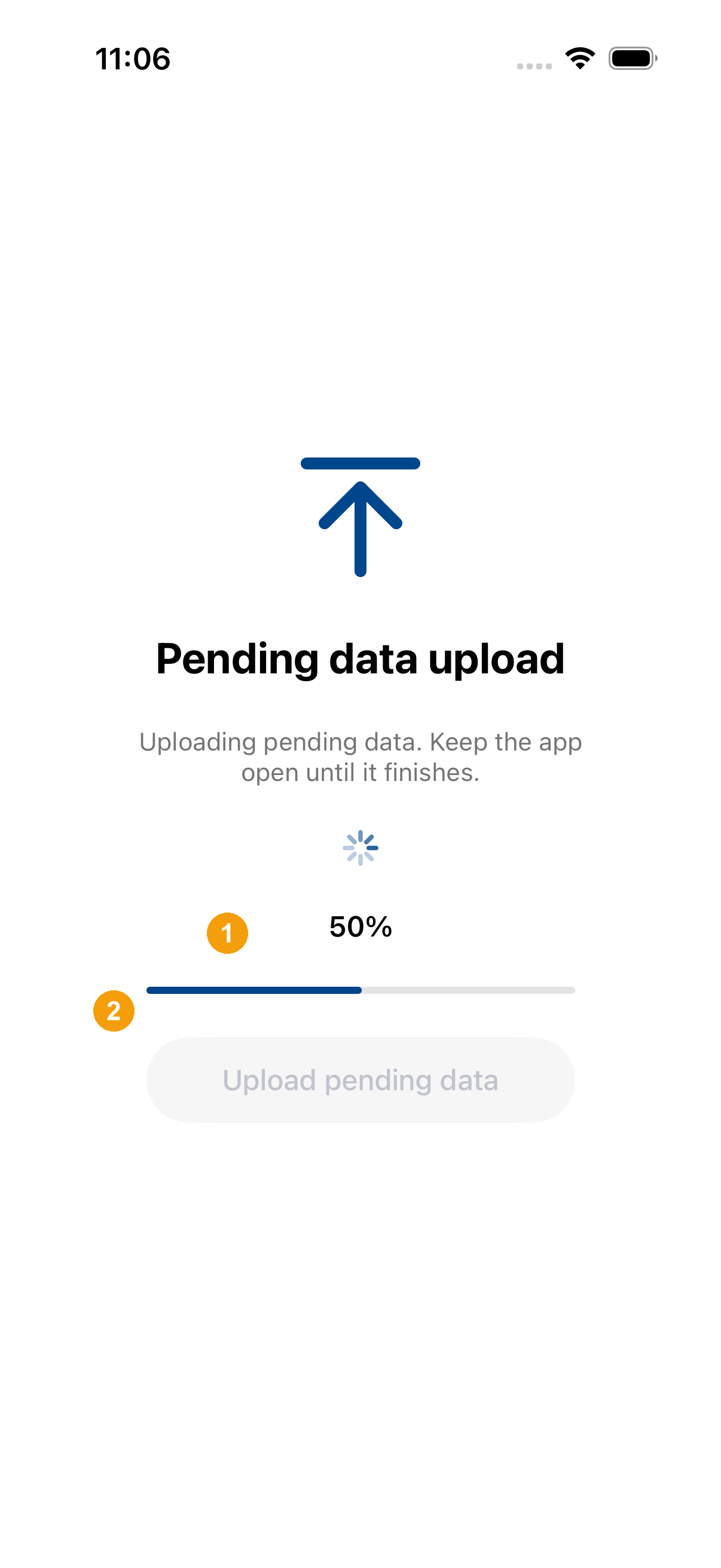
- Progress indicator: The screen displays a loading spinner, progress percentage (e.g., 50%), and a blue progress bar reflecting real-time transmission.
- Button locked: The action button is temporarily disabled during transmission to prevent duplicate submissions. Wait for progress to reach 100% and transition automatically.
Retry an unsuccessful upload
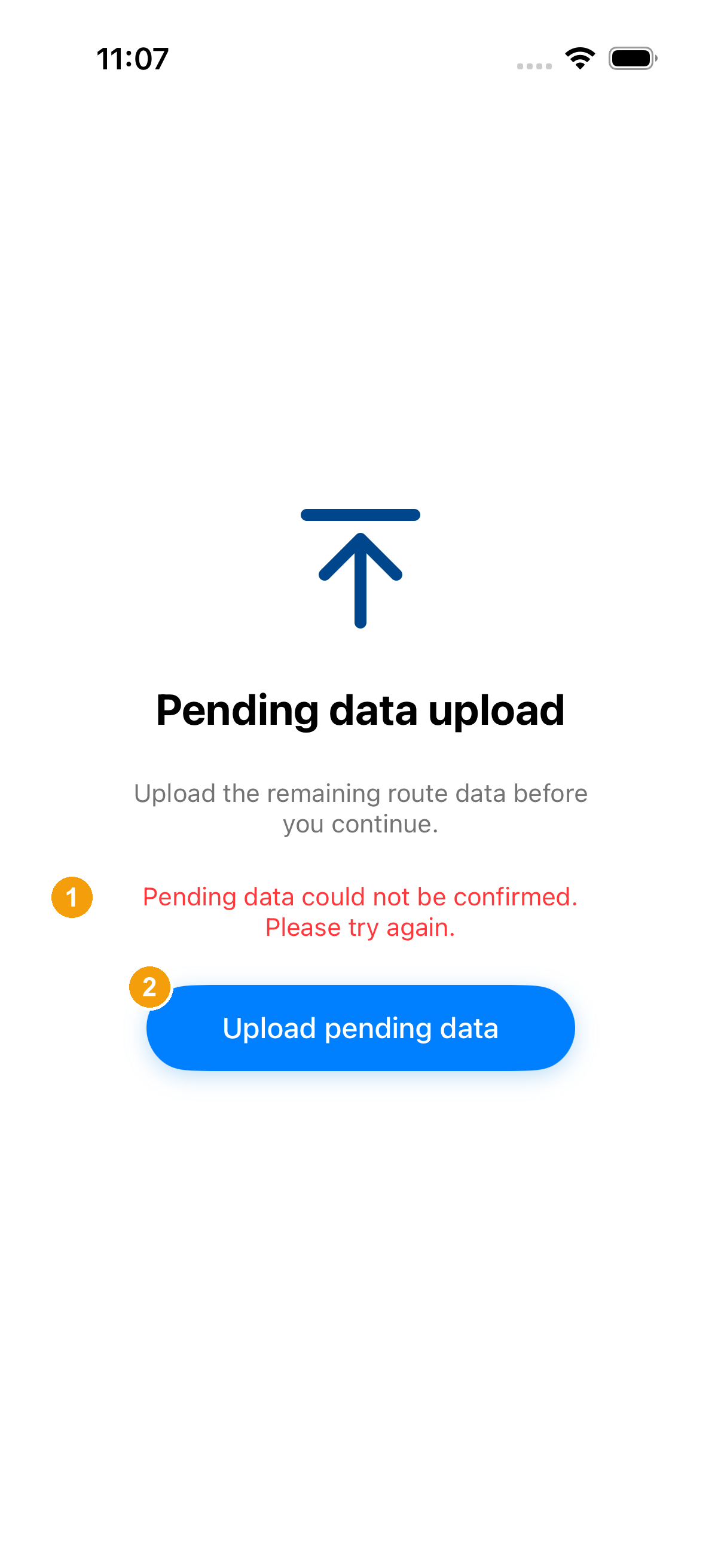
If network disruption or server timeout causes confirmation to fail, the screen retains the data and shows a red warning.
- Error explanation: Read the red warning text (such as "Pending data could not be confirmed. Please try again."), indicating local data was sent but confirmation is pending.
- Retry button: Ensure your connection is stable and tap Upload pending data again. If repeated attempts fail, report the route number and error message to support.
After processing finishes, the app continues the completion flow or returns to Home. If Route Locked appears next, proceed with unlocking verification below.
Route Locked
If technical anomalies or safety triggers occur during route completion, the app may display Route Locked. This is a safety lock requiring a dynamic verification code issued by fleet support.
Obtain verification code and view lock details
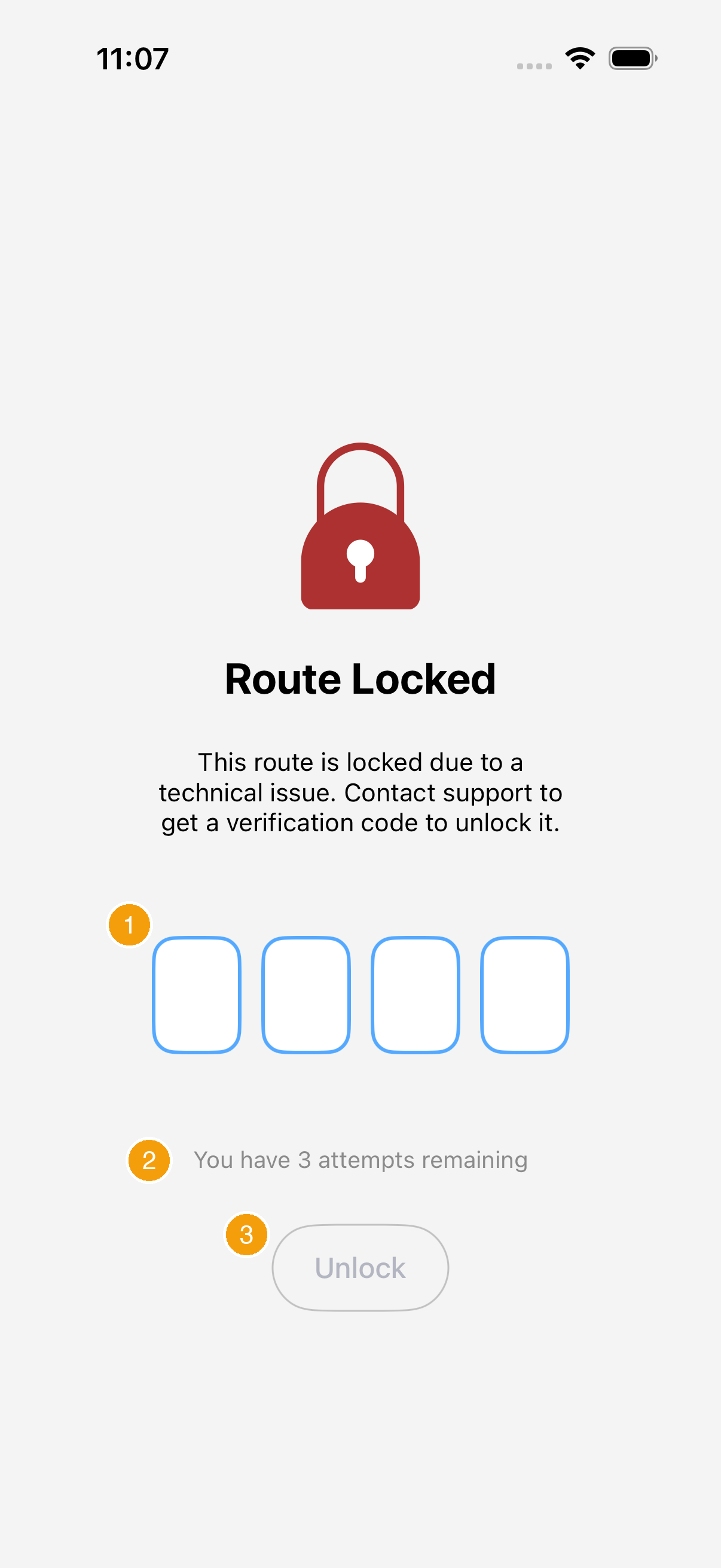
Upon encountering the locked screen, contact dispatch or technical support to request a four-digit unlock code.
- Four-digit code input boxes: Report your route ID to dispatch and obtain the 4-digit code designated for this route.
- Remaining attempts indicator: Check the remaining attempts displayed (e.g., "You have 3 attempts remaining"). Avoid guessing codes to prevent further lockouts.
- Unlock button: The button remains disabled until all four digits are entered.
Enter the four-digit code
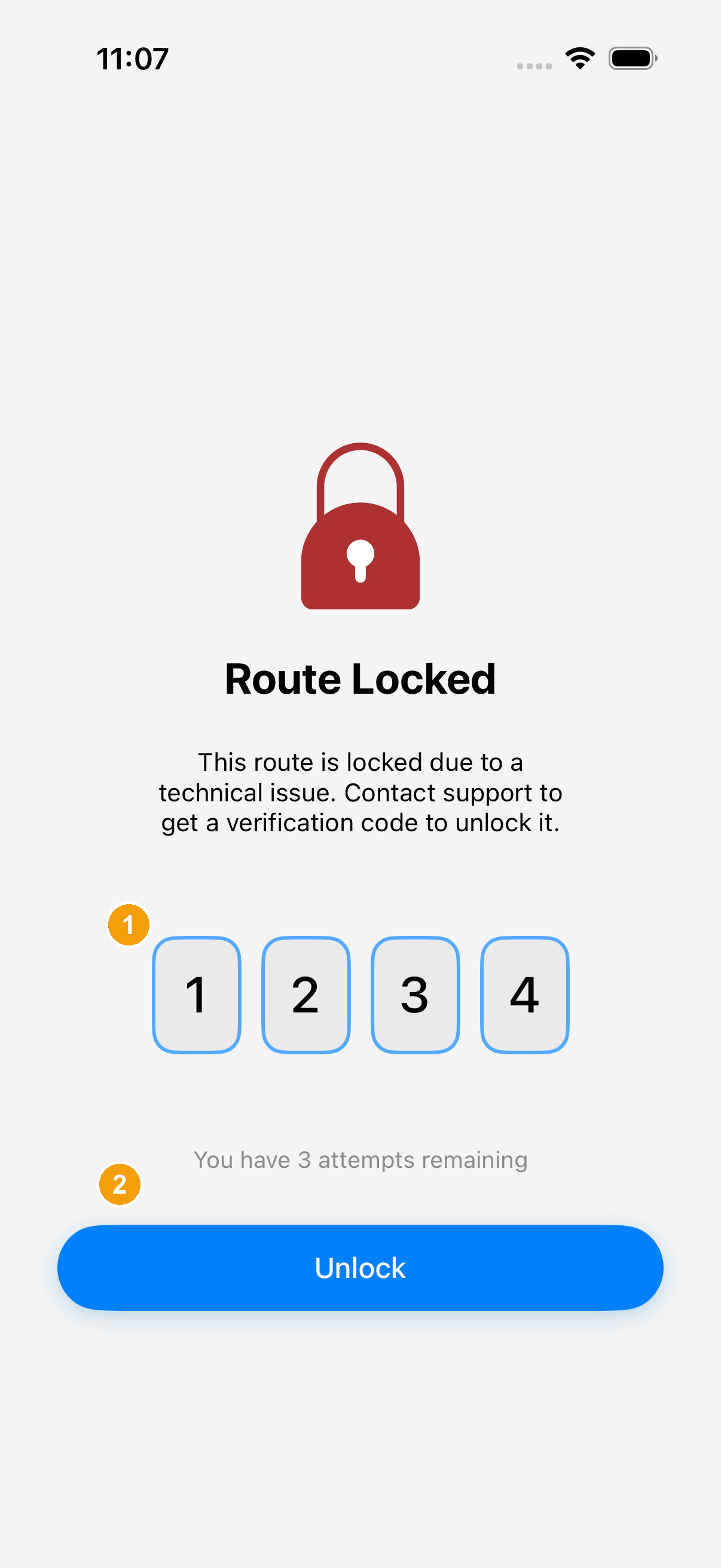
Enter the code provided by support into the input boxes and execute unlocking.
- Entered code digits: Input the 4 digits sequentially (example shows 1 2 3 4; use actual support-provided digits).
- Tap Unlock: Once all 4 digits are entered and internet connectivity is verified, the button turns active blue. Tap to submit verification.
After successful verification, the app returns to Home. Unlocking marks this route completed but does not automatically start the next route; verify assignments on Home.
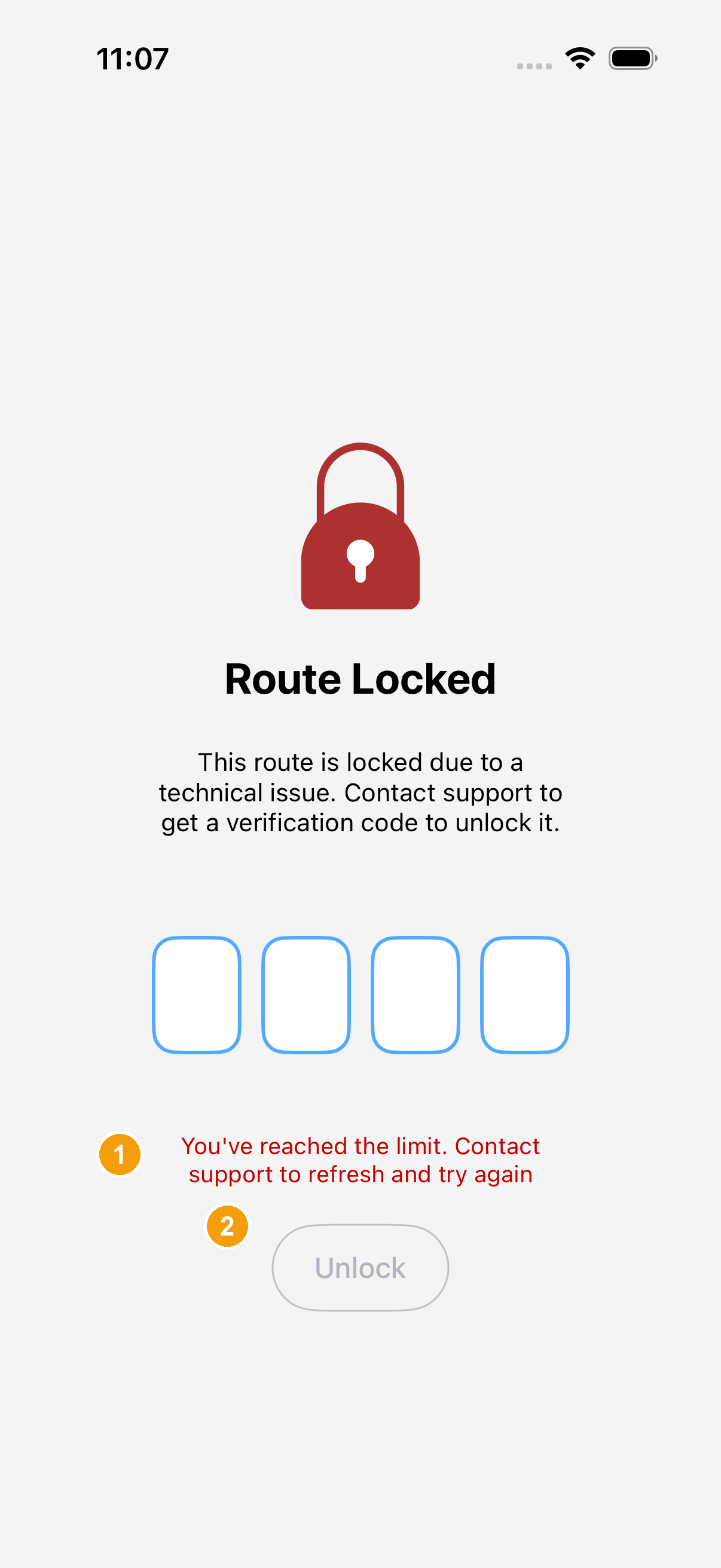
Attempt limit reached
If consecutive incorrect attempts exhaust the available limit, input functions will be disabled.
- Limit reached warning: The screen displays a red notice stating "You've reached the limit. Contact support to refresh and try again".
- Disabled Unlock button: The button is completely disabled. You must contact support to reset the verification status and obtain a new code.
What the dispatcher sees
When you need an unlock code, the fleet admin opens Delivery Plan Unlock Code. On this picture the status reads Upload image fail. A 4-digit code is not readable.
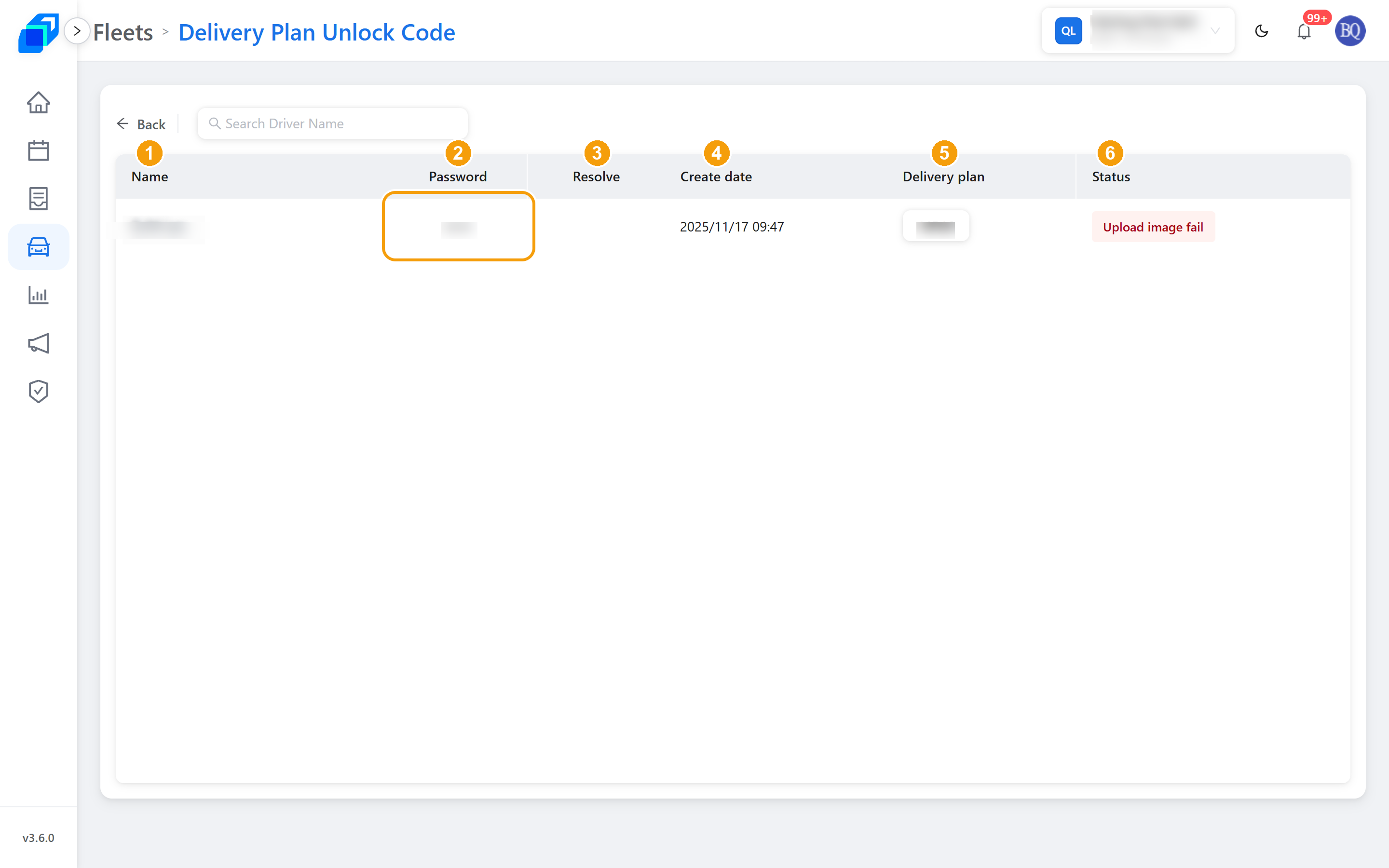
Full details: how the Sendit Go Carrier Console generates and manages unlock codes is in Provide carrier app unlock codes.
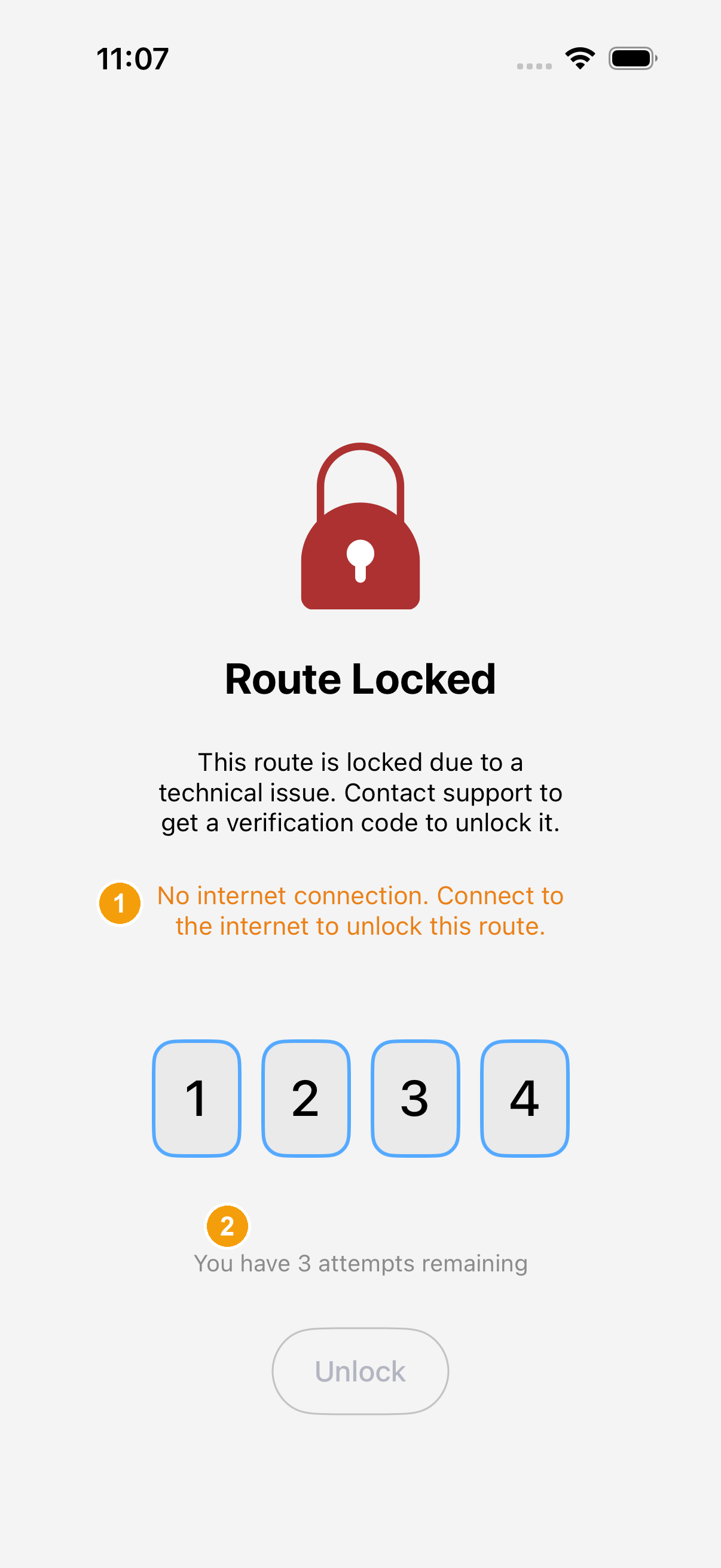
Connection required to unlock
Route unlocking requires communication with backend servers for real-time verification.
- Offline notification: The screen displays an amber prompt: "No internet connection. Connect to the internet to unlock this route.".
- Attempts counter and disabled button: Although the entered digits and attempt counter remain visible, the Unlock button cannot be tapped while offline. Restore mobile data or Wi-Fi before submitting.
An ordinary stop shows Stop Complete!. The last stop enters the Route Complete! flow. If pending upload or unlocking appears, complete data synchronisation or verification before continuing other work. Do not swipe away or force-close the app. If routes change while driving, confirm updates as prompted; if a break is needed, park and switch the status to Rest.