See today's route
After you sign in, Home shows today's route. Open the blue card to see the stops.
Where to find it: sign in → Home.
Step 1: See what's on Home
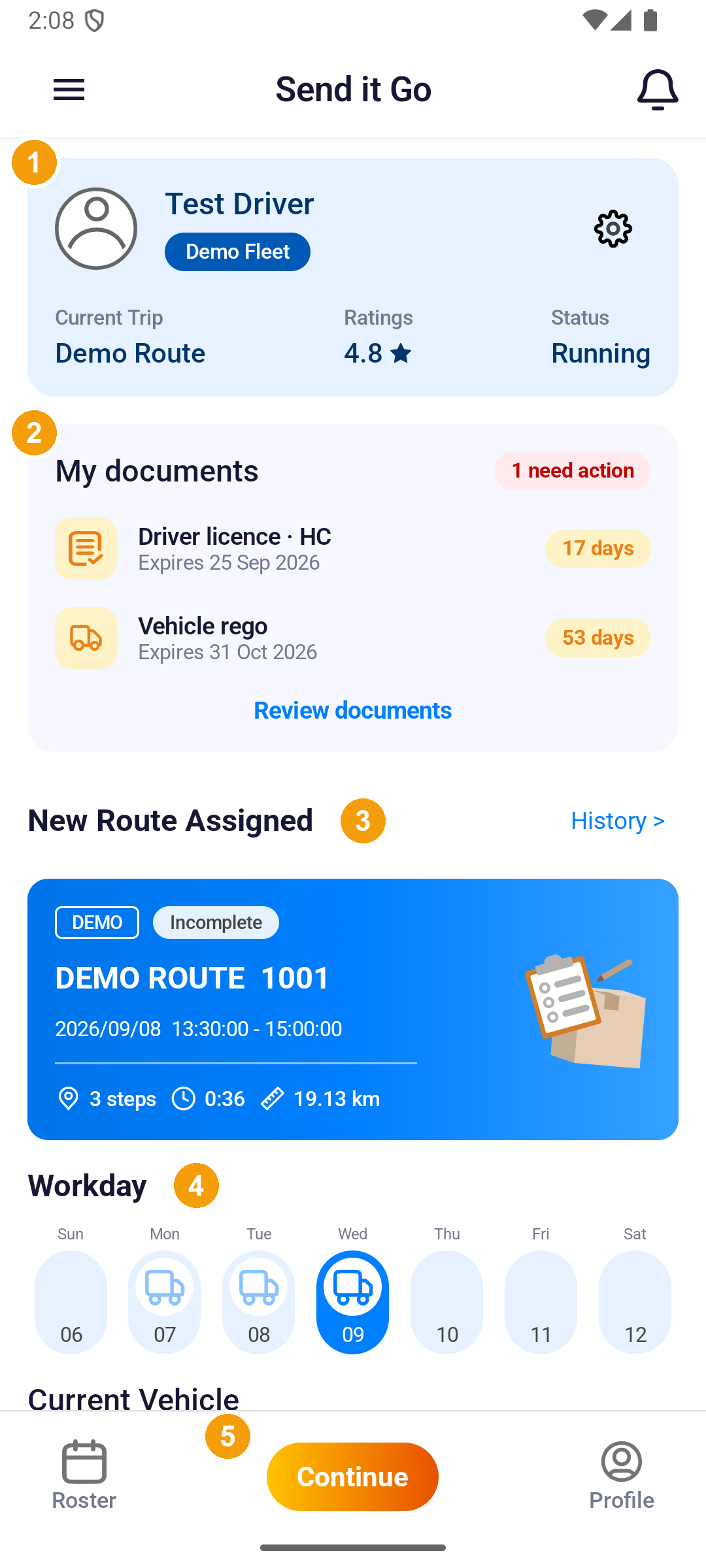
On the screenshot, 1 to 5 match the list below.
- Profile – your name and fleet. The gear opens settings.
- My documents – papers that need action. Tap Review documents.
- New Route Assigned – today's route (the blue card).
- Workday – this week's days.
- Continue – resume a route. Roster is on the left, Profile on the right.
Pull down on Home to refresh.
Step 2: Open today's route
The blue card under New Route Assigned is the route for today. It shows:
- the route name (for example DEMO ROUTE 1001)
- the date and time
- how many stops (3 steps)
- how long and how far
Tap the card to open the stops. History > opens past deliveries.
- No more routes for now – today's assigned routes are done.
- No Route Available – ask dispatch to assign today's run sheet to you, then pull down to refresh. Do not start another driver's route.
Step 3: See which days you work
Tap Workday to open the same screen as Roster.
- Workday – tap to open Roster.
- A truck in the day's circle means you are on duty that day.
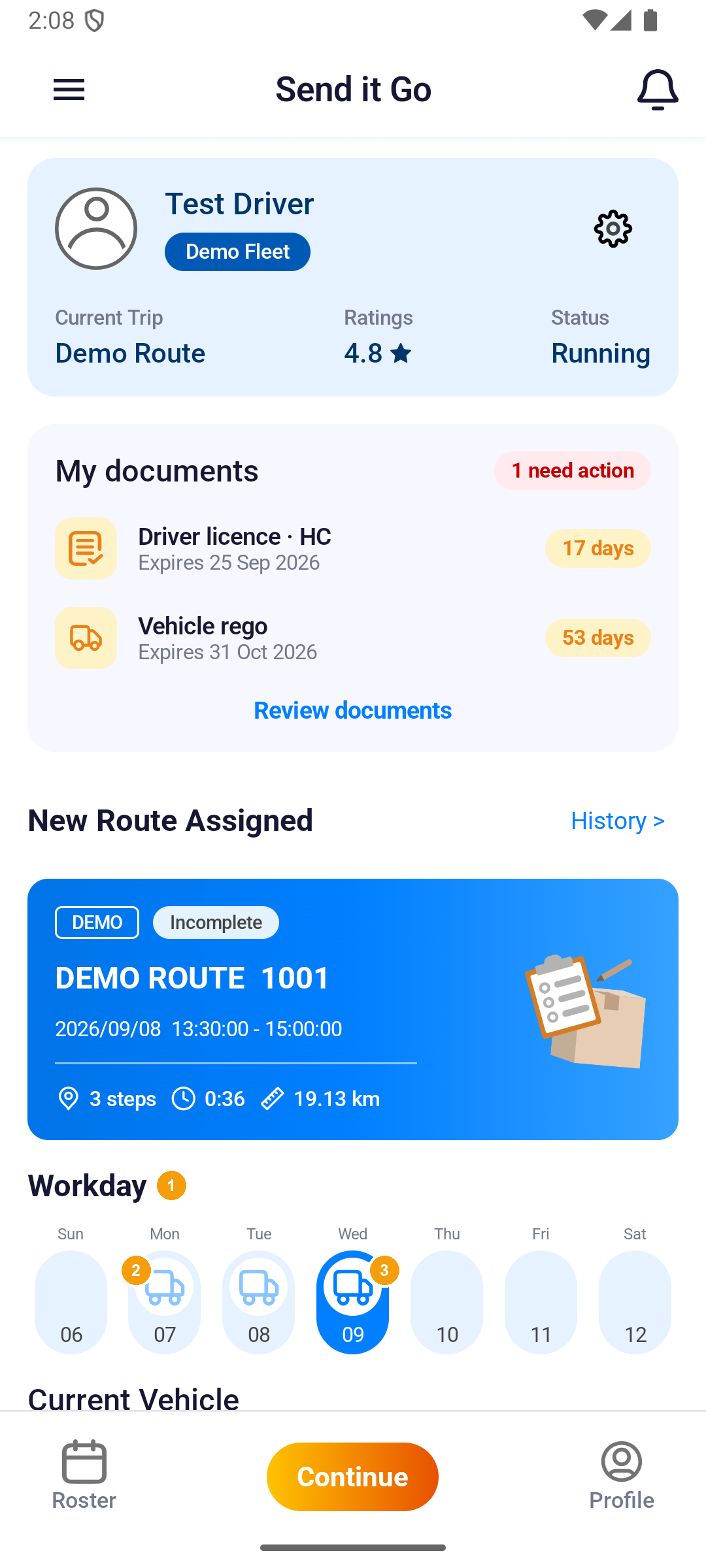
- The blue circle is the day you have selected. Home starts on today.
Step 4: See the vehicle for this route
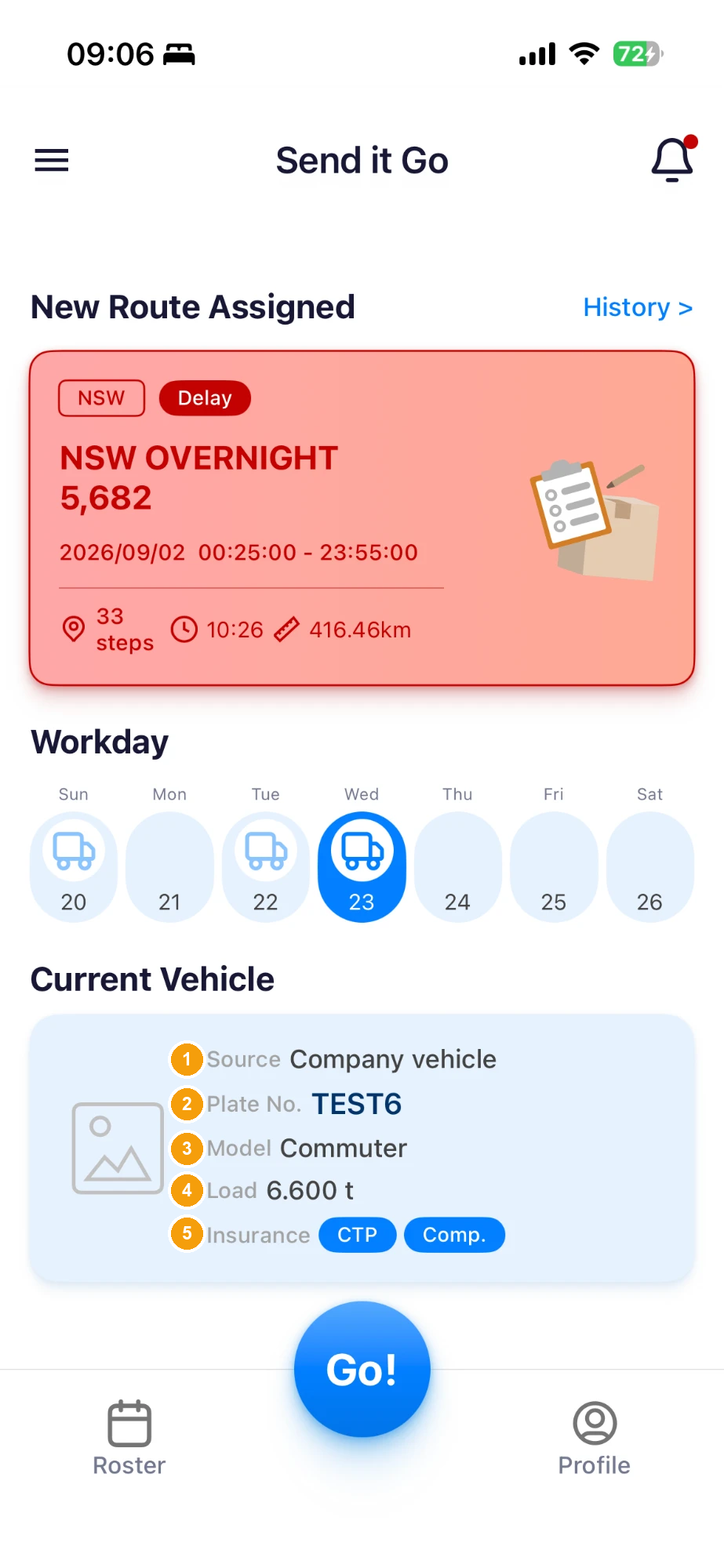
Current Vehicle is the vehicle on this route. This iPhone picture shows Plate No. TEST6, Commuter, 6.600 t, CTP, and Comp. The Android pictures on this page stop at the Current Vehicle heading. They do not show Plateno or Active.
- Source – Company vehicle on this picture.
- Plate No. – the plate. This picture shows TEST6.
- Model – Commuter on this picture.
- Load – cargo weight, not the whole vehicle. This picture shows 6.600 t.
- Insurance – this iPhone picture shows CTP and Comp. An Android Active label is not on the Android pictures on this page.
The bottom button on this picture is Go!. Continue is the home button when a route is already under way.
If the card says No vehicles on duty now, there is no unfinished route. If the vehicle is wrong, ask dispatch – do not change Profile and drive off.
Your name is at the top, the blue card opens today's stops, and Continue is tappable when a route is already under way.
Next steps
- Complete your first run – one full delivery day
- Find a past delivery – look up a finished run
- Edit and submit your profile – update your details