Edit and submit your profile
Change your own driver details in the app – personal information, driver licence, vehicle, or vehicle insurance – then send every pending change for review in one submission.
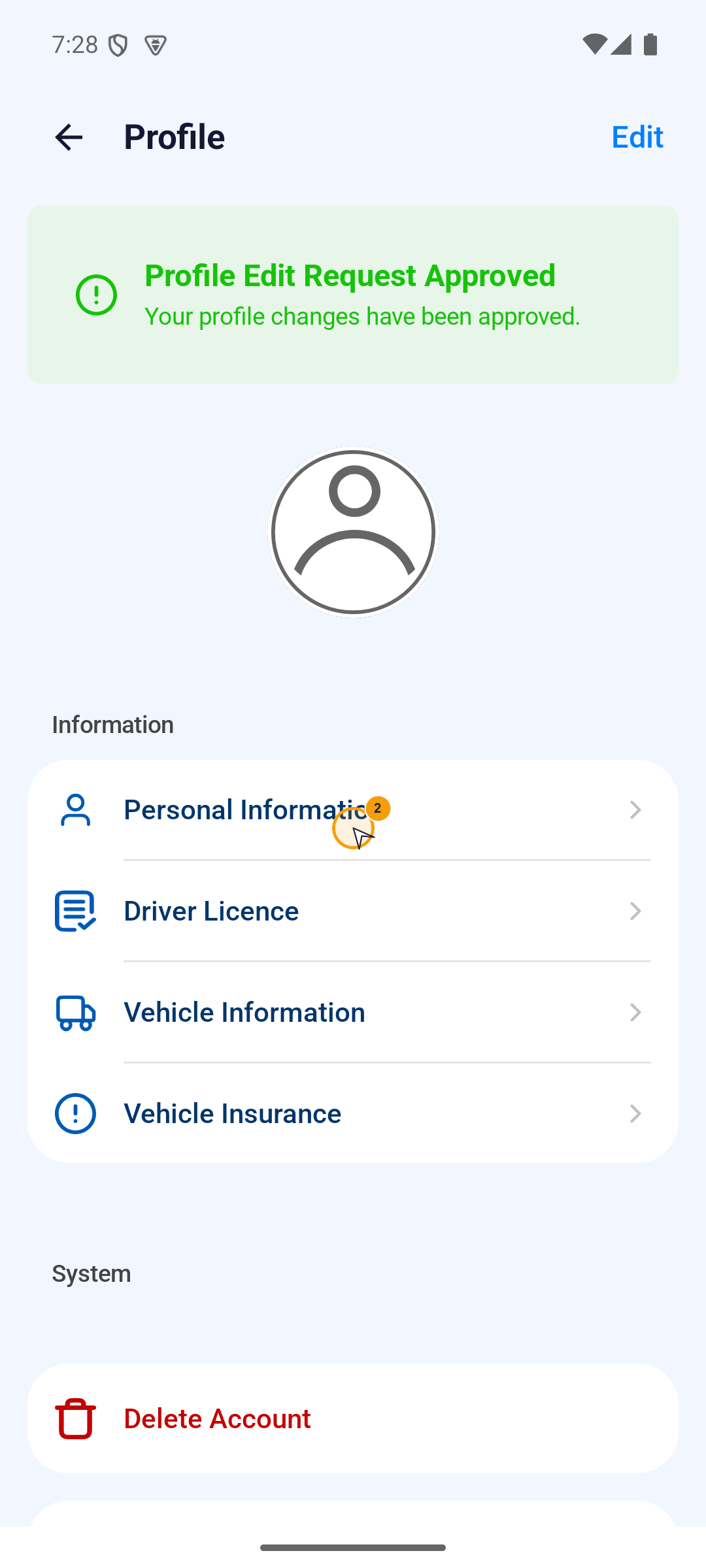
Where to find it: Home bottom bar › Profile. The gear on the Home profile card, and Settings in the Home menu, open the same screen.
- On the Profile screen, tap Edit in the top-right corner.
- Open the section you need to change: Personal Information, Driver Licence, Vehicle Information, or Vehicle Insurance.
- Change the details in that section.
- Tap the back arrow to return to Profile. The section is saved as a pending draft.
- Repeat for every other section that needs changing.
- Tap Submit for Review, read the confirmation, then tap Confirm.
Submit for Review appears only when a saved, reviewable draft exists. If it is missing, check that you saved a change. One submission sends the pending changes for review after confirmation.
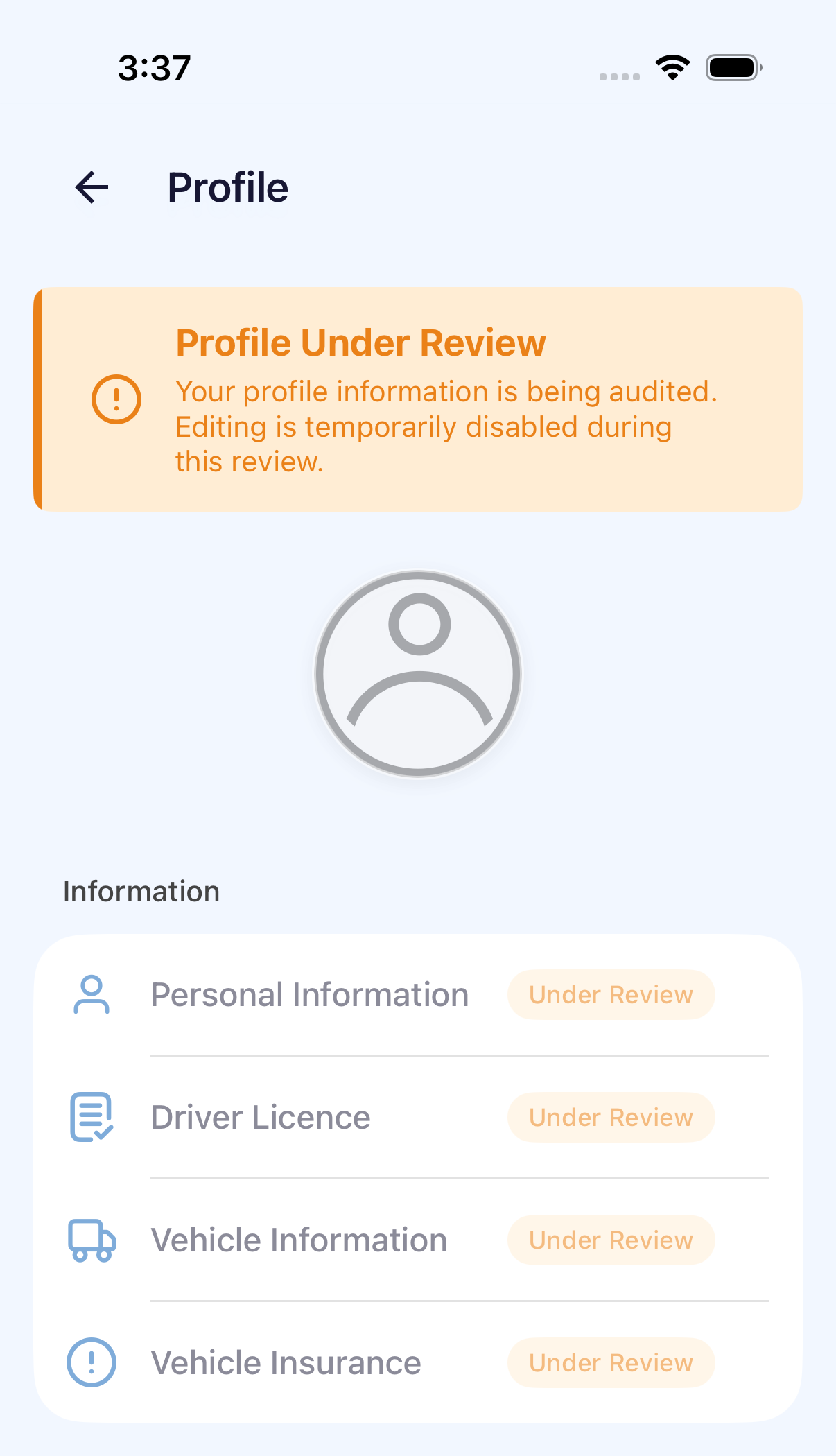
Sections marked Under Review cannot be edited until their review finishes. If a section comes back needing action or rejected, open it, correct only the details named in the message, and submit again. The banners and section tags are listed in Account status and access.
The Android picture is the section list and shows Profile Edit Request Approved. The Profile Under Review banner is the iPhone picture. They are not the same frame.
Choose ordinary editing or amendment
- For an ordinary update, tap Edit on Profile before opening a section. Opening a section alone normally displays its read-only details.
- For an amendment, open the section marked Action required, read the reason and correct the requested details. The top-right Edit action may be absent in this state.
- A section marked Under Review shows a review notice when tapped and cannot be opened for editing. Other sections follow their own status.
Personal Information
- Check your photo on Profile, then open Personal Information to check names and birthday.
- Under Account Information, check ABN, email and mobile number. The mobile number is read-only here.
- If you change Email during ordinary editing, complete the verification-code flow for the new address. An unchanged address does not need fresh verification just to save.
- Select country, state and city, then check postcode and address. Changing address text alone does not update region selections.
- In ordinary editing, use the back arrow to save pending changes. If an amendment screen shows Save, save before returning to Profile.
Driver Licence and Vehicle Insurance
- Driver Licence: check front and back documents, card number, licence number, expiry and class. Recheck recognised values after replacing a document.
- Vehicle Insurance: check the document, policy number and expiry in each required policy section. Replacing the image alone does not update an old date.
- Resolve required-field, upload and expiry notices before returning to Profile and submitting the changes.
Cancel changes or recover a failed submission
Tap Cancel on Profile. With pending changes, choose Keep Editing to continue or Discard Changes to abandon them. If leaving Profile opens a confirmation, read how it will handle your changes before proceeding.
For validation problems, open the named section, correct the fields and submit again. For connection failures, retain the changes and restore the connection. Submission is complete only when the app accepts it and updates the review status.
Submit for Review and Confirm are the review actions. This sample did not tap Confirm, so Under Review is not shown as the result of that tap.