iPhone and Android
Your job is the same on both phones. A few controls sit in different places.
Where to find it: Home › the menu at the top left.
The app is named SendItGo on both platforms.
iPhone
| Task | What to use |
|---|---|
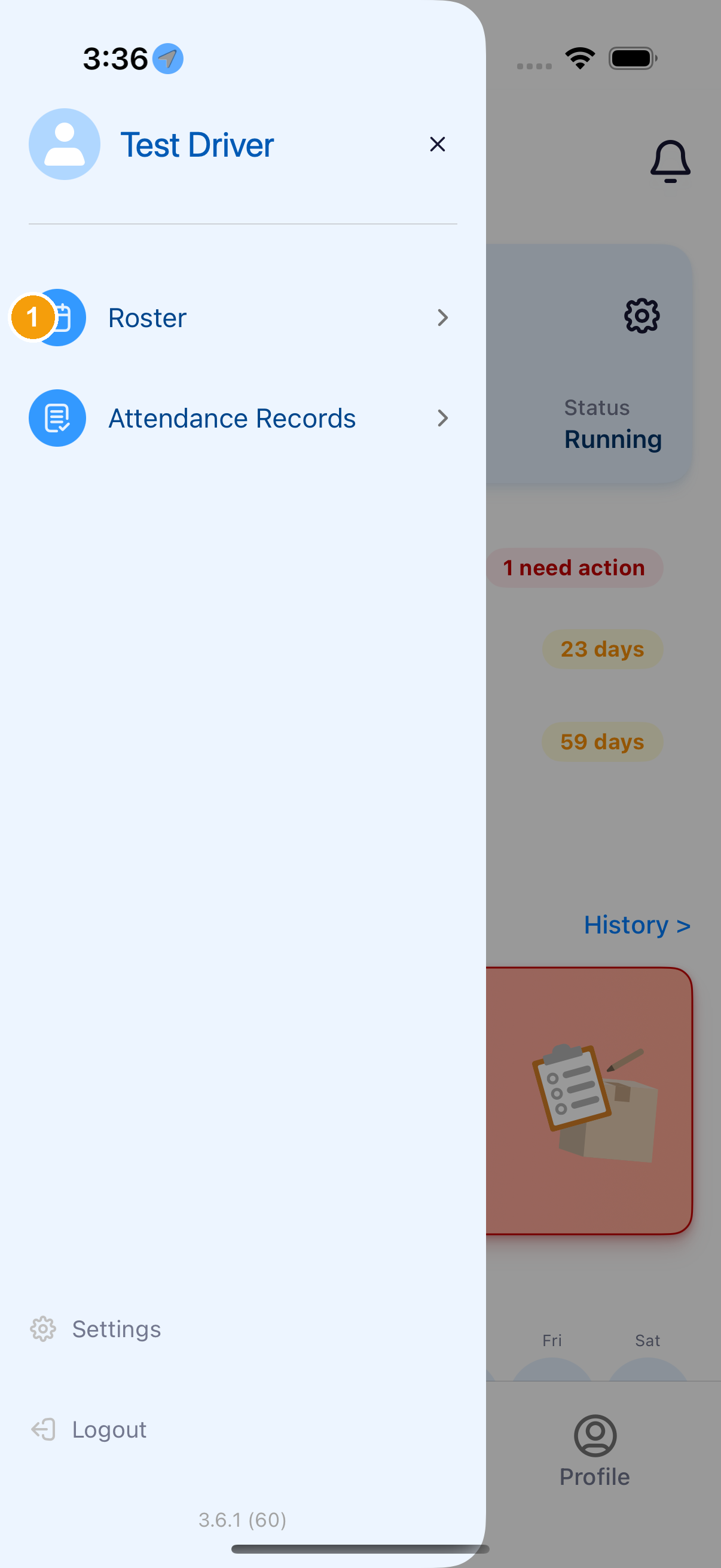
| Open delivery history | Tap History > on Home. This iPhone menu lists Roster and Attendance Records. History is not in that menu |
| Go back | Tap the back arrow in the app's own header |
| Permissions | Allow location, camera and notifications. iOS writes the prompt, so the wording is Apple's |
Android
| Task | What to use |
|---|---|
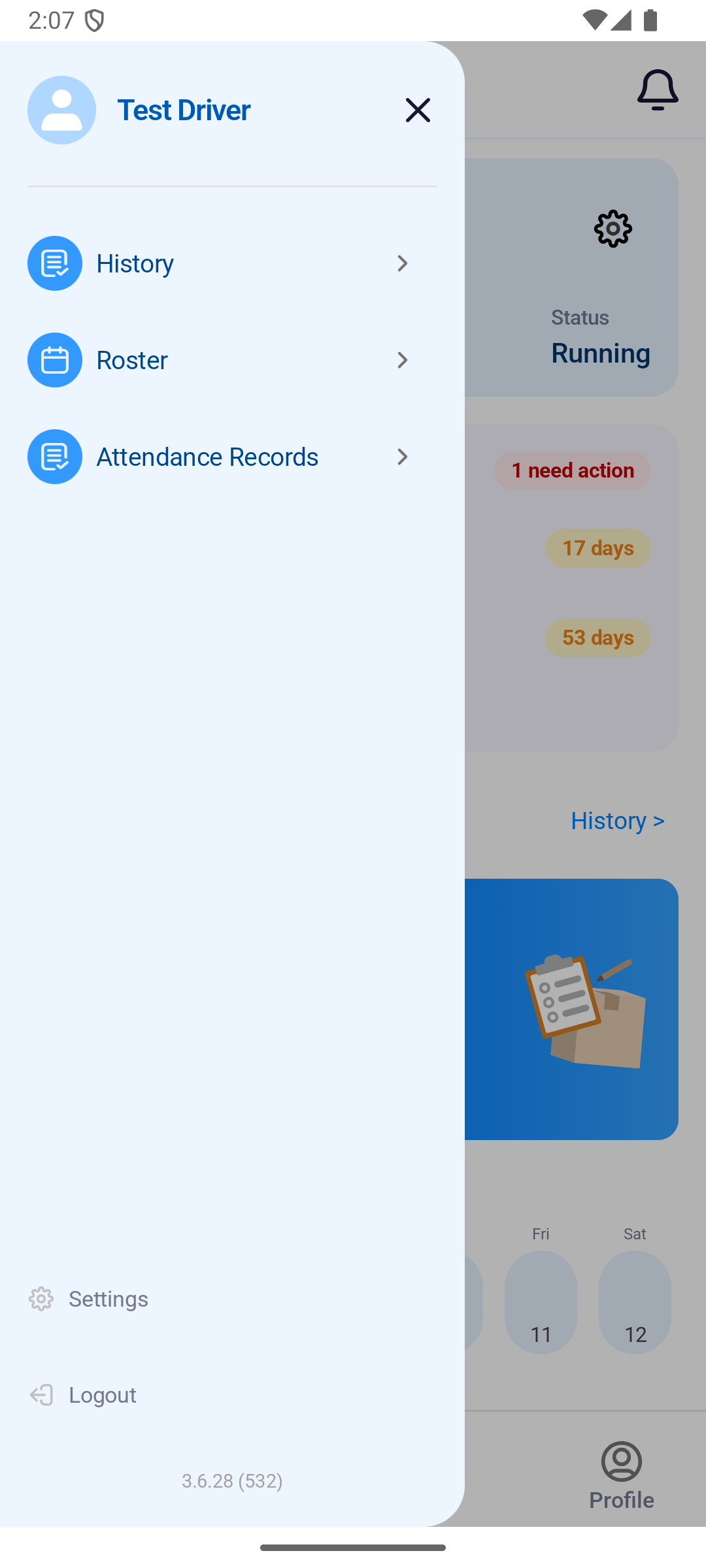
| Open delivery history | Tap History > on Home, or History in the menu |
| Go back | Tap the back arrow in the app's own header, or use the Android back gesture |
| Permissions | Allow location, camera and notifications. Android writes the prompt, so the wording is Google's |
When comparing screens
First identify registration, signed-in Profile or route execution. Registration Done, saving by returning from a Profile section, and Submit for Review are different actions.
On iPhone, the mobile number and verified email on the registration form are read-only. Changing email in signed-in Profile has its own verification flow. Do not transfer fields or buttons from a different entry point when viewing Android examples.
If an action is missing, check the app version, screen title and current state, then give your fleet the entry path and screen details. Do not choose a similarly named action with a different purpose.
The menu slides in over Home. Android lists History, Roster and Attendance Records. The iPhone menu on this picture lists Roster and Attendance Records. History > is on the Home behind it, not in the iPhone menu.