Proof of delivery
Complete the proof option shown after package confirmation. Customer stops show Proof of Delivery; warehouse stops show Dispatch Centre. Dispatch Centre is the Warehouse stop – the section under that title reads Warehouse.
Where to find it: current stop › package confirmation › Proof of Delivery or Dispatch Centre.
Choose a proof of delivery method
Only use the proof method actually offered for the current stop. If the preceding step still asks for a package photo (Capture Photo), complete that photo first – a signature cannot replace an unfinished photo step.
- Electronic Signature: The recipient signs directly on the phone screen to complete the handover.
- No Contact: When the recipient is absent or unable to sign, take a photo of the drop-off location and select a reason to complete delivery.
On iPhone, No Contact is available only at customer stops without pickup orders; warehouse handovers and customer stops with collection orders do not provide the No Contact option.
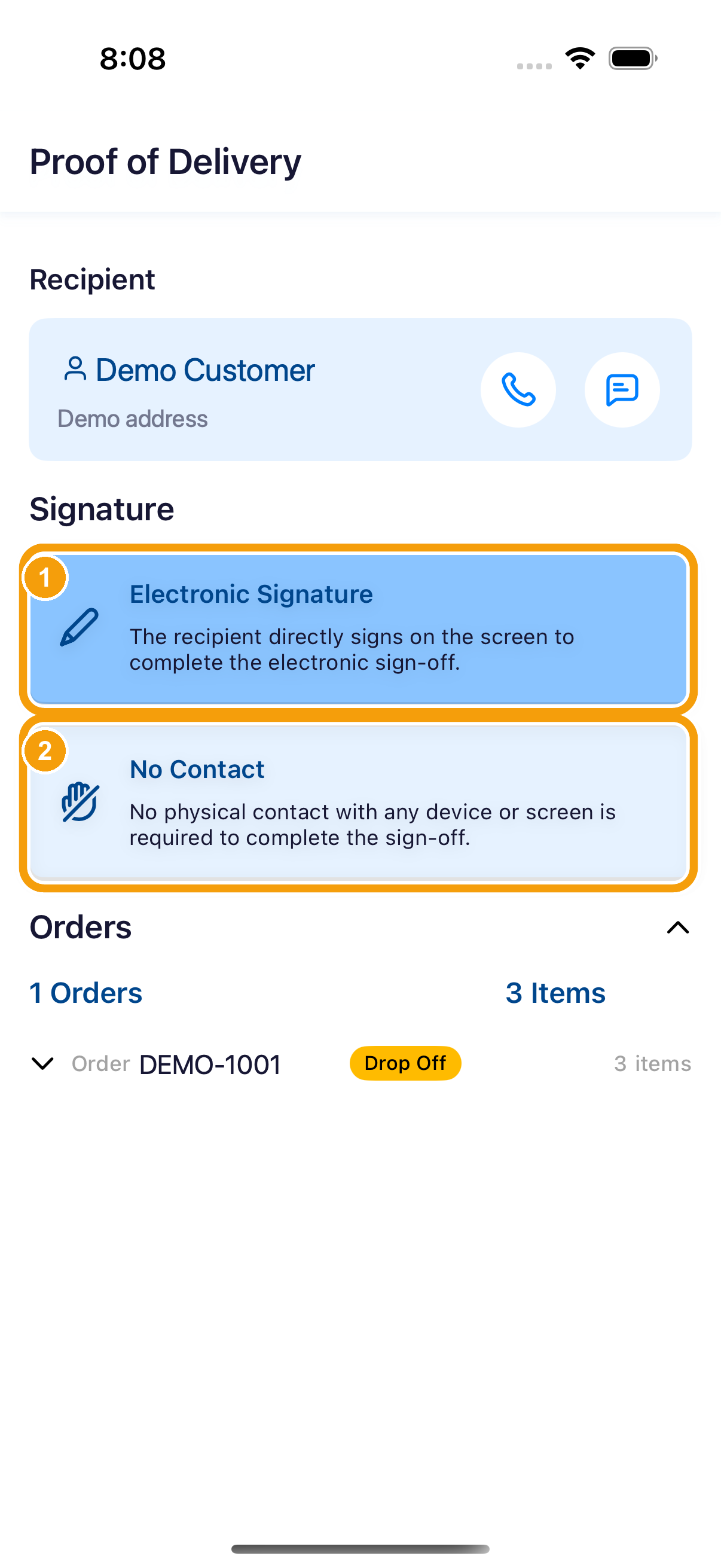
Electronic Signature
Tapping Electronic Signature rotates the screen to a landscape full-screen signing pad; it returns to portrait automatically after submitting.
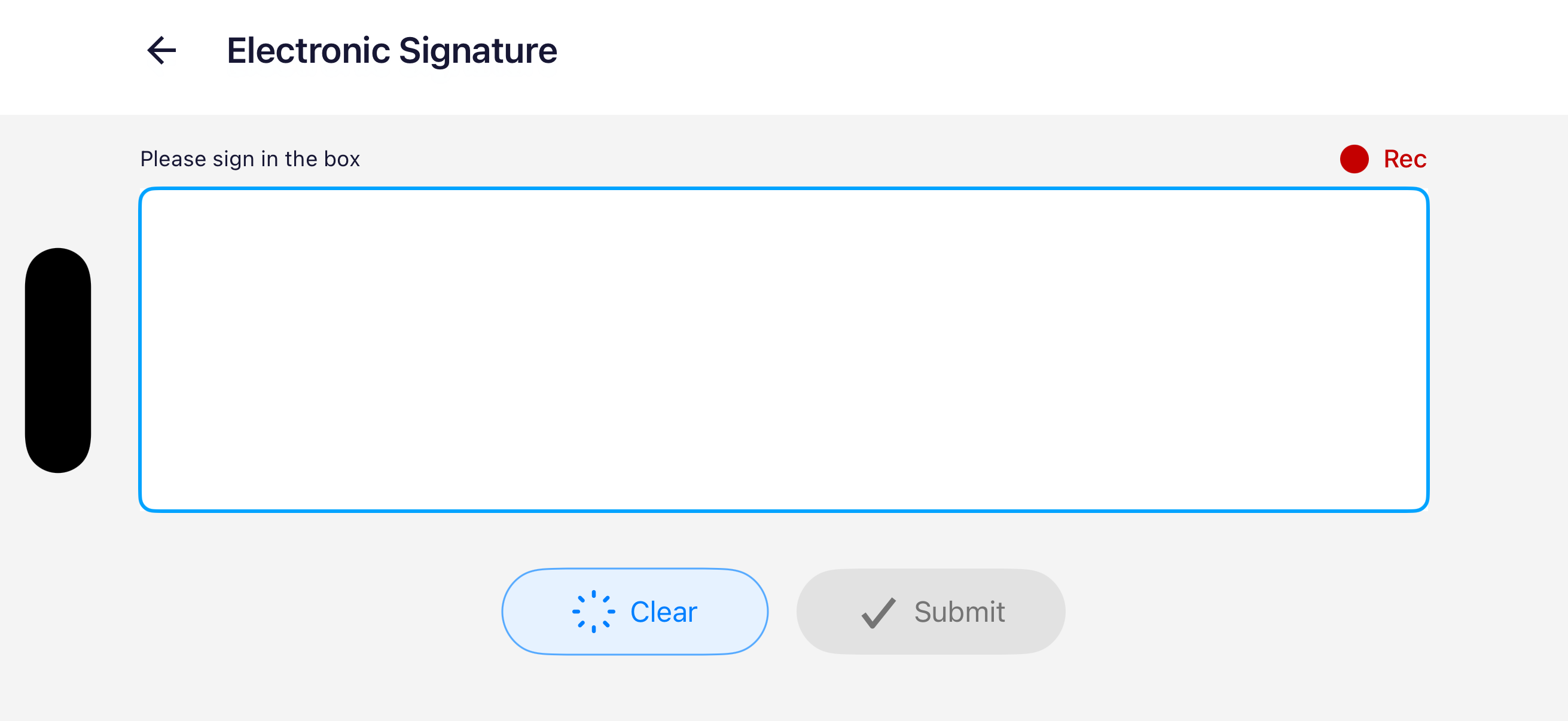
- Signature area: Ask the recipient to sign inside the box (prompted by Please sign in the box). A signature drawing is required before Submit becomes active.
- Clear: If the signature is unclear or needs to be redrawn, tap Clear to wipe the canvas.
- Submit: on this picture Submit is grey. A Ready to submit? dialog is not shown. Confirm is not on this picture.
Saved proof of delivery enters the upload queue. If an internet outage occurs, it will automatically synchronise when reconnected; see Handle upload failures and connection loss.
No Contact delivery
Do not use No Contact if the app requires a signature. Only use No Contact when the recipient is confirmed unable to sign.
- Delivery Photo: Mandatory. Tap the camera icon to take a clear photo of where the package was placed. The package and its surroundings must be clearly identifiable.
- No Contact Delivery Reason: Mandatory single-choice. Select "No recipient available at drop-off location", "Recipient was occupied and unable for signature", "Access to drop-off area was restricted", or Other (Please Specify). If you select Other, enter a detailed explanation in the field below.
- Delivered: Once the photo, reason, and any required notes are provided, the Delivered button at the bottom becomes active. Tap it to submit the No Contact proof.
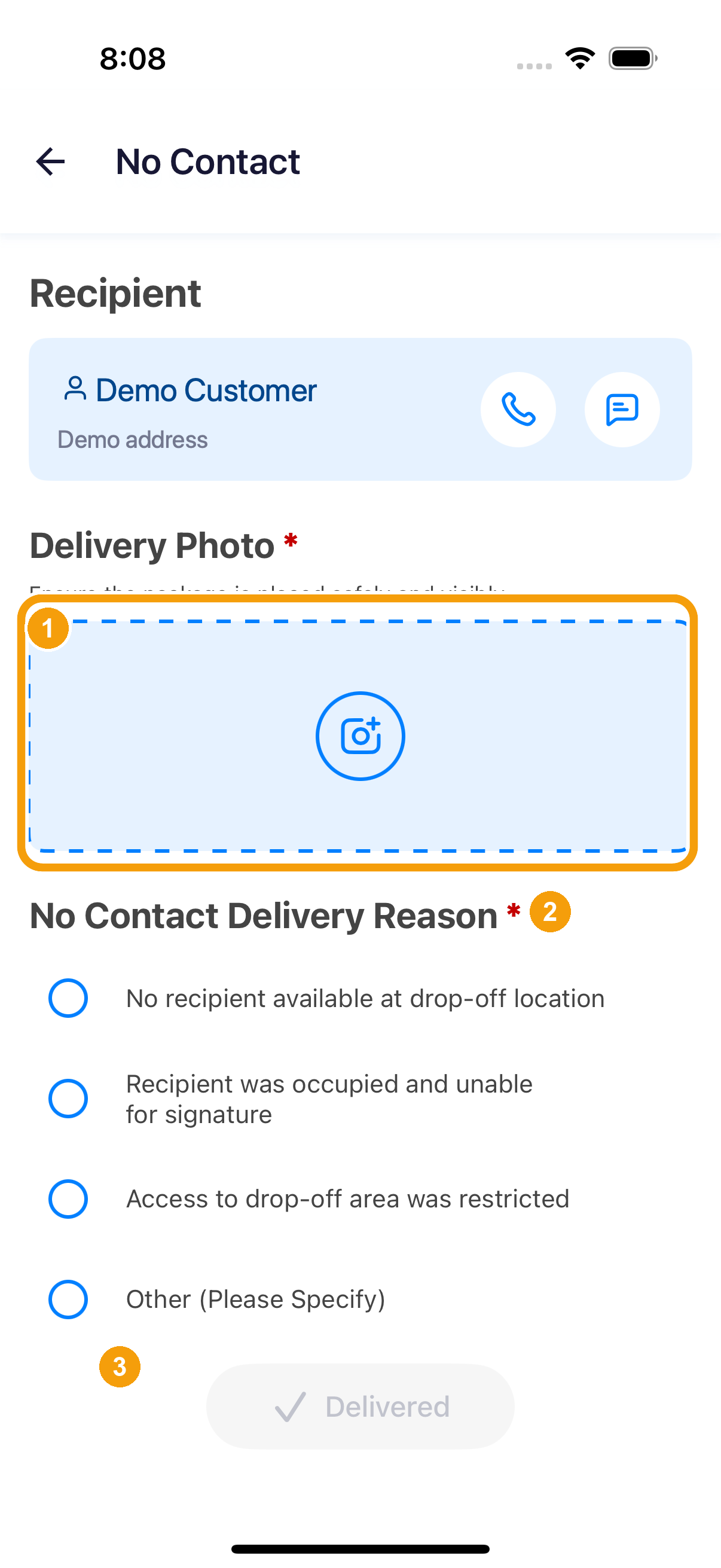
If the screen stays on this page and displays an error, resolve the error first – do not assume the delivery is complete and leave the site.
Once the app accepts the proof of delivery or No Contact record, it automatically navigates to Stop Complete!.