Take a break or work without internet
Park first. In navigation, switch the status to Rest to pause. If the phone has no internet, you can still work on a route already on the phone.
Where to find it: navigation › status › Rest.
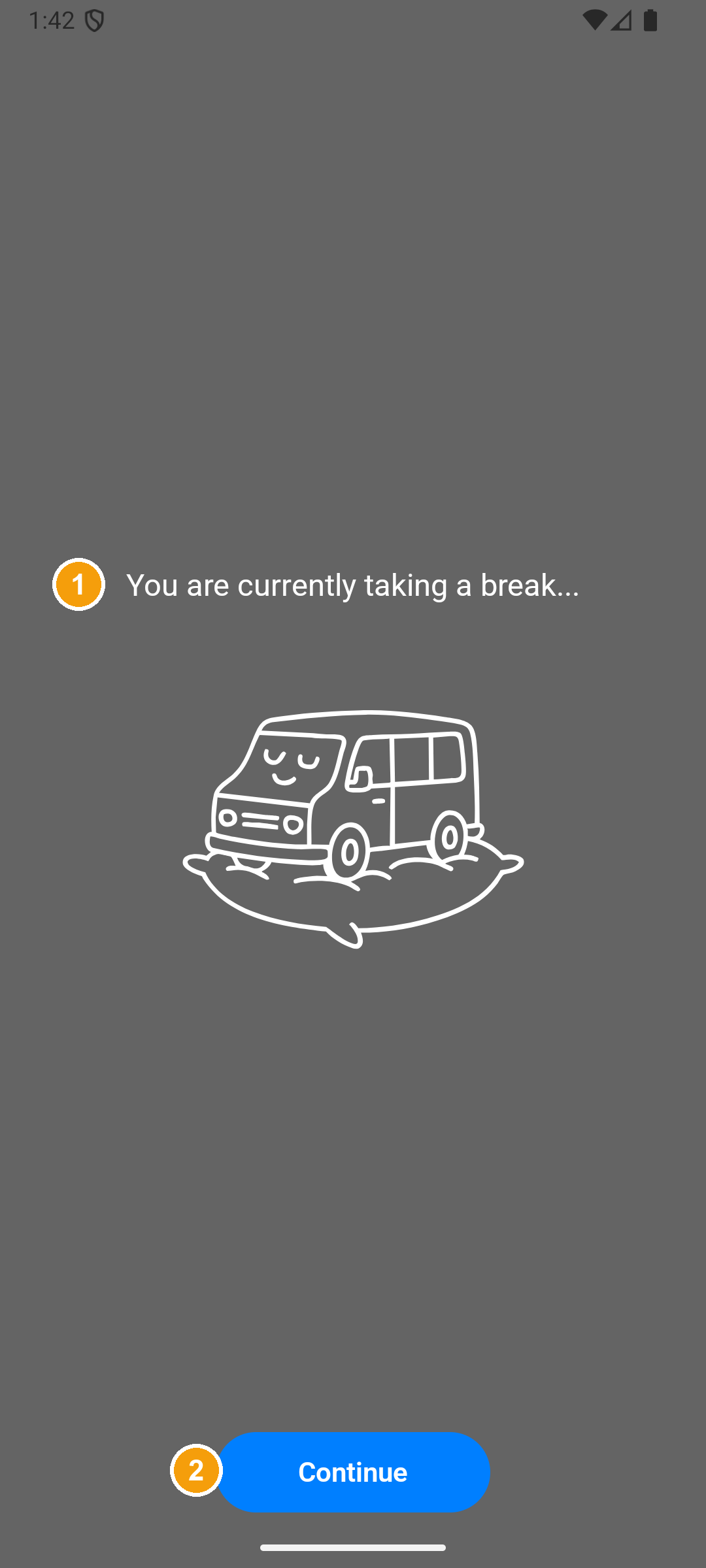
Step 1: Pause for a break
Park. Switch the status to Rest. This pauses navigation. It does not finish a stop or count as leave.
On the screenshot, 1 and 2 match the list below.
- You are currently taking a break... – navigation and location sharing are paused.
- Continue – tap when you are ready. Navigation starts again. Check the next stop before you drive.
Step 2: See when there is no internet
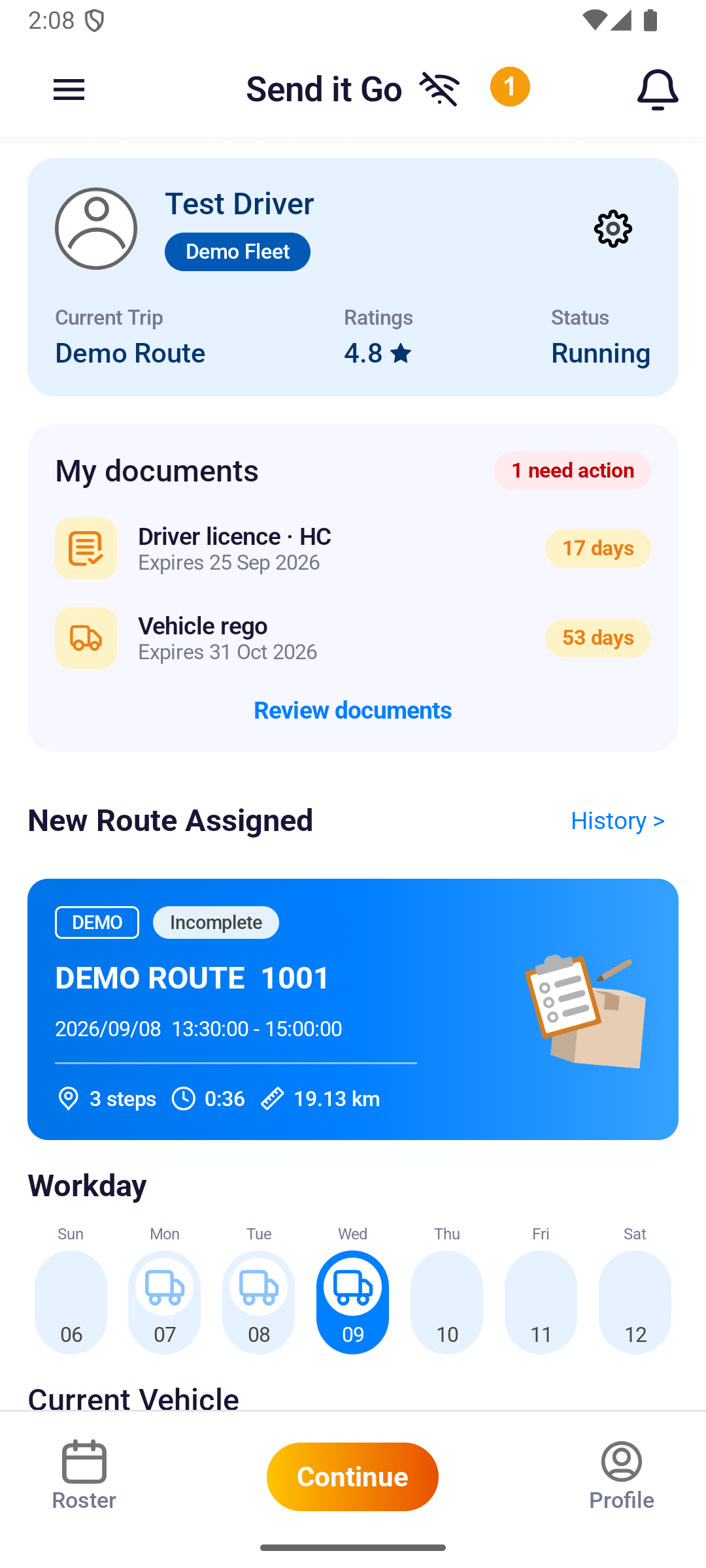
A slash through the Wi-Fi icon at the top of Home means there is no internet.
On the screenshot, 1 is the Wi-Fi icon.
- A route already on the phone still works.
- New routes, route updates, changing stop order, and reporting exceptions need internet.
- You can remove an order. Changing stop order at the same time will not save. Check the route when internet returns.
Step 3: Upload when internet returns
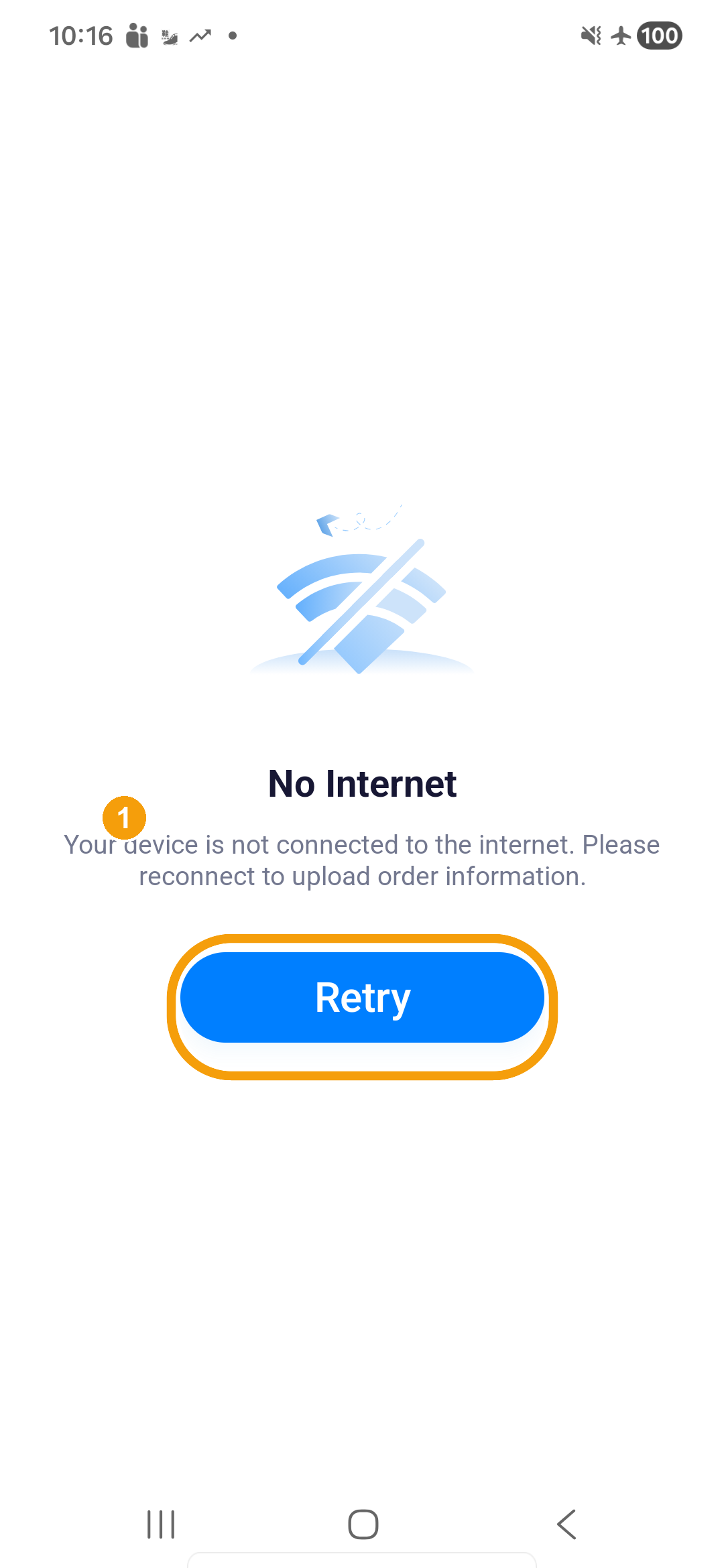
If you see No Internet, tap Retry after you reconnect.
On the screenshot, 1 is the offline sentence. Retry has no number.
- Tap Retry.
- Do not log out, uninstall the app, or clear app data while scans or proof may still be waiting.
First sign-in, registration, leave and profile need a connection. Keep the app open after you reconnect so uploads can finish.
More on this screen: Upload failed or no internet.
Do not log out, uninstall the app, or clear app data while scans, proof, or completion data may still be waiting to upload.
After a break, Continue puts you back in Running. After you reconnect, the slash leaves the Wi-Fi icon and waiting uploads finish.