Route updated while driving
Dispatch can still adjust the stop order or orders after you've started a route. The app stops the current navigation, shows a prompt, and asks you to reload the updated plan.
Where to find it: in-progress route → Route Updated prompt → Home.
When the "Route Updated" prompt appears
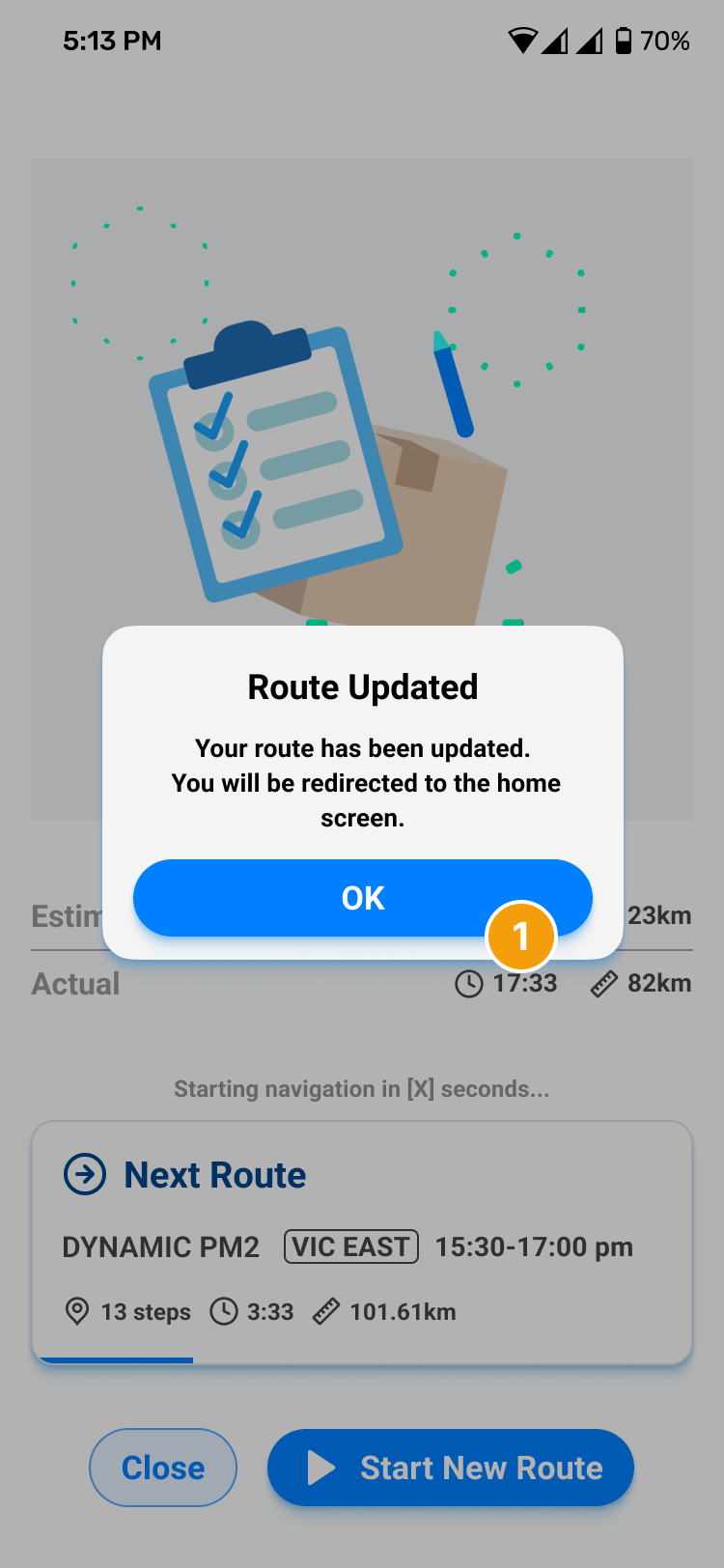
When Route Updated shows, pull over safely before touching your phone. A brief Route Adjusted toast may appear first – that means dispatch has changed today's route.
- Tap OK in the dialog. The picture also shows a countdown line behind the dialog. The number of seconds is a placeholder, so it is not confirmed here.
Reopen the route from Home
On this picture, 1 marks New Route Assigned. The card reads 3 steps and 19.13 km. Continue is the bottom control. Go! is not on this picture.
- Tap the card to reopen the route. This picture does not show that tap. Continue is the bottom control, not a label on the card.
Don't follow the sequence you memorised before the update, and don't assume a new plan has loaded just because a notification pinged. If the update happens while you're scanning, taking photos, or getting a signature, check what screen you land on and what completed state is preserved before continuing – don't redo a handover you already finished. If the new route is missing or doesn't match dispatch, reconnect, refresh, and share the route ID and update time with dispatch.
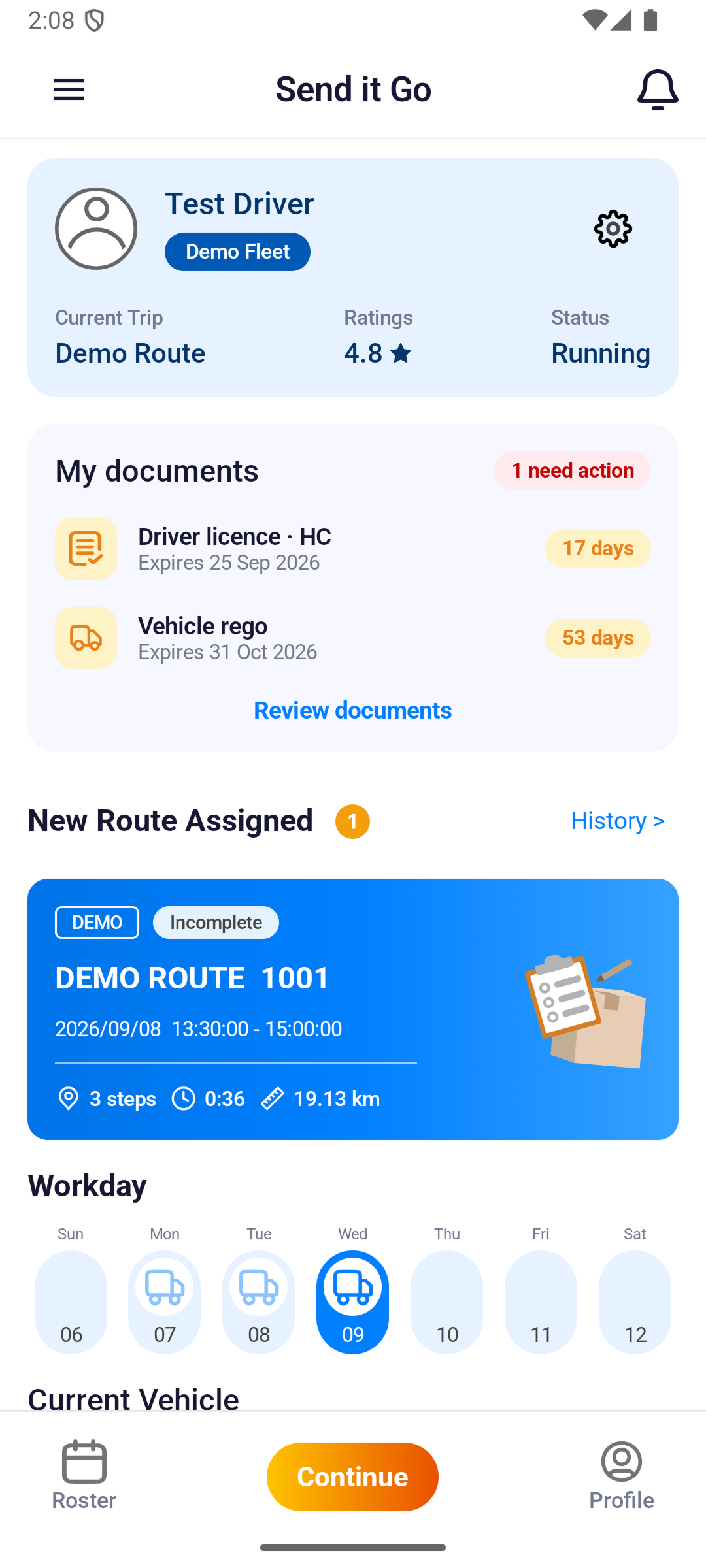
This picture shows New Route Assigned and the card. Reopening the route is not shown.