Upload failed or no internet
The app queues saved scans, proof, and completion data and retries when a connection returns.
Where to find it: current route or stop › upload error › Retry.
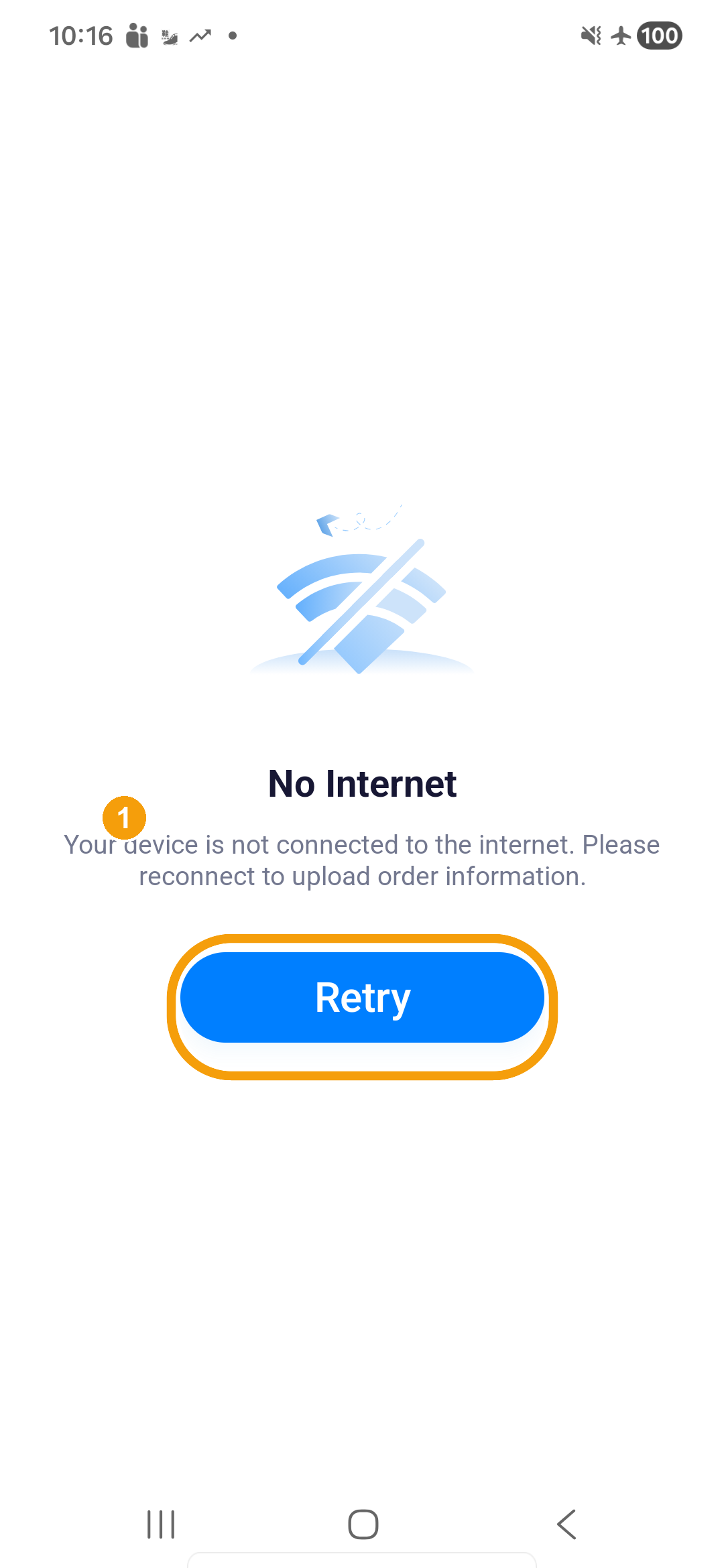
Tap Retry to upload after reconnecting
When No Internet appears: keep the app installed and do not clear app data; move to a stable mobile-data or Wi-Fi connection; then return to the original error screen.
- Tap Retry in the centre of the screen. Leave the app open long enough for queued uploads to finish, then reopen the current route to confirm completed stops remain complete.
If the same item still fails after reconnection, note the Plan ID, order number, stop, and time, then contact dispatch or support. Do not repeat a delivery or create a second proof merely to clear the error. An error prompt disappearing only means that operation can continue; it does not confirm that every background upload has finished.
If Pending data upload or Route Locked appears after the final stop, follow route-completion upload recovery and unlocking. Complete that recovery process before returning to other route work.
Identify which operation failed
Different failures require different next steps. The table below lists three common situations and their next actions:
| Situation | Next action |
|---|---|
| Home or history cannot load | Reconnect, then refresh or tap Retry on the screen to reload data. |
| Photo, signature or completion upload is waiting | Retain the app and work so uploads can resume. Check stop status to avoid creating duplicate proof. |
| Exception, leave or profile submission failed | These need an active connection. Offline delivery storage does not mean these submissions will automatically complete. Reconnect and check the result before retrying. |
Provide the full error and the step where it appeared to dispatch; a report of "no internet" alone does not distinguish loading failure, a queued upload, or an unfinished submission.
This picture shows No Internet and Retry. A reloaded route is not shown.