Work a Run Sheet
This is the web console side of one delivery day. Open today's sheet for one driver and see the stops in order – including the ones the driver has already finished on the driver app.
Where to find it: Delivery › Run Sheets. Putting a new order on a sheet is a different job: Dispatch your first order.
What you need
A fleet selected in the header, and at least one Run Sheet for the date you pick. If the driver is still on No Route Available, this list can look empty for today – wait.
1. Open the list
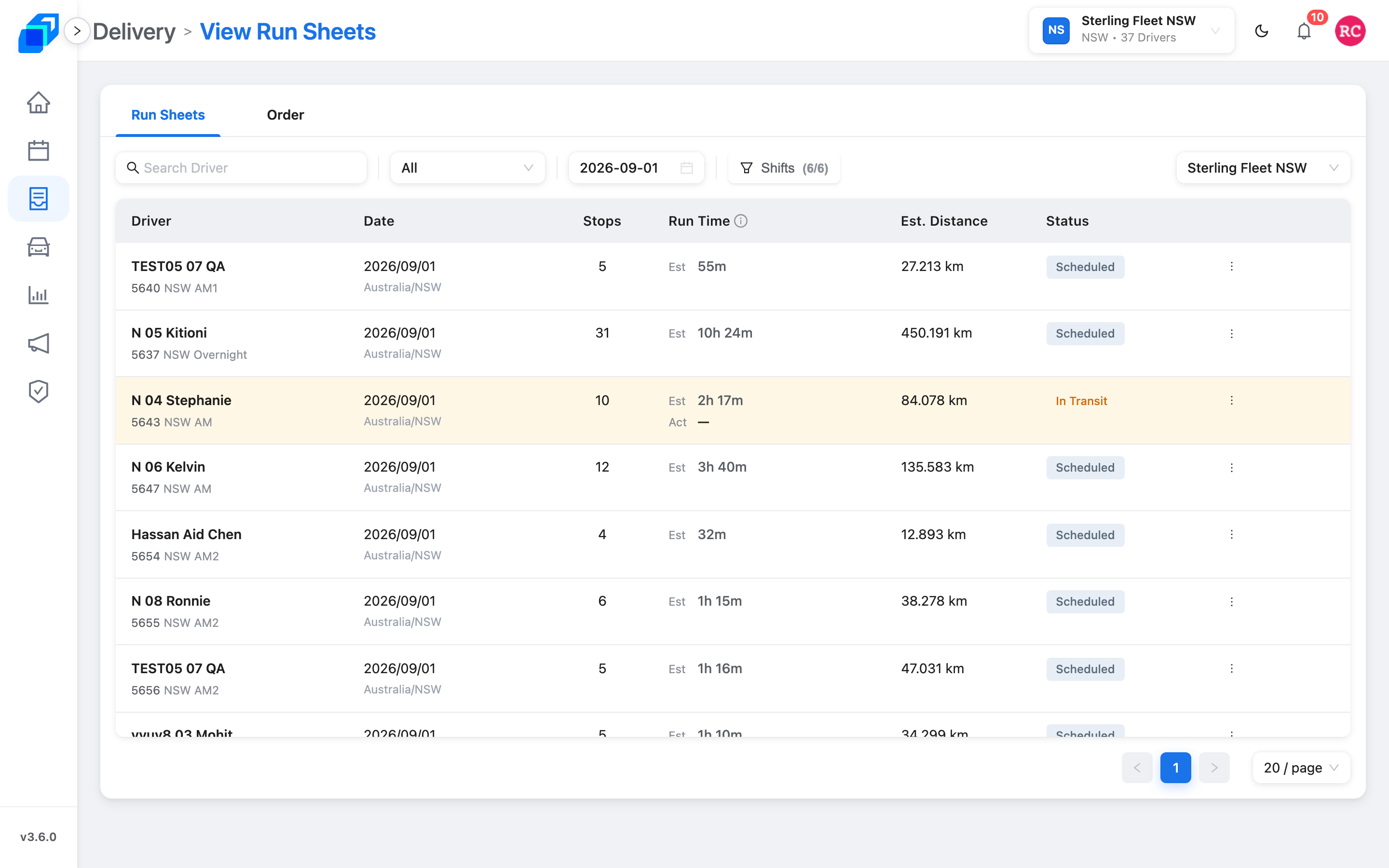
In the left menu, click Delivery. Stay on the Run Sheets tab (next to Order).
2. Open one sheet
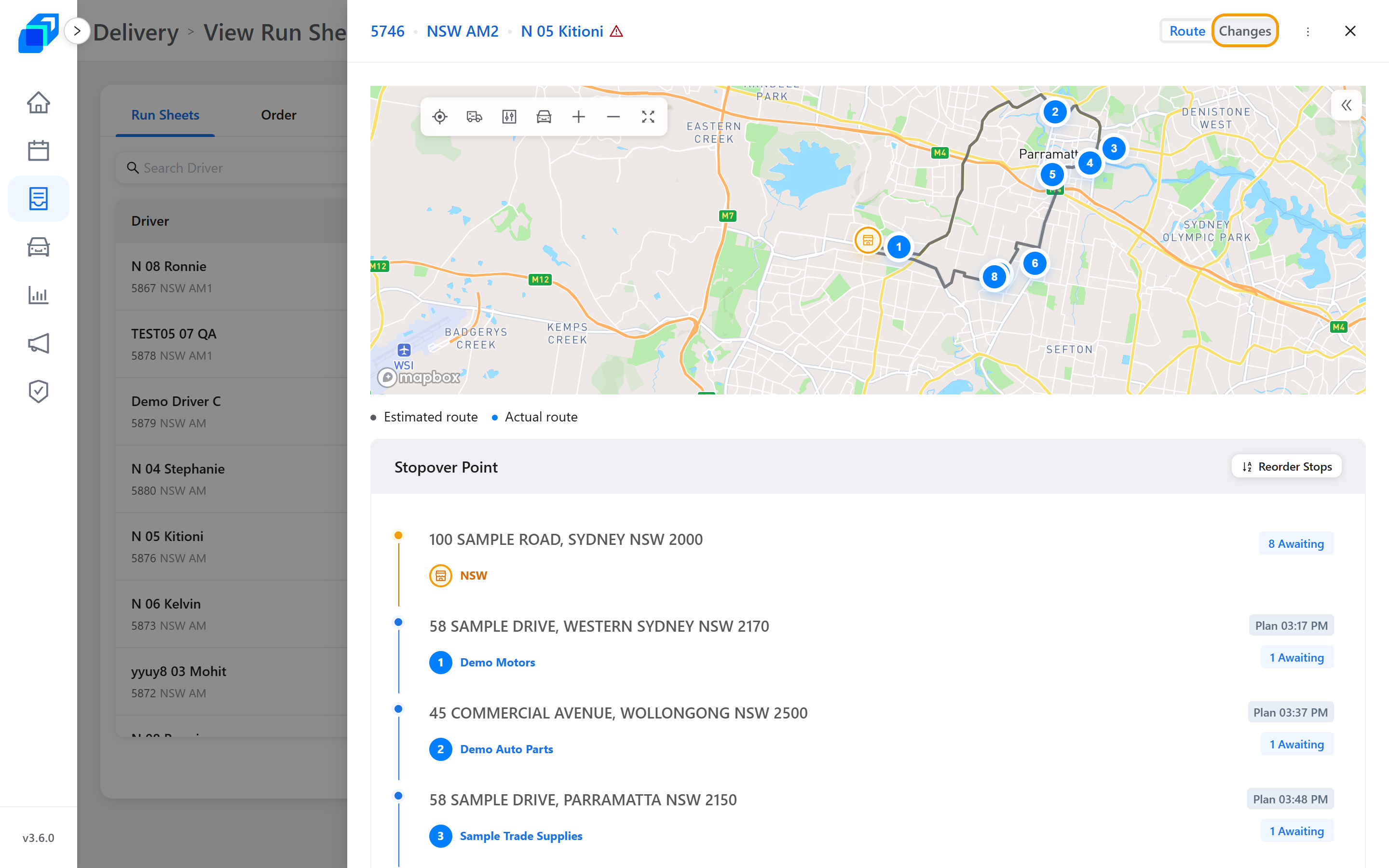
Click a row to open the run sheet drawer from the right. The drawer has two main sections: the route map at the top, and the Stopover Point list underneath, showing all planned stops in order.
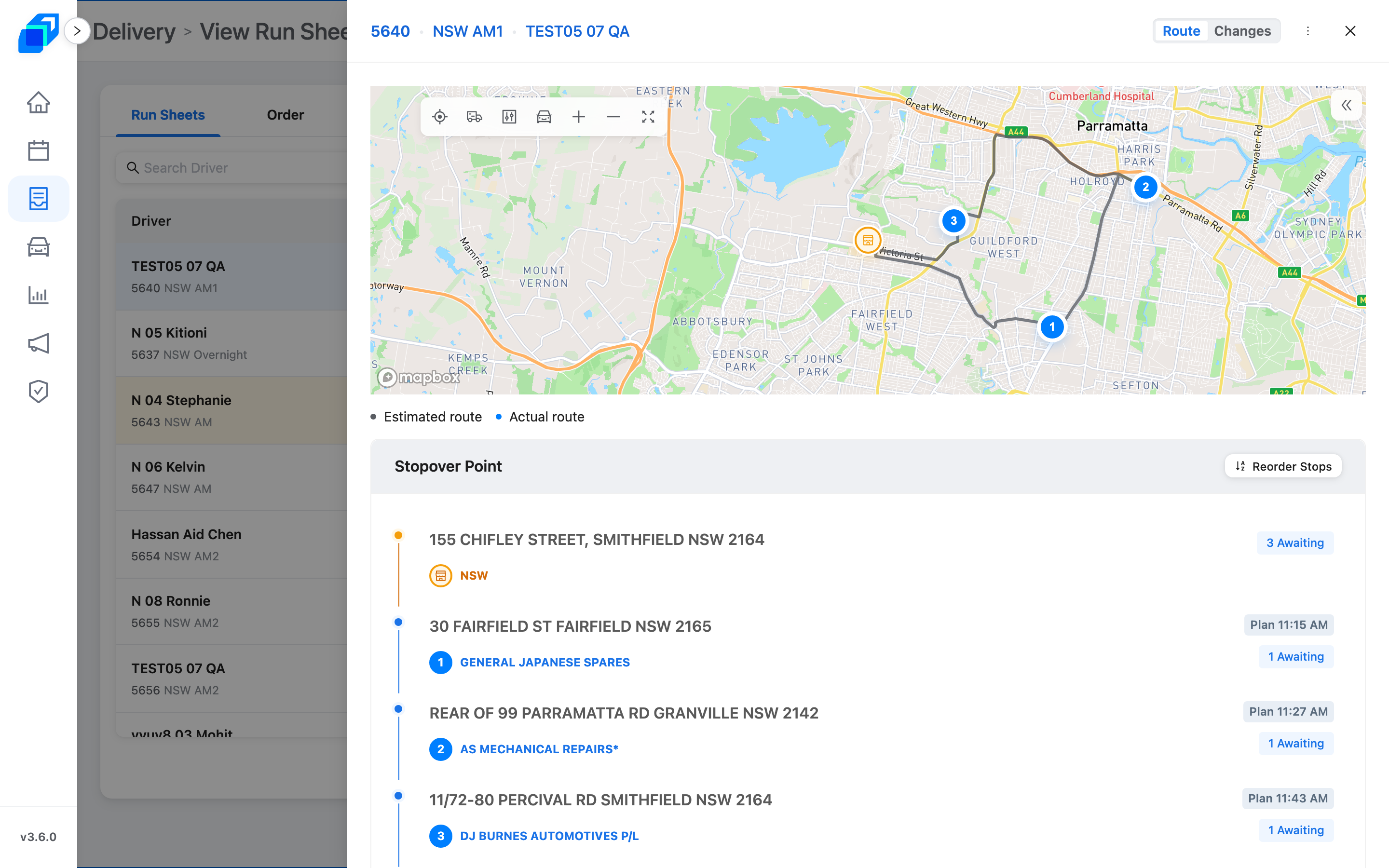
The map's floating controls sit in the top left corner. Rest the pointer on a control to read its name:
- Focus Route (crosshair icon): Re-centre and fit the camera to the full delivery route.
- Track Driver (truck icon): Centre the camera on the driver's live GPS position and follow their movement.
- Map Layers (sliders icon): Toggle Other Routes, Stops markers, and the Route List panel.
- Live Traffic (car icon): Toggle real-time traffic overlays on or off.
- Zoom In / Zoom Out (
+/-): Adjust the map zoom level. - Fullscreen: Switch to a fullscreen map view.
Badges below the map identify route lines: grey for Estimated route and blue for Actual route.
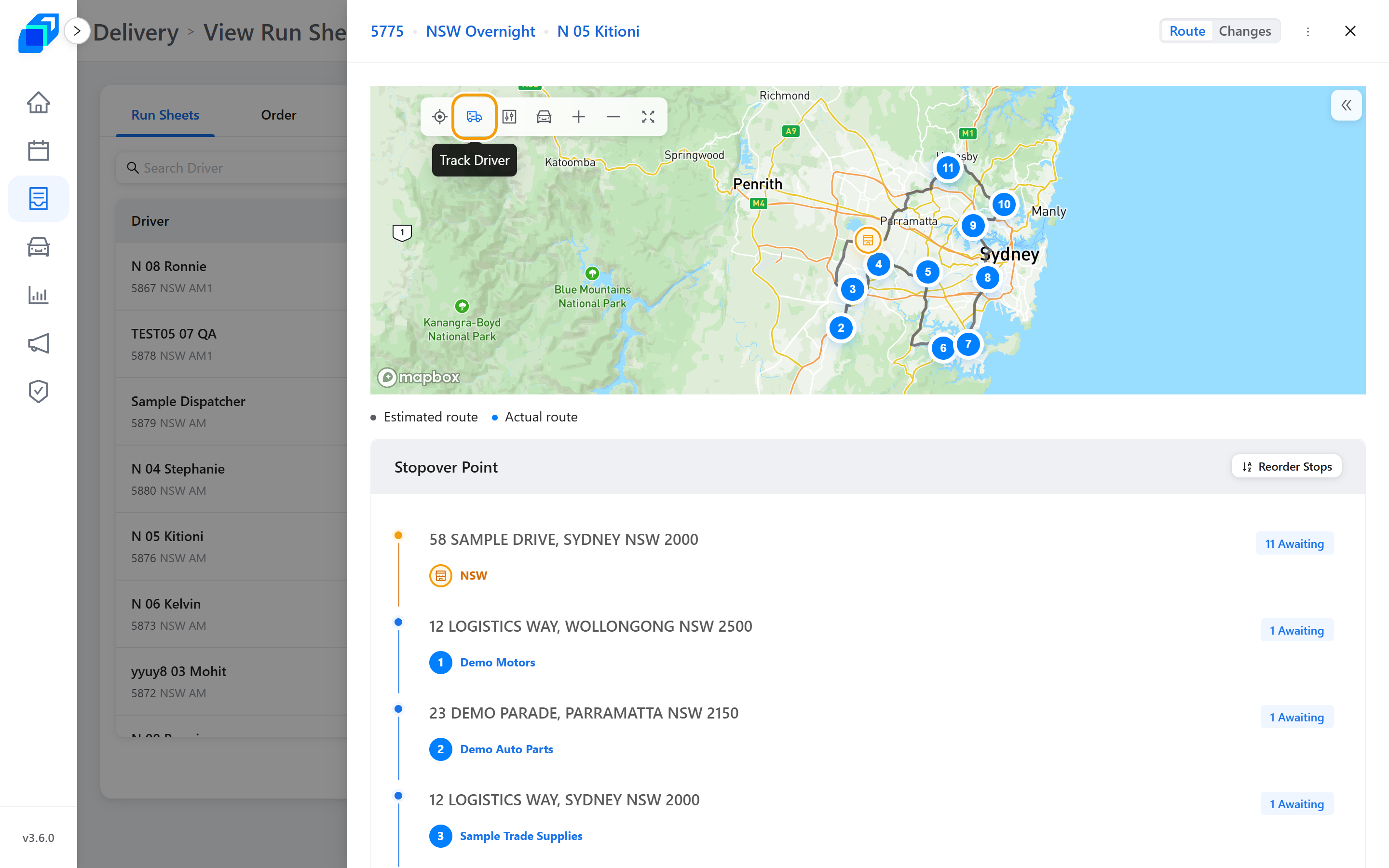
The driver's position comes from their phone in the background as they drive. If they have not started yet or haven't opened the app, the camera stays at its current position.
The Stopover Point list starts at the departure warehouse, followed by each stop with its planned arrival time (such as Plan 11:15 AM) and status tags (such as 1 Awaiting or Signed). Rest the pointer on a status tag to open an order breakdown for that stop.
On an open run sheet, you can reorder stops, report item exceptions, or edit item quantities directly without switching pages.
Each stop carries the status of its own orders. A stop still to come reads Awaiting; one the driver has finished reads Signed. A stop with several orders on it counts them – for example 2 Signed / 1 Awaiting. Rest the pointer on a status to see that stop's orders grouped underneath it. Check the recorded stop status before deciding which work remains.
The sheet drawer opens with the route map at the top and the Stopover Point list underneath, and the stops the driver has already worked read Signed while the rest still read Awaiting.
3. Change the order of the stops
On the Stopover Point header, click Reorder Stops.
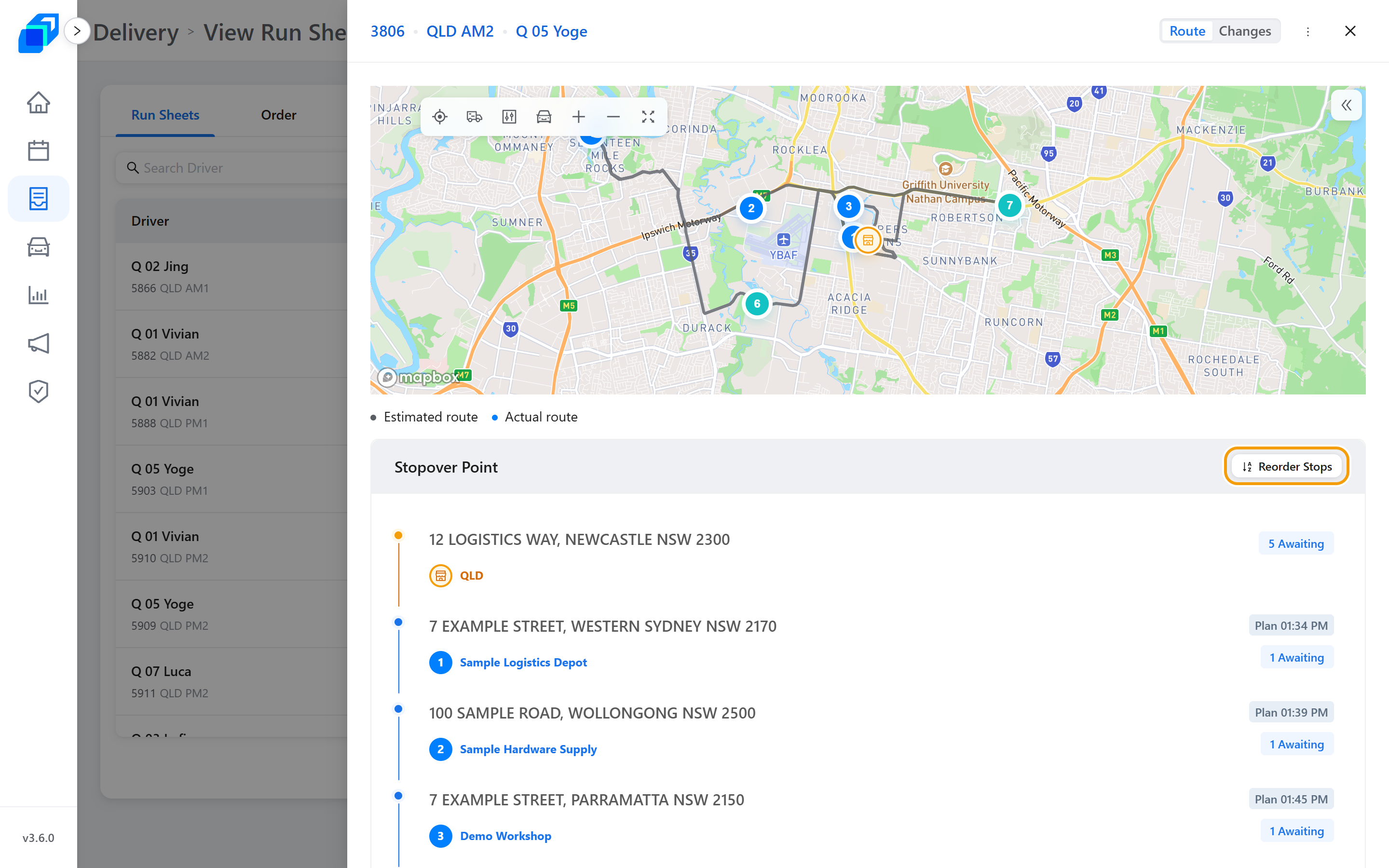
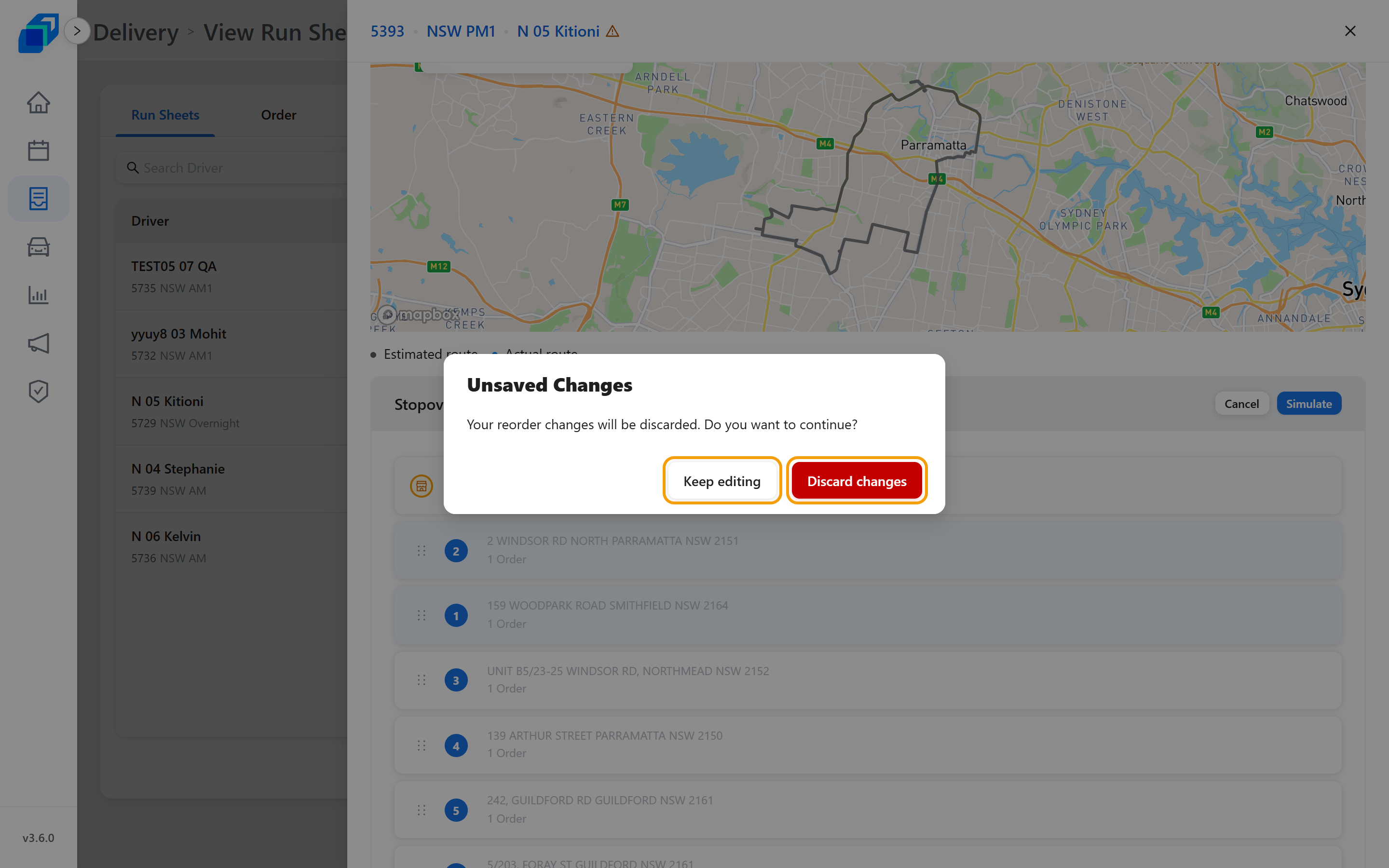
The list turns into cards you drag by the grip on the left. The new order is the order of the cards – the number on a card is where that stop was, and it does not change while you drag. A card you have moved turns blue.
Two kinds of row never move: the Warehouse row, which has no grip, and any stop the driver has already started, which greys out and reads Completed stop — cannot reorder.
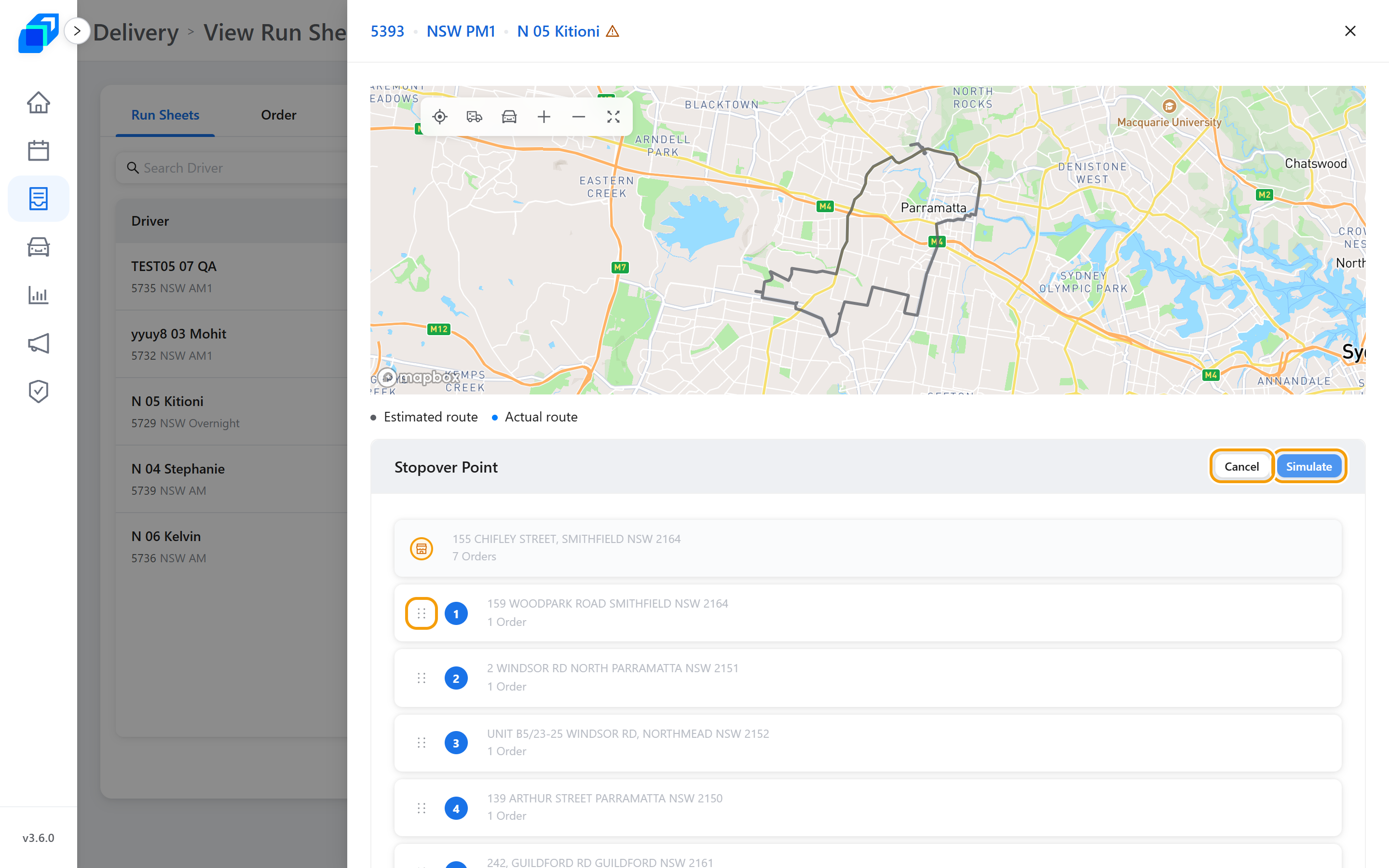
When the order is right, click Simulate. That sends it – there is no separate Save.
The driver's phone shows Route Updated and takes them back to their home screen with the new route.
If the route would now finish after the driver's shift ends, you get Route Finishes Past Shift End first and the button changes to Proceed Anyway. That is a warning, not a block.
Cancel leaves without sending. If you close the sheet with a change you have not sent, you get Unsaved Changes – Keep editing takes you back, Discard changes throws the drag away.
No Reorder Stops on the header means either you do not have the permission – it is hidden, not greyed out – or there is nothing left to move on this sheet.
4. Report a problem with an item
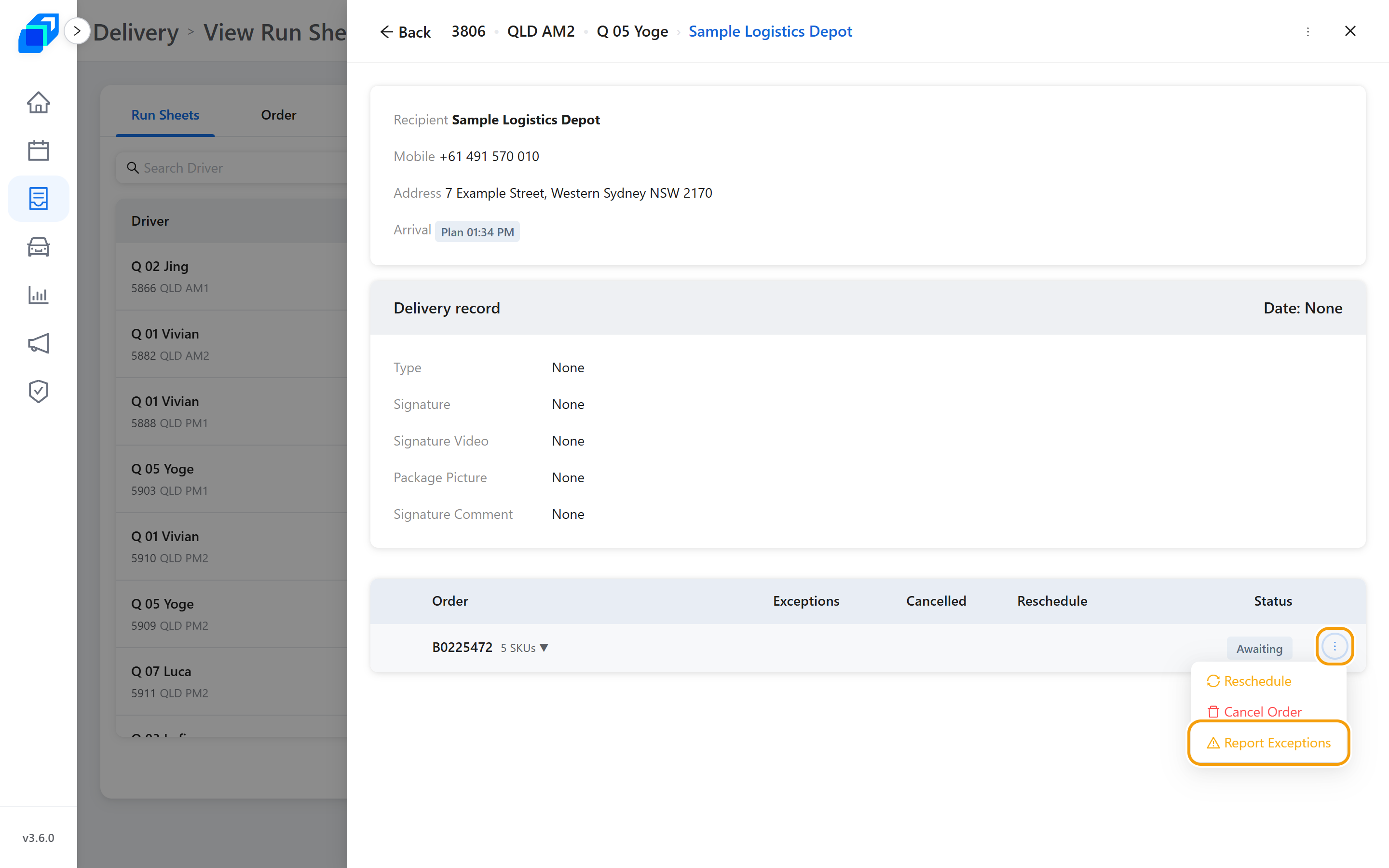
Click a stop to open it. Find the order, open its menu (⋮), then click Report Exceptions.
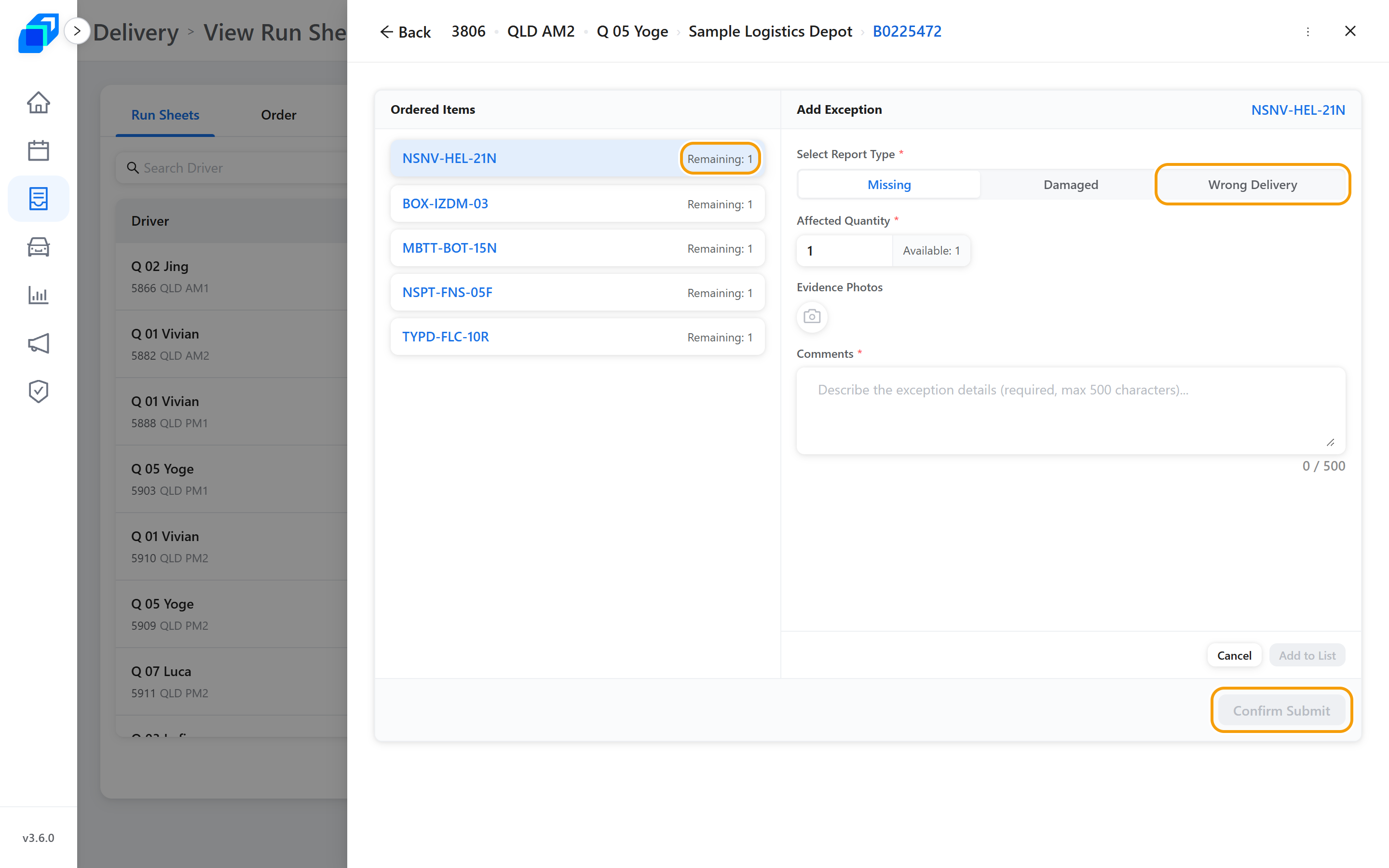
On the left, click the item you are reporting. Then fill the right side:
- Select Report Type – Missing, Damaged, or Wrong Delivery.
- Affected Quantity – no more than the Available number next to it.
- Evidence Photos – optional.
- Comments – required, up to 500 characters.
Click Add to List, then Confirm Submit.
A submitted exception report cannot be edited or deleted.
At the warehouse stop you only get Missing and Damaged. Wrong Delivery appears on the delivery stops.
5. Move an order to another day
The same stop menu carries Reschedule. Use it when the order should not go out today.
Click a stop to open it. Find the order, open its menu (⋮), then click Reschedule.
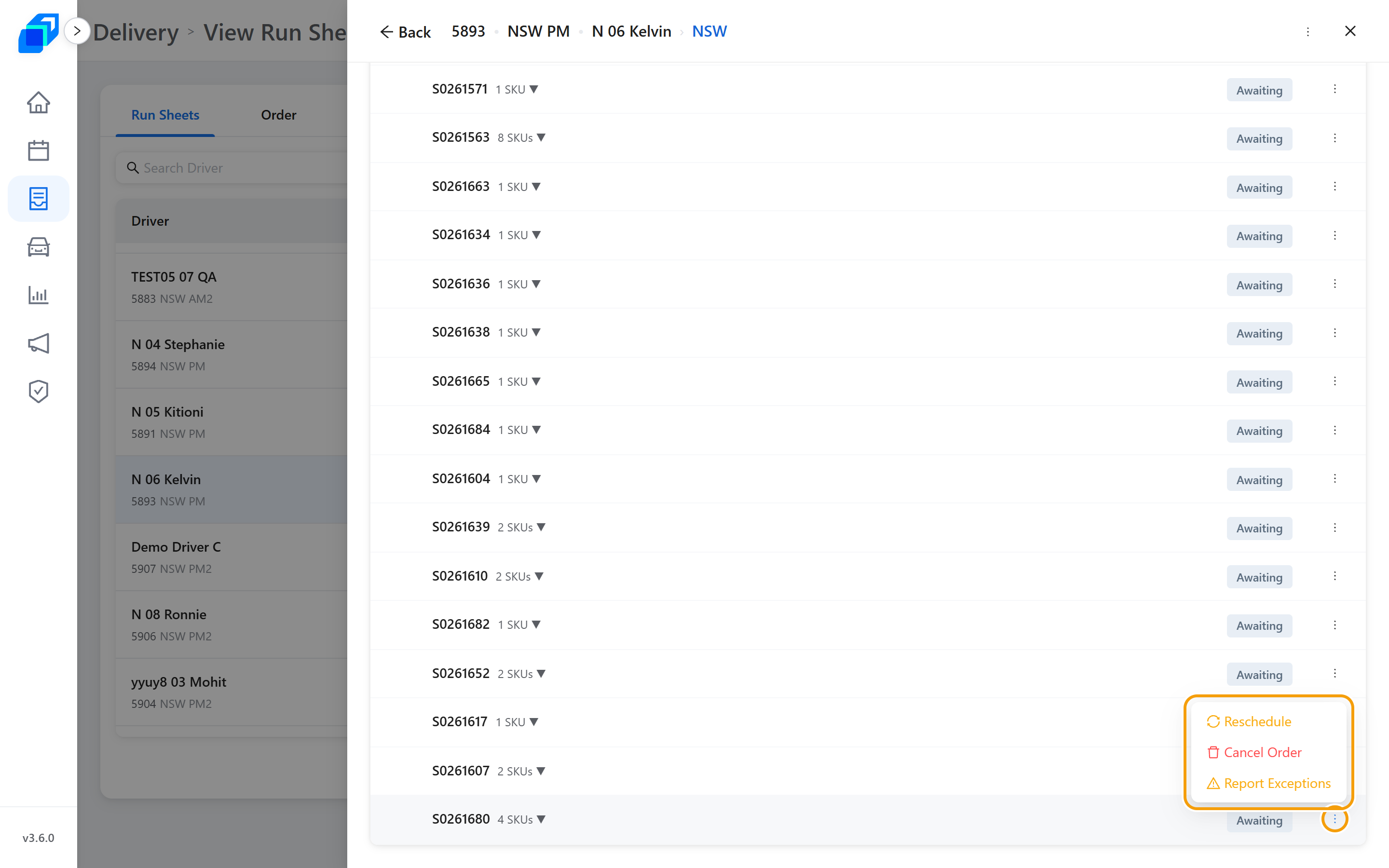
The dialog names the order, its address, the shift and the driver, then says what will happen: the order is removed from this run sheet and returned to the pending queue for the next scheduling run.
- Target Date – the day it should go out instead.
- Shift – stays greyed as Pick a date first until you set the date.
- + Add a Reason – optional.
- Reschedule Order commits it. Keep Schedule backs out and changes nothing.
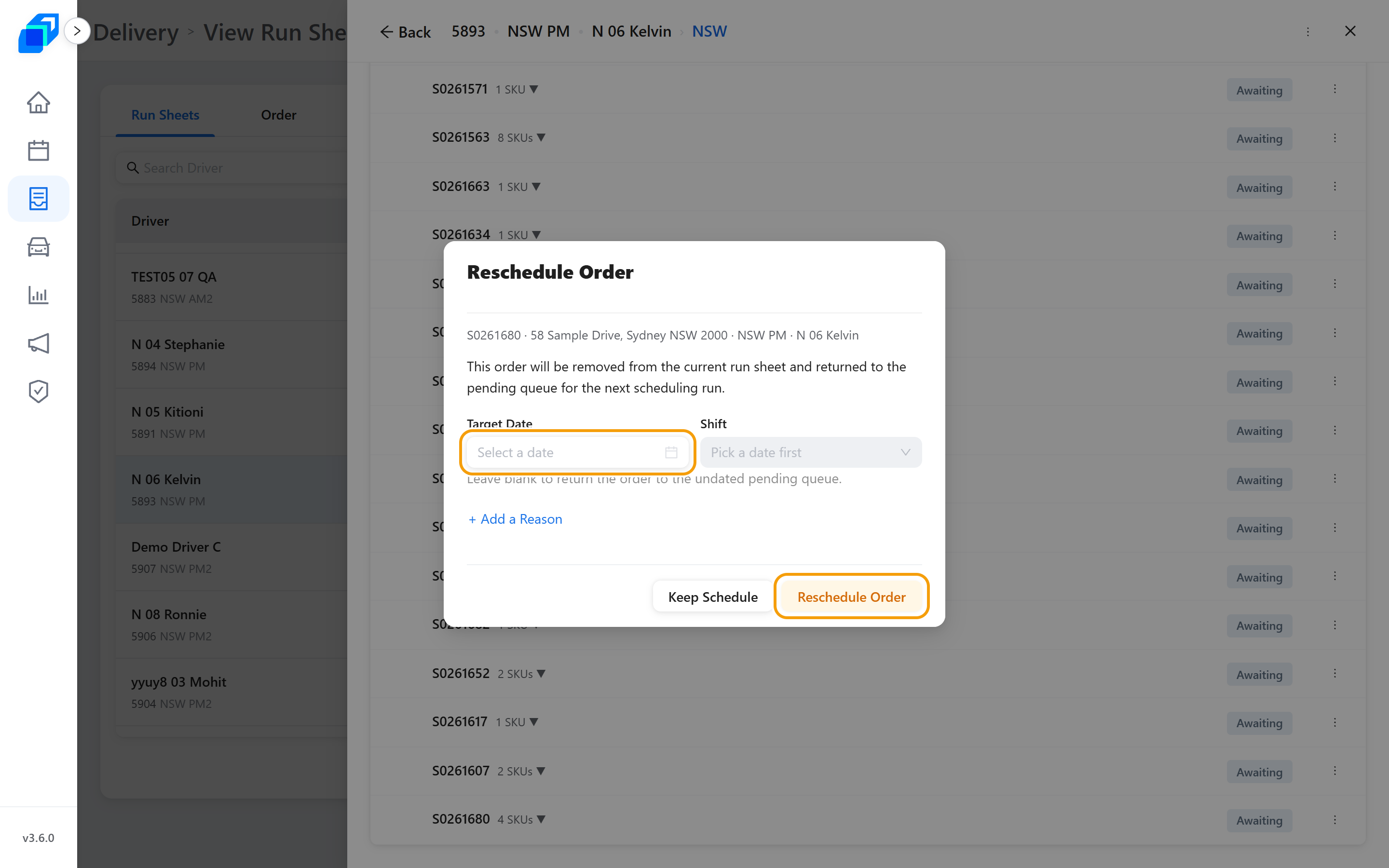
Leave Target Date blank to return the order to the undated pending queue.
Looking for this on View Orders? The order list only offers Reschedule when a cancellation is already waiting for the customer to confirm. The everyday way to move an order is here, on the run sheet.
6. Move an order to another driver
Reschedule moves an order to another day. To move it to a different driver, go to Order Management and open the run sheet the order is on now.
Click the stop to open it. Find the order, then click Reassign on its row, beside Cancel and Reschedule. On this screen the three are buttons on the row, not a menu.
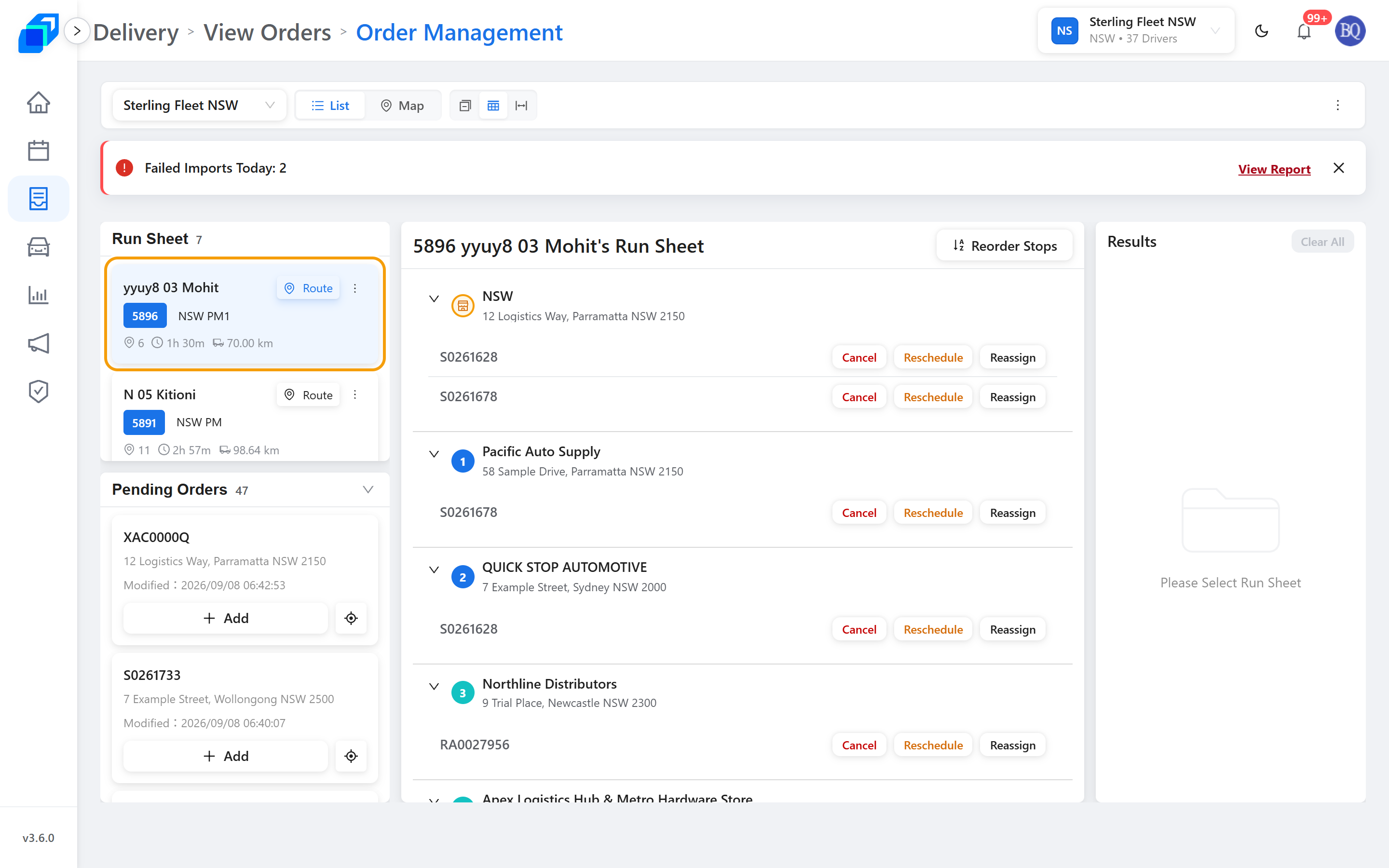
Reassign Order opens.
- Order – the order being moved, read-only.
- Reassign – the driver taking it over. The box reads Select Run Sheet until you pick one, and the list groups under On Duty and Idle.
- Ok commits it. Cancel backs out and changes nothing.
The sheet the order is on now is left out of that list. A driver with no sheet today is still a valid choice, under Idle.
The move queues in Results, under Reassign on both drivers' cards. One card shows the order leaving and the other shows it arriving, each naming the other driver.
Nothing reaches either driver yet. Click Simulate, then Assign – the same two clicks as Dispatch your first order.
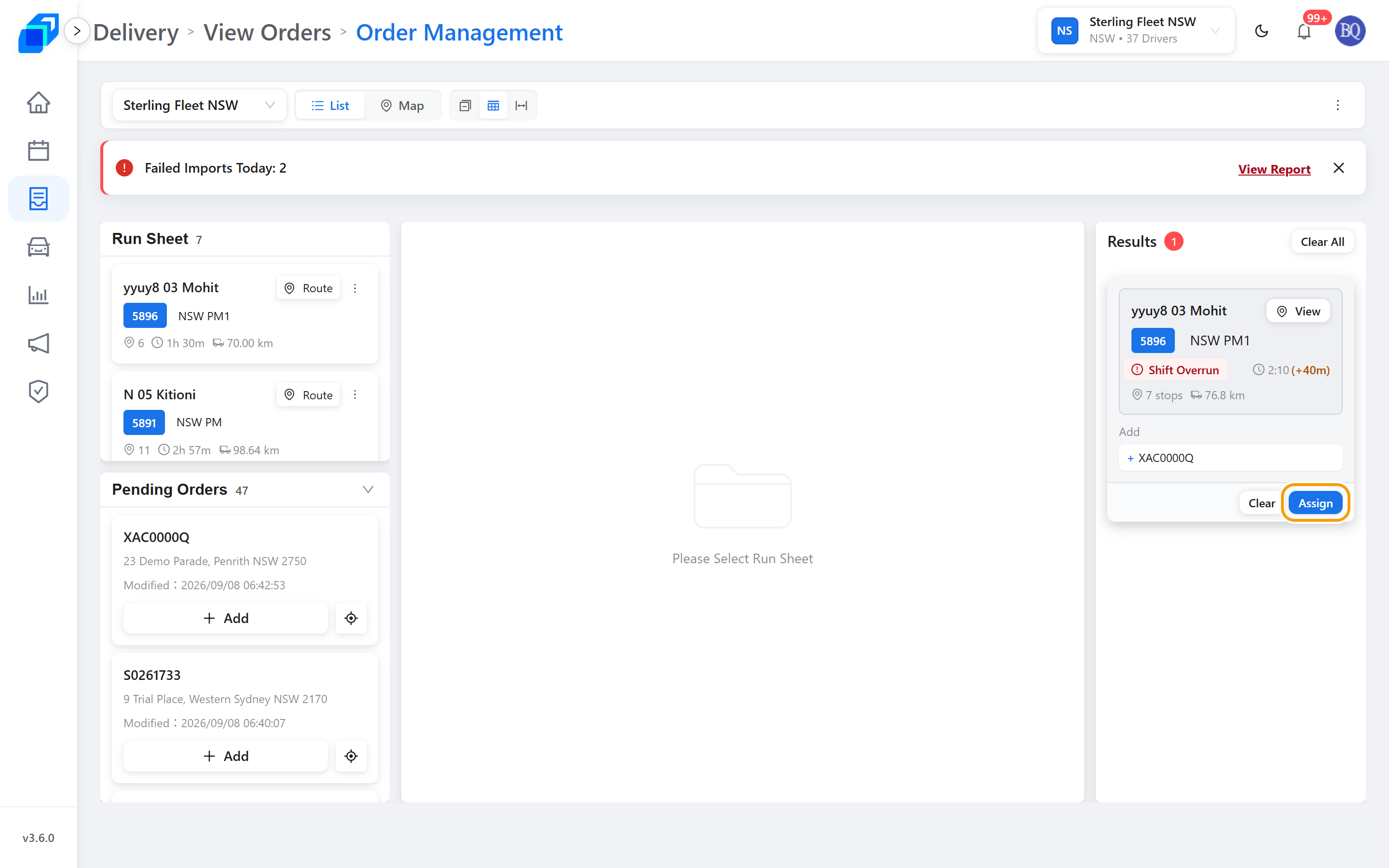
Simulate works out both drivers' new routes. If a route now runs past that driver's shift end, its card carries a badge. Close to Shift End means up to 15 minutes over; Shift Overrun means more than that. Rest the pointer on it for the finish time and how far past the shift end it runs. It is a warning, not a block.
Before you click Assign, the close icon beside the order takes the move back. Clear drops the whole card.
Because a reassign changes two run sheets, Assign asks Confirm Batch Assignment first. Click Confirm Assign. Until you do, nothing has been sent and the cards stay as they are.
When it goes through, nothing pops up. Results empties – every card, including any you had not assigned – and the centre returns to Please Select Run Sheet.
If the assign does not go through, a red Some run sheets are not simulated, cannot assign. appears – one card has no simulation. Click Simulate, then Assign again.
You may also see Some run sheets failed simulation, all operations have been rolled back. That one comes from Simulate, not from Assign: the simulation itself failed and nothing was changed. Your cards are still there – click Simulate again.
No Reassign on the order's row means you do not have the permission – it is hidden, not greyed out. Ask your admin for Replace Order.
7. Change the items on an order
On an order row, click the SKU button – it shows how many SKUs the order has. Each line has a Qty you can change and a Cancel that drops that line. Then click Save Changes.
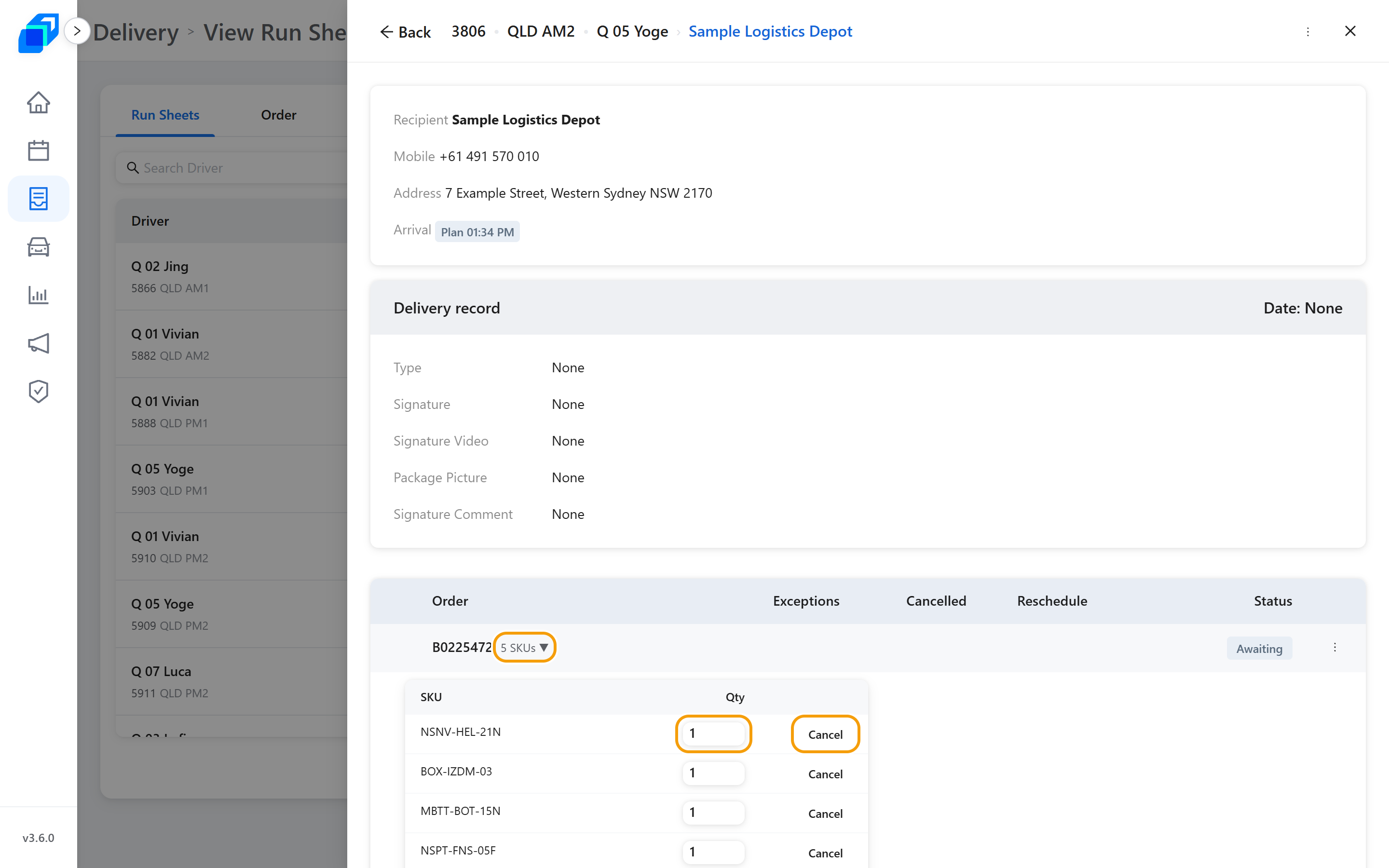
You can only do this before the goods are picked up. After that the lines are read-only.
Cancelling the last line left on an order cancels the whole order. That stop comes off the run sheet, and the route is worked out again.
Cancel the last line and Cancel Order opens, listing exactly what will happen – which order goes, and which stop comes off whose run sheet. Keep Order backs out. Cancel Order stays greyed until you tick I understand, cancel this order.
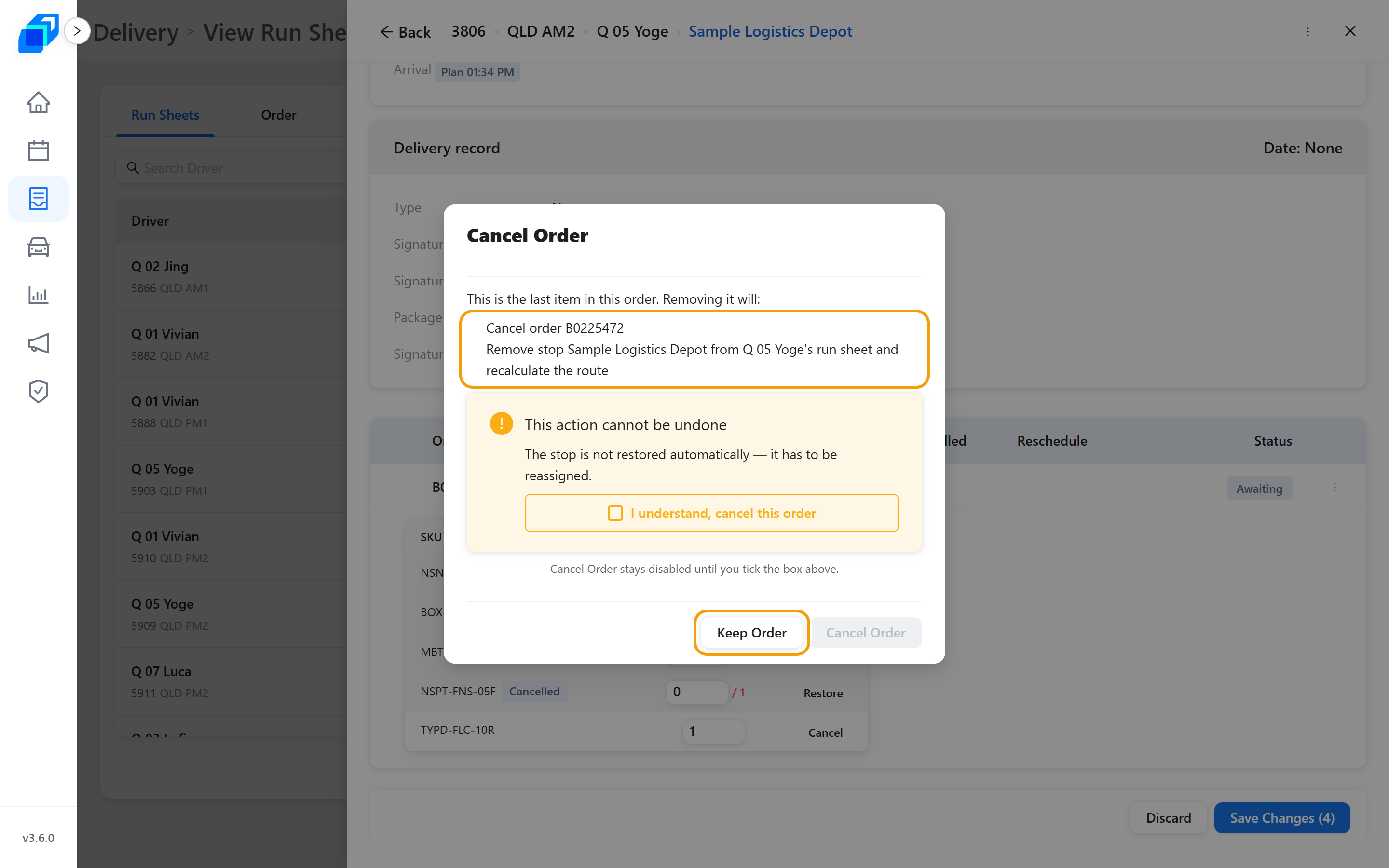
If you cannot see Report Exceptions or the SKU button, they are hidden rather than greyed out. Ask your admin for Report Delivery Exception and Edit Order Item(s).
8. See what has happened to this run sheet
Open the run sheet's ⋮ menu and click Delivery plan error log.
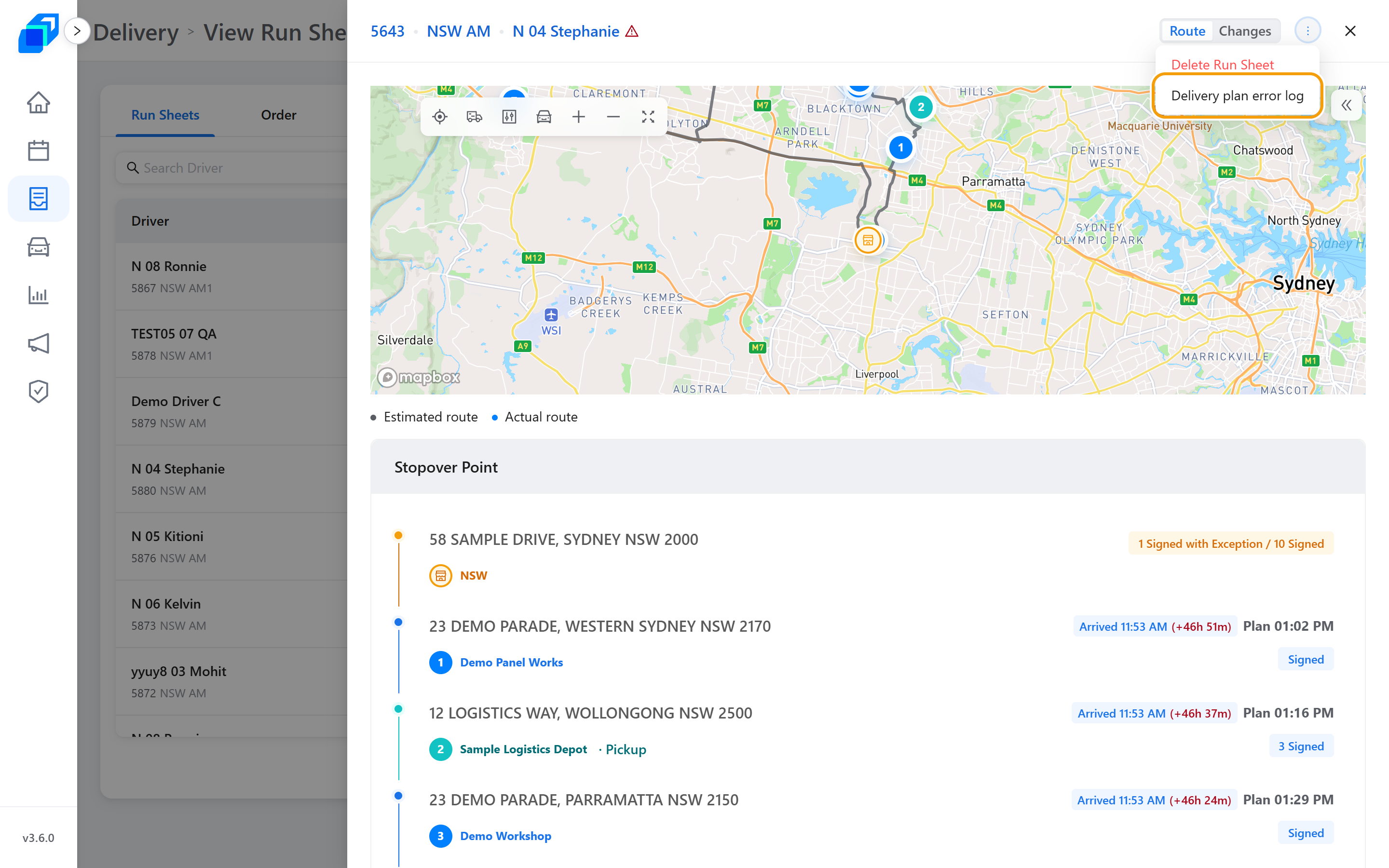
It lists what has been done to this run sheet – not only problems. An empty drawer means nothing has happened yet.
Each entry has a Date, an Operation, and the Operator who did it – System when nobody did. The rest describe the run sheet at that moment: Number of stops, Number of orders, Estimated schedule distance, Estimated schedule time, and the Order involved when there is one.
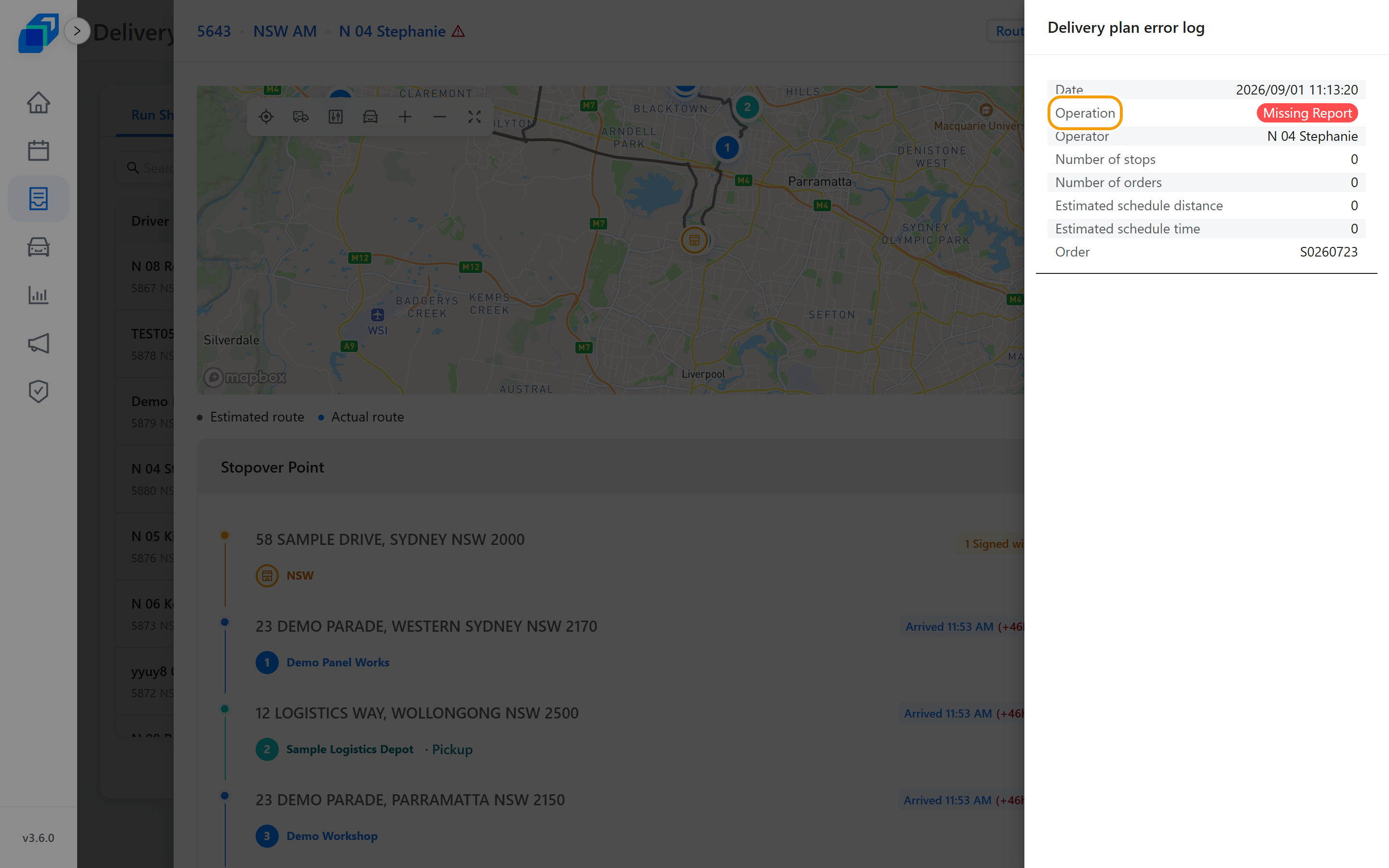
What each Operation means:
| Operation | What happened |
|---|---|
| Missing Report | the driver reported items missing |
| Damaged Report | the driver reported damage |
| Wrong Delivery Report | the driver reported a wrong delivery |
| Insert | an order was added to this run sheet |
| Reschedule | the run sheet or an order was moved to another day |
| Manually Completed | someone finished it from the computer |
| delete | something was taken off the run sheet |
You may meet an operation that is not on this list.
On the three Report rows the counts and distances read 0 – a report from the driver does not change the run sheet.
This drawer has no close button. Click anywhere outside it to go back.
9. See how the route has changed
When a driver reorders their own stops on the phone, the sheet keeps the version they replaced.
Top right of the run sheet, the switch reads Route | Changes. Route is the map you arrived on. Click Changes.
Current Estimated route is what the driver is on now. Under Past versions, each entry says what happened – Stops Reordered – who did it, and how long ago, with that version's stops, distance and time beside it.
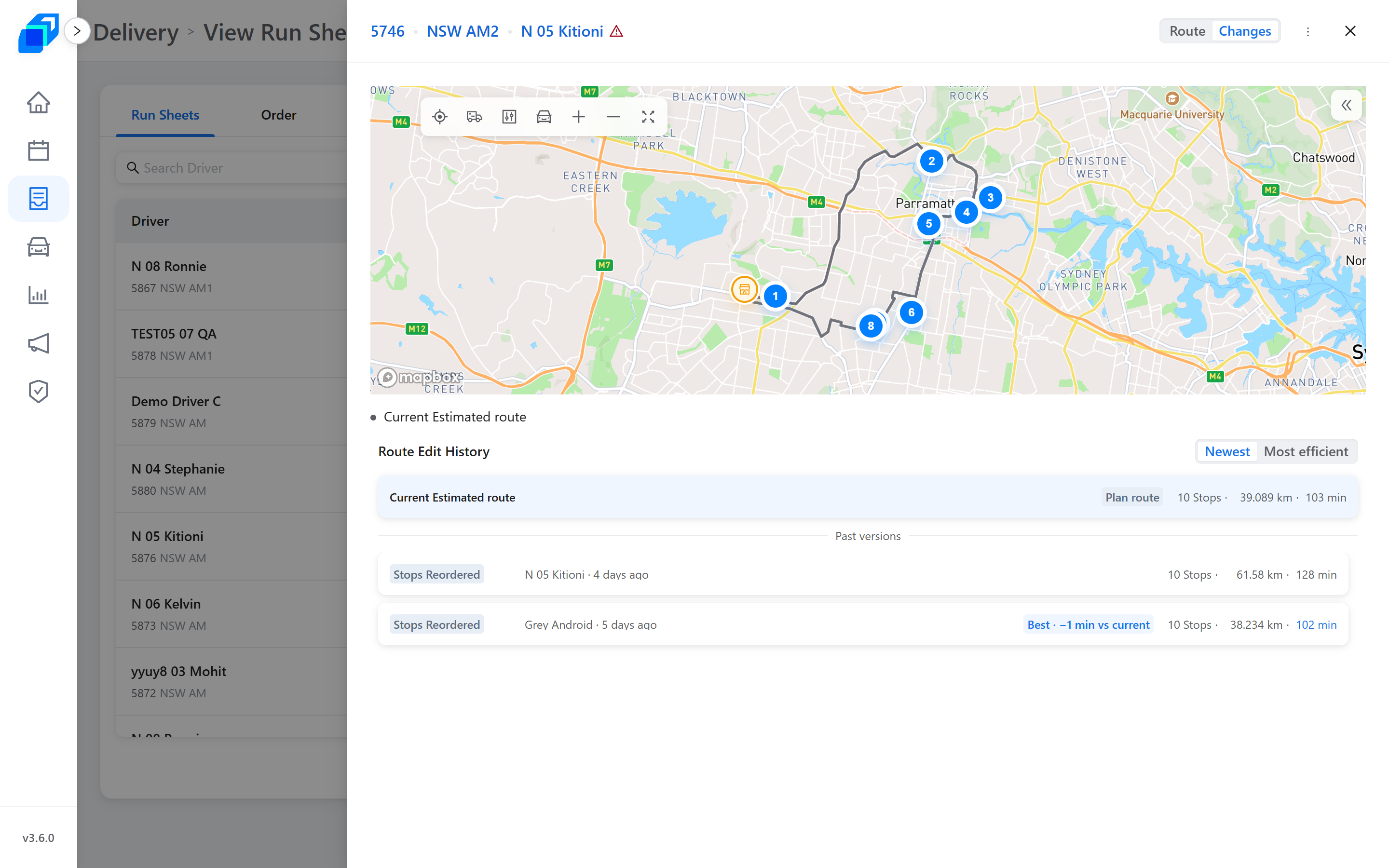
Compare the numbers to see what the change cost or saved. Newest and Most efficient re-sort the list.
If nothing has been changed, the panel says No route changes recorded for this run sheet yet.
Next steps
- From dispatch to delivered – the whole day
- Dispatch your first order – on the web console: create, Simulate, then Assign
- Run your first shift – the same day on the driver app