Update your vehicle information
Use Vehicle Information when the vehicle or its registration details in your driver profile change. The update is saved as a profile draft and must be submitted for review before it is approved.
Where to find it: dashboard bottom bar › Profile › Edit › Vehicle Information.
After you submit, Profile shows Profile Under Review or Under Review for the vehicle section.
Before you start
- Park safely before editing or photographing documents.
- Prepare the current REGO document and any required vehicle inspection photo.
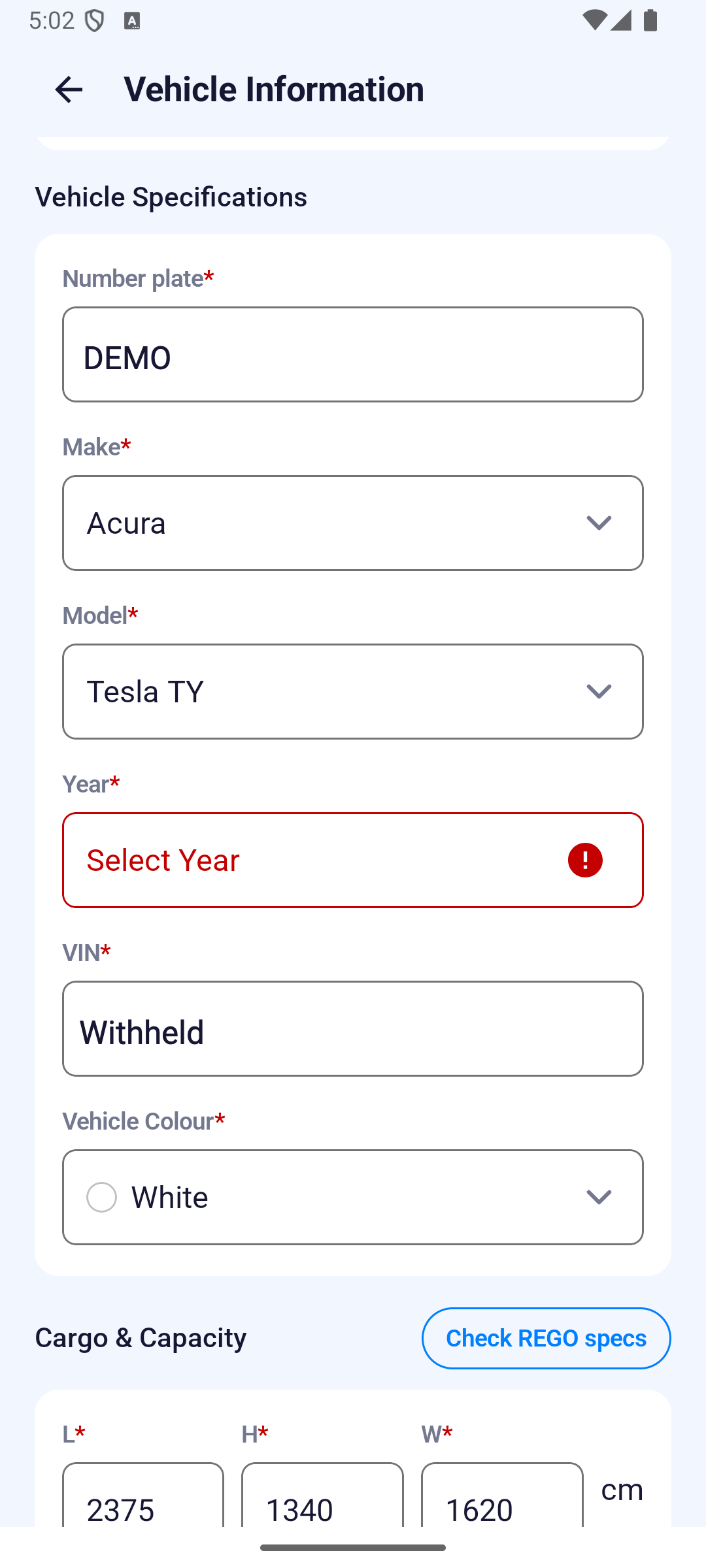
- Check the owner's name, manufacture date, REGO expiry, number plate, make, model, year, VIN, colour, cargo dimensions, payload, equipment, and fuel or energy details.
- Use a stable connection while uploading documents and submitting the change.
Open Vehicle Information
- Tap Profile on the dashboard.
- Tap Edit in the top-right corner.
- Tap Vehicle Information.
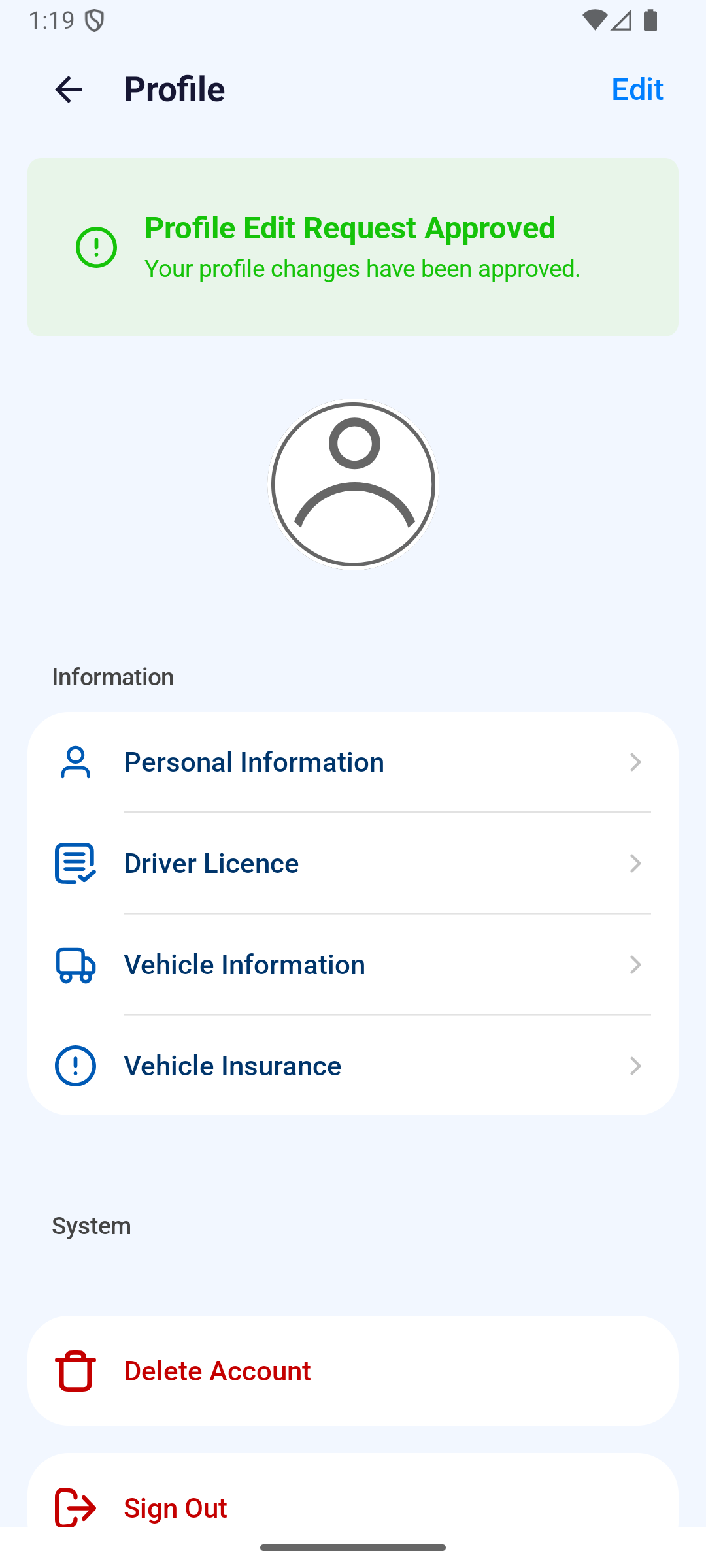
iPhone uses the same Edit and Vehicle Information labels.
Change and submit the details
- Review each existing value before replacing it.
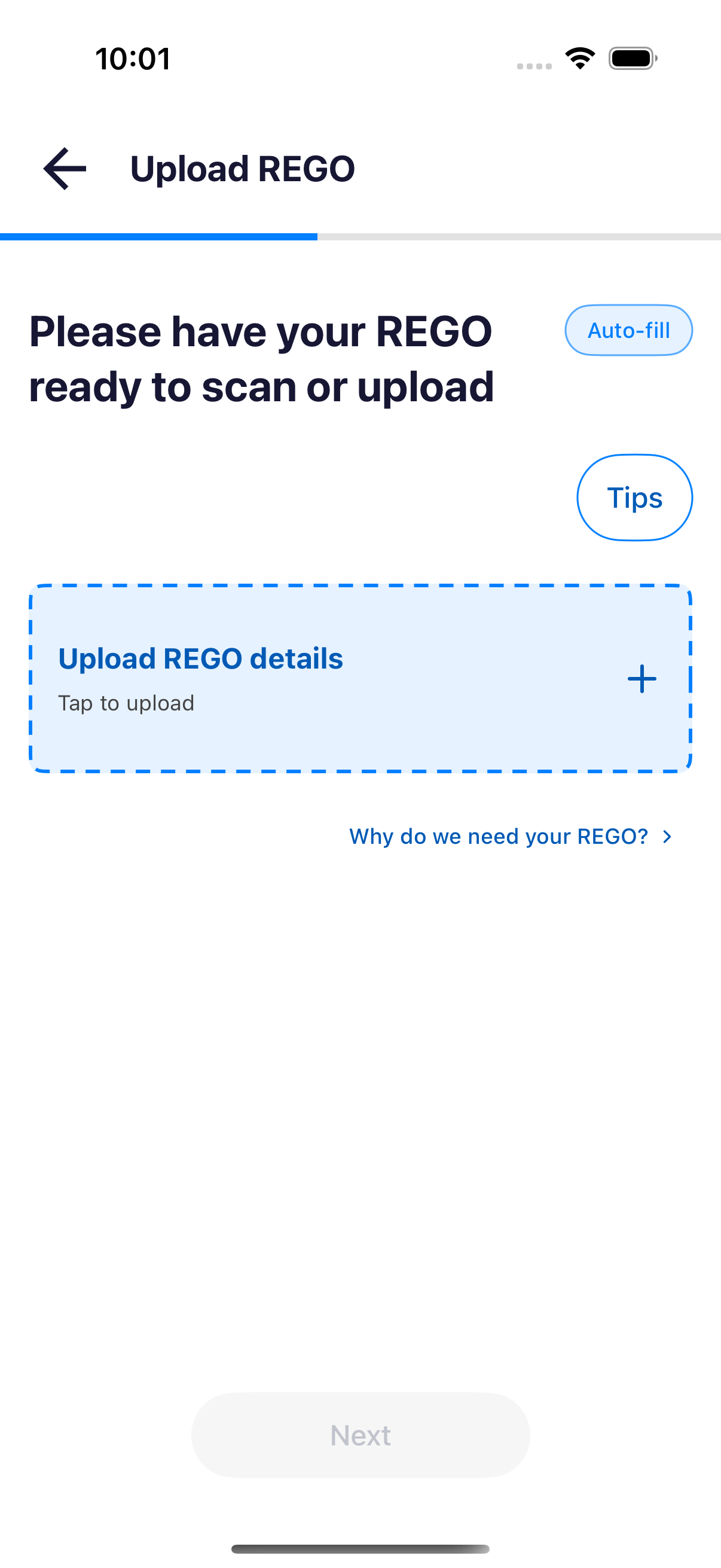
- Upload a current REGO Document when the registration document has changed.
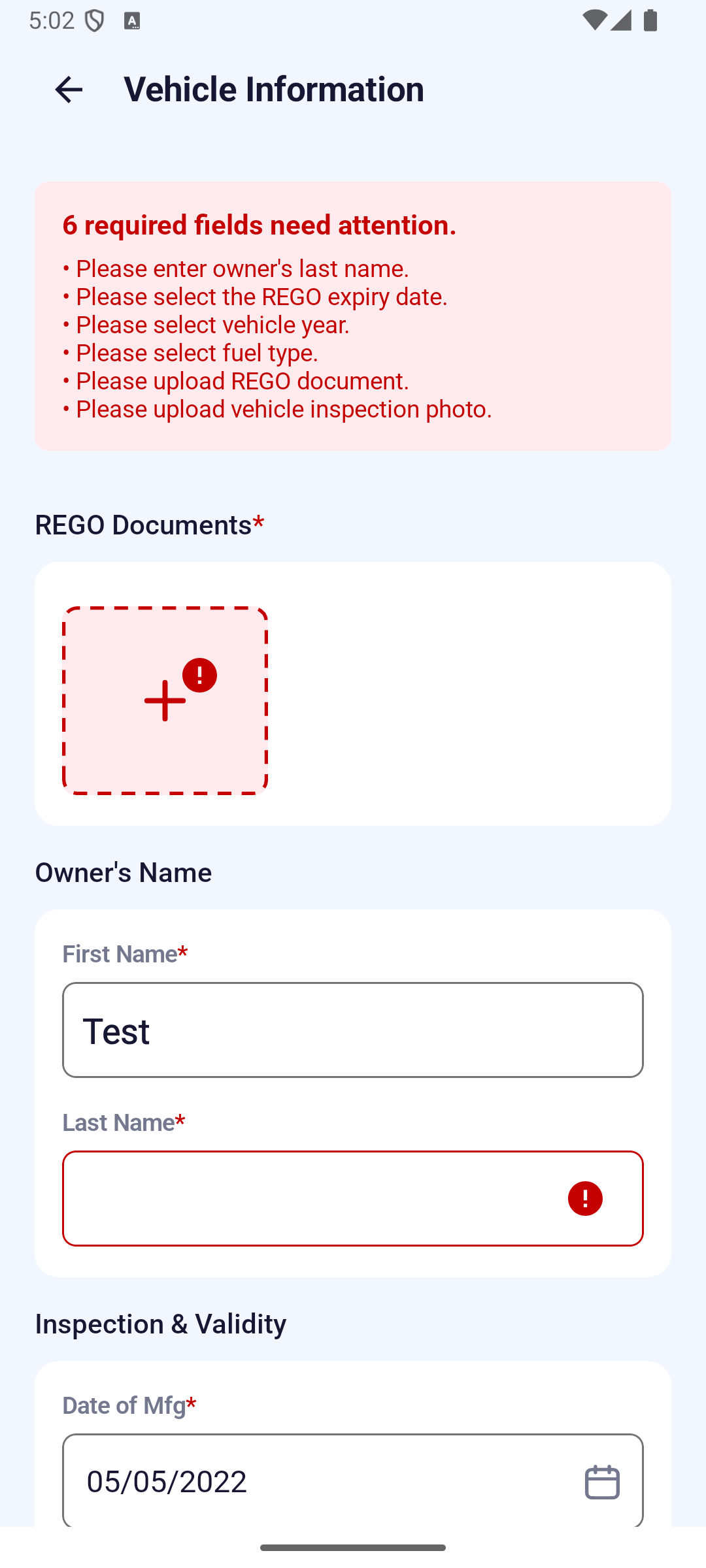
On iPhone, empty required fields are highlighted. Follow the field prompts and check for missing details before submitting for review.
- Update only the fields that no longer match the vehicle. Required empty fields are highlighted while editing.
- Use the back arrow to return to Profile. In this edit flow, going back saves the section as a pending draft.
- Review every pending section, then tap Submit for Review.
- Read the confirmation and tap Confirm. Sections under review are locked until their review finishes.
Submitting a profile change does not immediately change a vehicle assignment on today's route. If dispatch needs to change the vehicle for current work, contact your fleet or dispatcher as well.
Check which vehicle is on duty
The dashboard's Current Vehicle card shows the vehicle attached to the route you are working on, not the vehicle saved in your profile.
- The card follows the route. Check the assignment after refreshing the dashboard.
- The card lists the plate number, Model, Load in tonnes, and Insurance.
- When no route is active, the card reads No vehicles on duty now.
Read the card before you start work. If it names a vehicle you are not driving, contact your fleet or dispatcher. The rest of the card is described in Dashboard: today's work.
Where the first vehicle record comes from
- If you register in the app, add the vehicle under Create Account > Vehicle Details, upload the REGO, and submit the registration.
- If your fleet registers you on the web, the fleet operator enters and submits the first vehicle record in Register a driver. After approval, check the current vehicle in Profile.
- After approval, use this Profile flow for later corrections or replacement vehicle details. The app shows one current vehicle-information section; it is not a vehicle picker.
If you cannot edit
- Under Review: wait for the current review to finish.
- Action required or Rejected: open the reason, correct only the requested fields, and submit again.
- Upload or submission fails: reconnect, keep the app installed, and retry. Do not assume the change was sent until Profile shows the review state.