Remove an order from a route
If an order cannot be delivered, check with your dispatcher before removing it from the route. These steps describe the iPhone route-editing flow; the illustrations show the corresponding Android screens.
Where to find it: dashboard › route card › Edit › expand the stop › the rubbish-bin button beside the order.
After Save Changes, the Confirm Removal dialog lists the orders. Confirming there leaves editing mode and shows the removal result. Check the remaining stops before you start navigation.
Before you start
- Park safely before editing the route.
- Route editing is available when pending work remains and Edit is shown.
- Completed orders have no removal button. If Edit or the rubbish-bin button is missing, contact your dispatcher to check whether the route can be changed.
When editing from Android navigation, Edit Route asks you to park safely. After parking, tap Start Editing to continue, or Cancel to stay out of edit mode. This prompt belongs to the navigation entry; the route-detail steps below begin with Edit.
1. Open route editing
- On the dashboard, open the route card you need to change.
- Tap Edit at the top right. Cancel and Save Changes appear at the bottom.
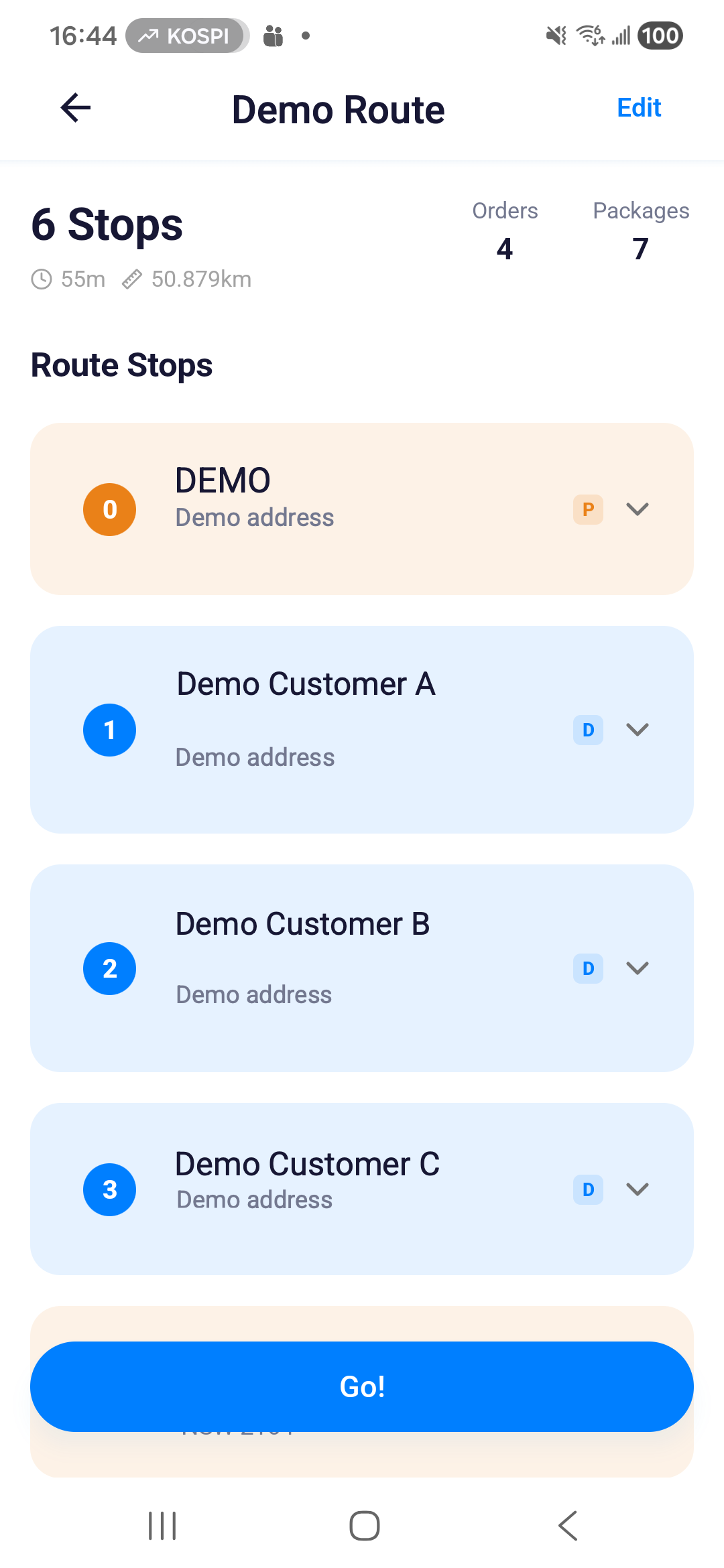
2. Select the order to remove
- Under Route Stops, expand the stop containing the order.
- Check the order number, then tap its red rubbish-bin button.
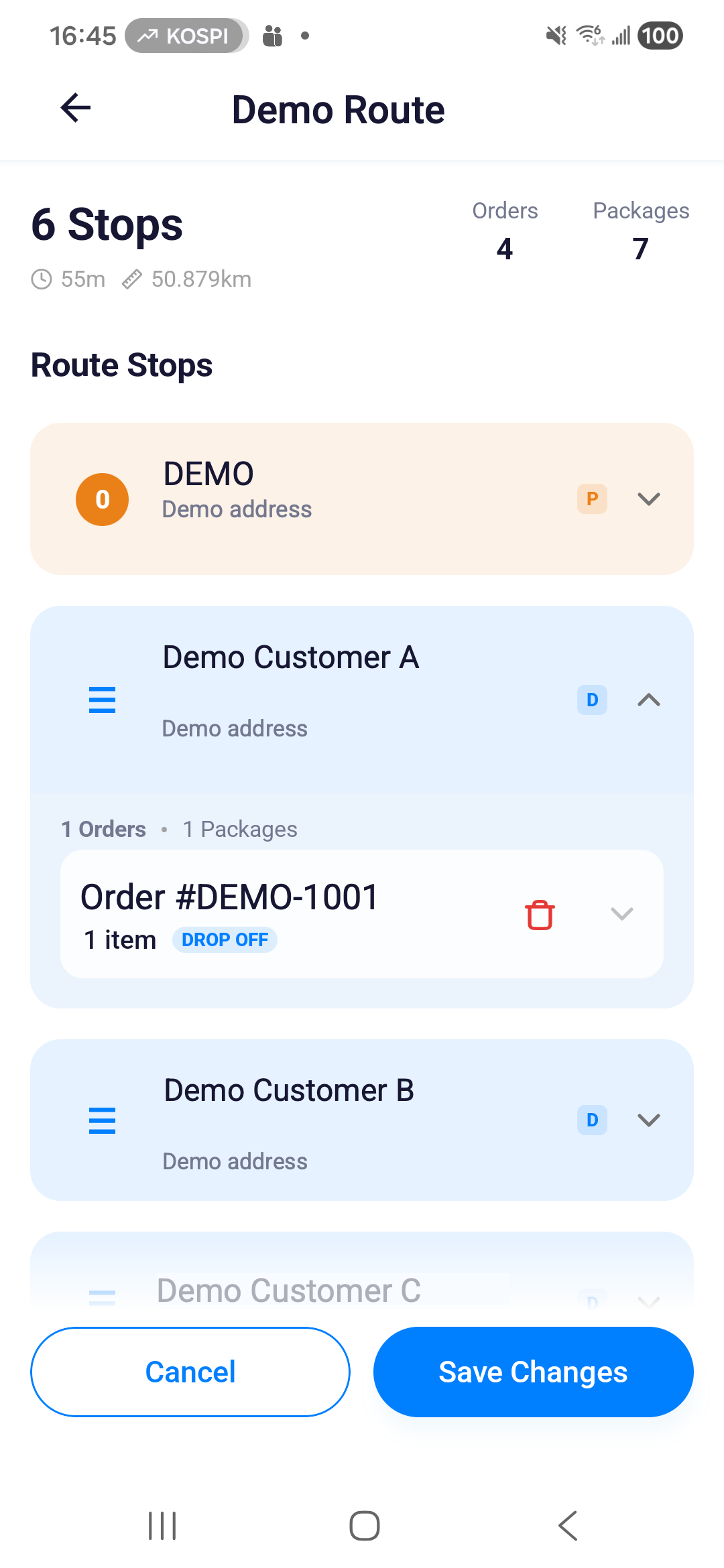
- Read the confirmation. Tap Delete to continue or Back to keep the order.
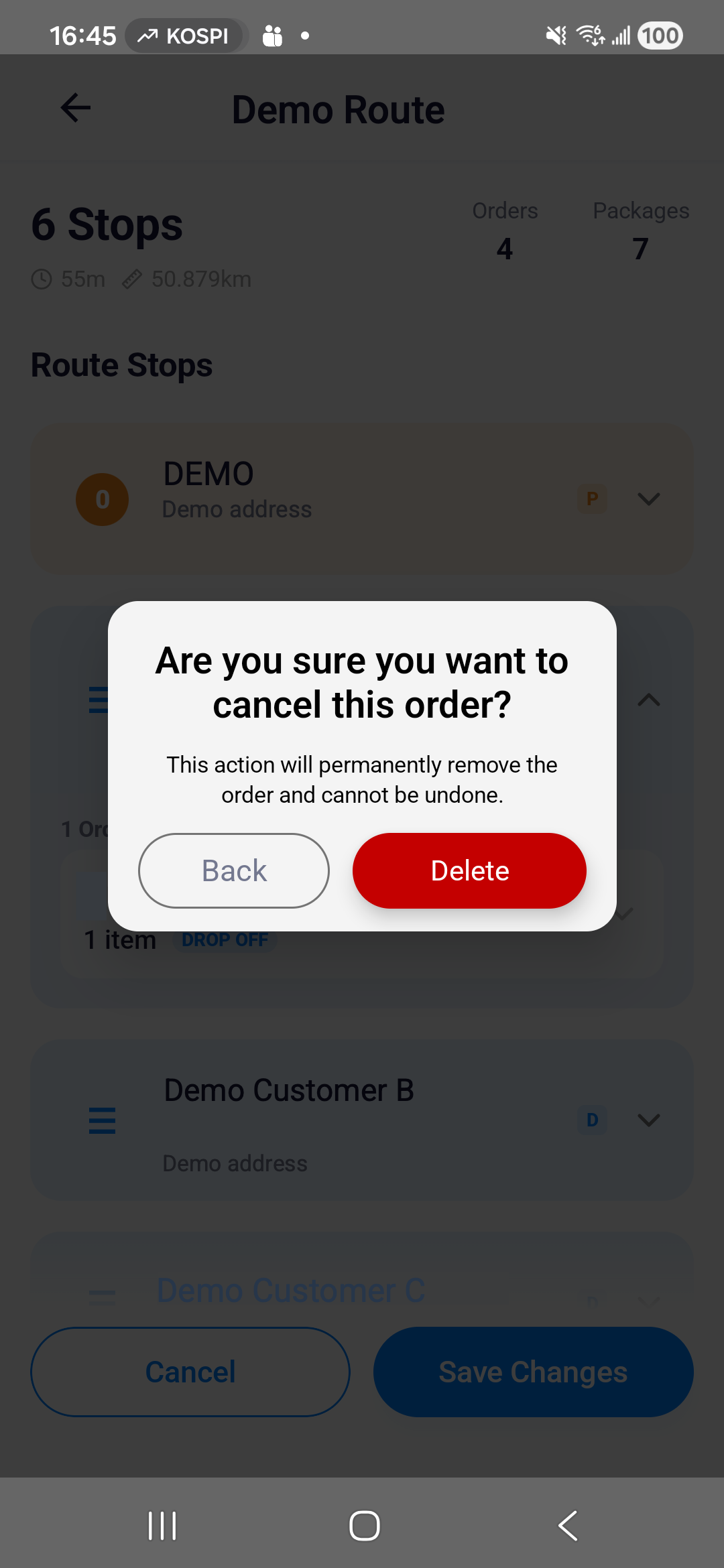
- The order shows REMOVED. The change has not been saved yet; tap the restore arrow if you selected the wrong order.
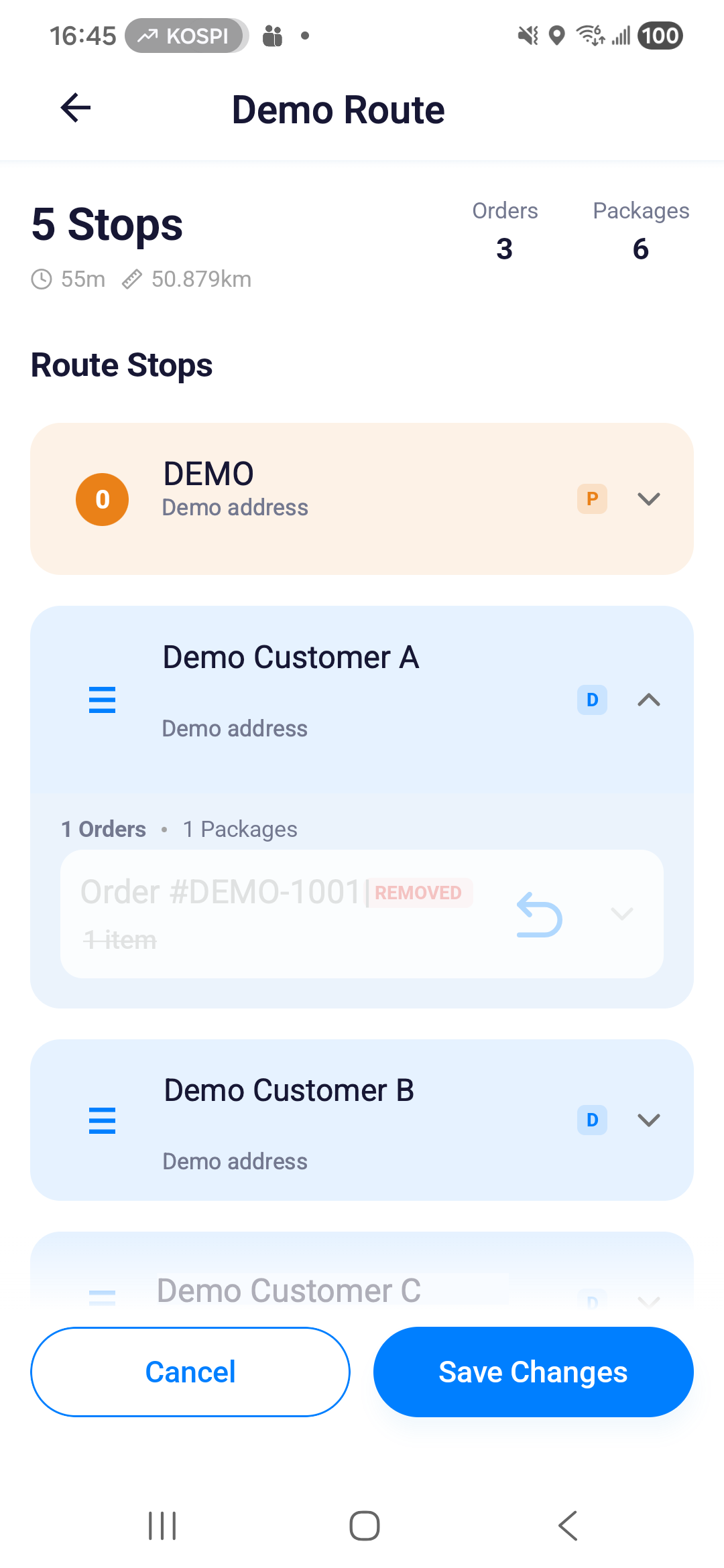
3. Save and confirm removal
- Check all changes, then tap Save Changes.
- Review the order list in the Confirm Removal dialog.
- Tap Confirm Removal to save, or Cancel to return to editing.
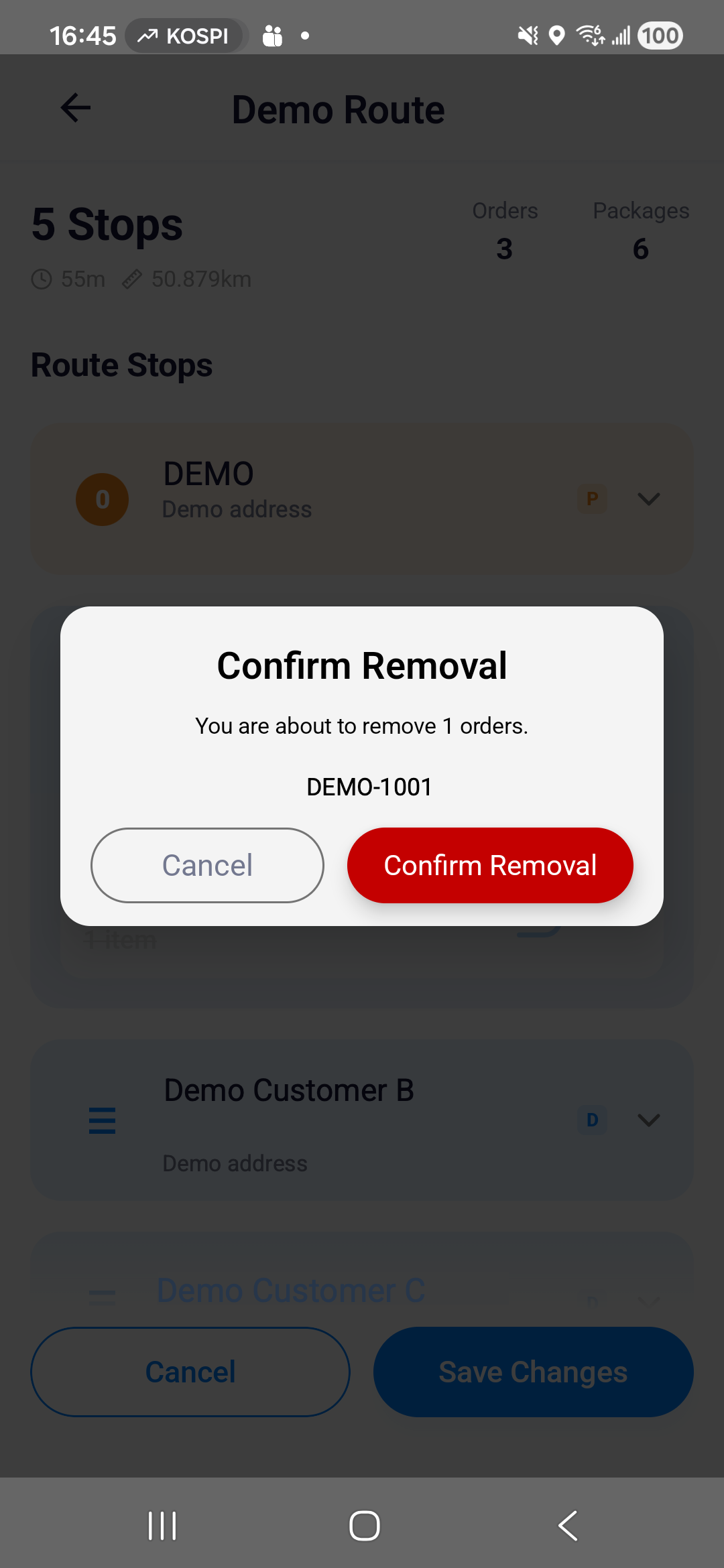
- Wait for editing mode to close and read the result, then check the remaining orders and stop order.
- Tap Go! or Continue when ready to leave. Saving changes does not start navigation.
Tap Cancel in editing mode to discard unsaved changes. After saving, contact your dispatcher if the delivery needs to be restored.
If you also change the stop order
Updating the stop order requires a connection. If the app reports that orders were removed but the route order was not updated, reconnect and check the stop order. The removal message alone does not confirm that every route change was saved.
If saving fails, keep the app data and follow the retry prompt. If the problem continues, give your dispatcher the route and order numbers.