Find a past delivery
Use Delivery History to find a completed route or order.
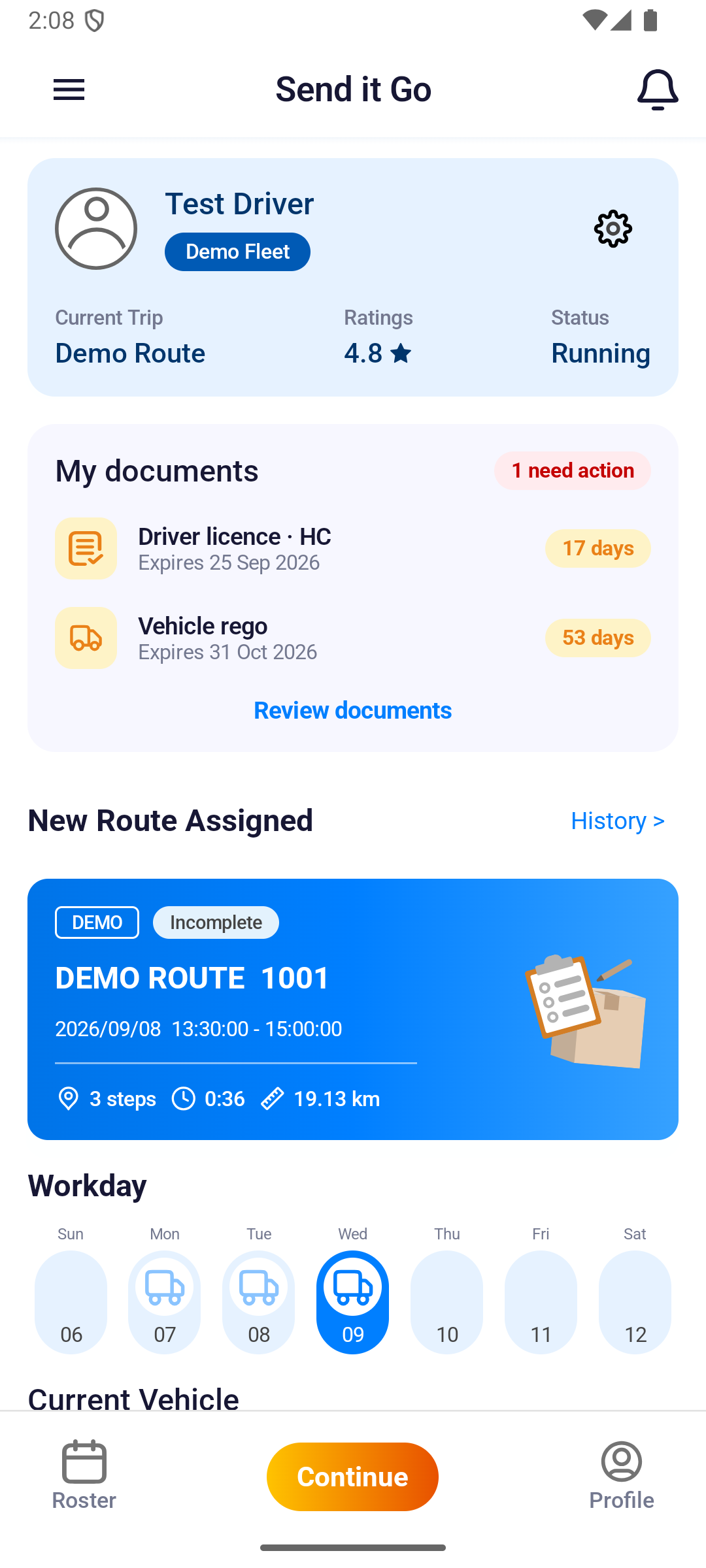
Where to find it: dashboard › History >. History is also available from the dashboard menu at the top left.
The route expands to show its orders, and tapping an order opens Order Detail.
- From the dashboard, tap History > beside New Route Assigned.
- Tap All or Today to choose how far back the list goes. Routes are grouped under a date heading.
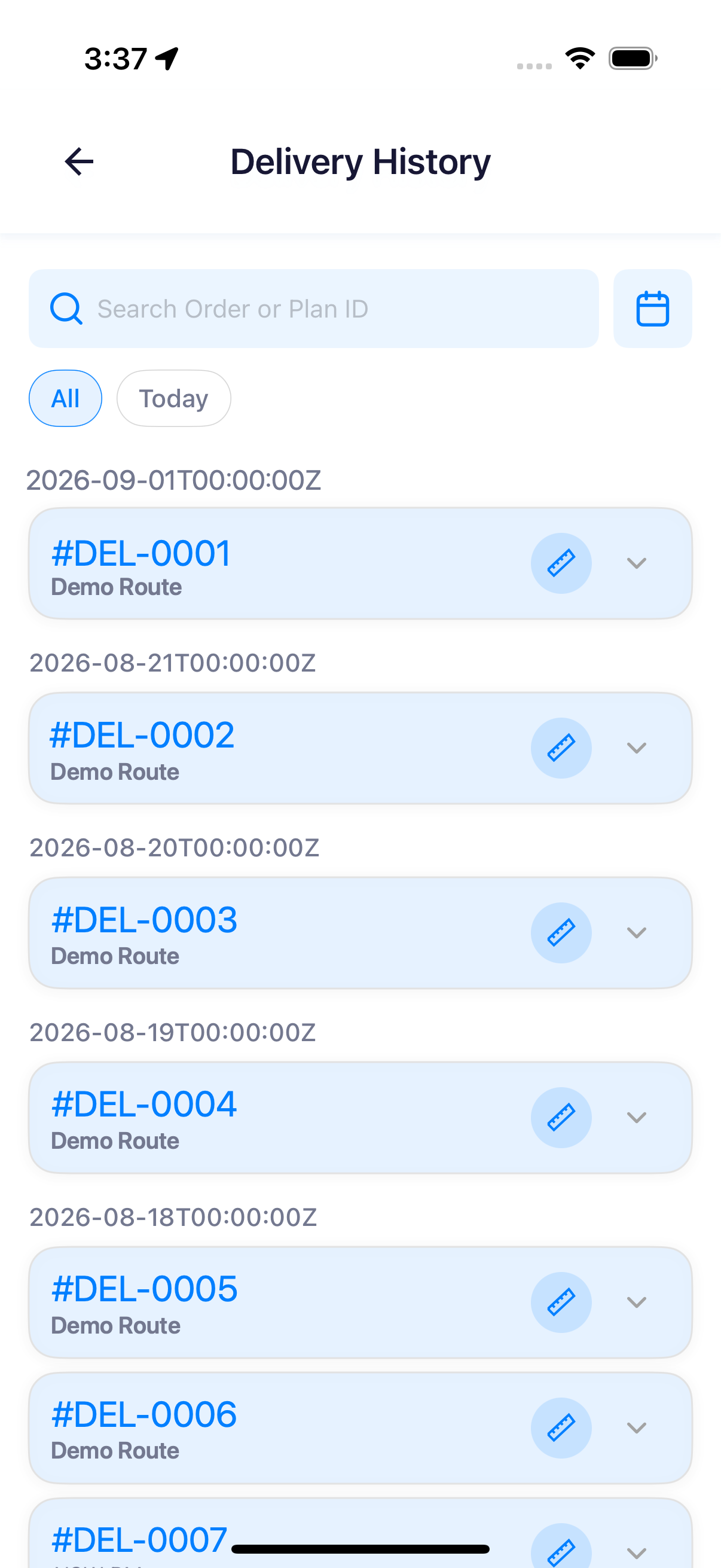
The iPhone list is shown here; Android searches and filters the same way.
-
To read another day, tap the calendar button beside the search box and pick a date. That date appears as a third pill, next to Today.
-
To find one run, type an order or plan number into Search Order or Plan ID.
-
Tap the chevron on the right of a route card to expand it. Every card starts collapsed, so the orders stay hidden until you open one.
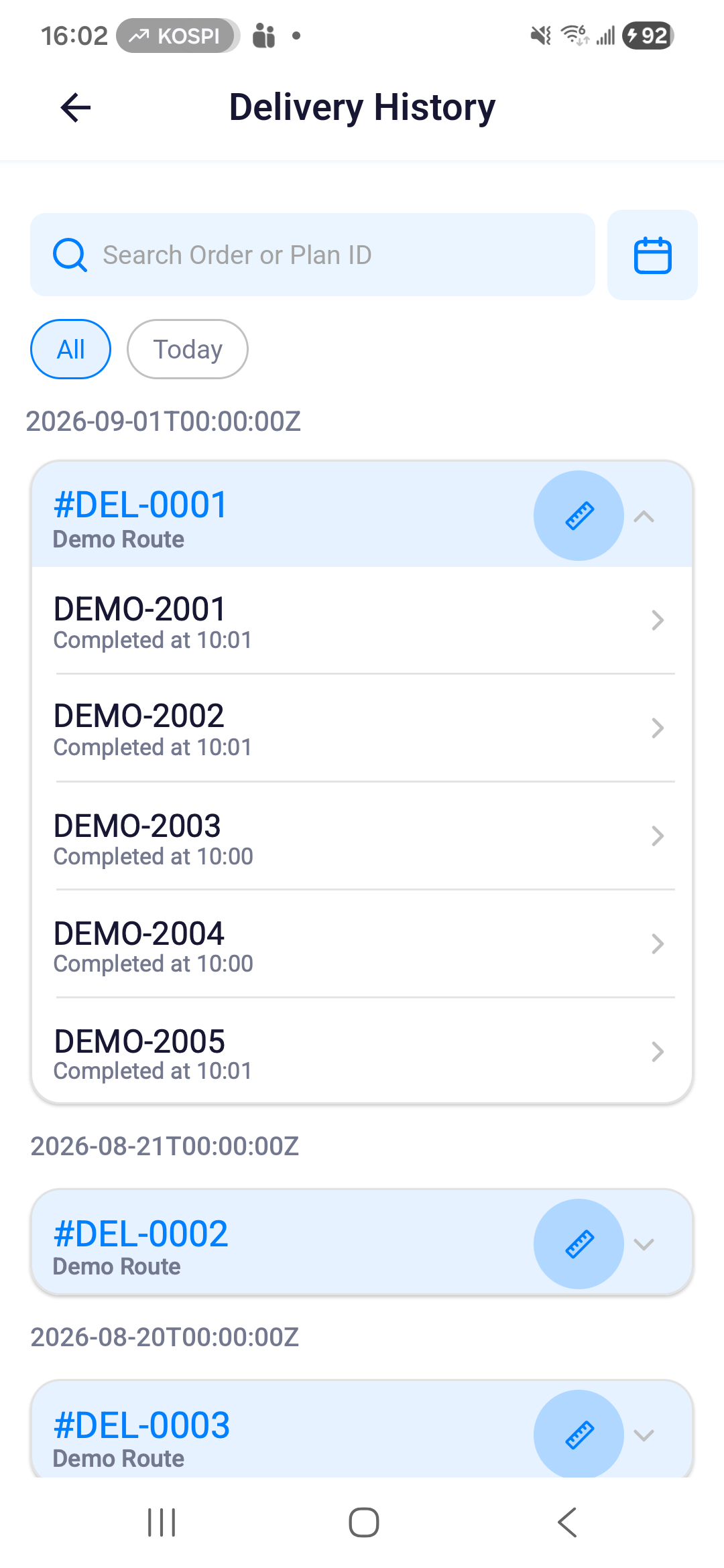
Each row shows the order number and the time you completed it. When you reported an exception on that order, the completion time is red.
- Tap the required order row to open Order Detail.
Compare a run with its plan
Tap the round icon to the left of the chevron on a route card. A sheet opens with the run measured against the plan:
- PUNCTUALITY, as a percentage, with the count of stops you reached on time
- ROUTE OVERLAP, as a percentage, captioned Path Adherence
- DURATION, the minutes you took and the times you started and finished, with the plan's estimate underneath
- DISTANCE, the kilometres you drove, with the plan's estimate underneath
- Under Completion Evidence, the Completed Time and the GPS Evidence address and coordinates
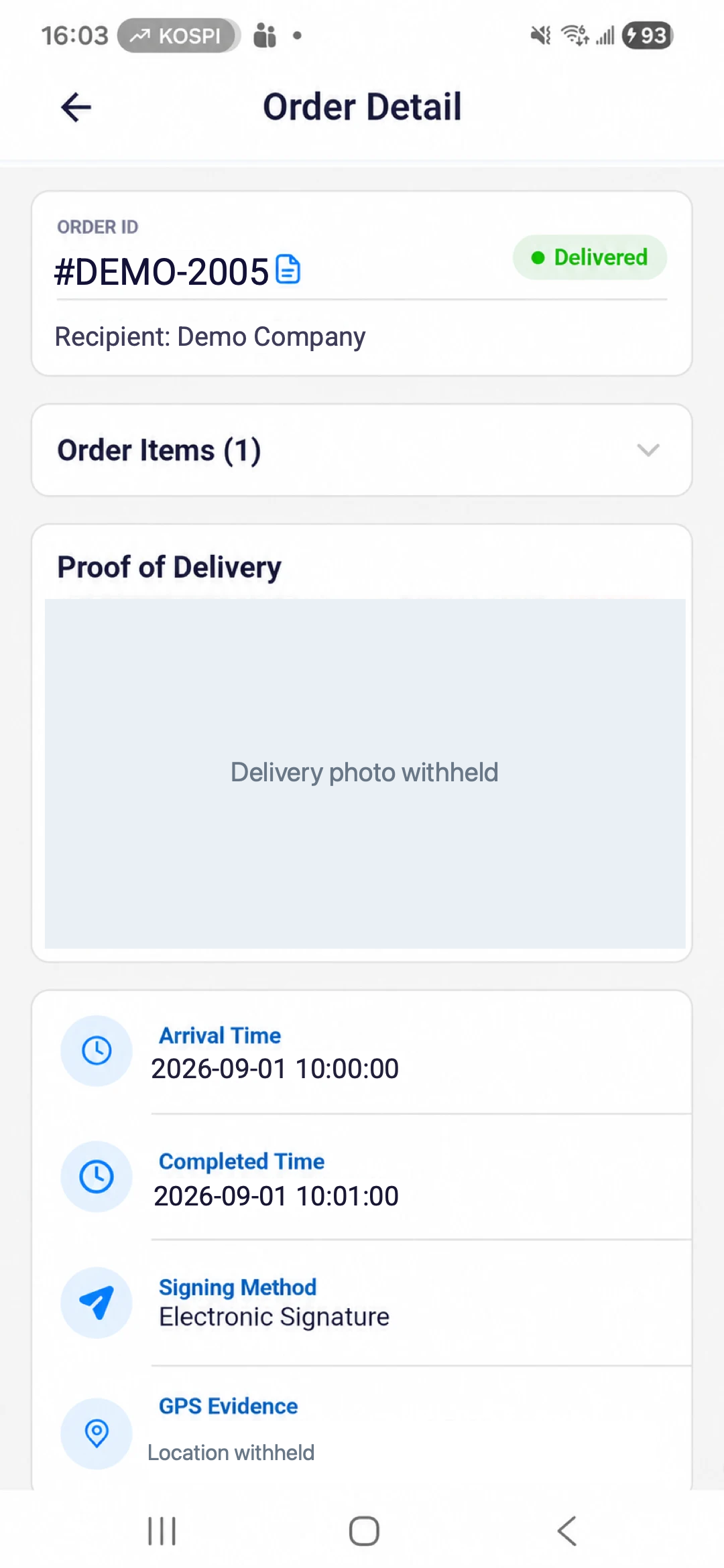
What you can check in Order Detail
- Order ID, delivery status, and recipient; tap the copy icon beside the ID to copy the order number
- Order Items and item quantity; tap the section to expand it
- Each item line: the product number, its SID, and the quantity you delivered
- Any exception reported against an item, in red, with its count, note, and photos
- Proof of Delivery photos, when available
- Arrival Time and Completed Time
- Signing Method and GPS Evidence, which gives the delivered address and its coordinates
The proof photo appears as a thumbnail in Proof of Delivery. Tap the thumbnail to open the photo full screen.
Delivery History needs a connection to load server records. If the list does not refresh, reconnect and try again.