Account status and access
Use Profile to check whether your account is ready for work, update details that need review, or permanently delete the account.
Where to find it: dashboard bottom bar › Profile.
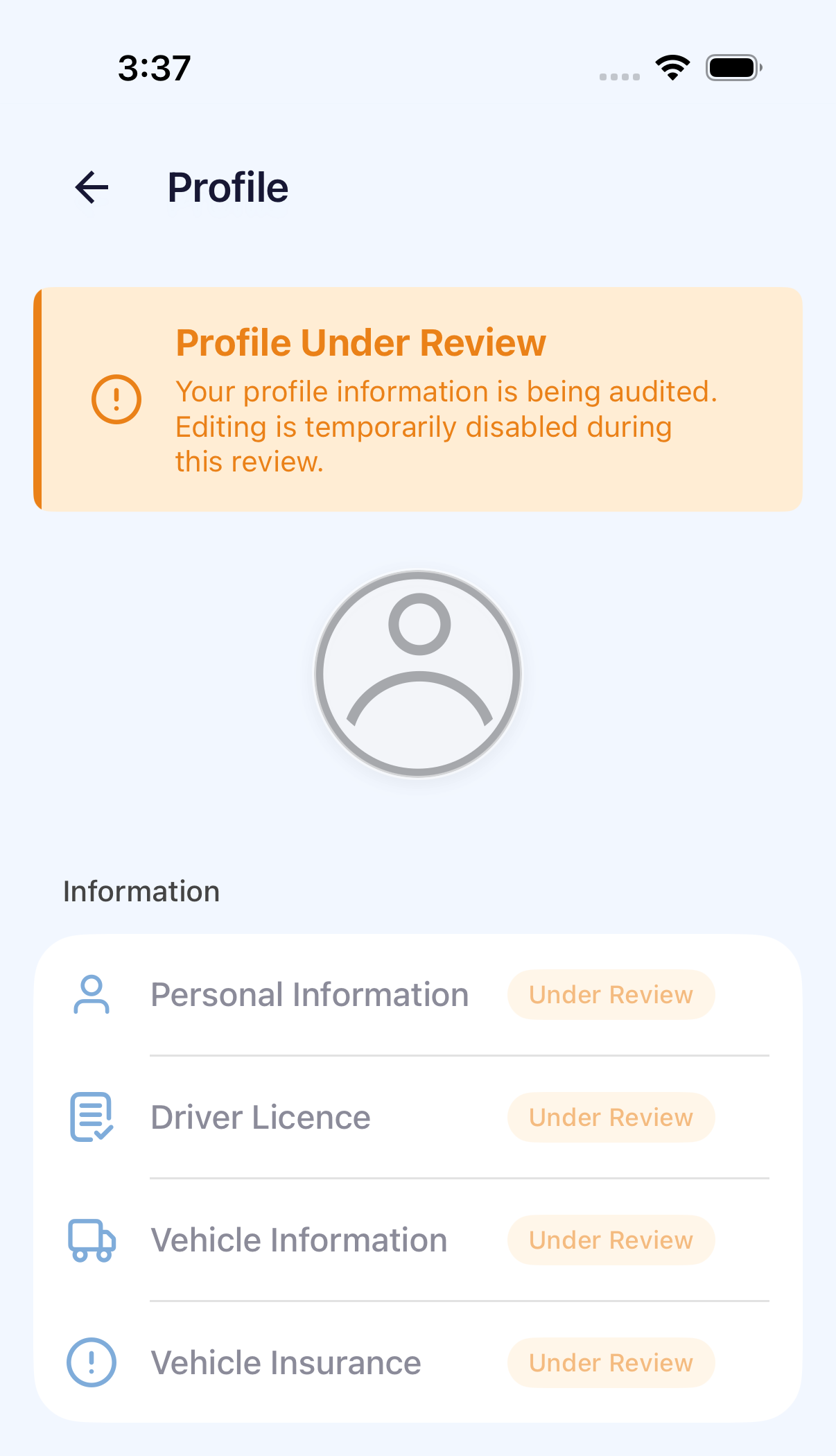
Profile opens with no banner and no status tag on any section – the account is ready for work. After you submit a change, the banner reads Profile Under Review instead.
Check your access status
Profile shows one banner across the top, and a status tag on each section that is under review, needs action, or was cancelled. A section whose edit request was closed carries no tag – only the banner reports it.
| What you see | What to do |
|---|---|
| No banner, and no tag on any section | The account is available. Check today's assigned work before starting. |
| Profile Under Review, with each section tagged Under Review | Wait for the review to finish. The sections under review cannot be edited. |
| Action Needed: Profile Changes, with the section tagged Action required | Open that section, correct the details named in the message, and submit again. |
| Profile Edit Request Closed | Read the reason shown with it, then ask your fleet administrator before you submit the same change. |
| Profile Edit Request Approved | Nothing to do. The change is now part of your profile. |
| A section tagged Cancelled | That request ended without a change. Submit the section again if you still need it. |
For the complete correction and blocked-account procedure, see Account waiting or blocked.
When the app stops before the dashboard
An account that is not yet active holds the app on a status screen after you sign in.
| What you see | What to do |
|---|---|
| Verification in Progress | Your details are with the reviewer. The screen states Most accounts are approved within 2 business days. |
| A list of items to update before your registration finishes | On iPhone, open each item in Verification Update Required, correct it, then tap Submit to resubmit. |
| On iPhone, No Application | The number you signed in with has no application. Tap Back to Login, check the number, then contact your fleet administrator. |
| On Android, Blocked above Account disabled | Your fleet has disabled the account. Contact your fleet administrator, then tap Sign out. |
Tap Log out on a review screen to return to sign-in. Signing in again returns you to the same screen until your fleet changes the account.
Edit and submit profile details
- In Profile, tap Edit.
- Update the affected section and return to Profile. The change remains a pending draft until it is submitted.
- Tap Submit for Review, confirm, and wait for Under Review. The confirmation warns that your details are locked during the review.
See Edit and submit your profile for the complete steps and Update your vehicle information for vehicle changes.
Delete your account
Account deletion is permanent:
- your profile and login are removed permanently;
- a 6-digit code is sent to your registered email to verify the request;
- past deliveries remain in the record as Deleted User.
Read Delete your account before requesting the verification code.