Complete a stop and route
Complete the scans, photos or signature required at the stop, then wait for the app's completion screen before moving on.
Where to find it: current stop › complete the required tasks › Stop Complete!.
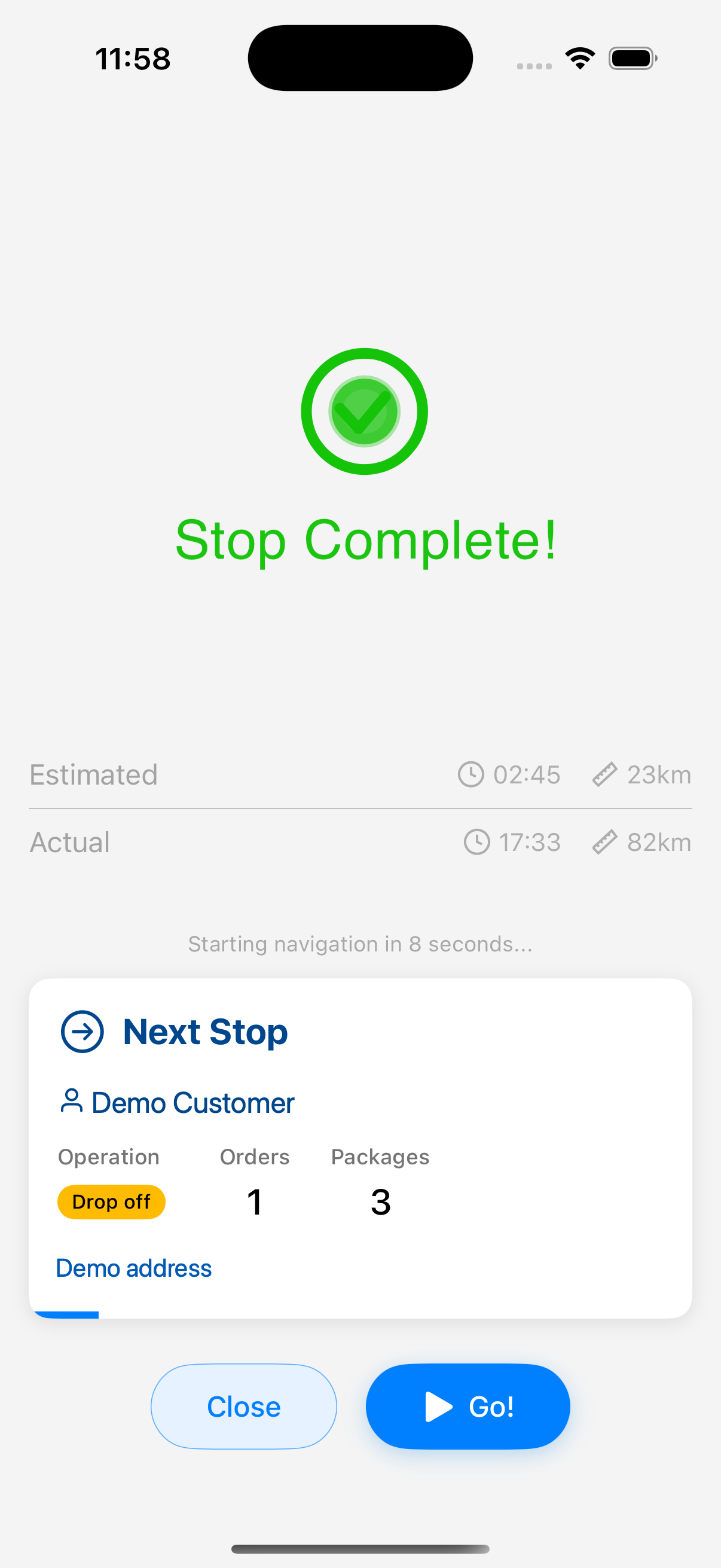
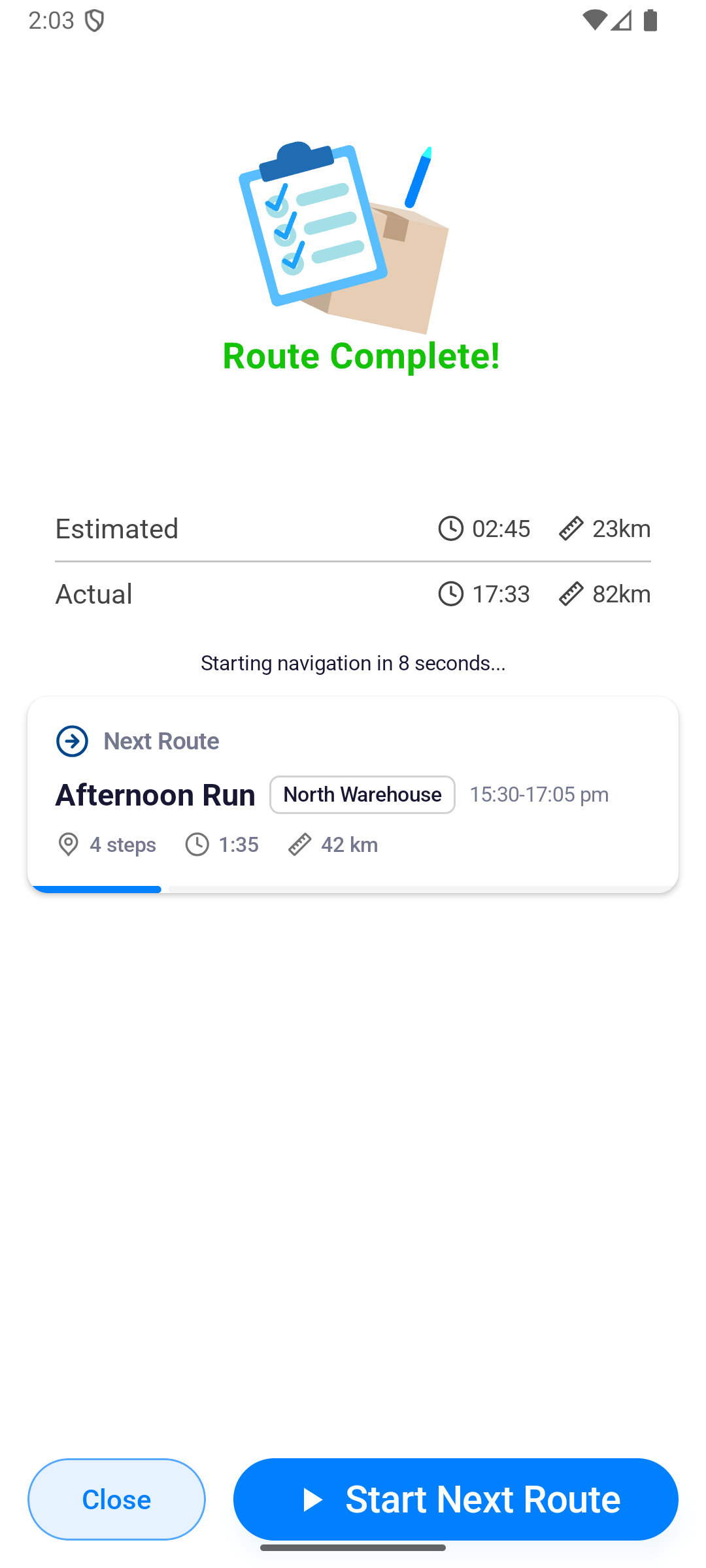
An ordinary stop shows Stop Complete!. The last stop shows Route Complete!.
Move to the next stop
After the required tasks are complete, Stop Complete! shows the next stop.
- Tap Go! to start navigation now.
- Tap Close if you need to remain parked; use Continue later.
- The screen counts down second by second, from Starting navigation in 10 seconds... to zero, then starts navigation on its own.
Repeat arrive, scan, exception handling, and proof for each stop.
Finish the route
After the last stop, wait for Route Complete!. The screen first shows Checking next route... while the app looks for one. What you do next then depends on whether another route is waiting.
- With a route waiting, the screen shows its details and counts down from 10 seconds. Tap Start Next Route to begin now, or Close to return home. The next route starts on its own at zero.
- With no route waiting, the screen shows You have no routes scheduled next and Please stay tuned for updates. Tap Close to return home.
A completion screen does not confirm that every upload has finished. Proof and completion data upload when the phone has a connection. If No Internet or Retry appears, do not clear app data or reinstall the app; reconnect and retry so queued work is not lost.
If the plan changes
- If Route Updated appears, tap OK, return to the dashboard, and reopen the updated route.
- If you need a break, switch navigation from Running to Rest and tap Continue when ready.