Dashboard: today's work
Use the dashboard to confirm that you are signed in as the right driver and that today's route is ready.
Where to find it: log in › dashboard.
Your driver profile is visible and the assigned route card opens today's stops.
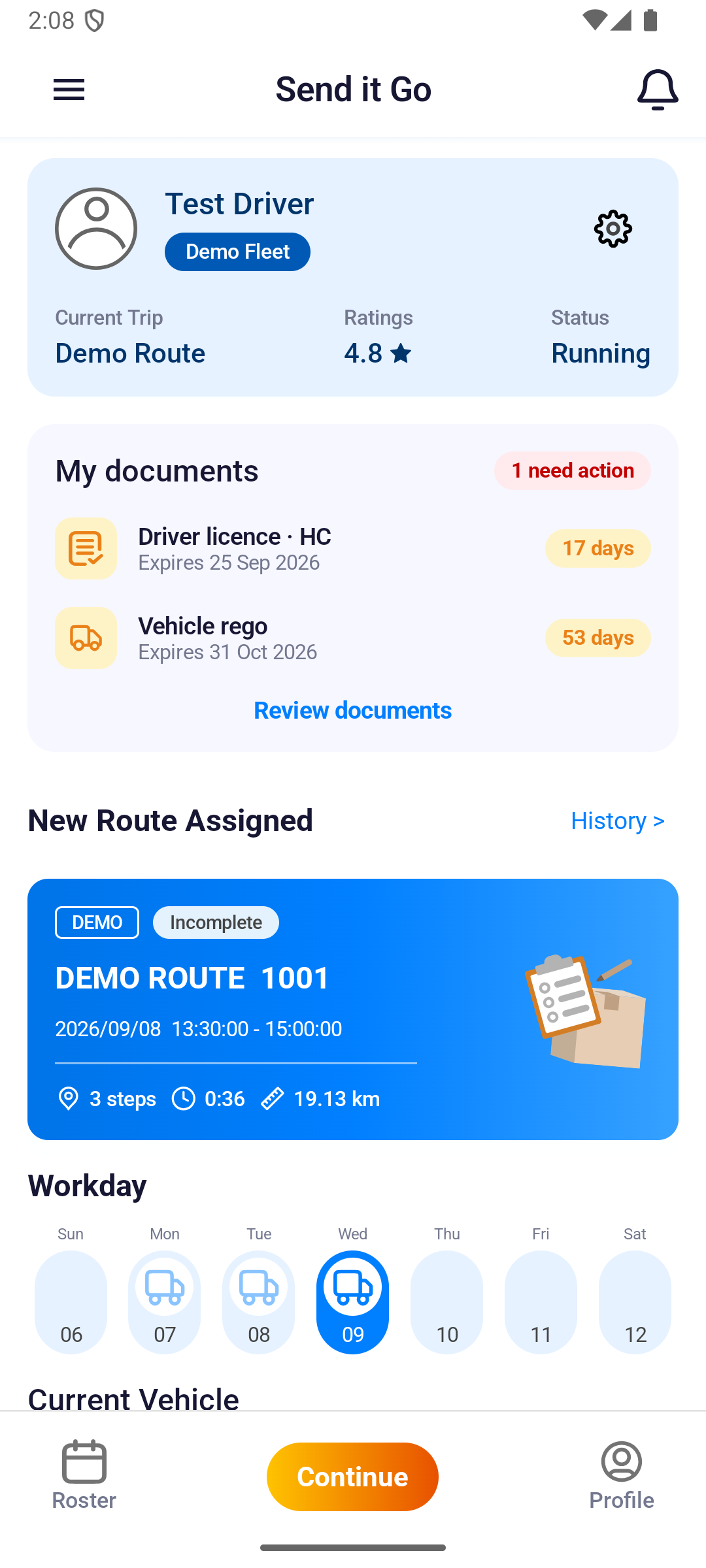
Read the dashboard from top to bottom
- Check the driver name and current route status at the top.
- Review any document notice before starting work.
- Check the assigned route, Workday, and Current Vehicle.
- Open the route card to review its stops.
- Tap Go! to start, or Continue to resume a route already in progress.
The top card carries three figures. Current Trip names the route you are working on. Ratings shows your driver score with a star. Status reads Running while a route is open.
Check the route cards for remaining work. No more routes for now means the currently assigned routes are complete.
Pull down on the dashboard to refresh it. The route card, Workday, and Current Vehicle all reload together.
Other available destinations are:
- History > for completed delivery records;
- Roster for shifts and leave;
- the profile card, gear, or Profile for account details and documents.
Workday
Workday shows a row of dates with their weekdays. A vehicle icon marks each date you are rostered on duty, and one date is highlighted.
Tap Workday to open the same screen as Roster in the bottom bar.
Current Vehicle
Current Vehicle shows the vehicle attached to the route you are working on.
The card lists the plate number, Model, Load in tonnes, and Insurance. Android labels the plate Plateno; iPhone labels it PlateNo.
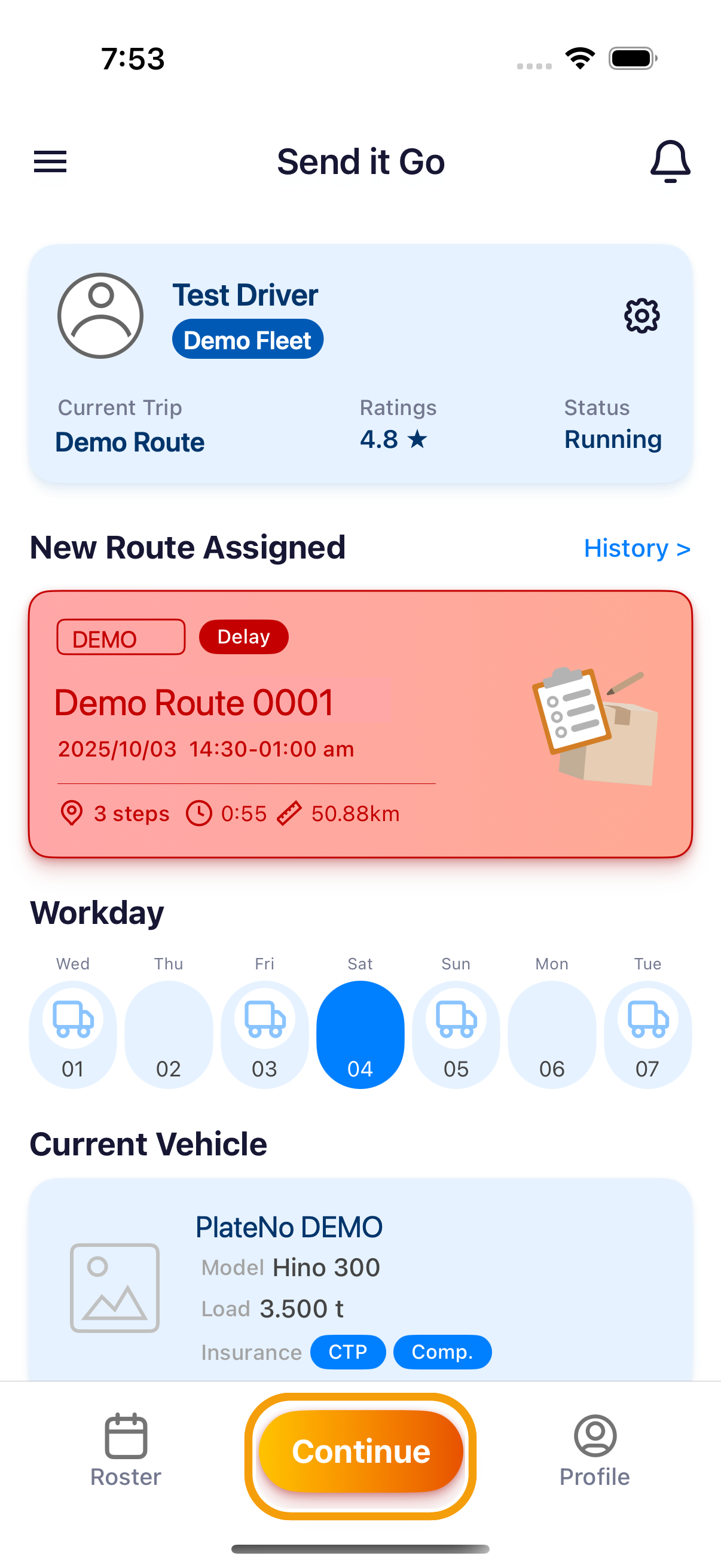
Android shows an Active insurance badge; iPhone shows CTP and Comp. badges.
When no route is active, the card reads No vehicles on duty now.
When there is no work to show
No more routes for now means you have finished every route currently assigned to you.
If the dashboard shows No Route Available, confirm with dispatch that today's Run Sheet is assigned to your account. Refresh only after the assignment is confirmed; do not start another driver's route.