Start a route and navigate
Full route execution is available on iPhone and Android. The screenshots below show Android.
Where to find it: dashboard › assigned route › Go! or Continue.
The map shows the current stop and guides you to its address.
- On the dashboard, open the assigned route card.
- Check the route name, stop count, estimated time and distance, and Orders and Packages totals. Under Route Stops, review the numbered stops and their addresses.
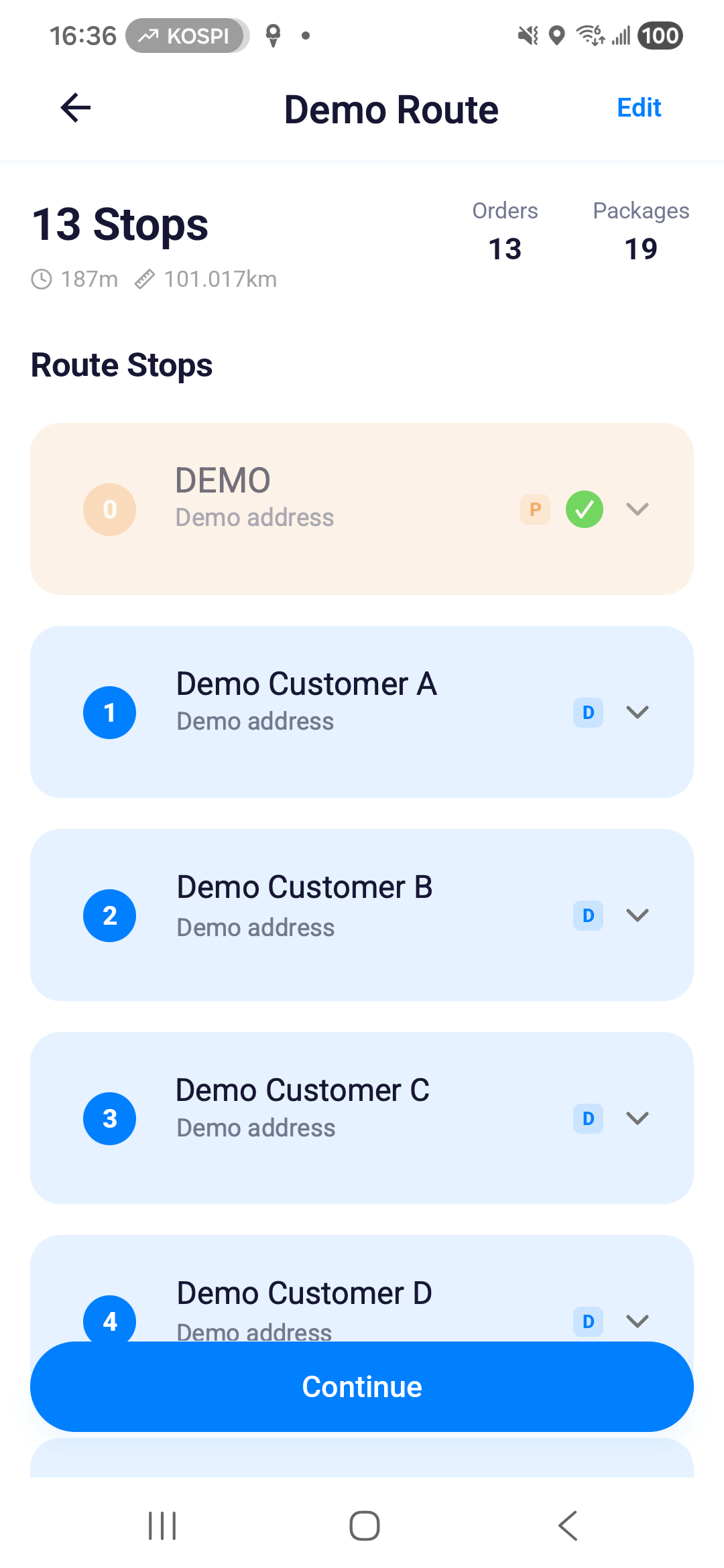
- Tap Go! to start, or Continue to resume.
- Follow the map and directions without operating the phone while driving.
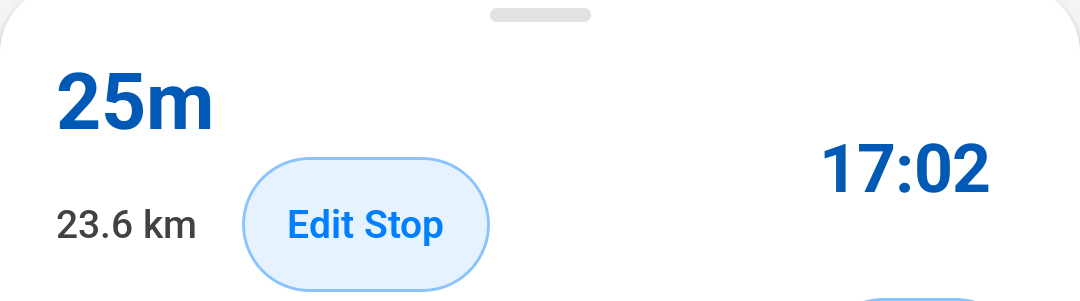
The top banner shows the next manoeuvre and the distance to it. The bottom panel shows the remaining time, distance and estimated arrival time. The cropped panel shows 25m (25 minutes) of travel and 23.6 km remaining; the estimated arrival time is 17:02. The map is omitted from this screenshot for privacy.
- At the location, confirm arrival and continue to package confirmation.
Result: You have arrived! opens for the current stop.
Use Rest only after parking safely. If Route Updated appears, tap OK, return home, and reopen the revised route.
Force arrival when the app does not detect it
About three seconds after you stop touching the screen, some of the controls at the top right hide, so the map stays clear while you drive. The speed limit, the route overview and the sound control stay. Tap the map once to bring the rest back, then tap the round button with a small blue square – the last one in that column. Use it when you have reached the stop but the app has not registered your arrival.
The app stops guidance, records your arrival, and opens the arrival step for that stop. That is the same step a detected arrival opens, so continue with package confirmation as usual.
If navigation cannot start at all, the app replaces the map with the stop details and three buttons. Retry Navigation checks again and leaves your current stop unchanged. Force Arrival records your arrival and opens the same arrival step described above. Back to Home leaves navigation.