Edit and submit your profile
Change your own driver details in the app – personal information, driver licence, vehicle, or vehicle insurance – then send every pending change for review in one submission.
Where to find it: dashboard bottom bar › Profile. The gear on the dashboard profile card, and Settings in the dashboard menu, open the same screen.
After you confirm Submit for Review, the submitted sections show Under Review.
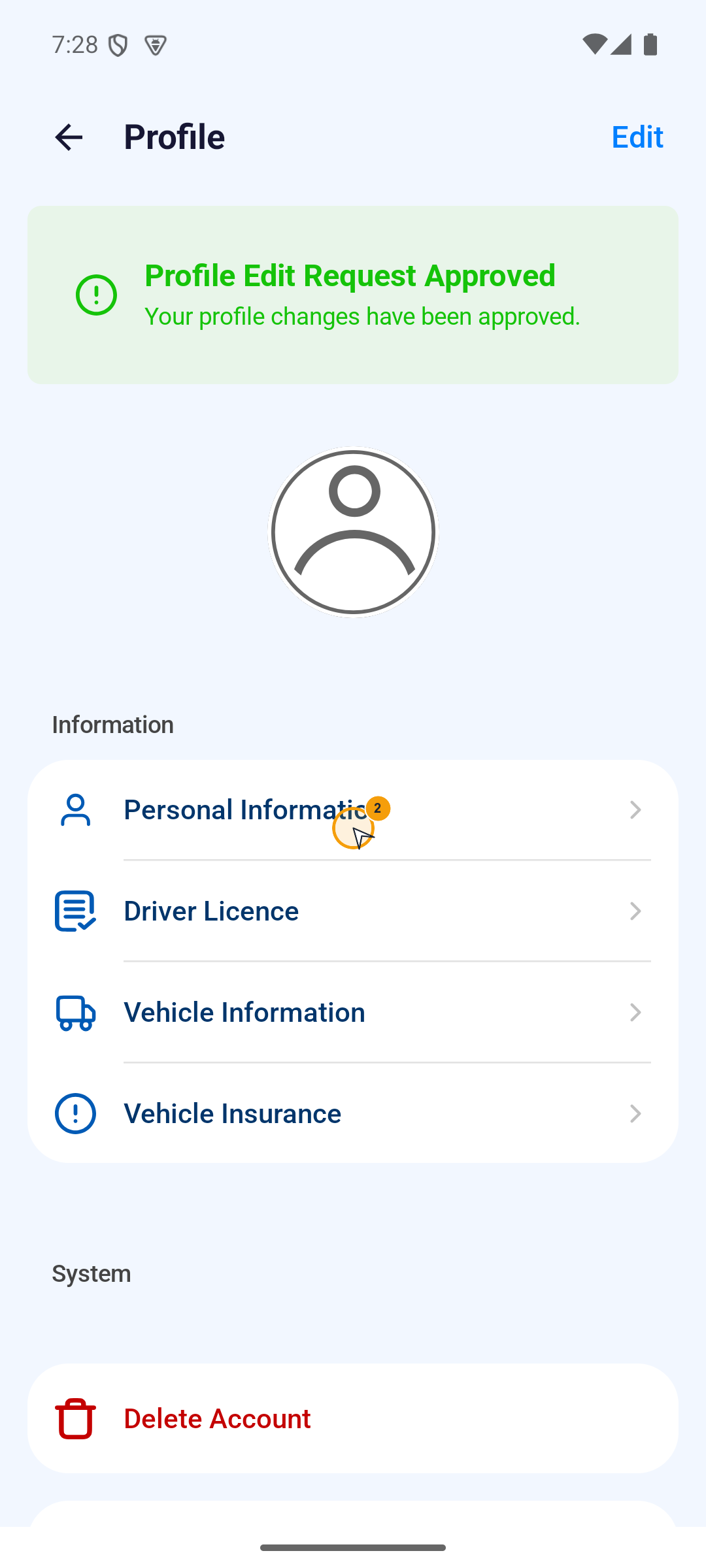
- On the Profile screen, tap Edit in the top-right corner.
- Open the section you need to change: Personal Information, Driver Licence, Vehicle Information, or Vehicle Insurance.
- Change the details in that section.
- Tap the back arrow to return to Profile. The section is saved as a pending draft.
- Repeat for every other section that needs changing.
- Tap Submit for Review, read the confirmation, then tap Confirm.
Submit for Review appears only when a saved, reviewable draft exists. If it is missing, check that you saved a change. One submission sends the pending changes for review after confirmation.
Sections marked Under Review cannot be edited until their review finishes. If a section comes back needing action or rejected, open it, correct only the details named in the message, and submit again. The banners and section tags are listed in Account status and access.
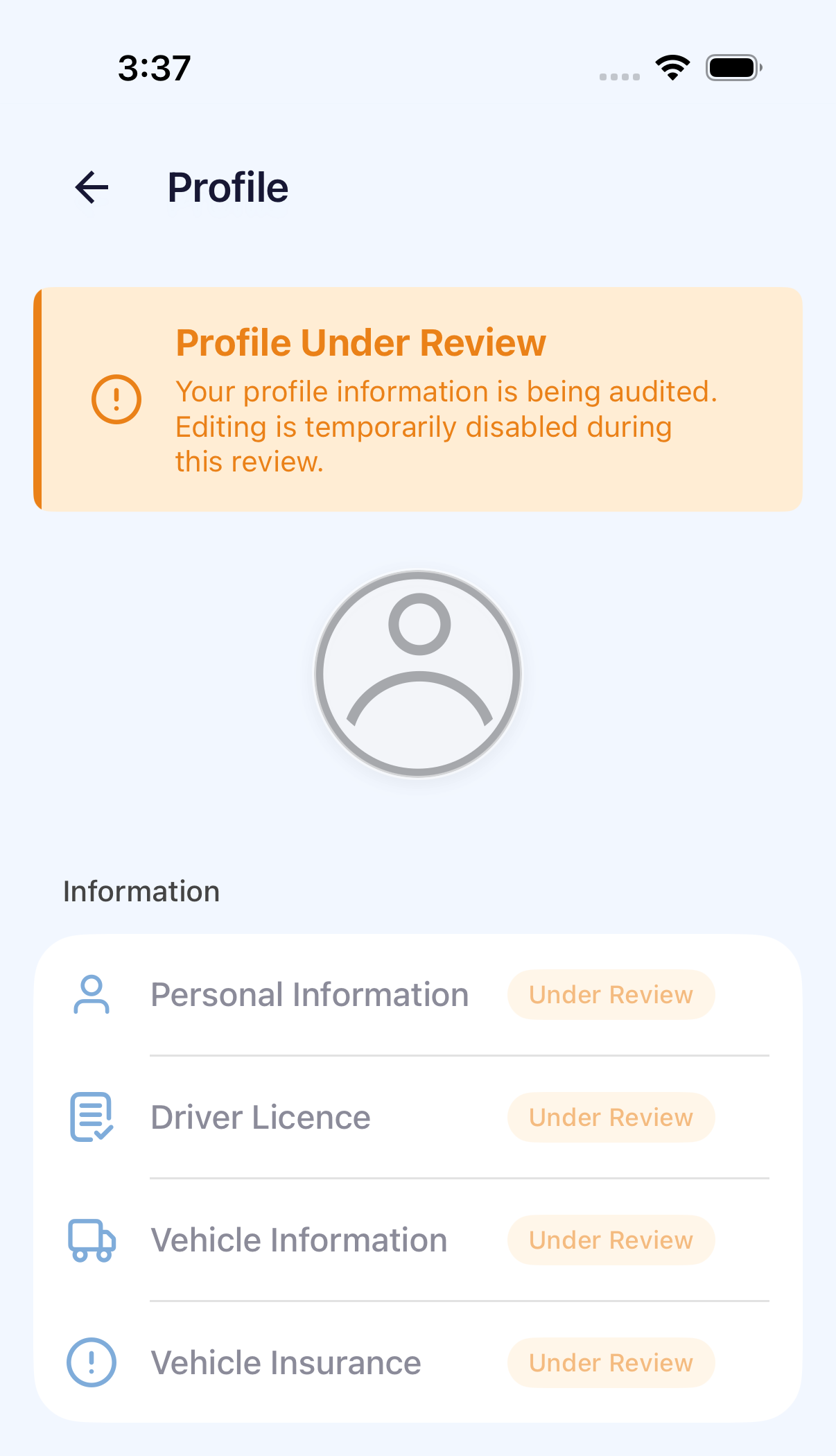
iPhone and Android use the same labels on this screen.