Proof of delivery
Complete the proof option shown after package confirmation. Customer stops show Proof of Delivery; warehouse stops show Dispatch Centre. Dispatch Centre is the Warehouse stop – the section under that title reads Warehouse.
Where to find it: current stop › package confirmation › Proof of Delivery or Dispatch Centre.
The app accepts the proof and advances to Stop Complete!.
Choose only the proof method offered for this stop:
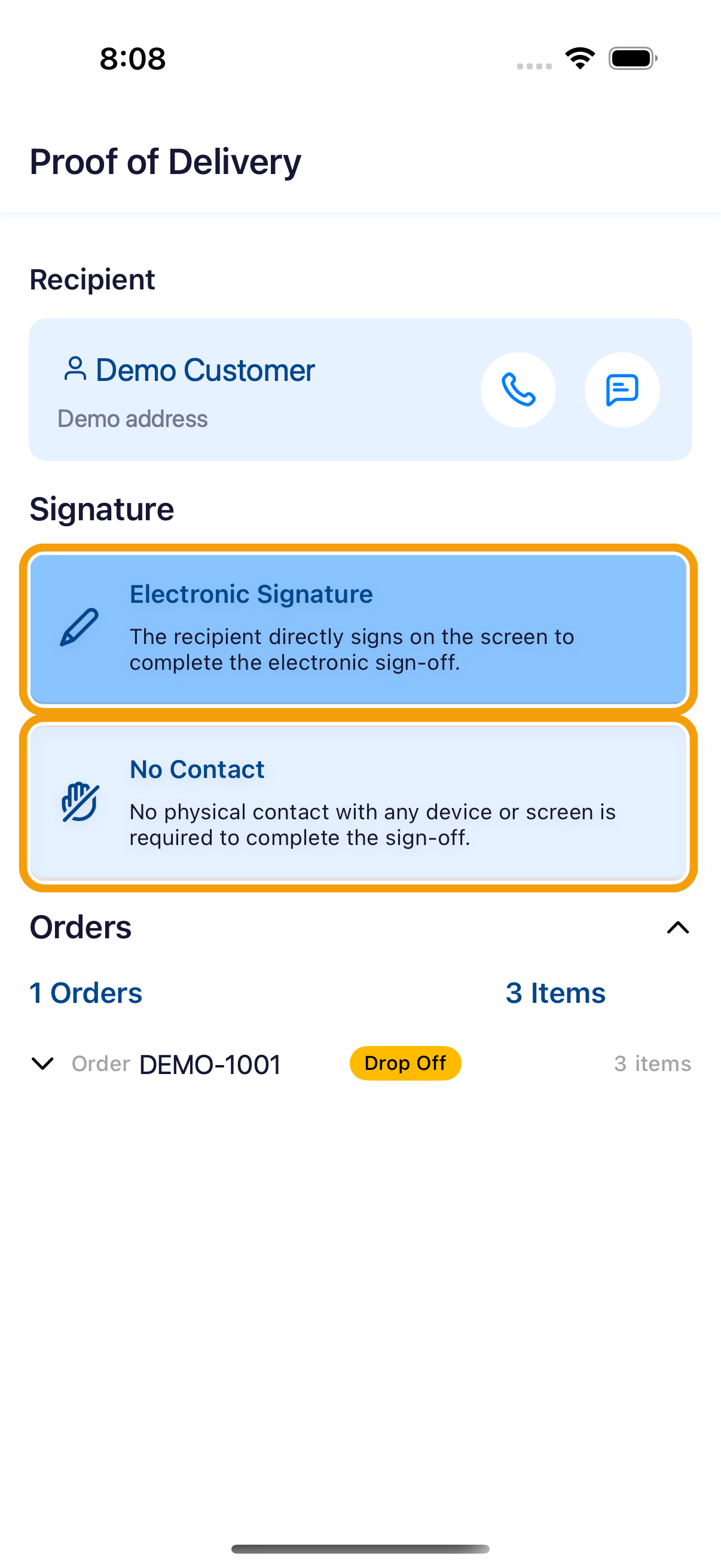
Electronic Signature
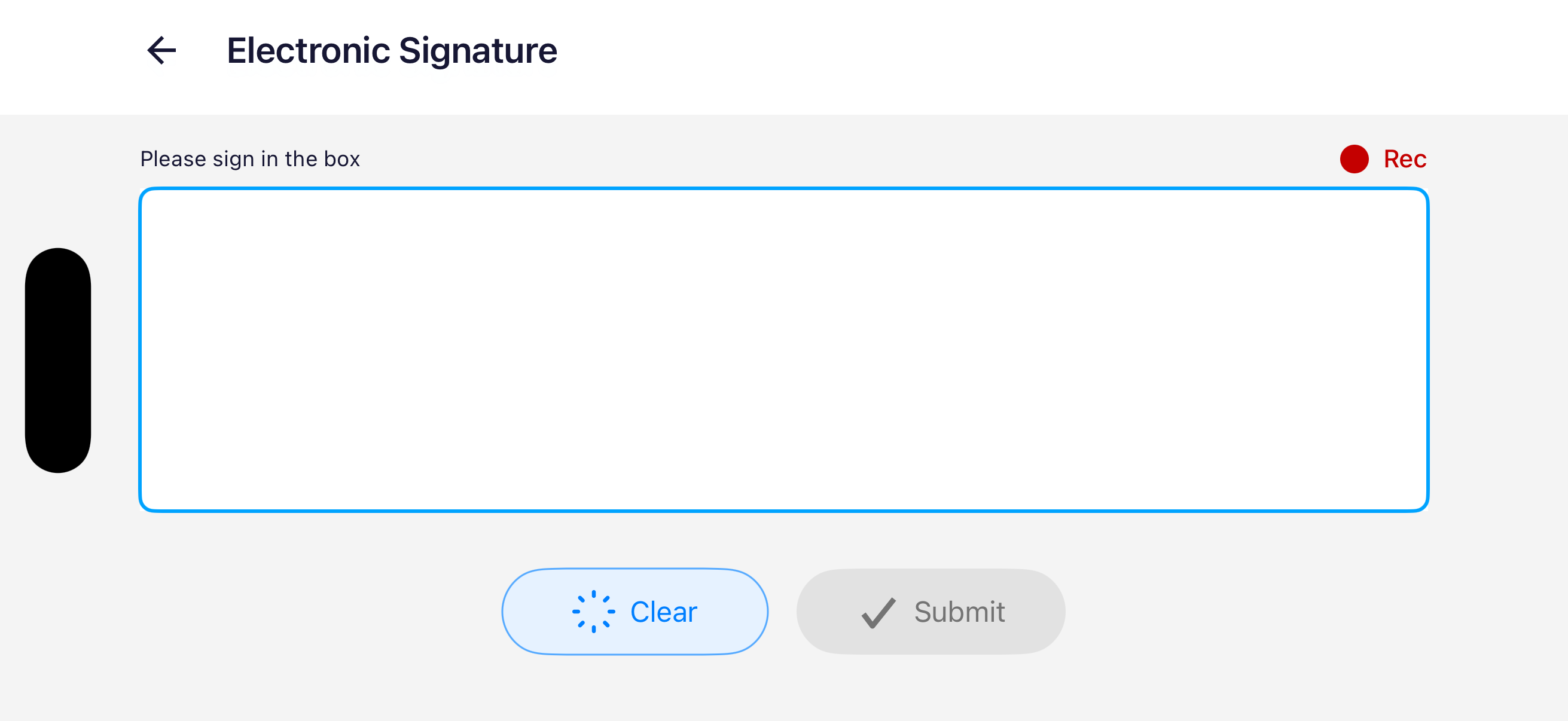
- Tap Electronic Signature. The screen turns to landscape by itself, which widens the signing box. It returns to portrait when you leave.
- Ask the recipient to sign inside the box. On iPhone the line above the box reads Please sign in the box; on Android that line shows the stop address.
- Use Clear if the signature must be redrawn.
- Check the signature, then tap Submit.
- At Ready to submit?, tap Confirm. The signature cannot be edited afterward.
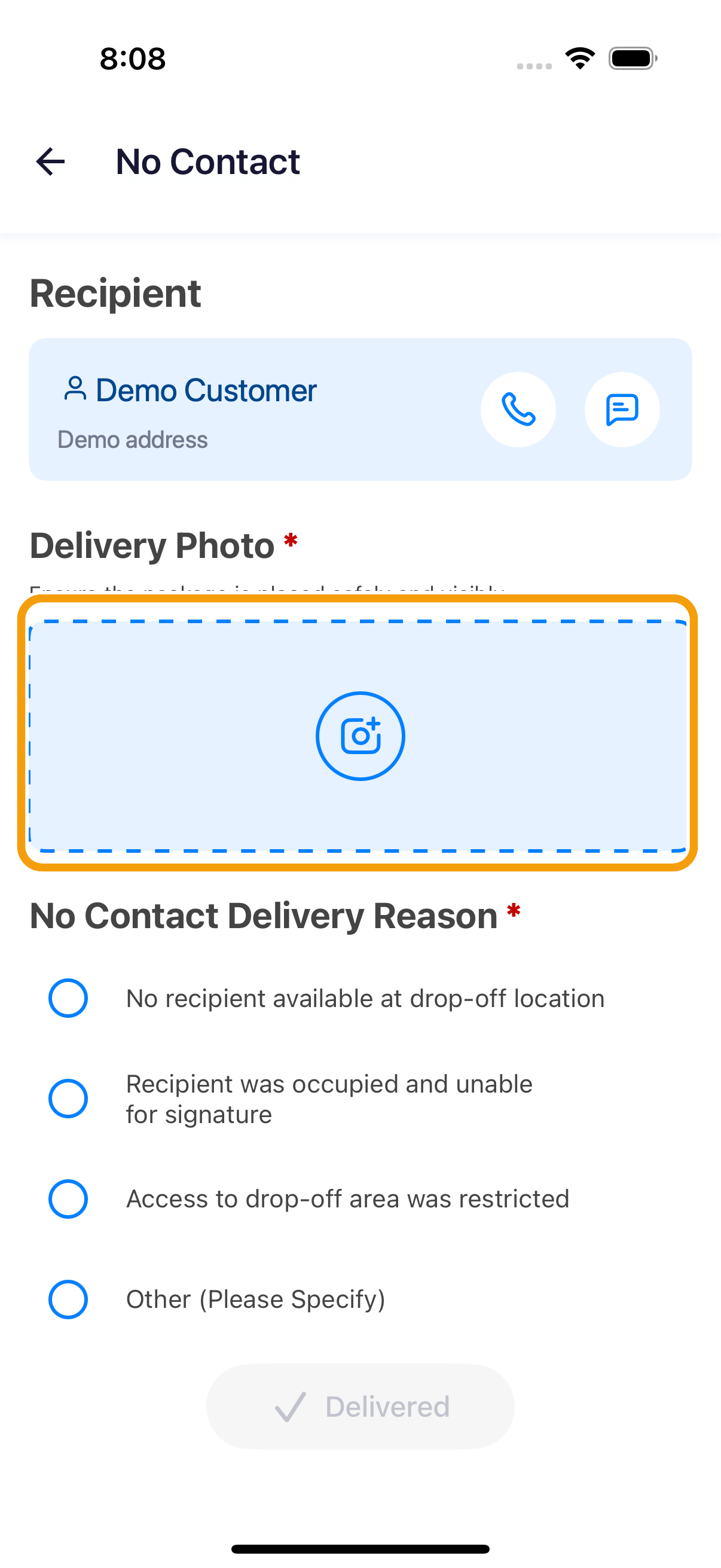
No Contact
On iPhone, No Contact is available only at customer stops with no pickup orders. It is not available at warehouse stops.
- Tap No Contact.
- Take the required delivery photo.
- Choose a reason.
- If you choose Other (Please Specify), enter a reason.
- Tap Delivered.
Do not use No Contact when the app requires a signature. Follow the option shown for that stop or contact dispatch.
If the connection drops
The app queues the proof and uploads it when a connection returns. Keep the app installed and do not clear its data. If a Retry action appears, tap it once you are back online. Upload failed or no internet covers the rest of that screen.