Rest mode and offline work
Use Rest only after parking safely. A loaded route can retain work locally during a short outage, but new server information still needs a connection.
Where to find it: active route › navigation status › Rest.
You'll know it worked when
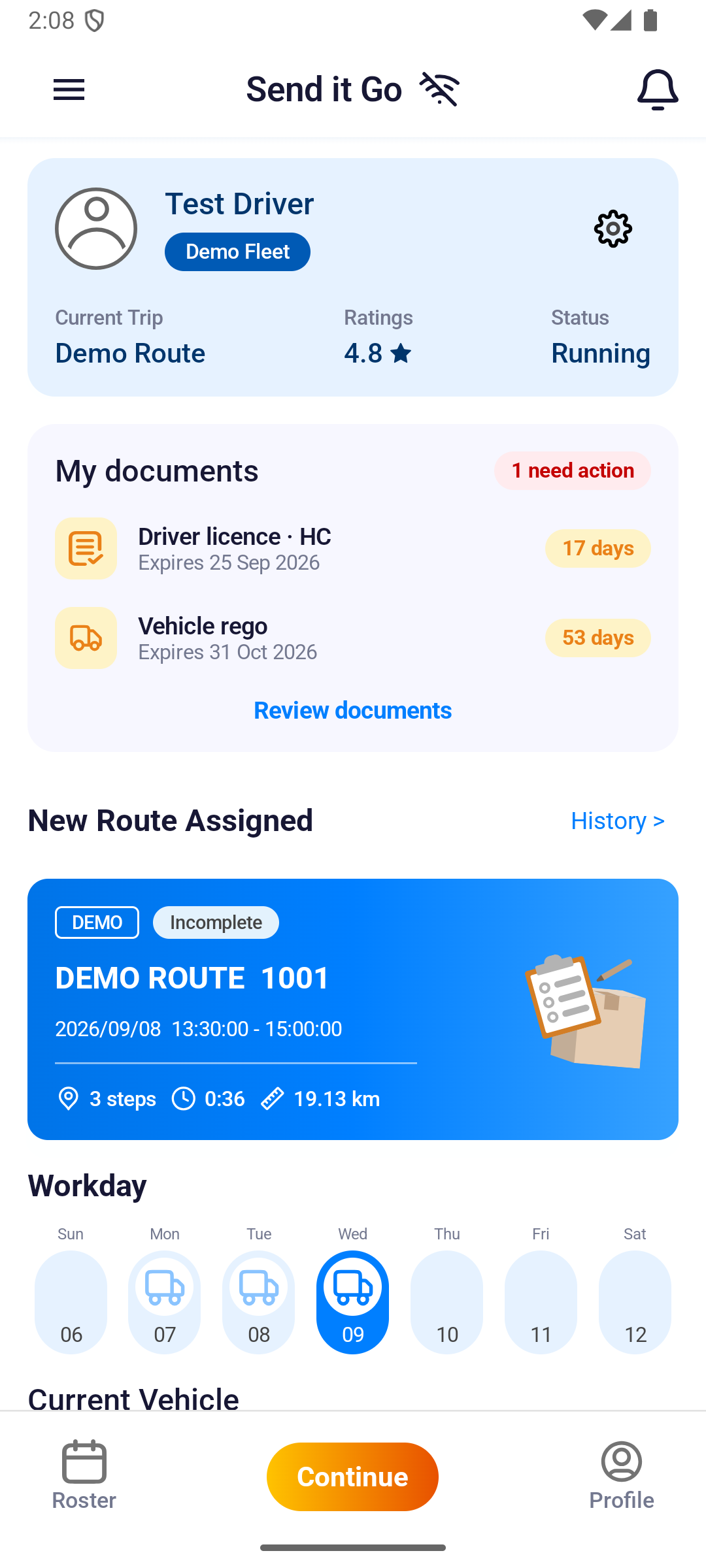
After rest, Continue returns navigation to Running. After reconnecting, also check the current route and any pending uploads.
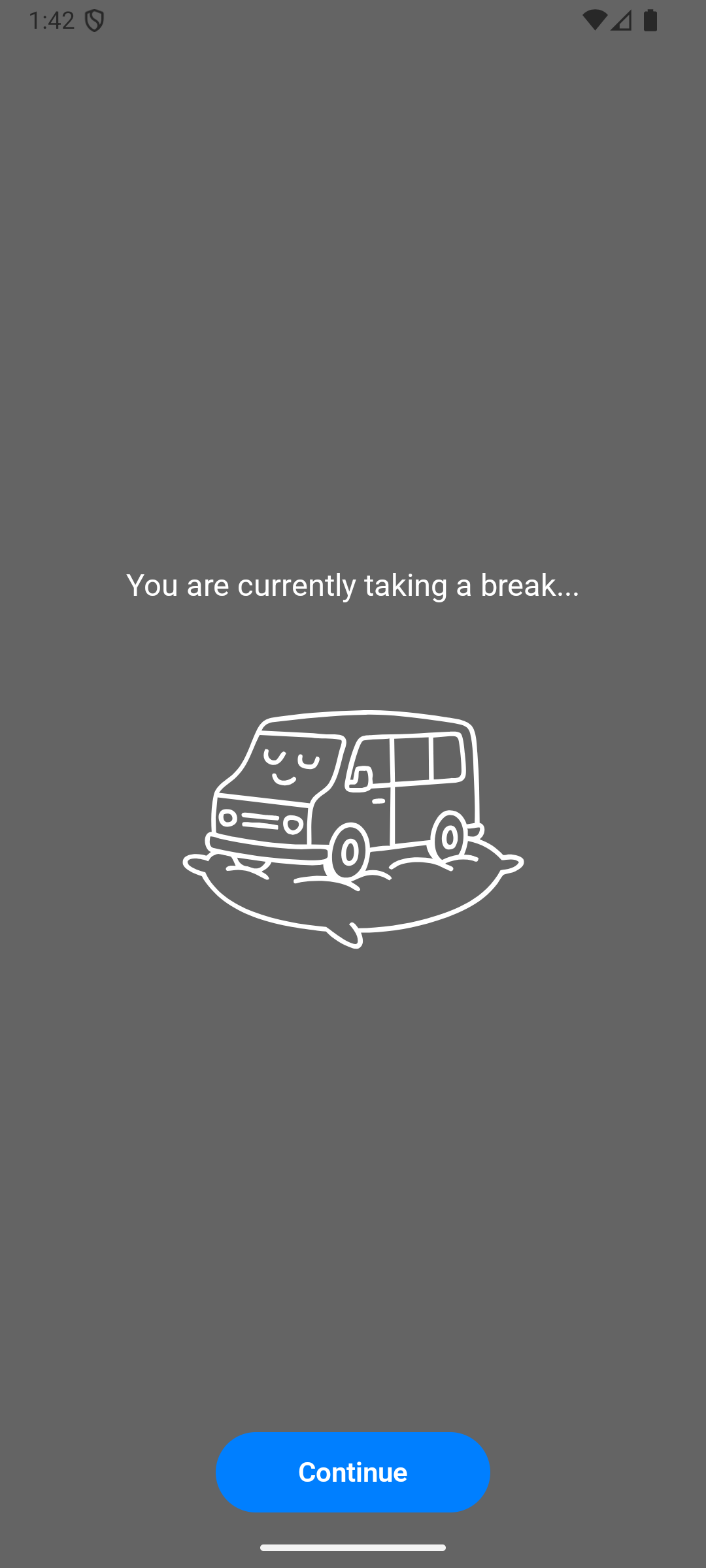
Take a rest
- In navigation, switch the status from Running to Rest.
- Confirm the rest screen. Map controls and location uploads pause while you rest.
- Tap Continue when you are ready to resume.
Work during a connection outage
- Keep the app open and installed. Do not clear app data.
- A route and stop details that were already loaded can remain available.
- Scans and proof already saved on the phone wait for upload and retry after reconnection.
- Dashboard refresh, Delivery History, newly changed routes, stop reordering and exception reports require a connection.
- Saved order removals can wait for synchronisation. If you also reorder stops while offline, the new stop order is not applied. Reconnect and check the route.
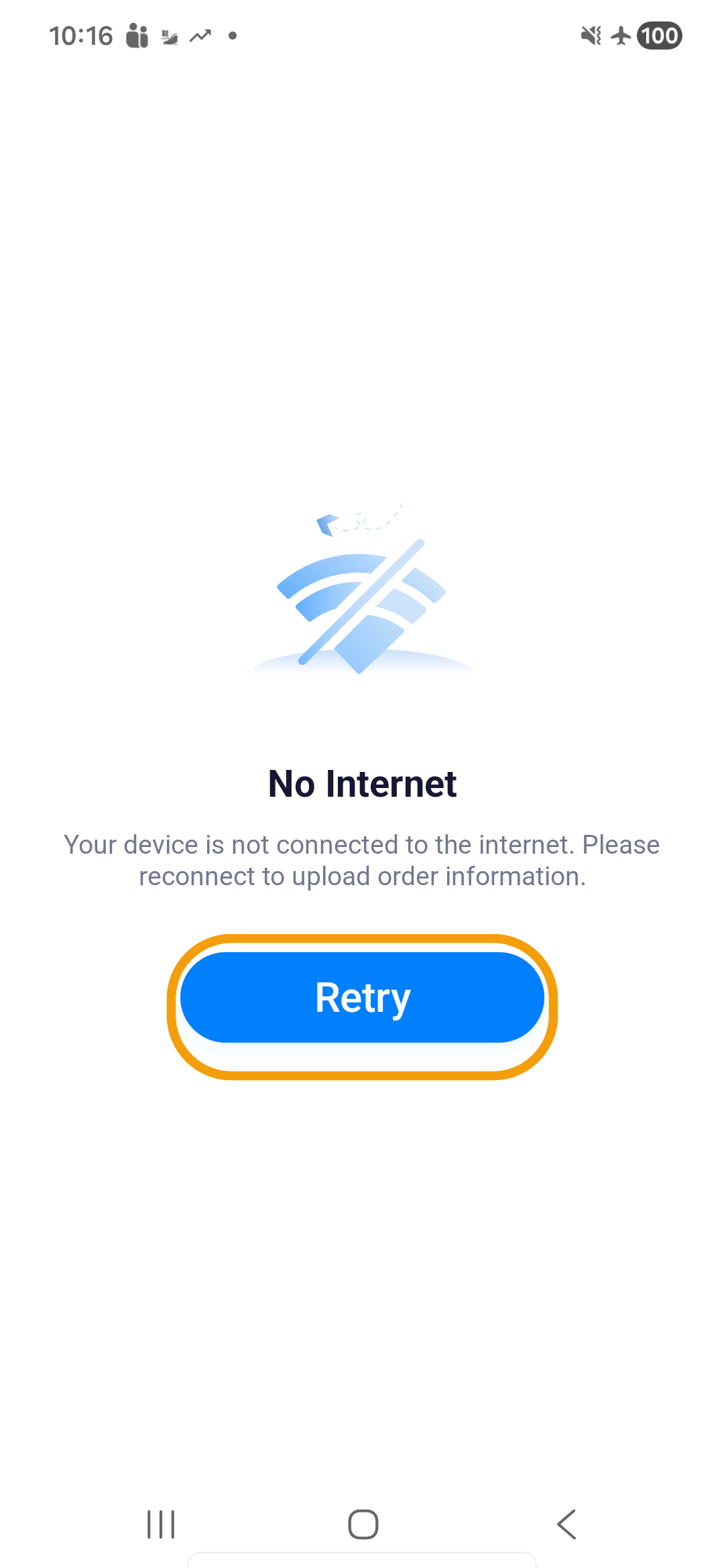
- If No Internet appears, reconnect and tap Retry.
warning
Do not uninstall the app while scans, proof, or completion data may still be waiting to upload.