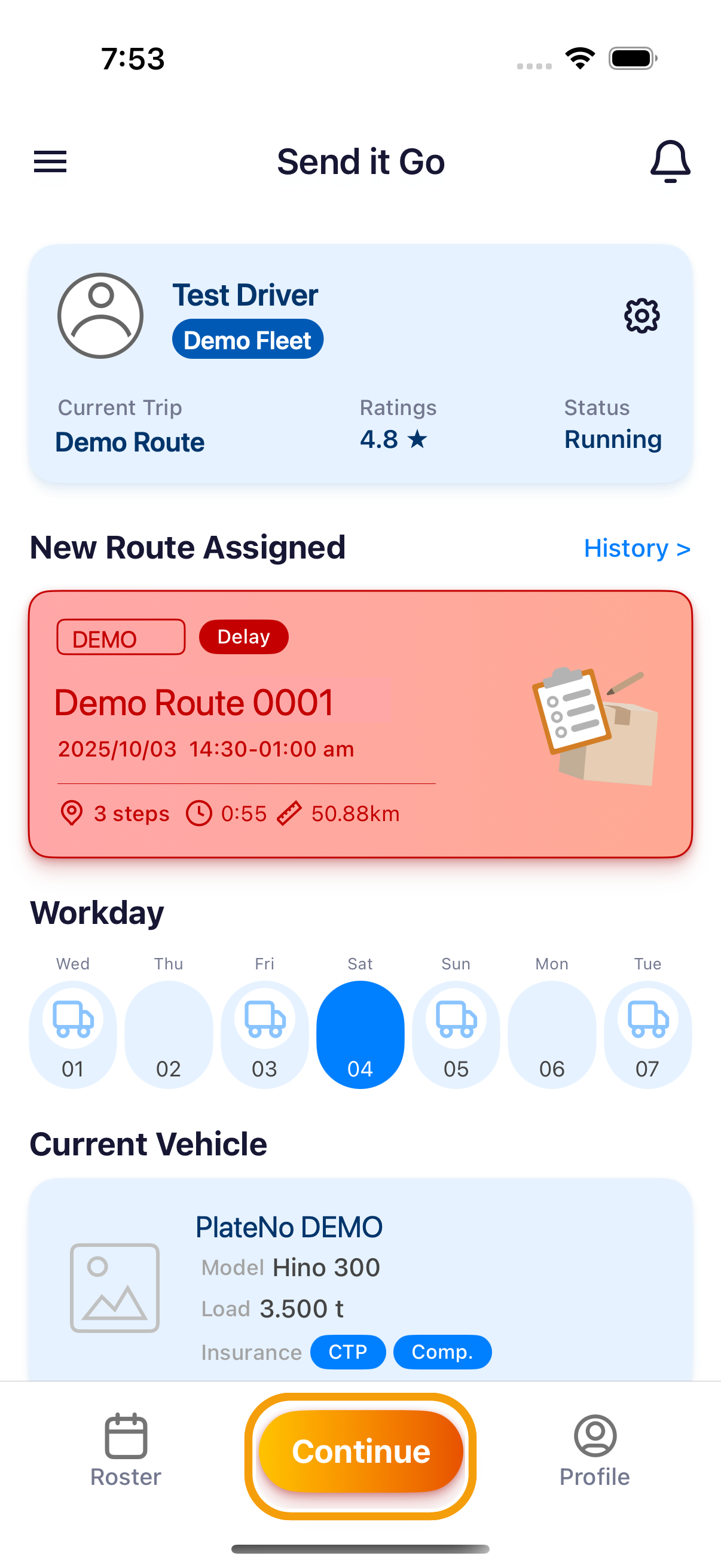
Route updated while driving
Dispatch may change the active route after you start it. The app stops the current navigation so you can load the revised plan.
Where to find it: active route › Route Updated message › dashboard.
You'll know it worked when
The dashboard shows the revised route under New Route Assigned. Reopen that card to continue.
- When Route Updated appears, stop somewhere safe before using the phone.
- A Route Adjusted notification may first say: Your route for today has been adjusted by the dispatcher.
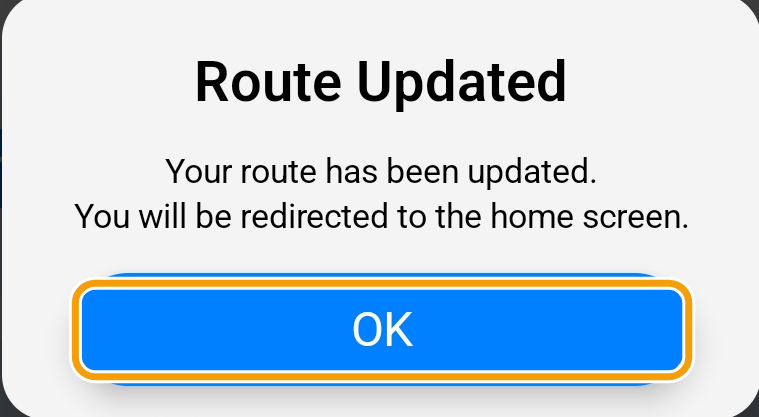
- Read the Route Updated message: Your route has been updated. You will be redirected to the home screen.
- Tap OK.
- On the dashboard, check the revised card under New Route Assigned, then reopen it.
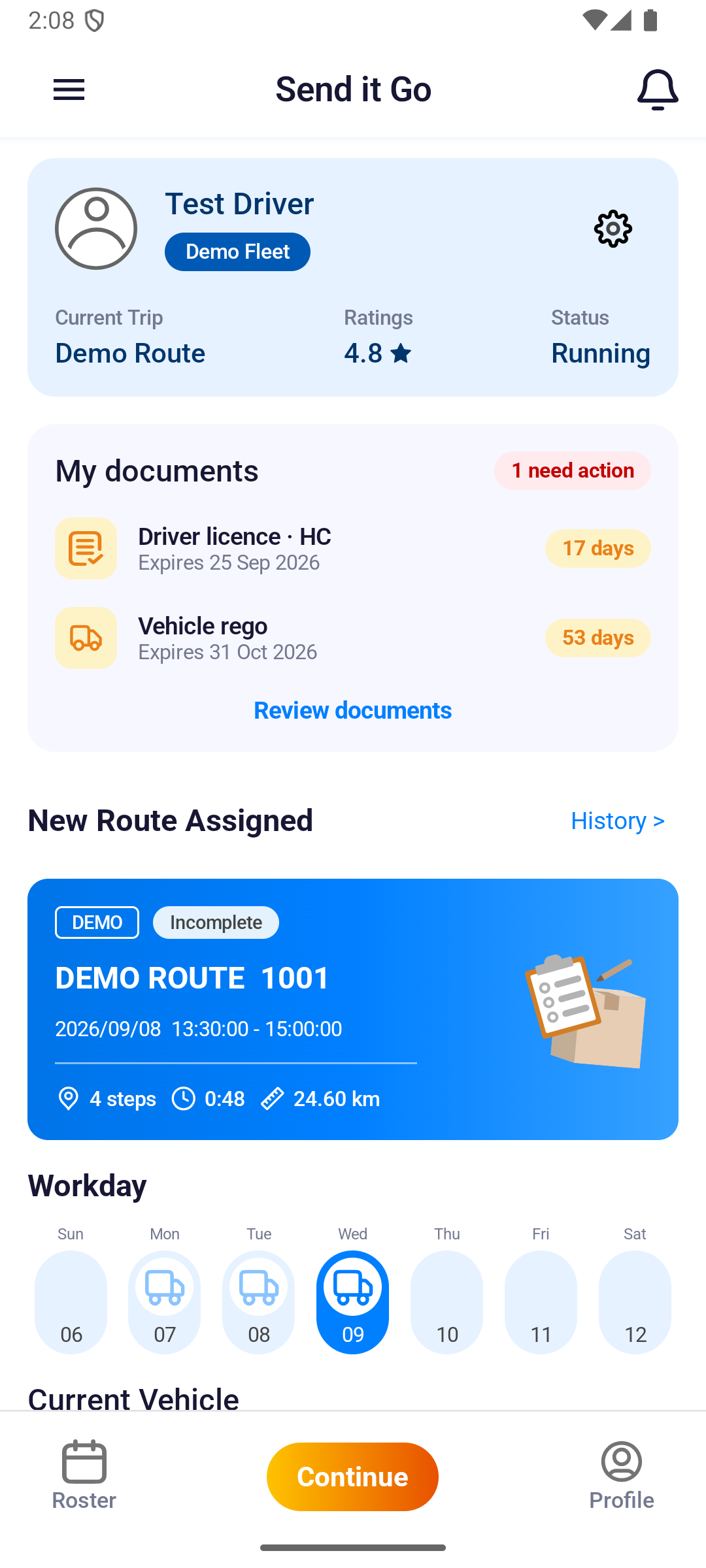
The card may show Go! or Continue, depending on its current state. Check the stop order before resuming. If the new plan does not load, reconnect and refresh before continuing.