Roster, leave, and attendance
Use Roster to view assigned shifts, request leave and check leave records. The iPhone screen does not provide an editor for a recurring weekly roster.
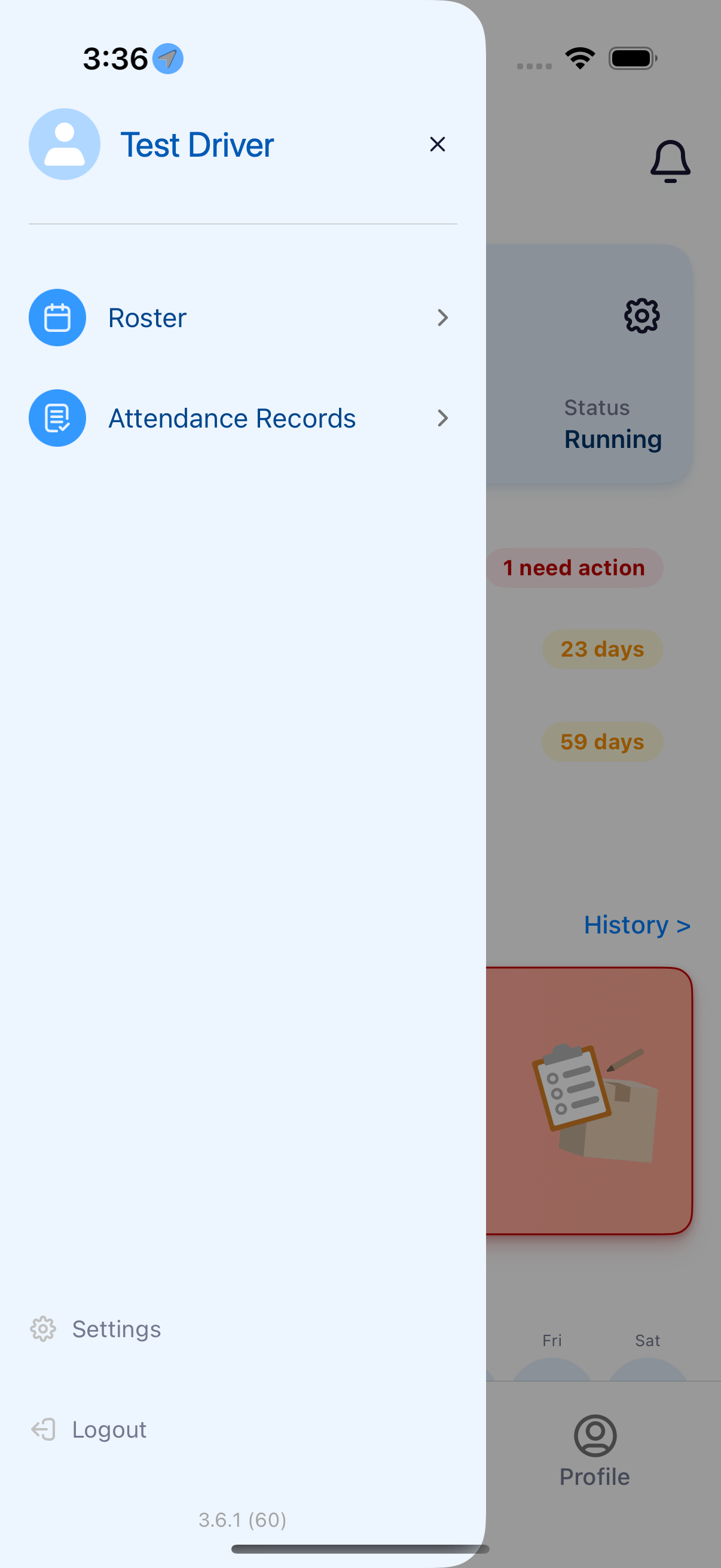
Where to find it: dashboard bottom bar › Roster. You can also open the dashboard menu and tap Roster.
The selected date appears in the calendar, with that day's shift or leave cards below it.
Check your roster
- Tap Roster at the bottom left of the dashboard, or open the dashboard menu and tap Roster.
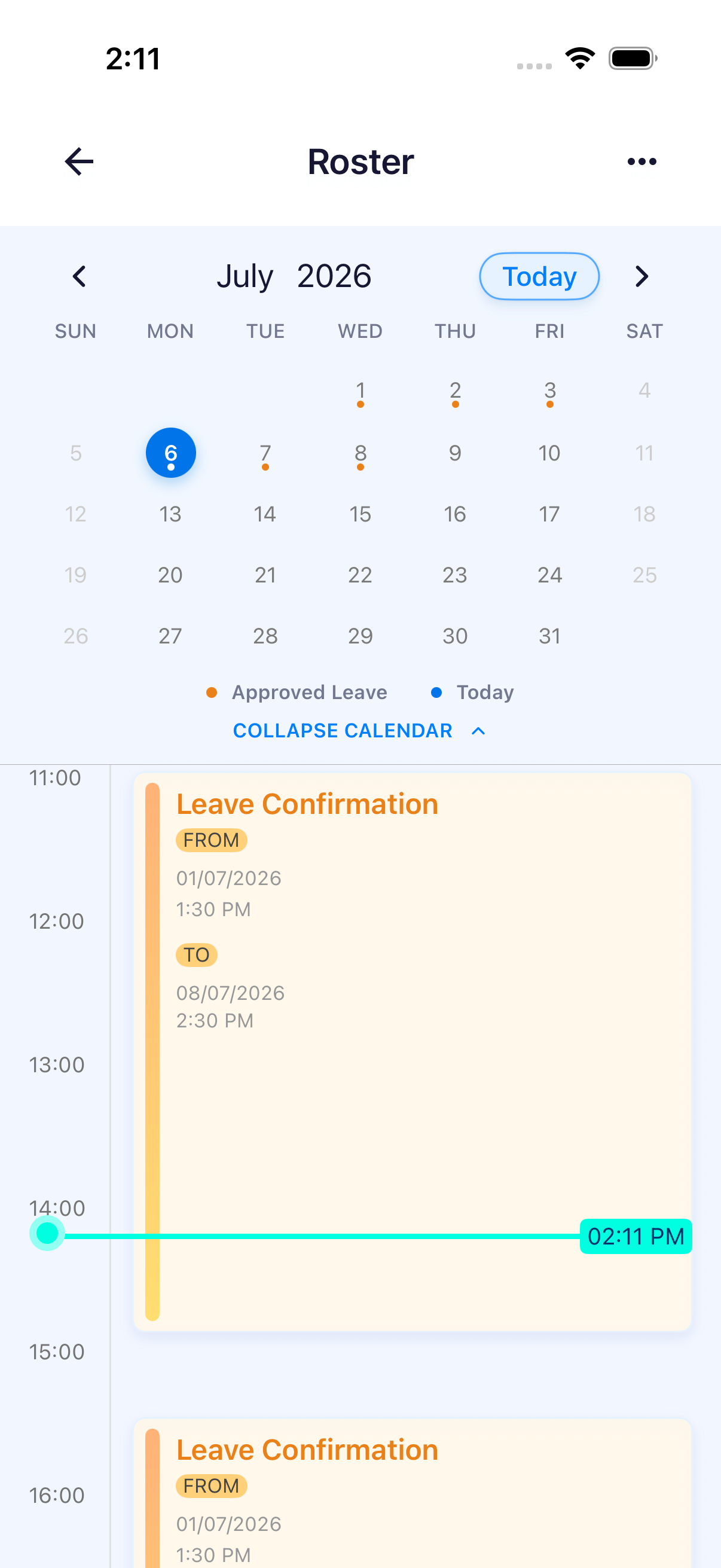
- Use the month arrows to find a date, then tap the day. Tap Today to return to today.
- Read the shift name and start and finish times on the cards below the calendar. Scroll down the timeline for later shifts.
- Tap COLLAPSE CALENDAR when you need more room for the timeline. Expand it again to choose another date.
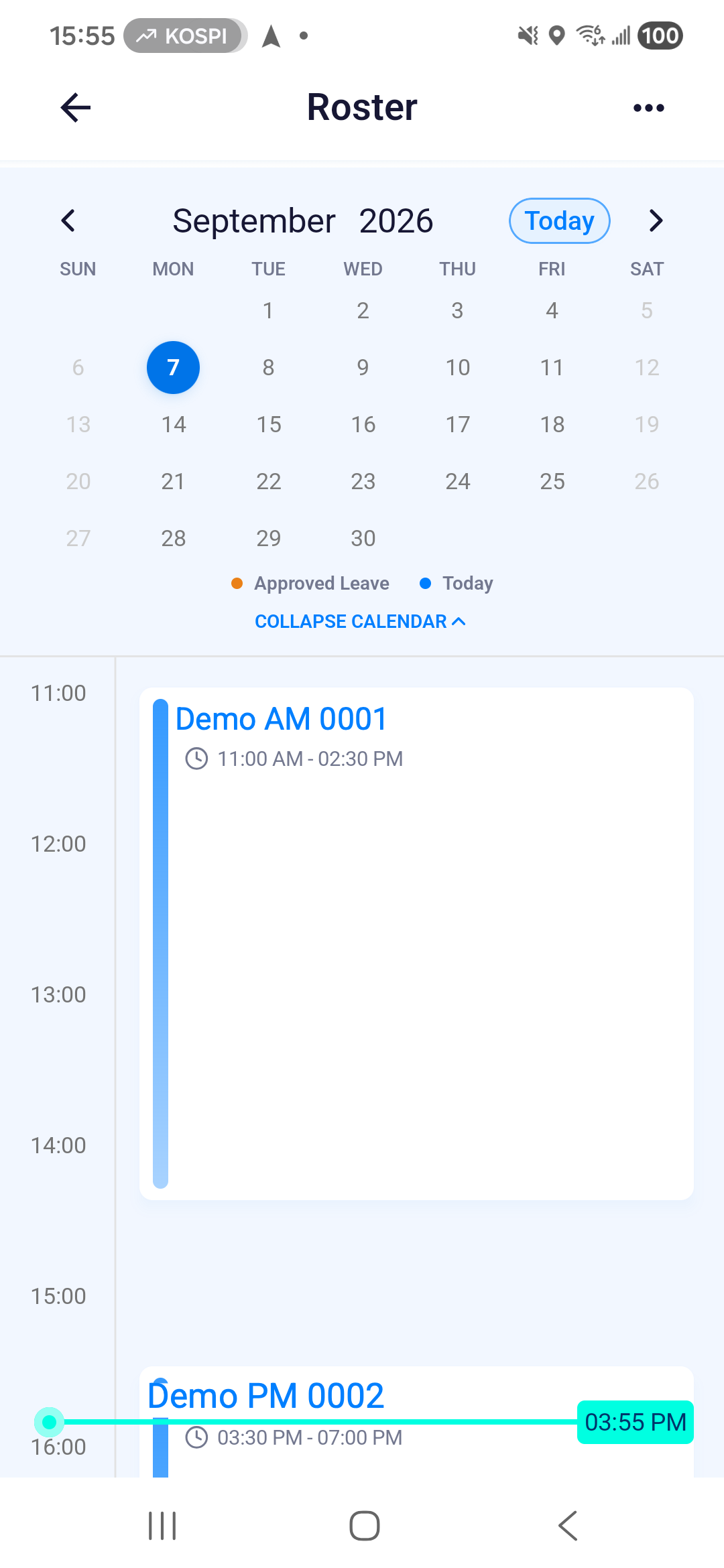
An orange dot marks Approved Leave. On a day with leave, a Leave Confirmation card shows its FROM and TO dates and times. On iPhone, tapping this card opens a period summary with Got it to close it. Use Attendance Records for the full leave details and cancellation action. The example below shows the roster on iPhone.
Request leave
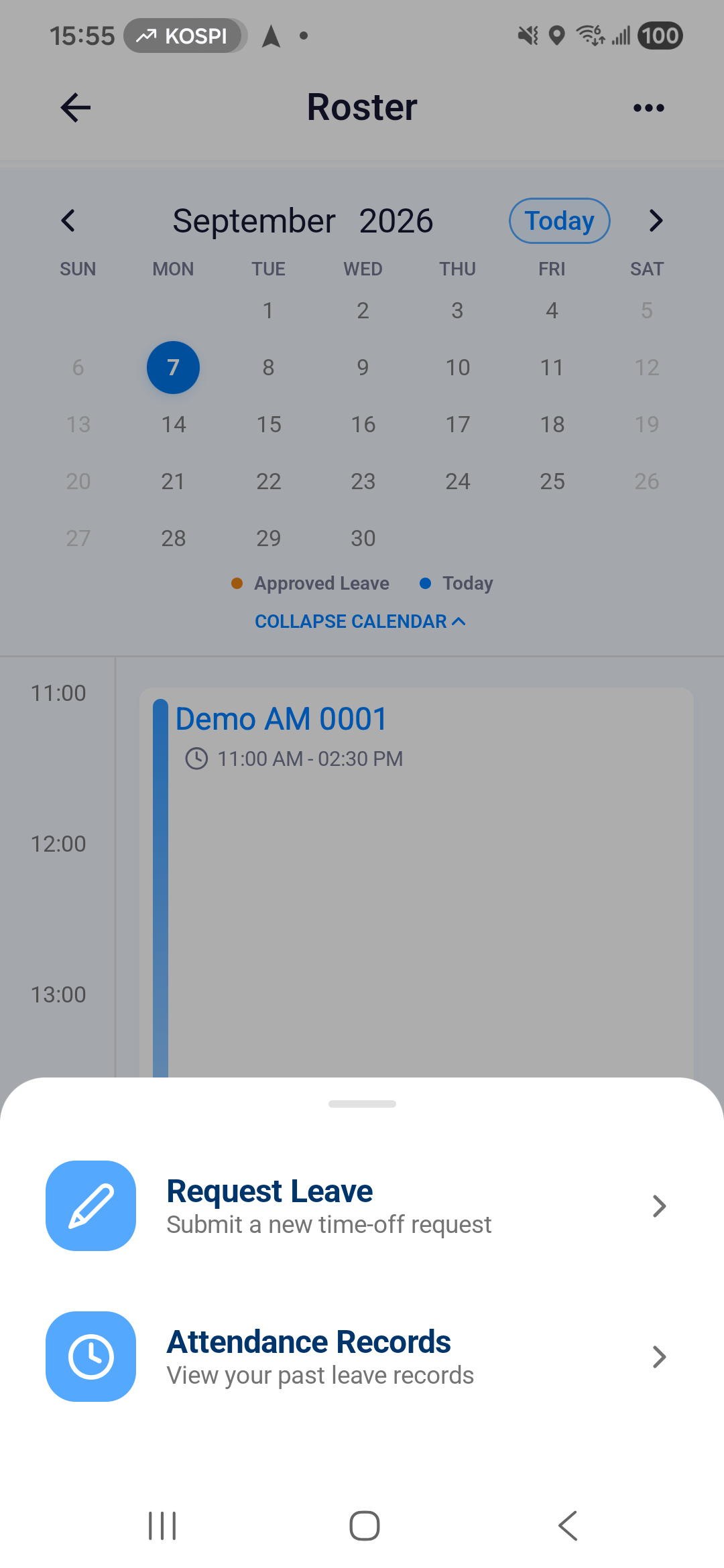
- Tap the three-dot menu at the top right of Roster.
- Choose Request Leave to open the form.
Follow Request, view and cancel leave for every field, date and time picker, submission confirmation and saved details screen.
Cancel leave
Choose Attendance Records in the roster menu and tap the request. In Leave Details, scroll down to Cancel Leave when it is available.
The cancellation walkthrough shows the reason field, final confirmation and cancellation result.
Review leave records
Choose Attendance Records from the roster menu to view yearly totals and filter previous requests. The attendance records guide shows the list and explains how to reopen a request.