A driver's record
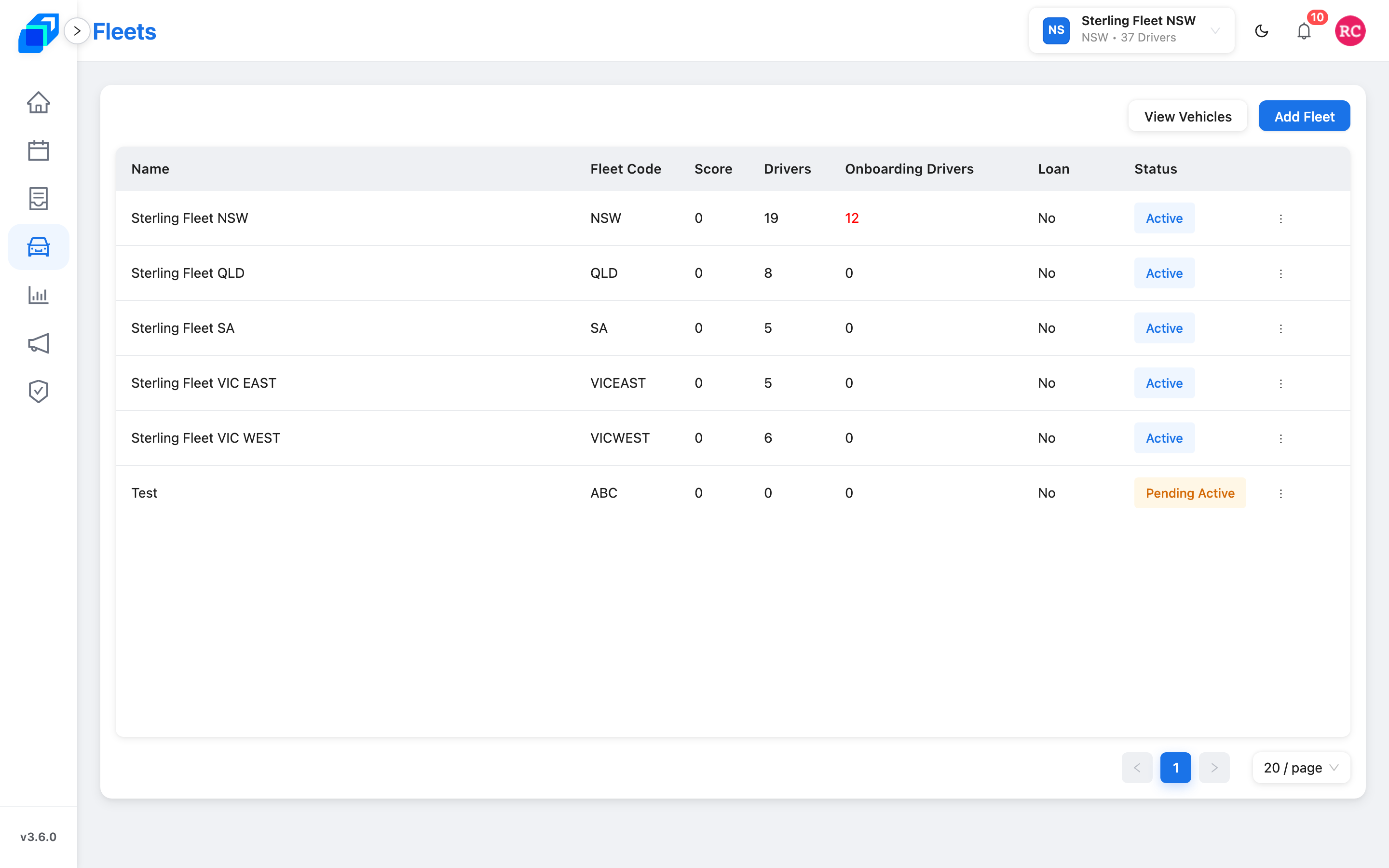
VIEW · UPDATE
Open an active driver and turn stop-reordering on or off.
Where to find it: Fleets › your fleet › Drivers.
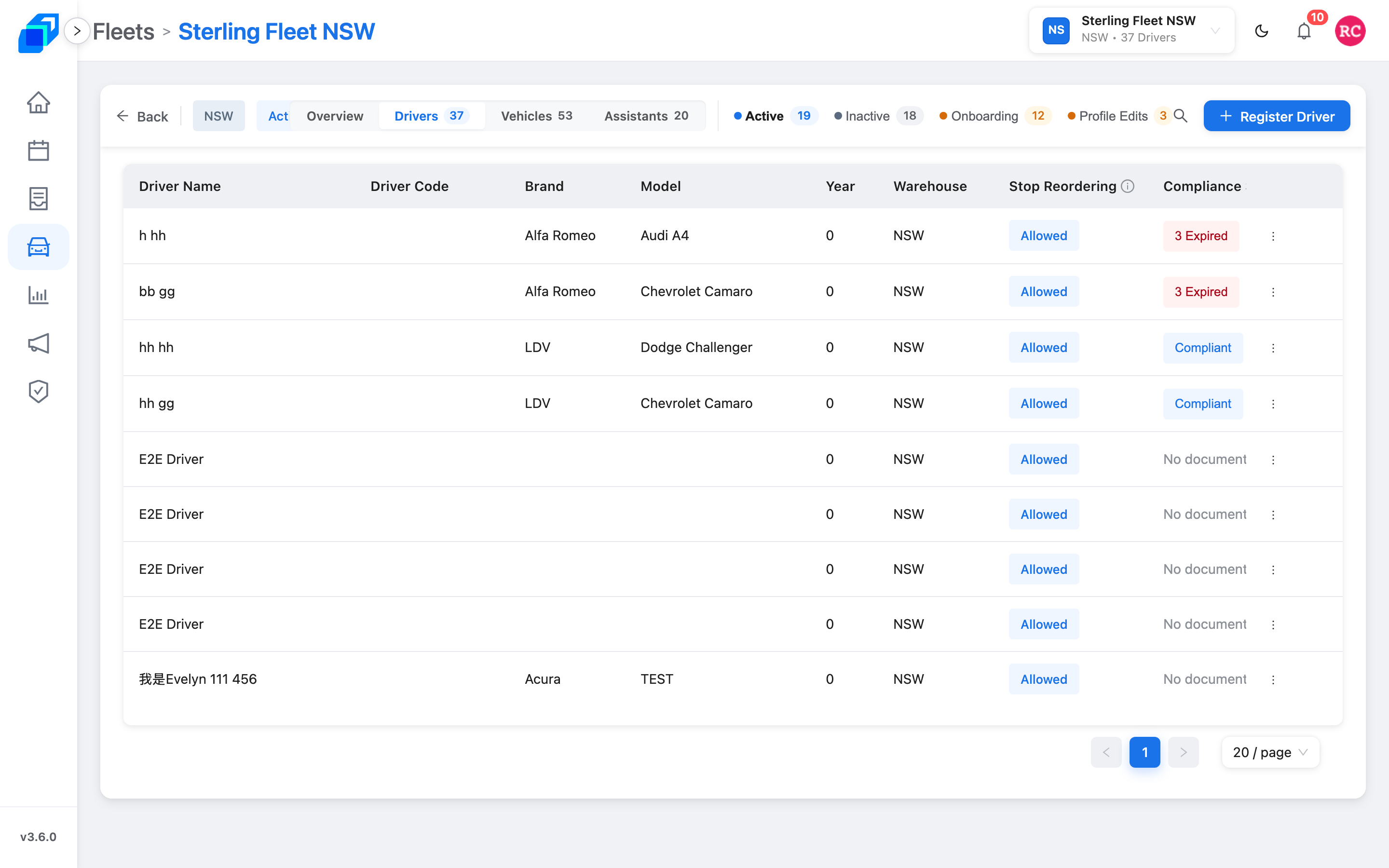
1. Open the list – VIEW
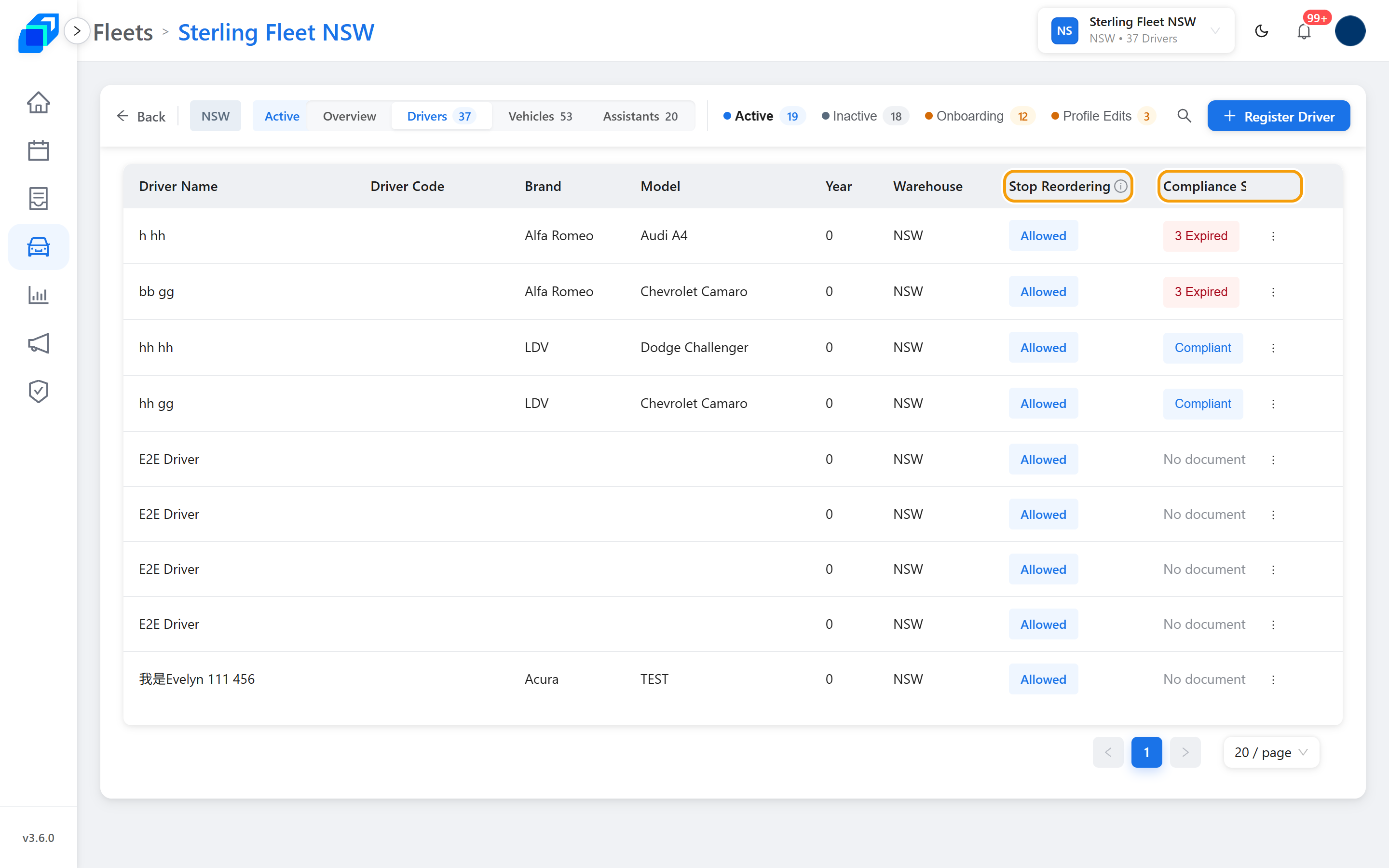
Open the fleet, then the Drivers tab. The table lists people on the fleet, with a Warehouse column for where each one is based. Stop Reordering is a column on the same row. Compliance Status sits beside it when your role holds View Driver Application.
2. Open the record – VIEW
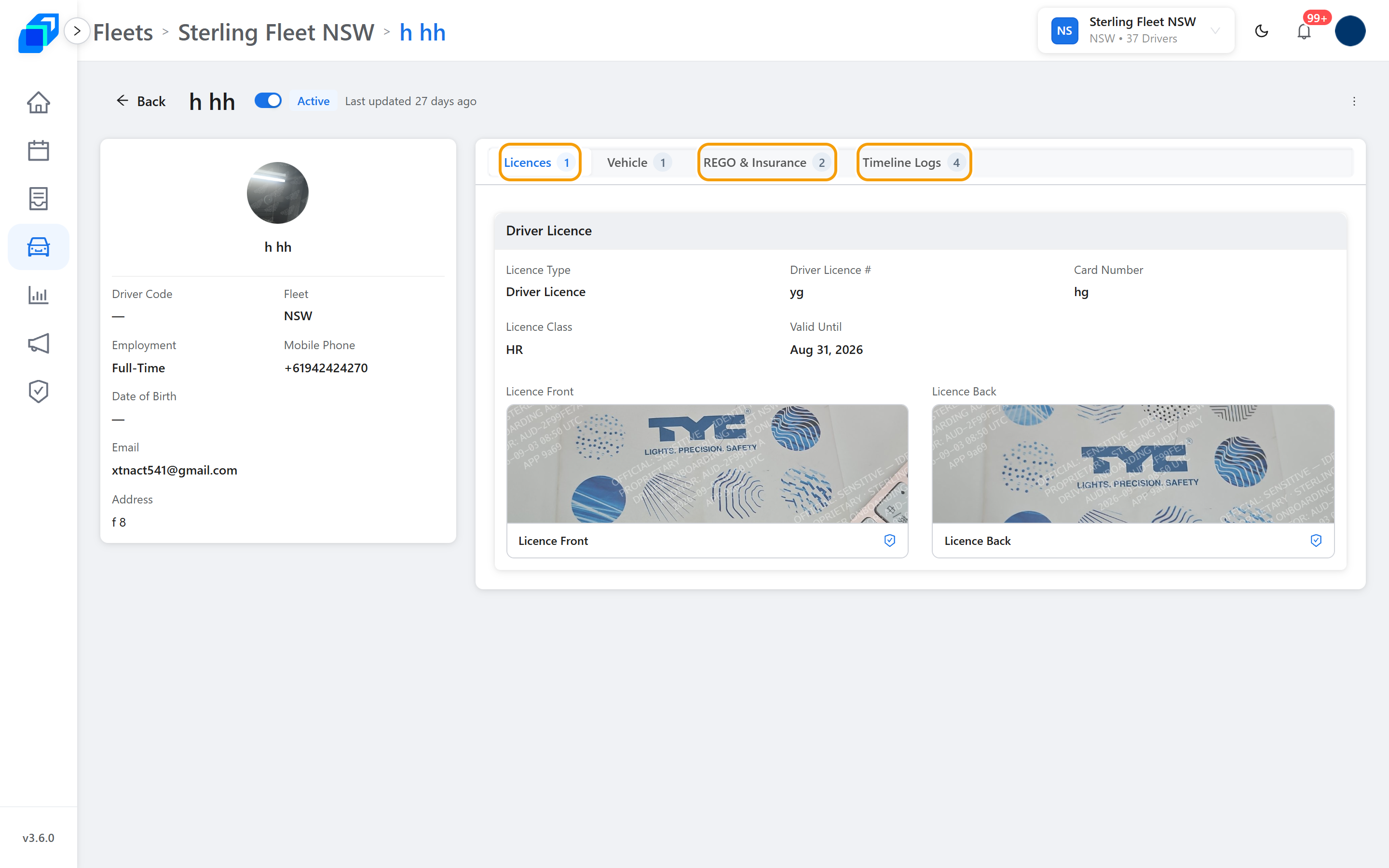
Click a driver. The left side is their profile. The tabs on the right are Licences, Vehicle, REGO & Insurance and Timeline Logs, each with a count.
3. Allow stop reordering – UPDATE
The Allow Stop Reordering in APP switch saves as soon as you flip it. Turning it off only stops the driver reordering from the phone. Your dispatcher can still change the sheet.
Stop Reordering setting saved. appears at the top of the screen. The driver's Stop Reordering cell then reads Allowed or Locked to match the switch.
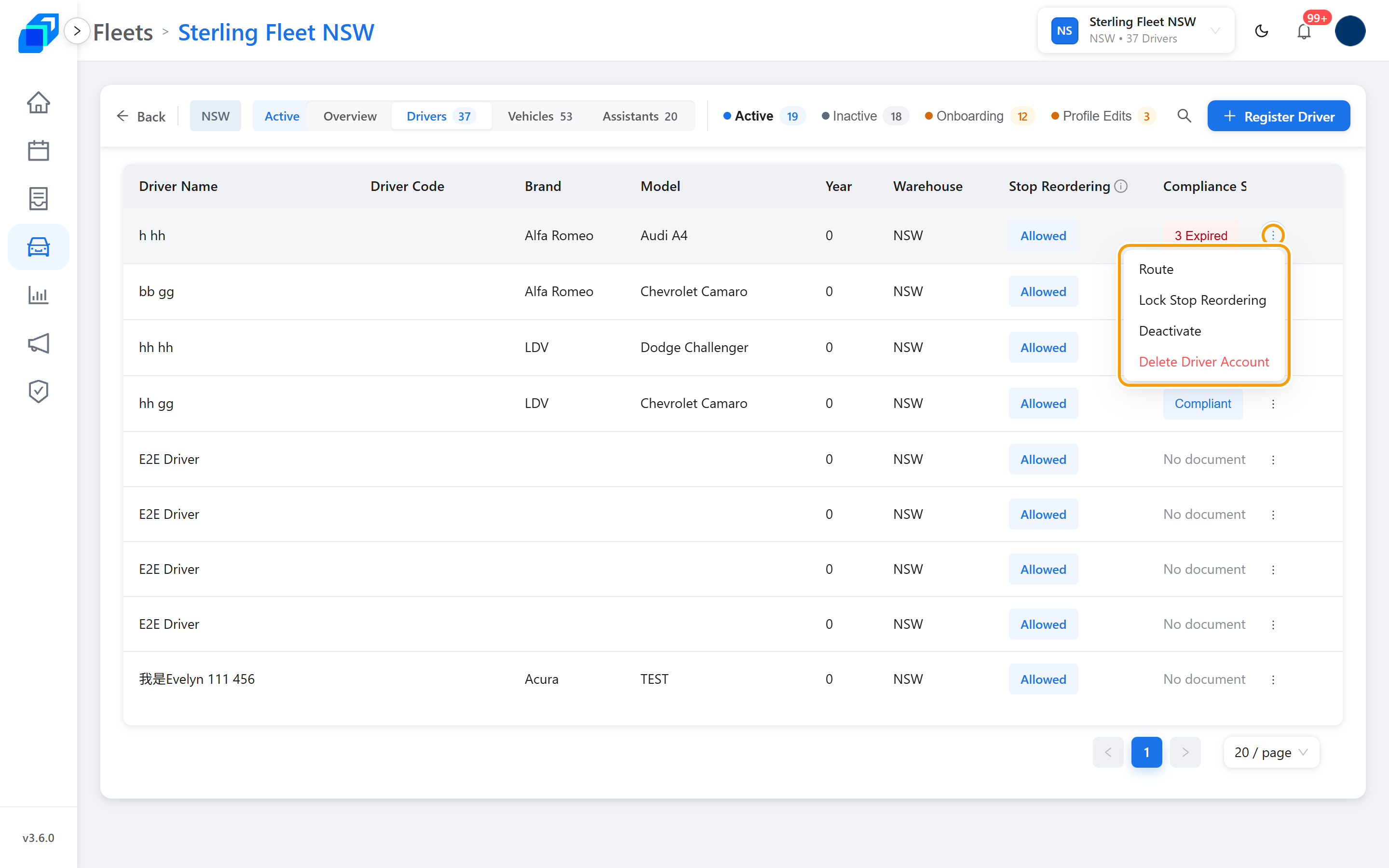
Everything else you can do to a driver is on the row's ⋮ menu: Route, Lock Stop Reordering, Deactivate and Delete Driver Account. The middle two change their wording with the driver's current state – a locked driver shows Allow Stop Reordering, an inactive one shows Activate.
4. Check documents are in date – VIEW
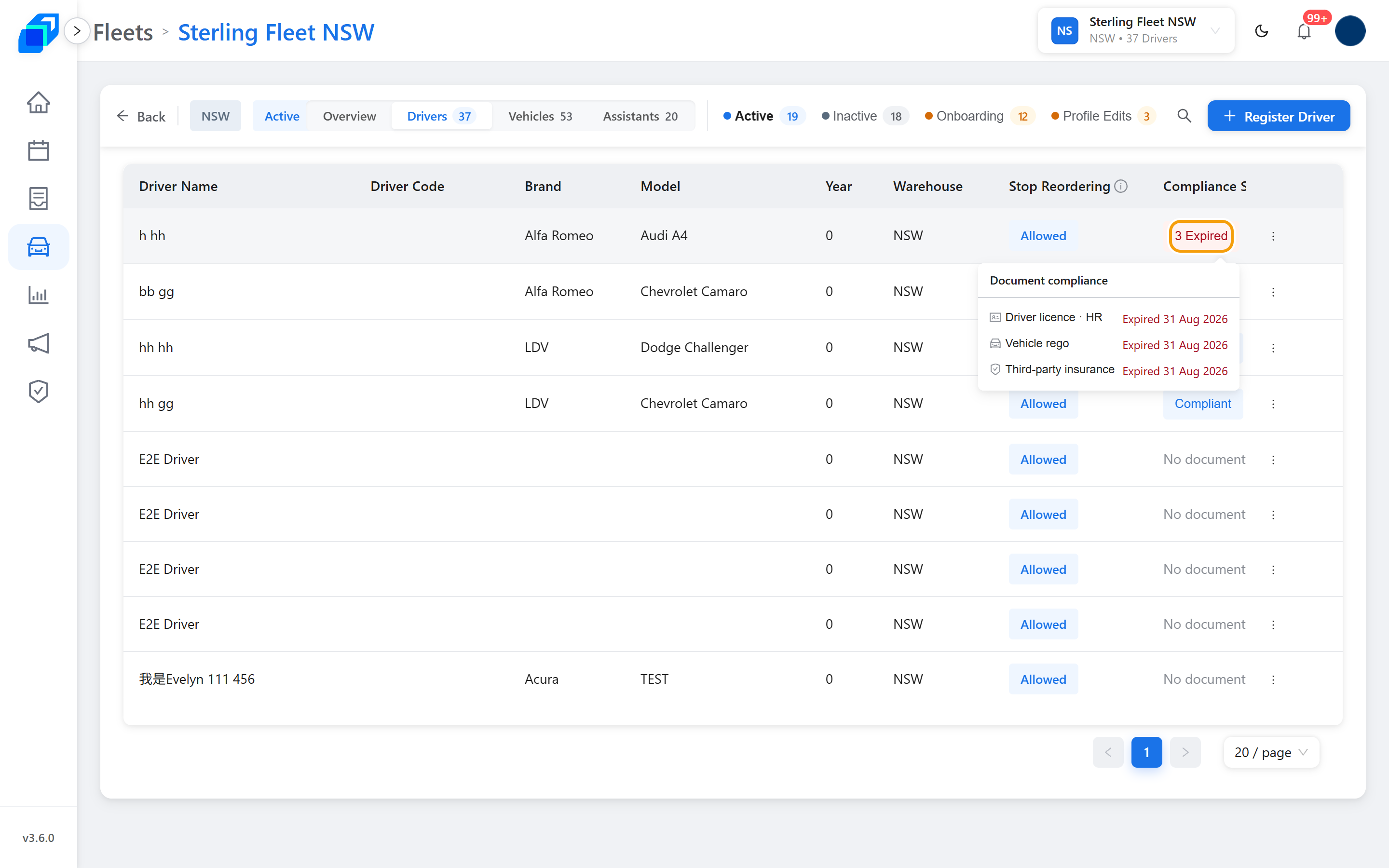
Compliance Status tells you whether a driver's documents have run out. A cell reads Compliant, Expiring Soon, Expired – the last two carry a count, like 3 Expired – or No documents when nothing on file has an expiry date.
Rest the pointer on a badge to see Document compliance – every document with a date, so you know which one to chase.
The funnel beside the column heading narrows the table. Show takes All Documents or Expired Only; Limit to document takes Licence, Rego or Insurance.
5. Deactivate a driver – UPDATE
On the row's ⋮, click Deactivate. The dialog is Deactivate Driver and asks "Are you sure you want to deactivate …?". A Reason is required and is kept for audit.
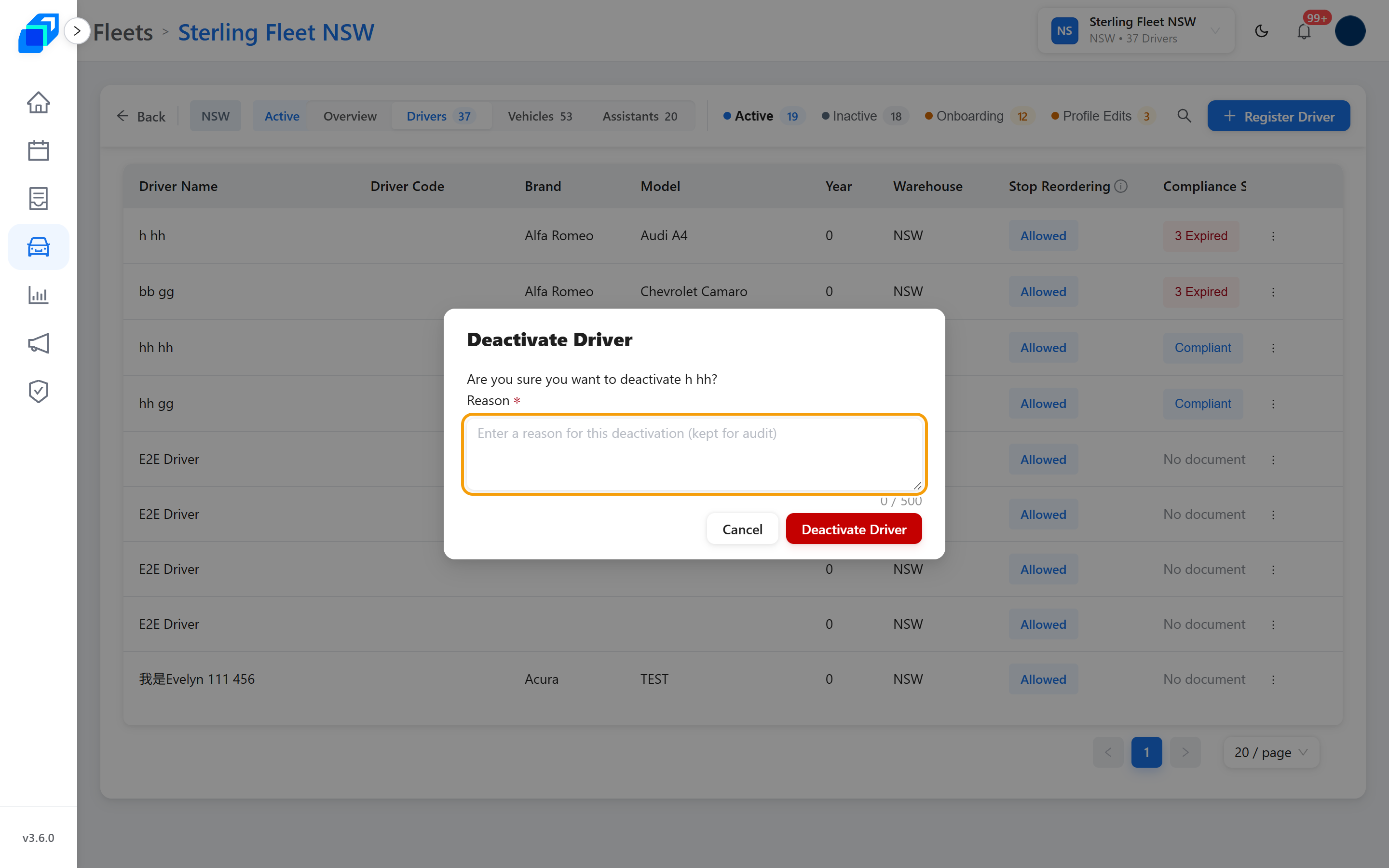
The same menu turns them back on later – the item then reads Activate.
6. Delete a driver account – DELETE
On the row's ⋮, click Delete Driver Account. A Reason is required here too.
The dialog says it plainly: "This permanently removes Driver …'s account and cannot be undone. They will be signed out, unable to log in, and excluded from all driver lists."
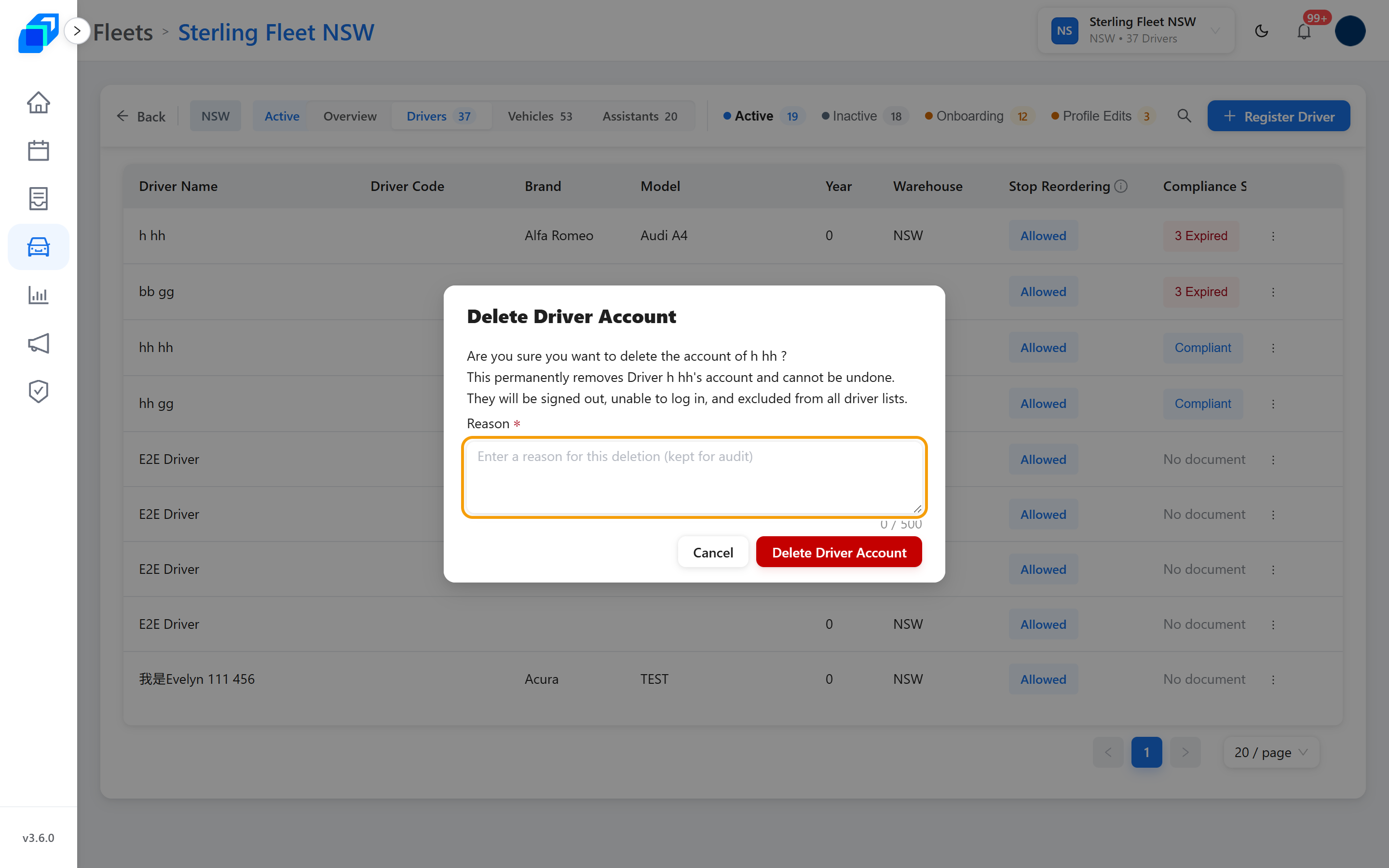
If you only want to stop someone working for now, use Deactivate instead.
A control your role does not hold is hidden, not greyed out. Without View Driver Application the Compliance Status column never appears, and clicking a row does not open the record. Ask your fleet admin.