Review applications
VIEW · UPDATE · REMOVE
Approve a driver application or a profile change, send it back to the driver, or close it.
Where to find it: Fleets › your fleet › Drivers › Onboarding or Fleets › your fleet › Drivers › Profile Edits.
Application approved appears at the top of the screen, and the application moves out of Action required into Ready.
1. Open the queue – VIEW
Applications are grouped by where they are up to: Action required, Waiting on driver, Application closed and Ready. Click one row to open it. An application you approve moves into Ready.
A group only appears when it has applications in it, so you will not always see all four.
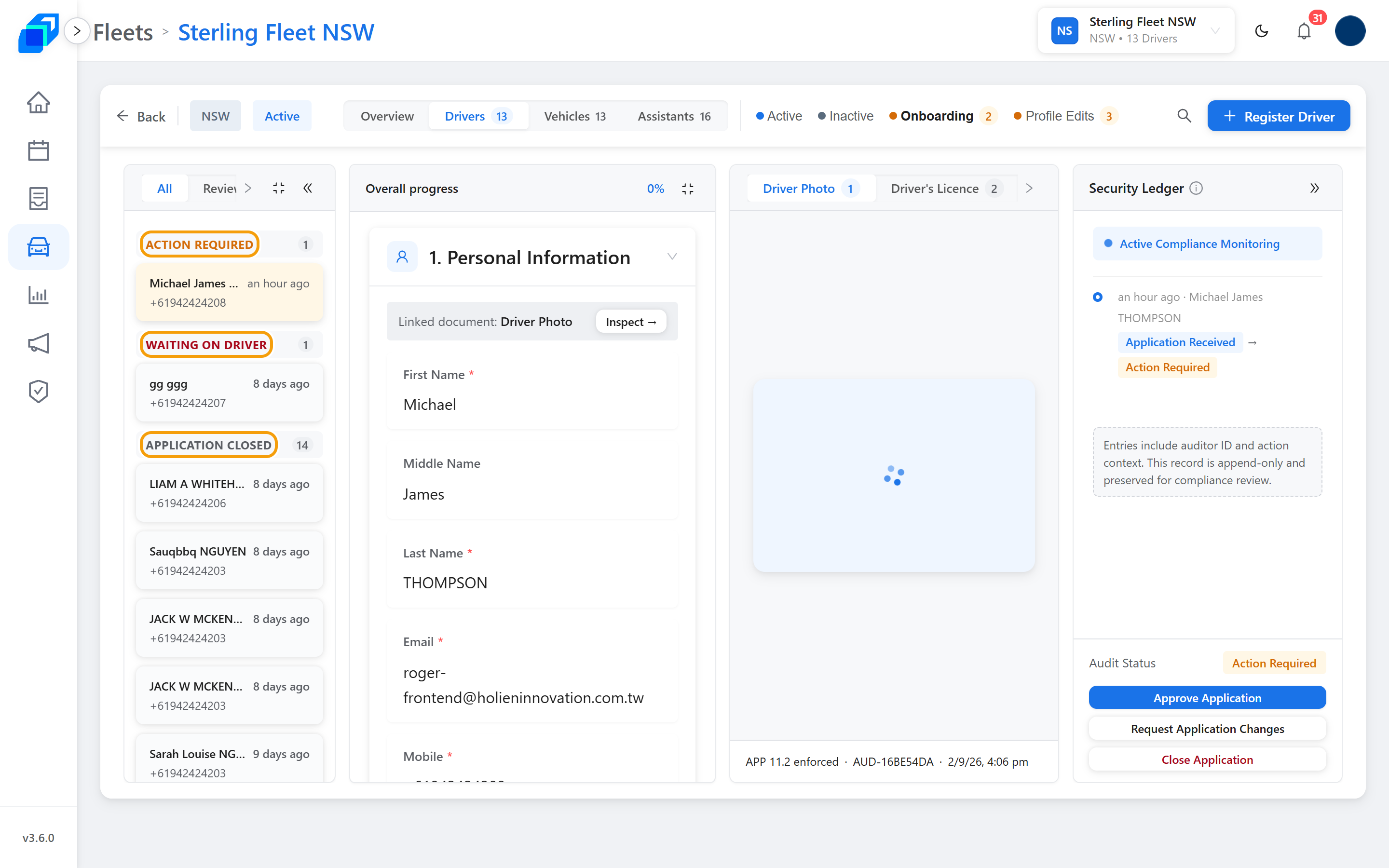
2. Check details and documents – VIEW
Licence, vehicle, and insurance sit next to the uploaded files. Use Inspect to open a document, or Click to zoom for a closer look. The zoomed view carries a watermark showing who is reviewing the file. If it hides a detail, switch on Reduce watermark.
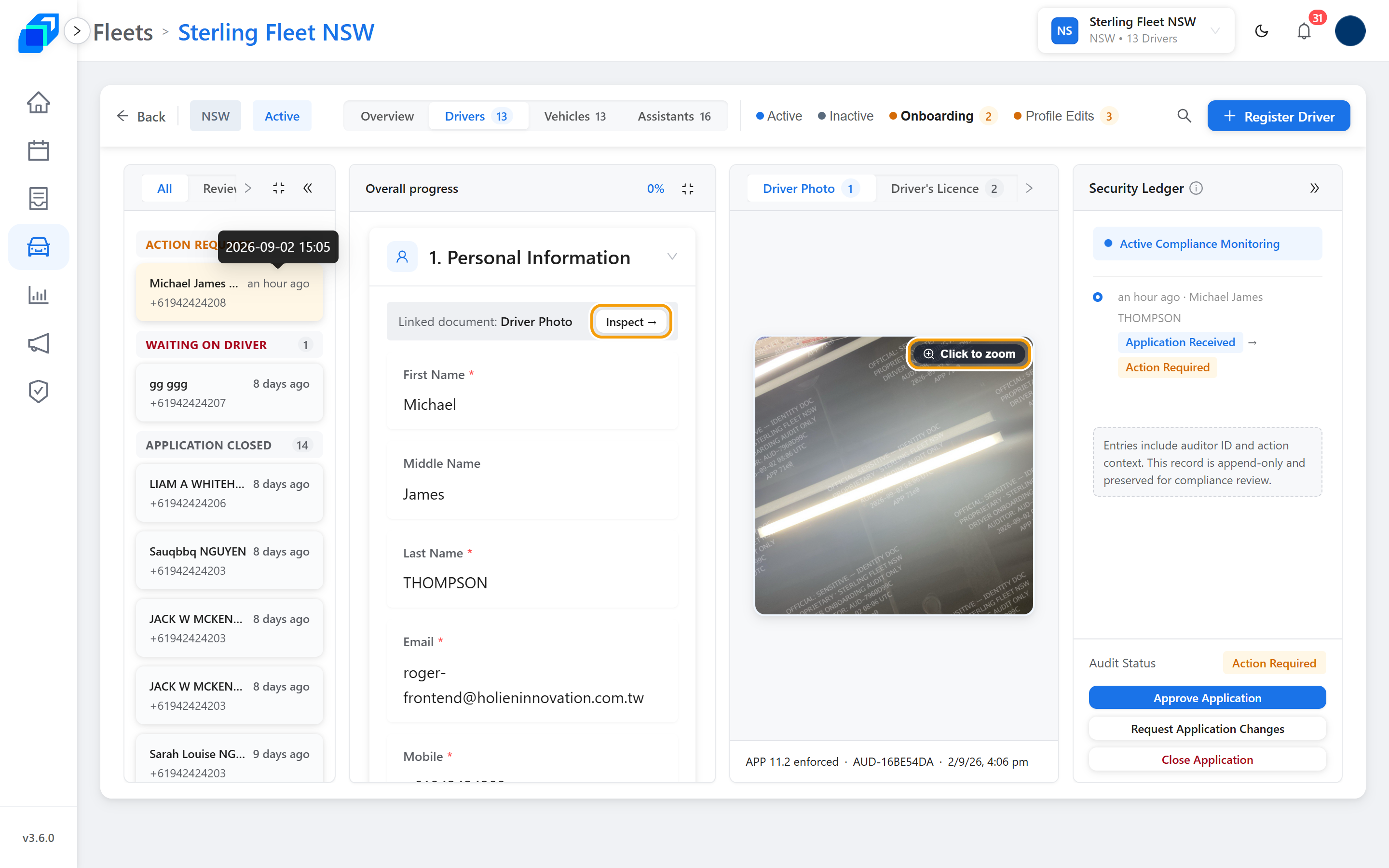
3. Flag a field – UPDATE
Click a field that is wrong. Pick a Flag reason, add a note if it helps, then click Save reason. Each section header counts the fields you have flagged. To clear a flag, click the field again, then click Clear flag.
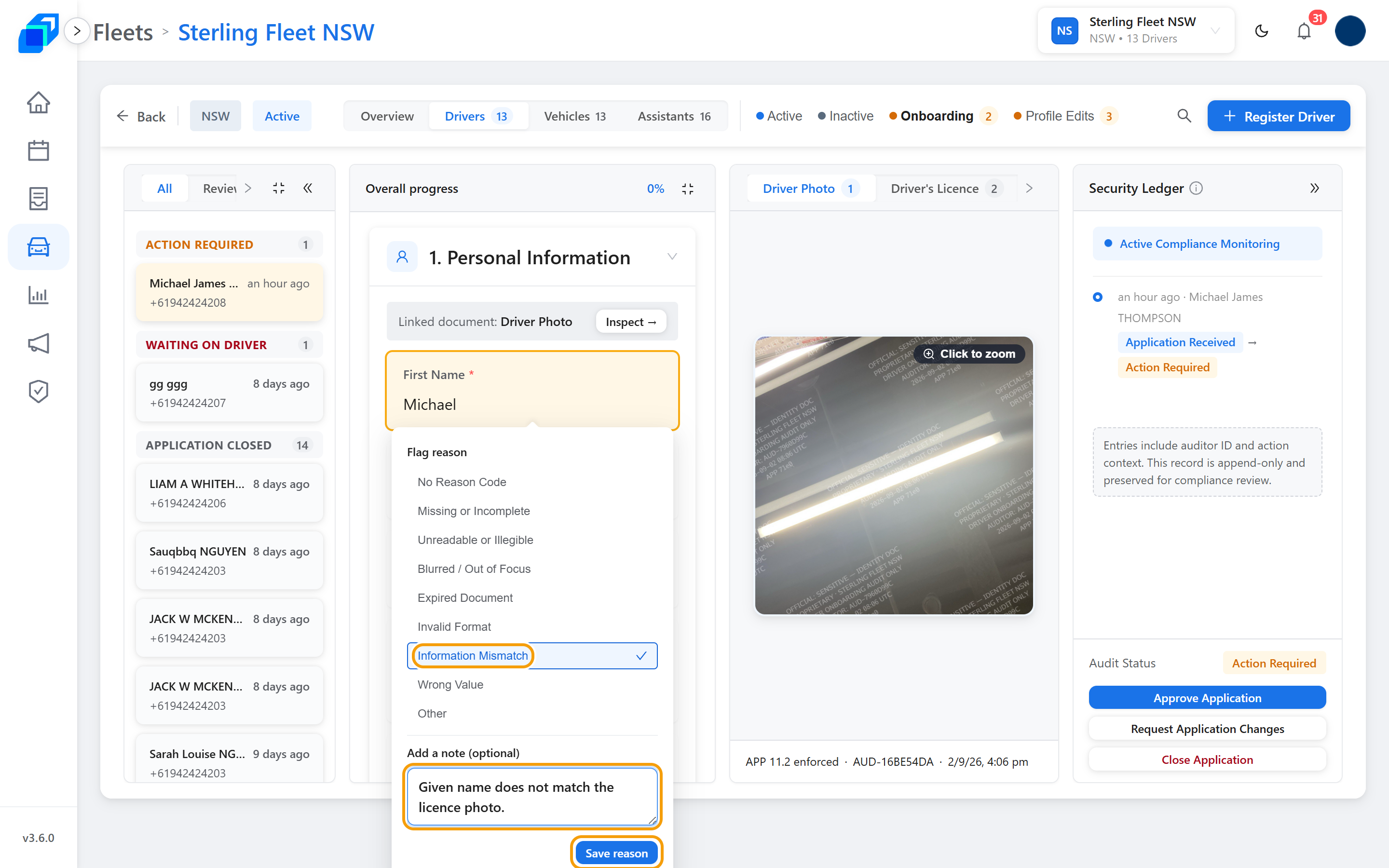
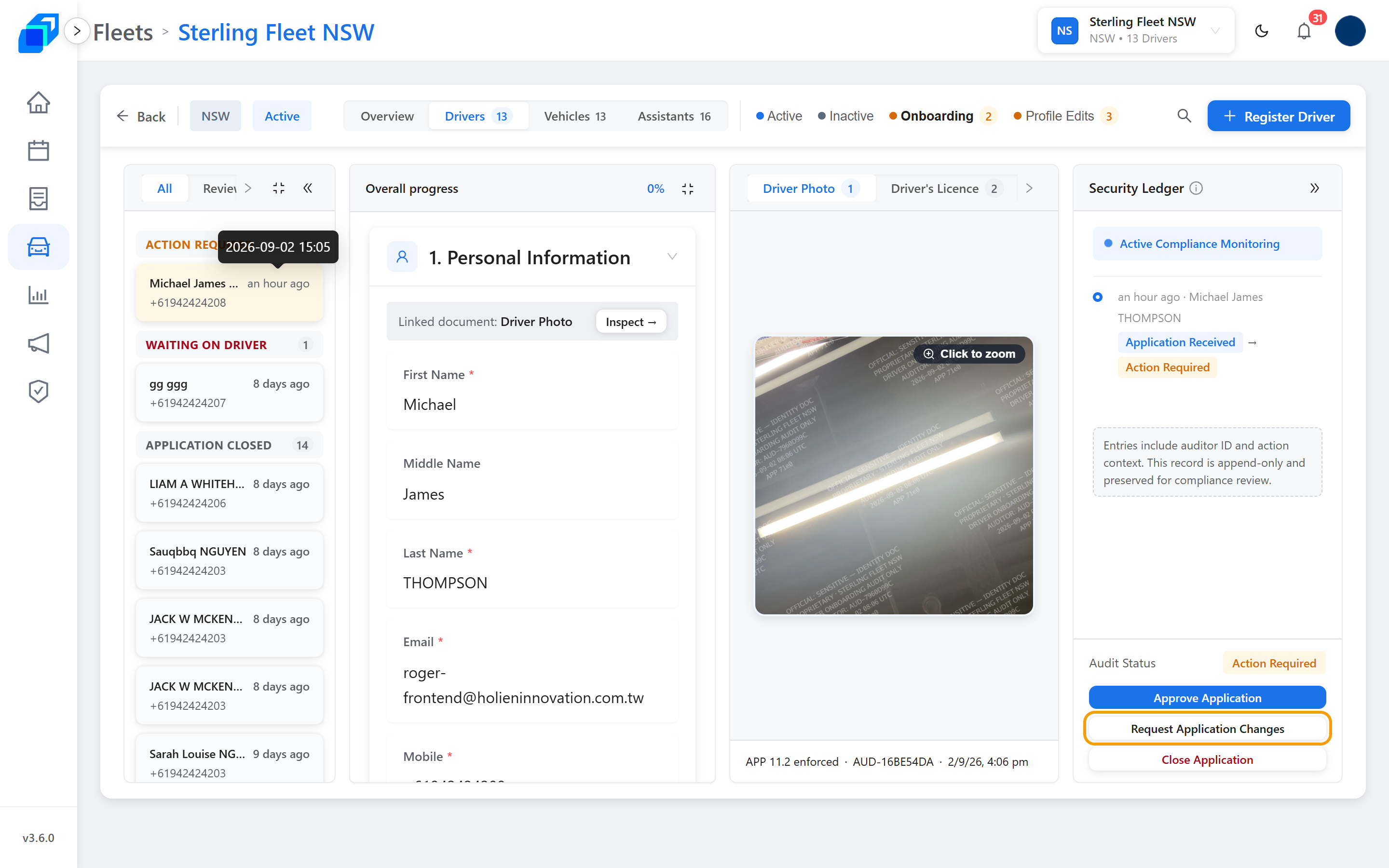
Then send it with Request Application Changes. The driver sees that list.
4. Approve – UPDATE
When everything is right, click Approve Application. That creates the driver's account and sends them an invitation email.
A driver waiting on your review can already sign in – the app holds them on Verification in Progress until the review finishes.
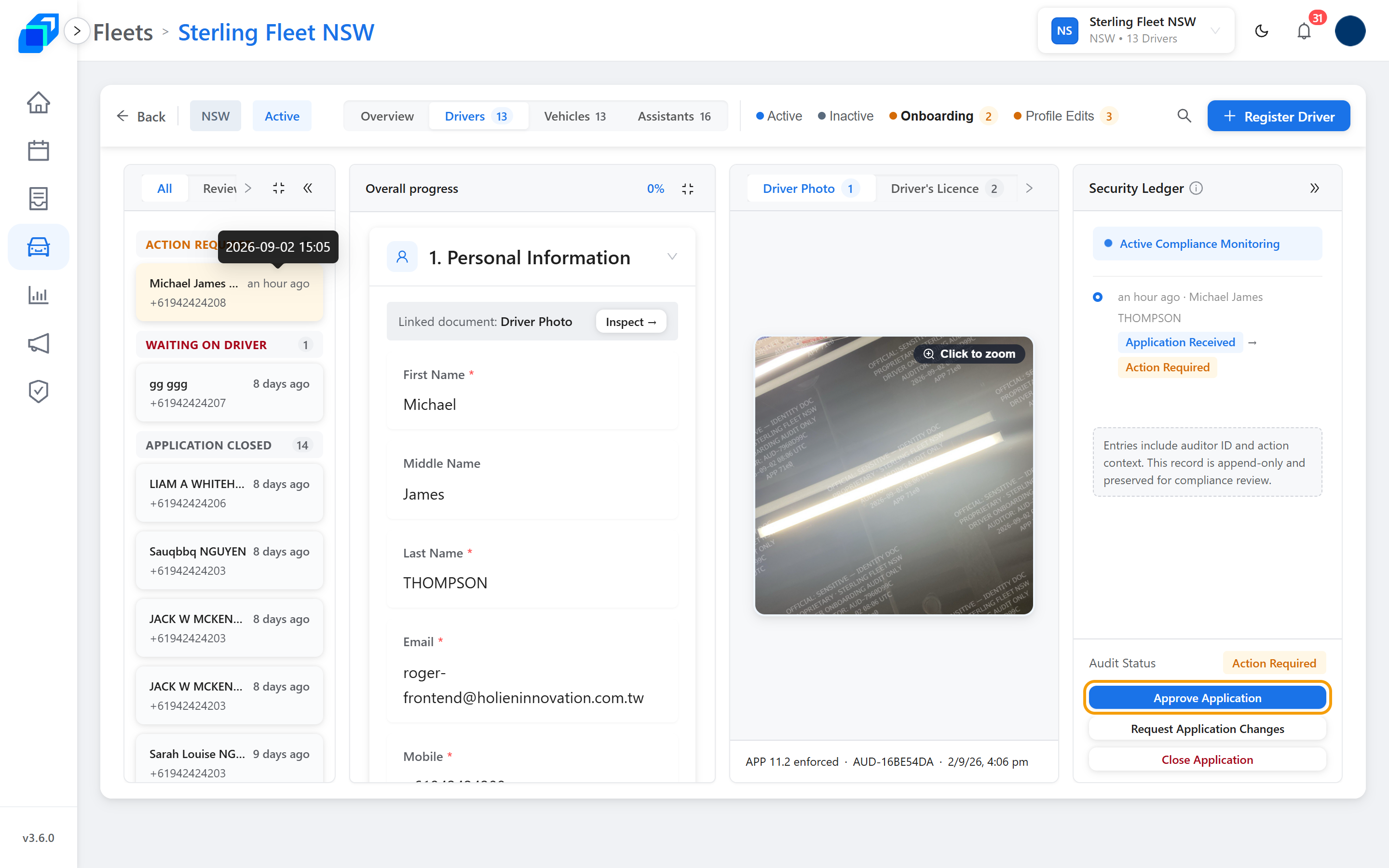
Approving an application cannot be undone from this screen.
5. Close – REMOVE
If you will not go ahead, click Close Application. A box opens and asks for a Reason – it is required, up to 500 characters. Type it, then click Close Application in the box to confirm.
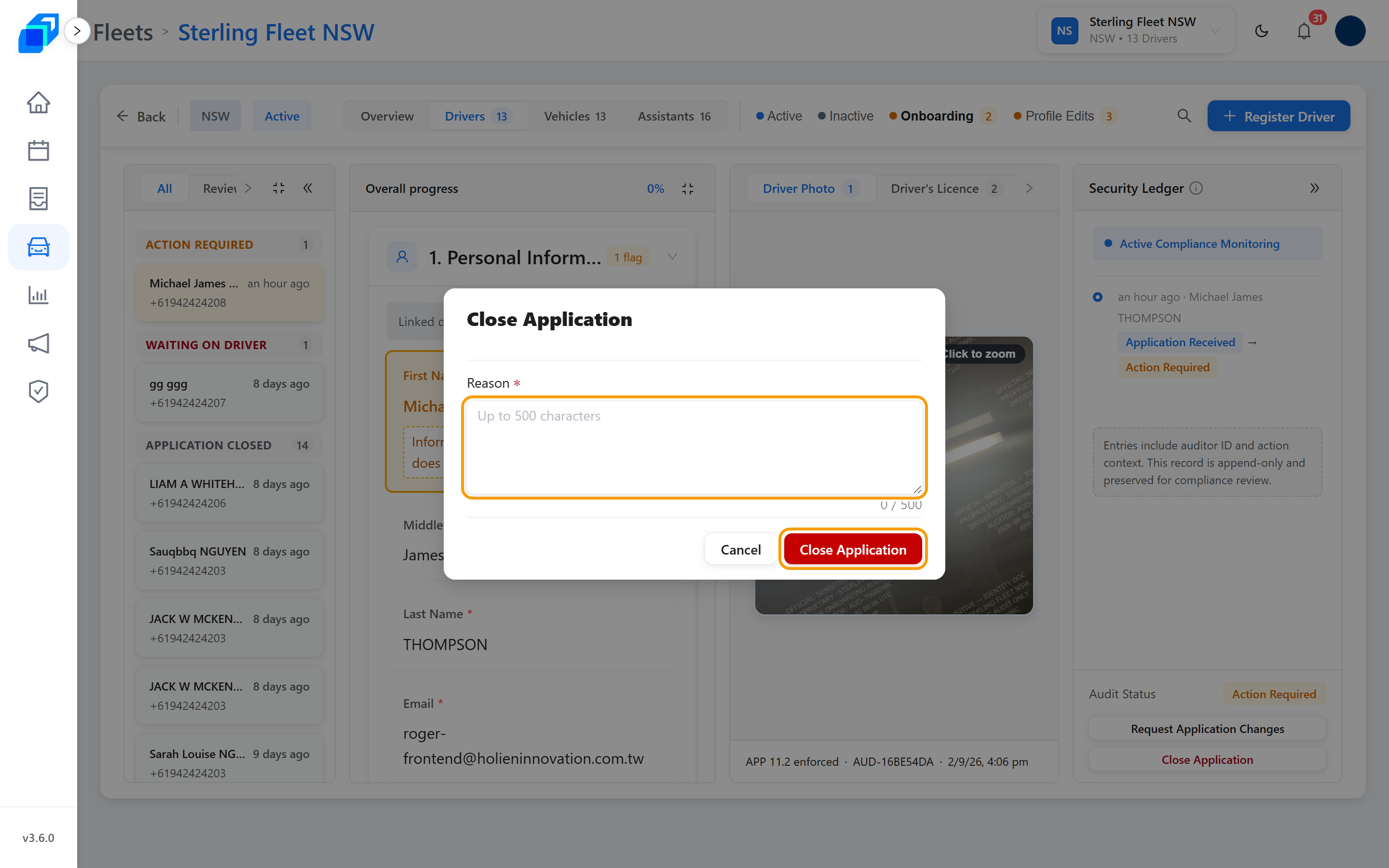
Closing an application is permanent.
6. Open a profile change – VIEW
A driver can also send changes to their own details from the driver app. Click Profile Edits, next to Onboarding, then click a driver's row.
Fields the driver changed are tagged Updated, Added, Cleared, or Removed, with the old value beside the new one. Mobile and Car Make show for context even when unchanged, with no tag. A section the driver did not touch still shows, and reads Not changed in this submission.
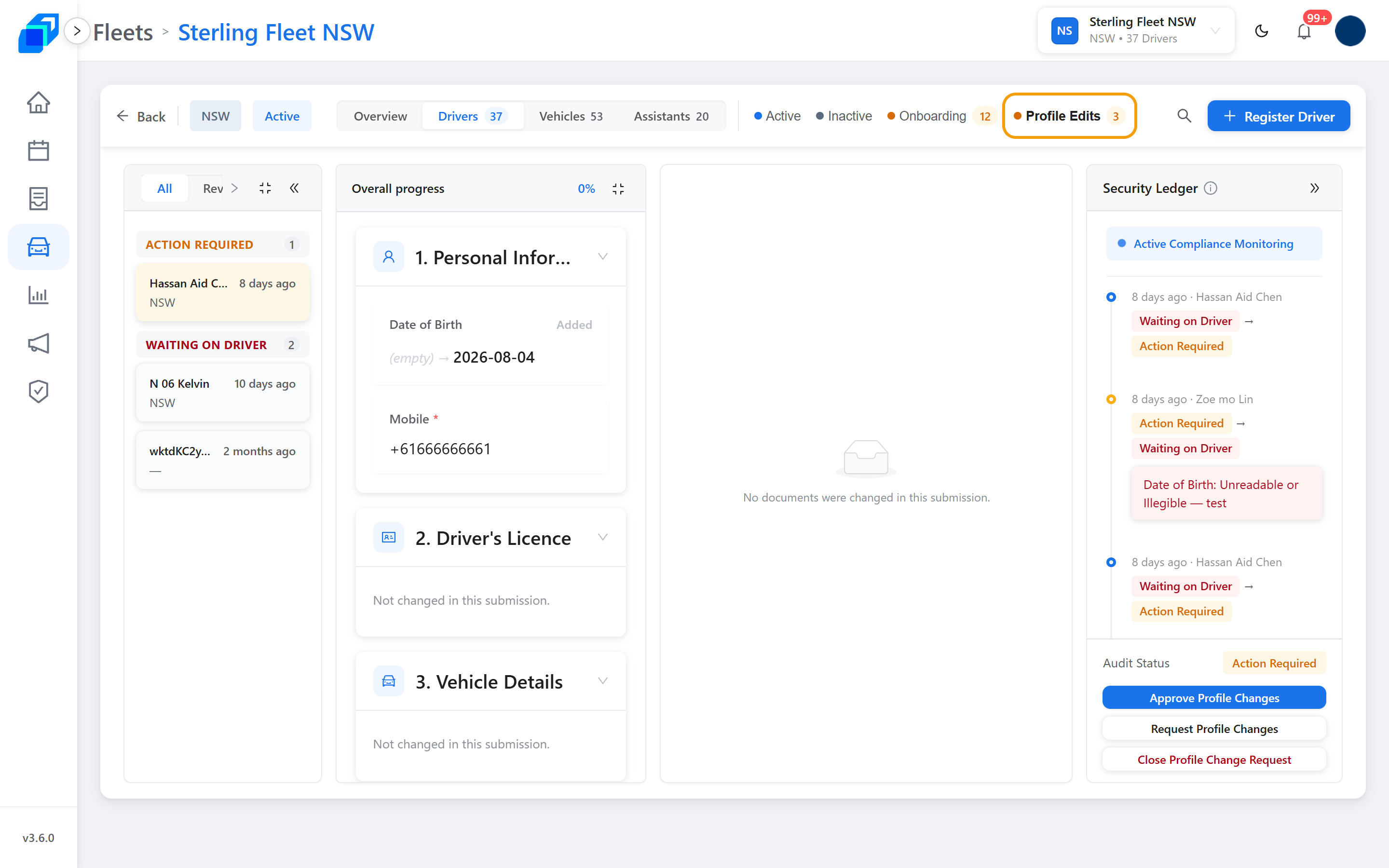
Flag a field that is wrong the same way as step 3.
7. Approve or send the changes back – UPDATE
When the changes are right, click Approve Profile Changes. The driver's details update straight away.
To send them back instead, click Request Profile Changes. A box opens with a message already drafted from the fields you flagged. Edit it if you need to, up to 500 characters, then click Request Profile Changes in the box to send. The driver sees Action Needed: Profile Changes in the driver app, with your message, and can send the changes again.
Approve Profile Changes is hidden while any flag is open. Clear the flags you set with Clear flag. If a required field or document is empty, approving opens a Required fields are empty box. Click Request Changes from Driver there to send that list. If approving shows an Approval blocker notice instead, the driver must fix what it describes – send it back with Request Profile Changes.
8. Close a profile change request – REMOVE
If the changes should not go ahead, click Close Profile Change Request. A box opens and asks for a Reason – it is required, up to 500 characters. Type it, then click Close Profile Change Request in the box to confirm. The driver's details stay as they were. The driver sees Profile Edit Request Closed with your reason, and cannot send that request again.
Closing a profile change request is permanent.
A button your role cannot use is hidden, not greyed out. If Approve Application or Approve Profile Changes never appears, even with no flag open, ask your fleet admin.