Account and settings
Set up your own details, and choose the language and time zone the console shows you.
Where to find it: your initials at the top right of the header, then User Profile or Settings.
You pick the other language on Settings and the left rail, the buttons and the column headings all change to it while you watch.
The menu behind your initials
Click your initials at the top right of the header – your photo shows there instead, once you upload one. Your name and email head the menu that opens, and under them sit:
- User Profile – your own account details, and a read-only summary of what your role lets you do.
- Company – Edit Company Profile, Manage API Settings and Warehouse.
- Settings – language, time zone, the company your account belongs to, and Server Time.
- Log out – ends your session and returns you to the sign-in card.
Entries your role cannot use are hidden rather than dimmed, so a shorter menu than a colleague's is normal. See Why some menus are hidden.
User Profile
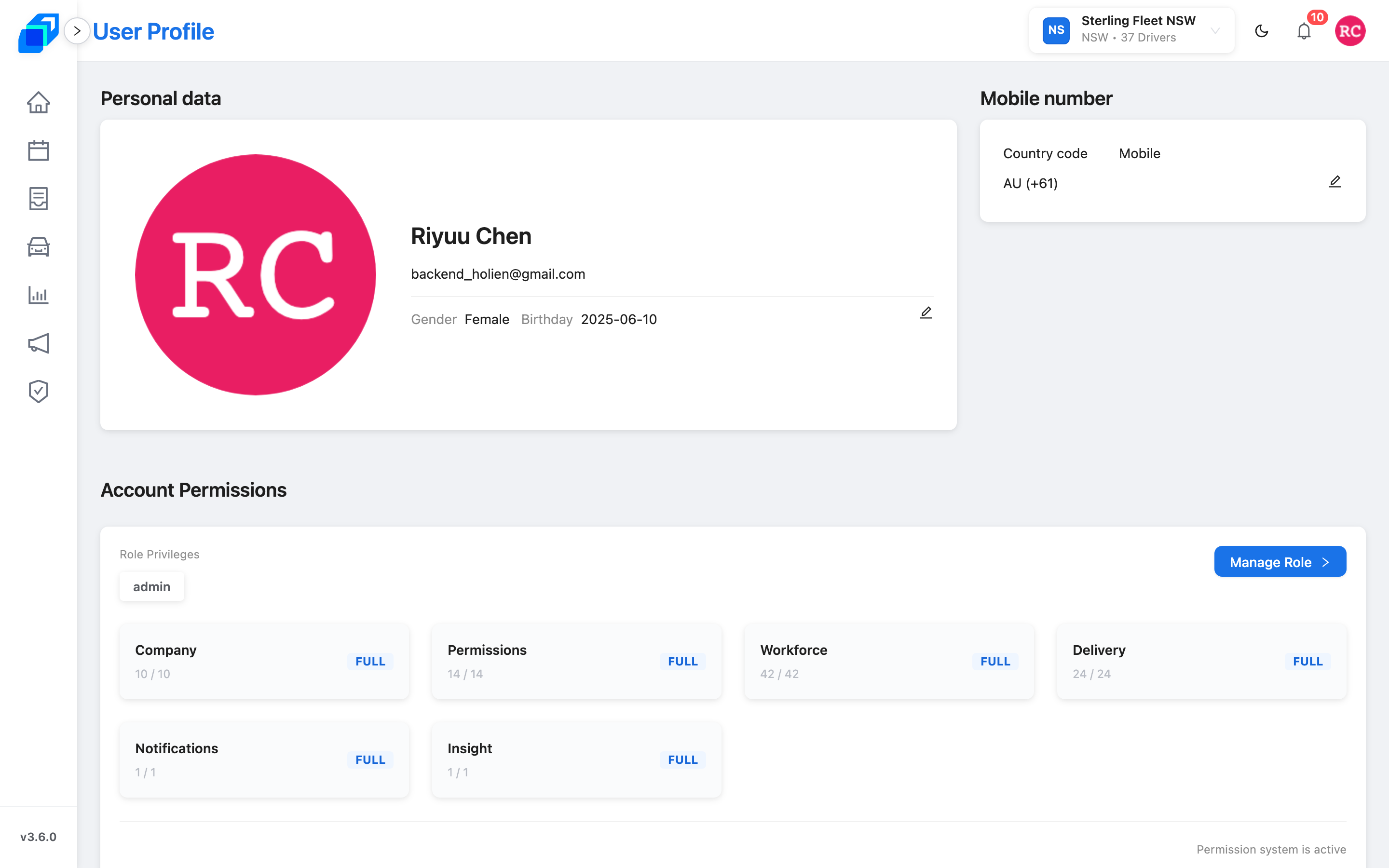
Three cards, and changes here reach only your own account:
- Personal data – your photo, name, gender, Title, email and birthday. Click the pencil icon to edit, then Save.
- Mobile number – your Country code and Mobile. This card changes on its own, behind a code SenditGo texts to the new number.
- Account Permissions – every area your role covers, each with a count and a coverage tag. Read-only: nobody edits their own access here.
This account has no password to change. SenditGo signs you in with a code texted to the mobile number on this card. Keeping that number current is what keeps you able to log in.
For the step-by-step – editing your name, cropping a new photo, verifying a new number – see Company profile and API settings.
Settings
Settings opens with your name, email and photo, then four rows:
- Language – switches the whole console between English and 繁體中文. This browser remembers your choice for the next sign-in.
- Timezone – choose Local to follow the clock on your own computer, or a fixed offset such as UTC+10. Every time and date in the console is then shown in that zone.
- Fleet & Company – the company your account belongs to. Display-only; ask your fleet admin to move you.
- Server Time – the current time on SenditGo's servers, so a timestamp that looks out by an hour is easy to settle.
Light and dark are not on this screen. The sun or moon icon in the header switches them, and the console remembers which you chose.
Log out
Log out sits on its own below the card. Click it, and SenditGo ends your session and returns you to the sign-in card, where a fresh code is needed to get back in.
Next steps
- Set your account up in full → Company profile and API settings
- Sign in for the first time → Logging in
- Learn why a menu is missing → Why some menus are hidden (your permissions)