Your Action home
Action is where you land after signing in. It is a live map of today: every driver who is out, every stop they still have, and anything that looks wrong.
Where to find it: Action in the left rail. Everyone sees it – there is no permission to turn off.
You can point at one driver on the map and say where they are, what is left, and whether they are running late.
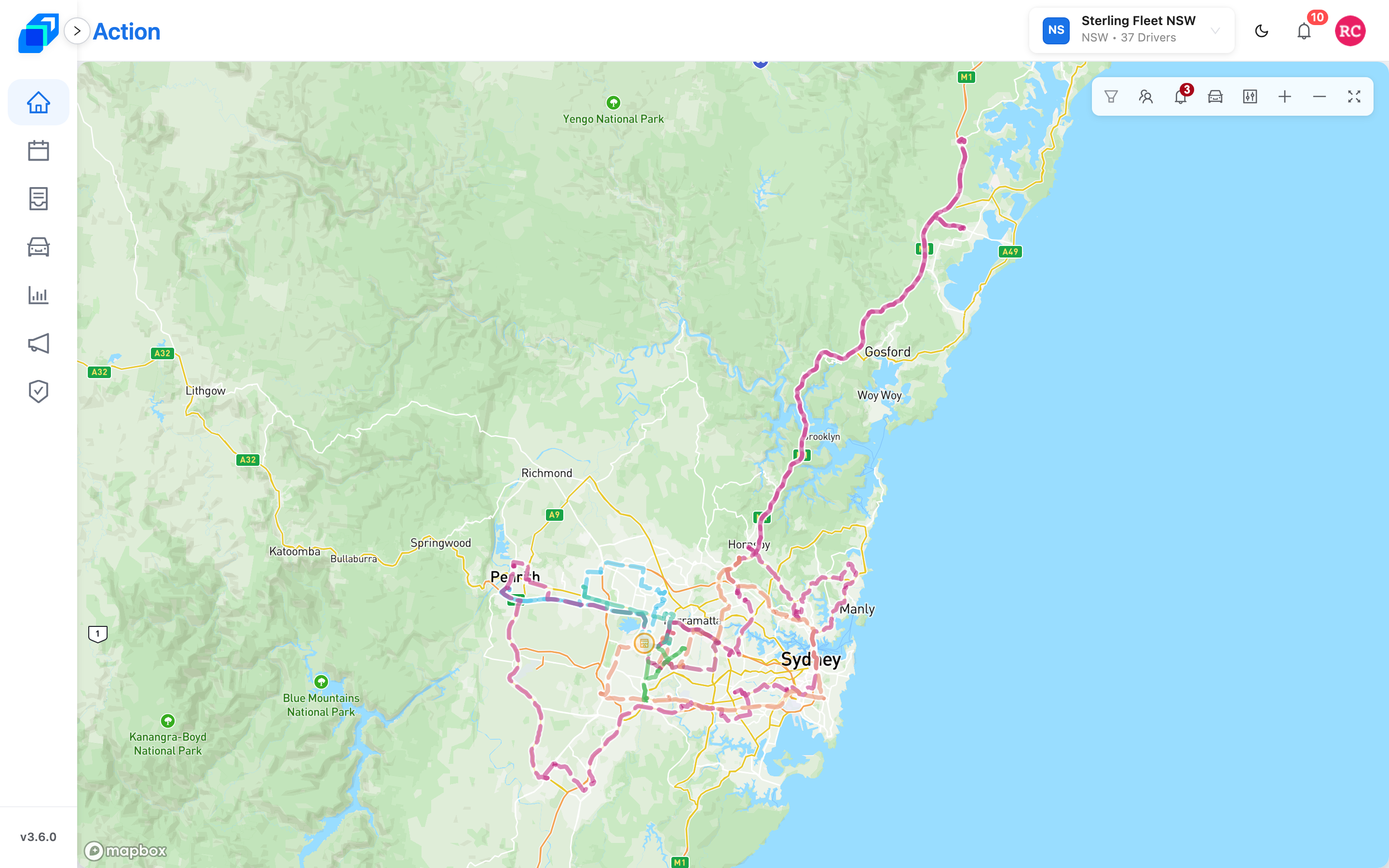
On your first day, ignore the map
The map rewards you once you know the fleet. On day one it is just moving dots.
Go straight to the job you came to do – Delivery, Roster or Fleets – and come back here when you have drivers on the road worth watching.
The toolbar at the top right of the map
Eight buttons sit in one row at the top right of the map. In order: Shifts, Toggle Drivers on Route, Toggle Anomaly Alerts, Toggle Traffic, Map Display, Zoom in, Zoom out and Fullscreen. Point to a button to read its name. The toggles turn blue while what they control is on; the zoom buttons and Fullscreen do not.
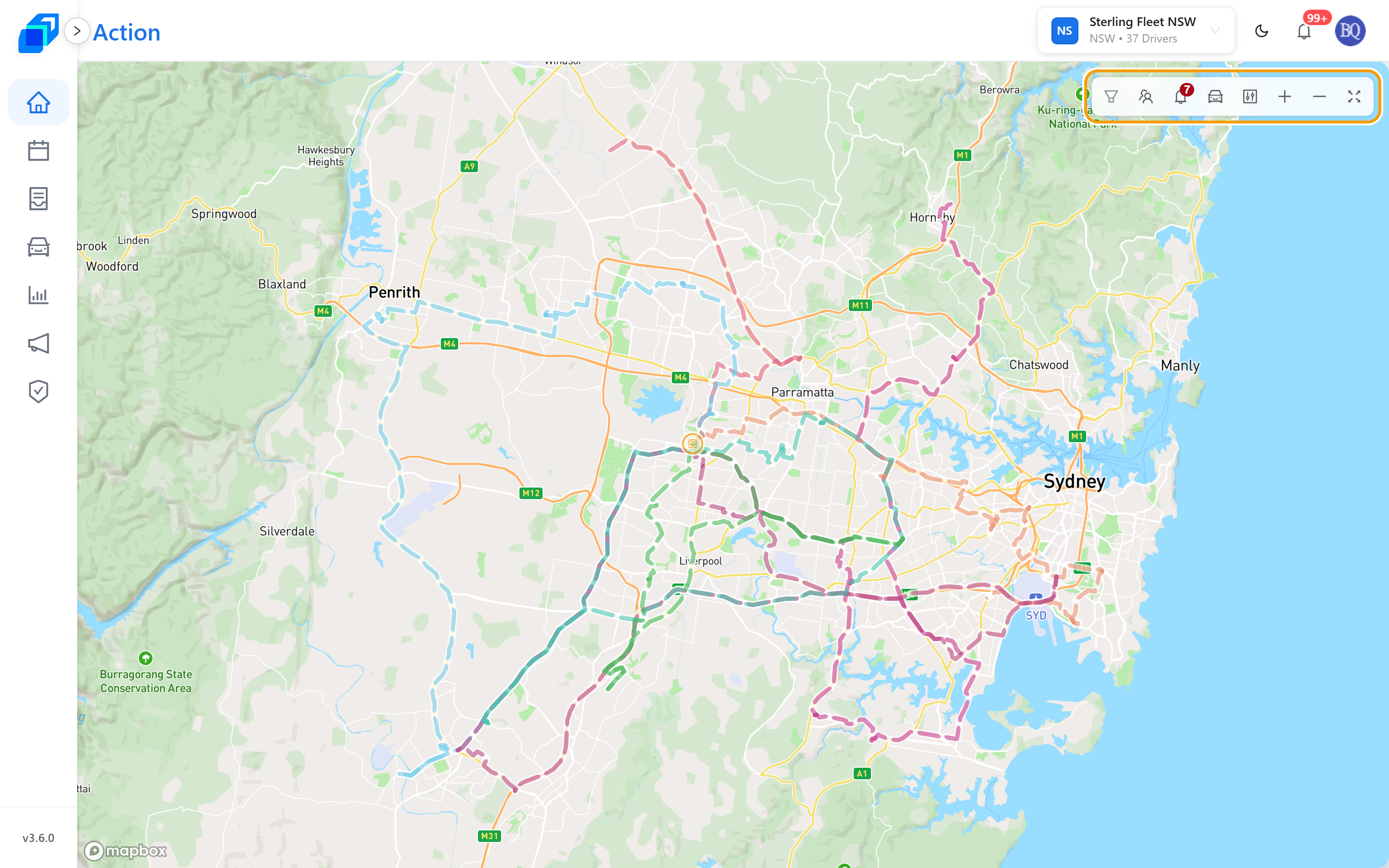
Fullscreen fills the screen with the map. Press Esc, or click the same button again – it now reads Exit fullscreen – to come back.
The run sheet list: Drivers on Route
Run sheets for the fleet chosen in the header live in a panel on the right of the map, titled Drivers on Route. The panel is closed when you arrive, so the map has the room. Click Toggle Drivers on Route – the people icon in the toolbar – to open it. The X in the panel's corner, or the same button, closes it.
Both the panel and the map follow your shift filter. It starts on the shift running right now, so the list holds that shift and not the whole day. Change it under Shifts to see another.
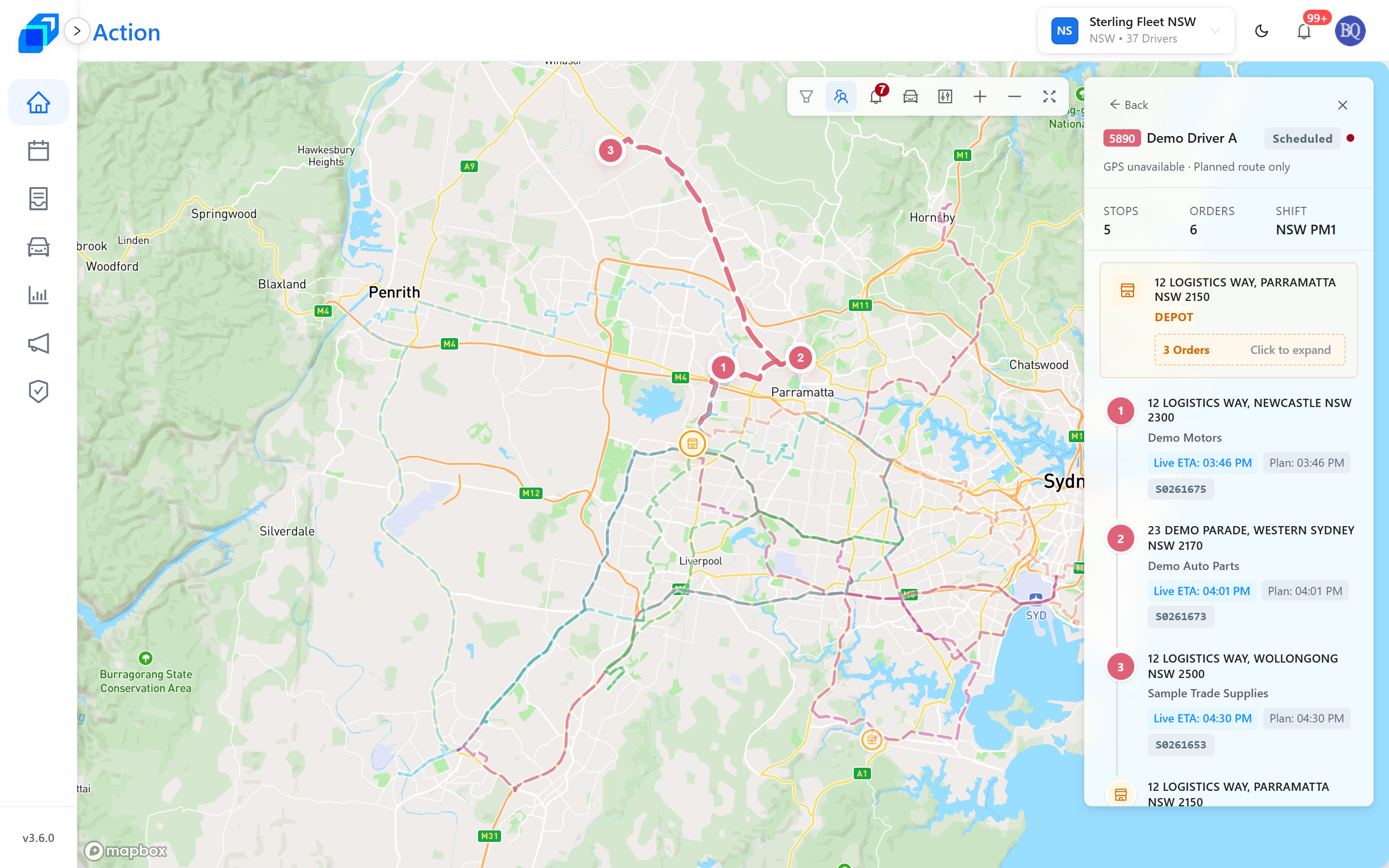
Each card carries the run sheet number in that driver's colour, the driver's name, their status, the shift, and the duration and distance. The pin and box counts are the stops and orders on the sheet. The status reads Scheduled until the driver starts, In-Transit while they are out, and Completed once they have ended the run. A run sheet that has been deleted reads Idle, in grey.
Two things to know before you go looking for a driver:
- Nothing loads until a fleet is chosen. Until you pick one, the map says Pick a fleet from the top-bar selector to load runsheets. Nothing is broken.
- An empty list is normal early. When nothing has been assigned on the shifts you are watching, the map says No runsheets returned for this fleet yet.
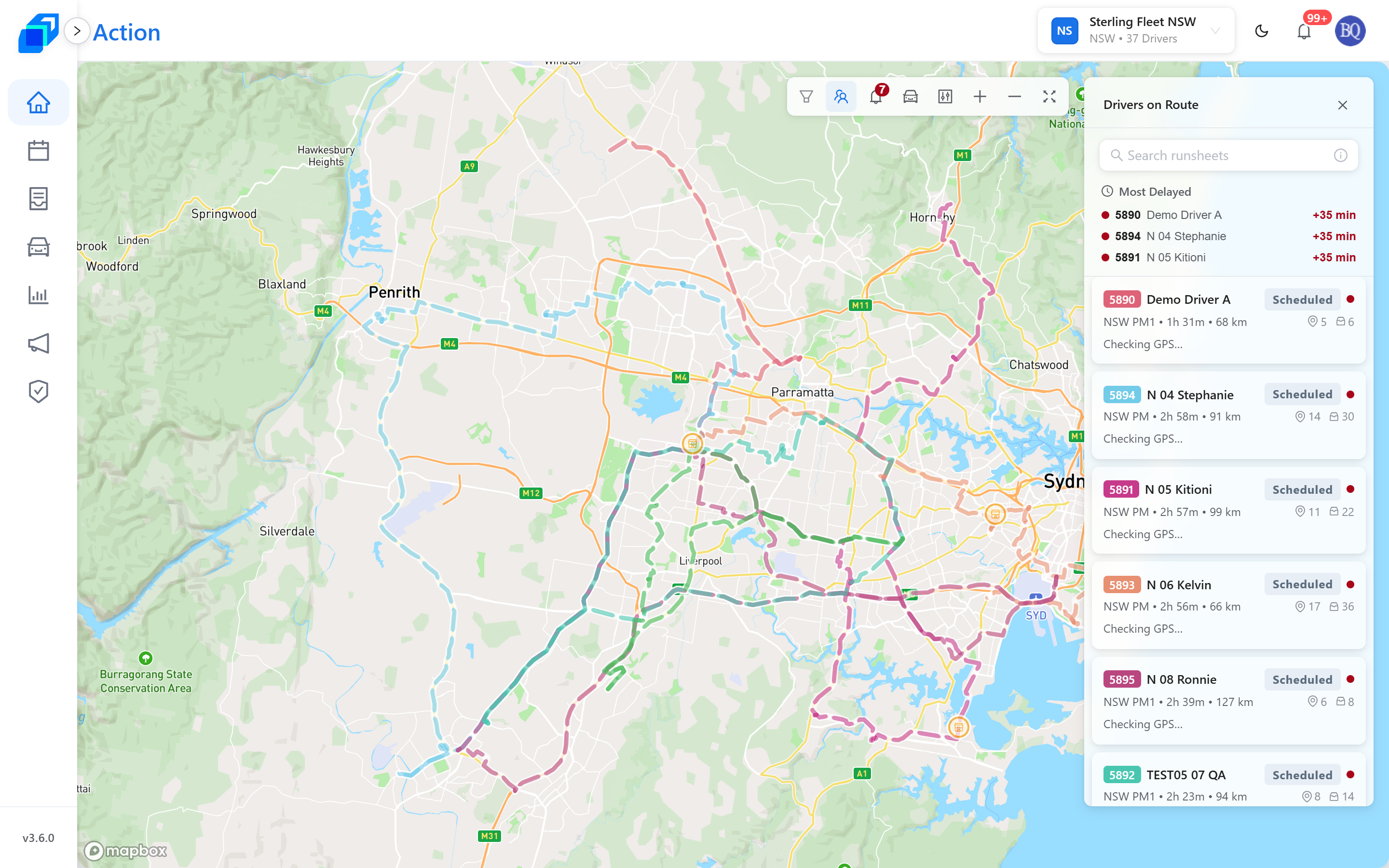
Click a card and its route draws on the map. The panel switches to that run sheet: STOPS, ORDERS and SHIFT at the top, then every stop in order. Each stop shows its Plan time beside either Actual, once the driver has been, or Live ETA until then – never both. The orders at the stop turn blue once they are signed. Click a stop there and the map flies to it. Back returns you to the list.
Clicking a route on the map does the same, and opens the panel if it was closed. Click the route again to put the screen back.
Finding one driver among fifty
The search box at the top of the panel takes more than names. It searches across:
- Driver name – Hassan
- Delivery plan id – 2654
- Shift name – NSW PM1
- Status – in transit, scheduled, complete
- Duration – 1h 39m
- Distance – 58 km
A plain number matches as text. The unit is only needed for a range – >50km, <1h.
Choosing which shifts you watch
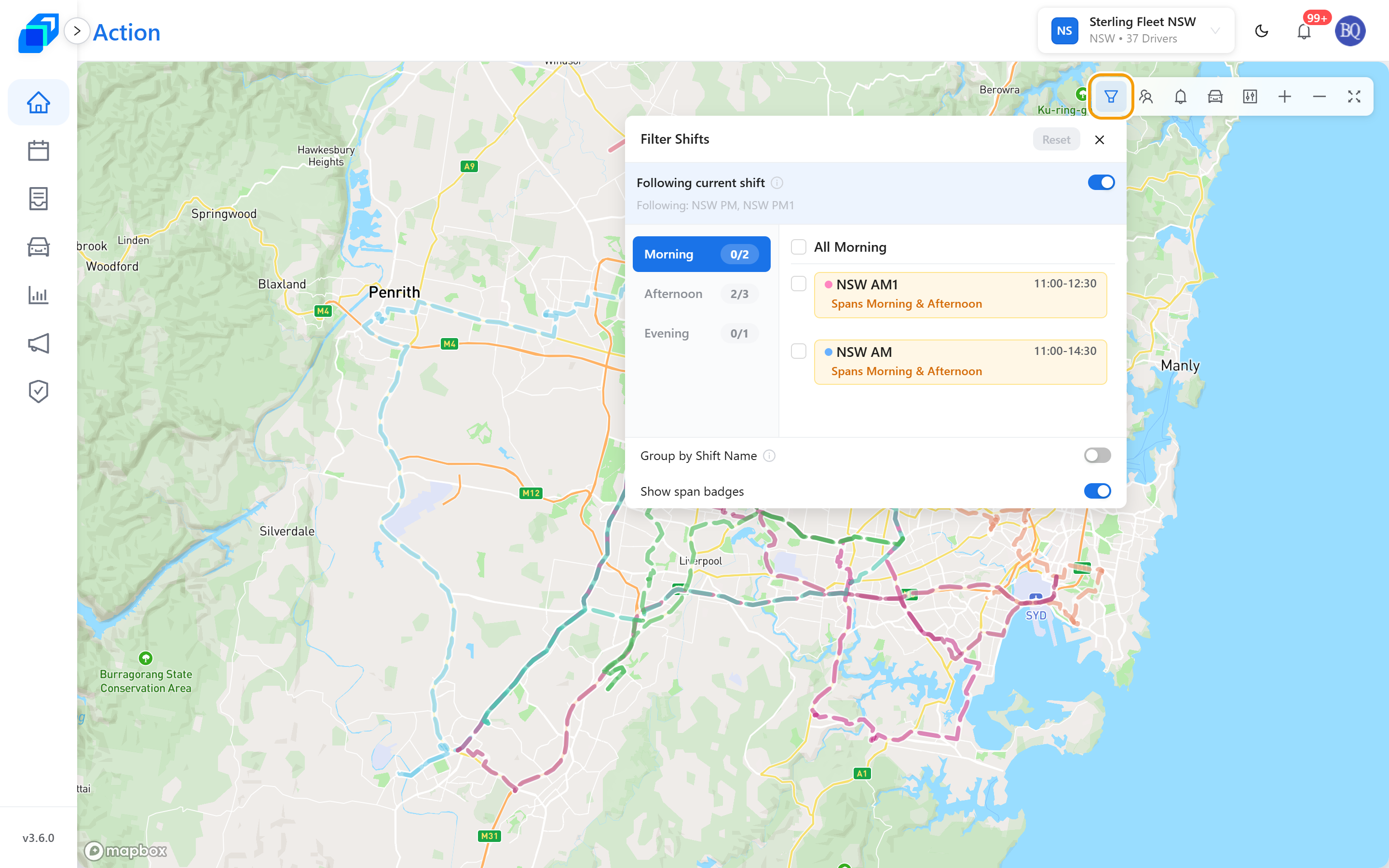
Click Shifts – the funnel in the toolbar – to open Filter Shifts, which decides which run sheets reach the list and the map.
The current-shift switch is on by default, and while it is on its caption reads Following current shift. Action shows the shift running right now, and moves on as the day does. The line underneath names the shift it is following – Following: NSW PM1, or No shifts scheduled today.
Between two shifts it follows the next one up, so the map is never blank.
- Turn the switch off. Its caption changes to Follow current shift, and the shift list becomes yours to set.
- Tick the shifts you want. The run sheet list and the map narrow straight away.
Turn on Group by Shift Name when a fleet runs many shifts and you want them gathered by name.
Reading the map
Each driver has their own colour, on the map and in the panel, so you can follow one person across both. A dashed line is the planned route. A solid line is the road the driver has actually driven. A driver who is in transit shows in a brighter shade of their colour, with a pulsing ring around their dot.
The dot is the driver's live position, with their shift on a chip above it. Point to it to see the run sheet number, the driver's name and whether the position is Live GPS or Last recorded GPS. Point to a route to see its ETA card; click it to open that run sheet in the panel.
Stops are numbered circles in the driver's colour; a pickup is numbered in teal and tagged Pickup in the stop list. Only the run sheet you have selected keeps that colour. Turn on Markers → Show all stops and the other sheets' stops sit smaller and paler, with a grey number. A warehouse is a shop icon in orange on the map, and DEPOT in the stop list. The two words mean the same place here.
Click a stop on the map and it tells you when they were due and where that stands, which is the whole point of this screen:
- Plan – when the schedule said they would arrive
- Actual – when they really did
- Live ETA – when they are now expected, shown until Actual replaces it
When a driver falls behind by ten minutes or more, the stop is tagged +15m late while it is still pending, and you can decide whether to warn the customer before they call you.
The three warnings worth acting on
The map flags situations that a human would otherwise have to notice:
| Warning | What it means | What to do |
|---|---|---|
| Late clock-in: driver idle | The shift started but the driver has not clocked in | Call the driver |
| Status mismatch: sheet in-transit, driver idle | The sheet says they are delivering; the roster says they are not on duty | Check whether they forgot to clock in, or have stopped |
| On leave but assigned a sheet | Someone was rostered on their day off | Fix it in Roster before the shift starts |
Each one shows as a dot beside the driver's name in the panel – yellow for a late clock-in, red for the other two. A driver off their planned route earns a yellow dot too, and one running late a red one. Only one dot ever shows: when more than one applies, red wins. Point to it to read the reason.
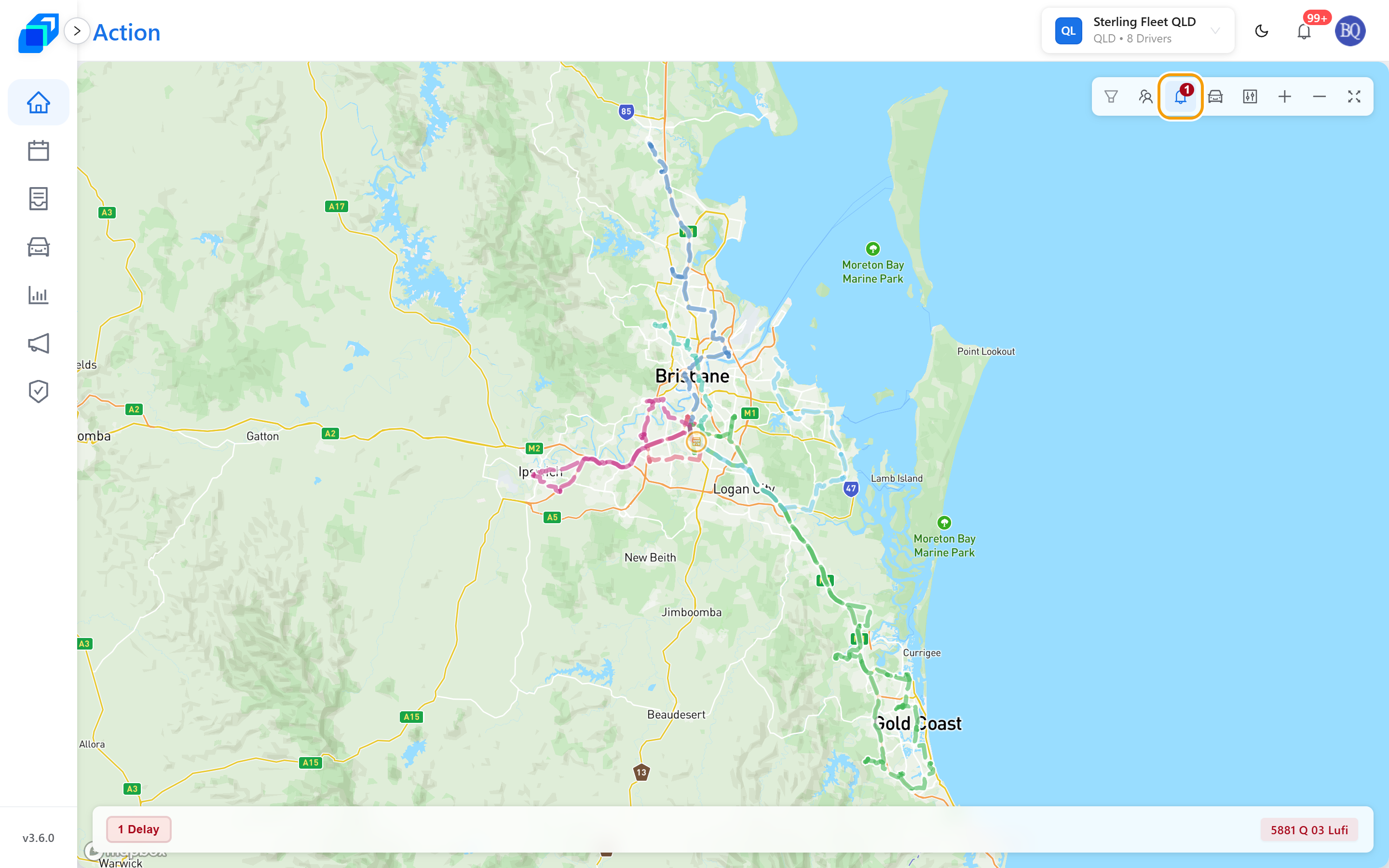
The bell in the toolbar, Toggle Anomaly Alerts, shows how many alerts are open: drivers off their route or running late. Click it and an alerts bar opens along the bottom of the map, with a pill for each kind – 2 Delays, 1 Route Deviation. When there are none, the bar stays hidden. Click a pill and a chip appears for each of those drivers: red for a delay, yellow for a deviation. Point to a chip to read what happened. Click it to select that run sheet and fly the map to the driver. Five chips show at a time; +3 more opens the rest.
These are the reason to keep Action open during a shift.
Seeing where the work is concentrated
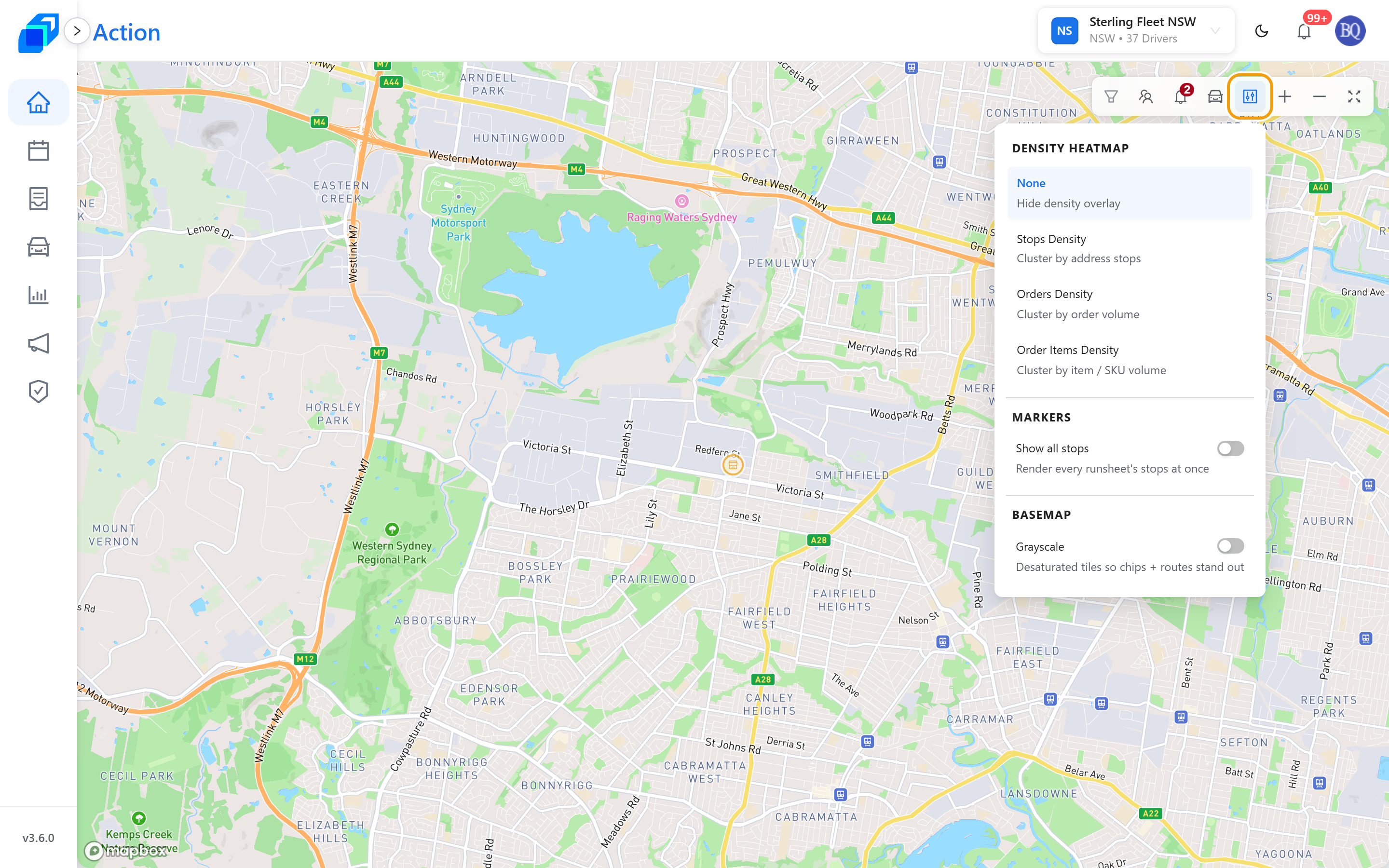
Map Display changes what the map emphasises, rather than what it contains:
- Density Heatmap – colours the busiest areas by Stops Density, Orders Density or Order Items Density. Use it to see where the day's load actually falls, then None to clear it.
- Markers → Show all stops – draws every run sheet's stops at once, instead of only the one you selected.
- Basemap → Grayscale – drains the colour from the map so routes and driver chips stand out.
Toggle Traffic is its own button in the toolbar, not an item inside Map Display. It overlays live traffic on the map and turns blue while the overlay is on.
None of these change any data. They are all ways of looking.