Dispatch your first order
Dispatch one order on the web console: from a signed-in dispatcher to an order sitting on a Run Sheet. This is the first half of one delivery day; the driver app takes it from there.
Where to find it: Delivery › Order.
Most days you do not assign orders one at a time. Once shifts, delivery windows, weekdays and driver pools are set up in Roster, SenditGo schedules incoming orders against those settings. It also works out each driver's route for the day.
This page covers the exceptions: an order that turns up late, an order that has to move to a different driver, or a schedule you want to adjust. In those cases a dispatcher assigns the order to a run sheet by hand from Order Management.
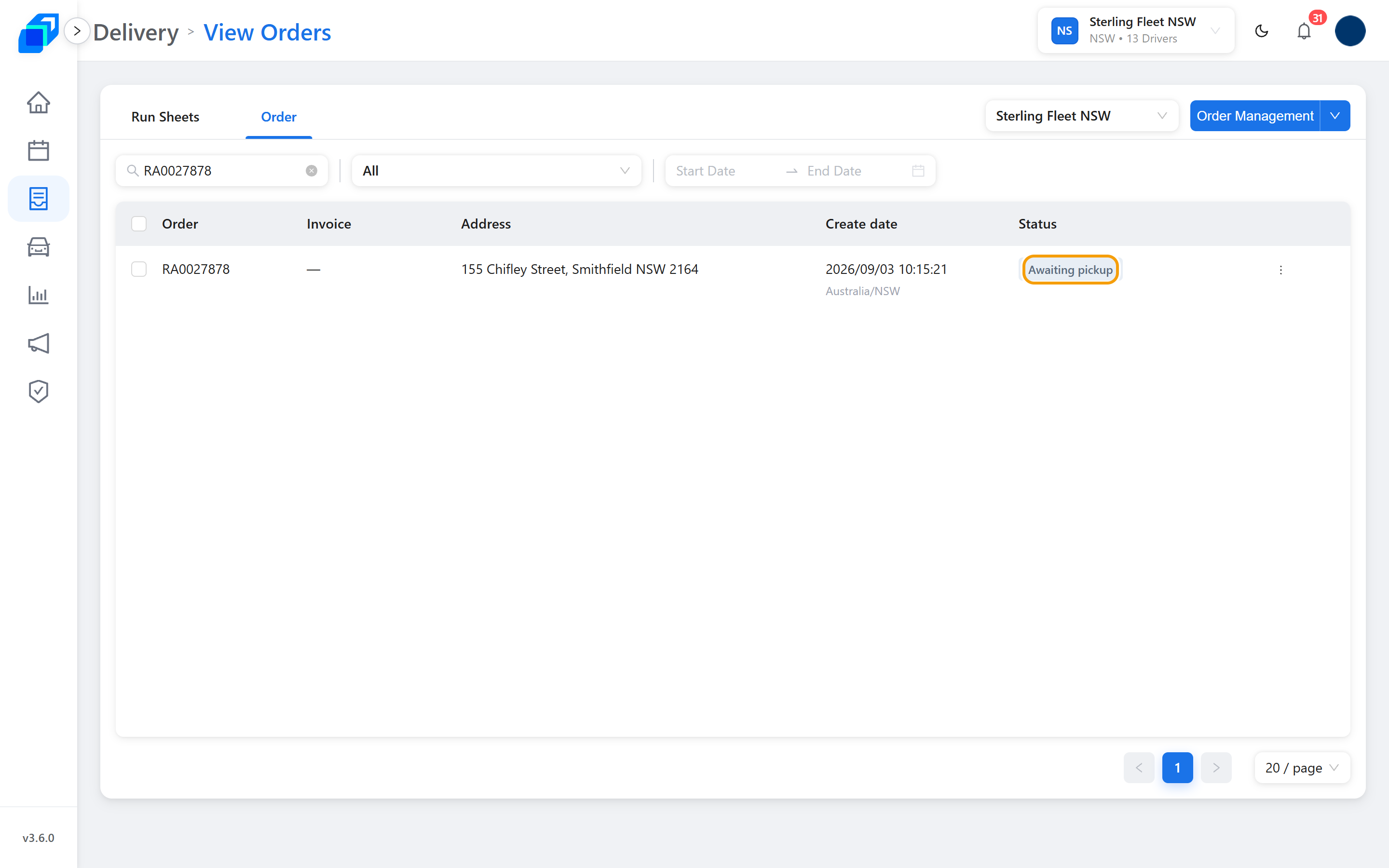
The order leaves Pending Orders, appears on the run sheet you picked, and the order list shows Awaiting pickup.
Before you start
- You can sign in to SenditGo Carrier on the web console.
- Your fleet is selected in the header (example: Sterling Fleet NSW).
- There is a Warehouse on the fleet, and at least one Run Sheet today.
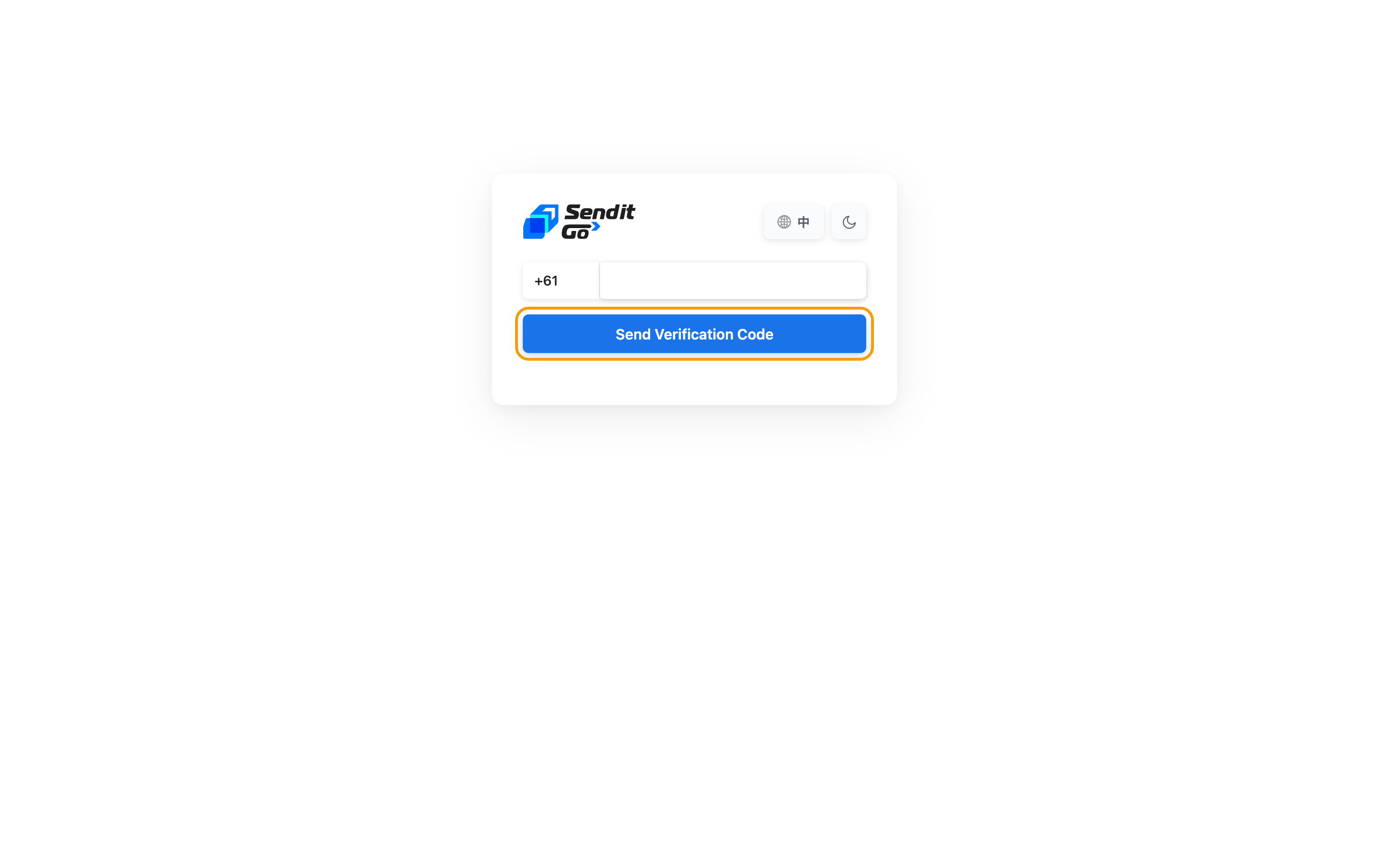
If you are not signed in: open the web console, type your mobile number, click Send Verification Code, then type the 6-digit code. You land on Action.
(Optional) If it is a sudden rush order: create it first
If you need to dispatch a sudden rush order that has not been created yet, create it before opening the dispatch board:
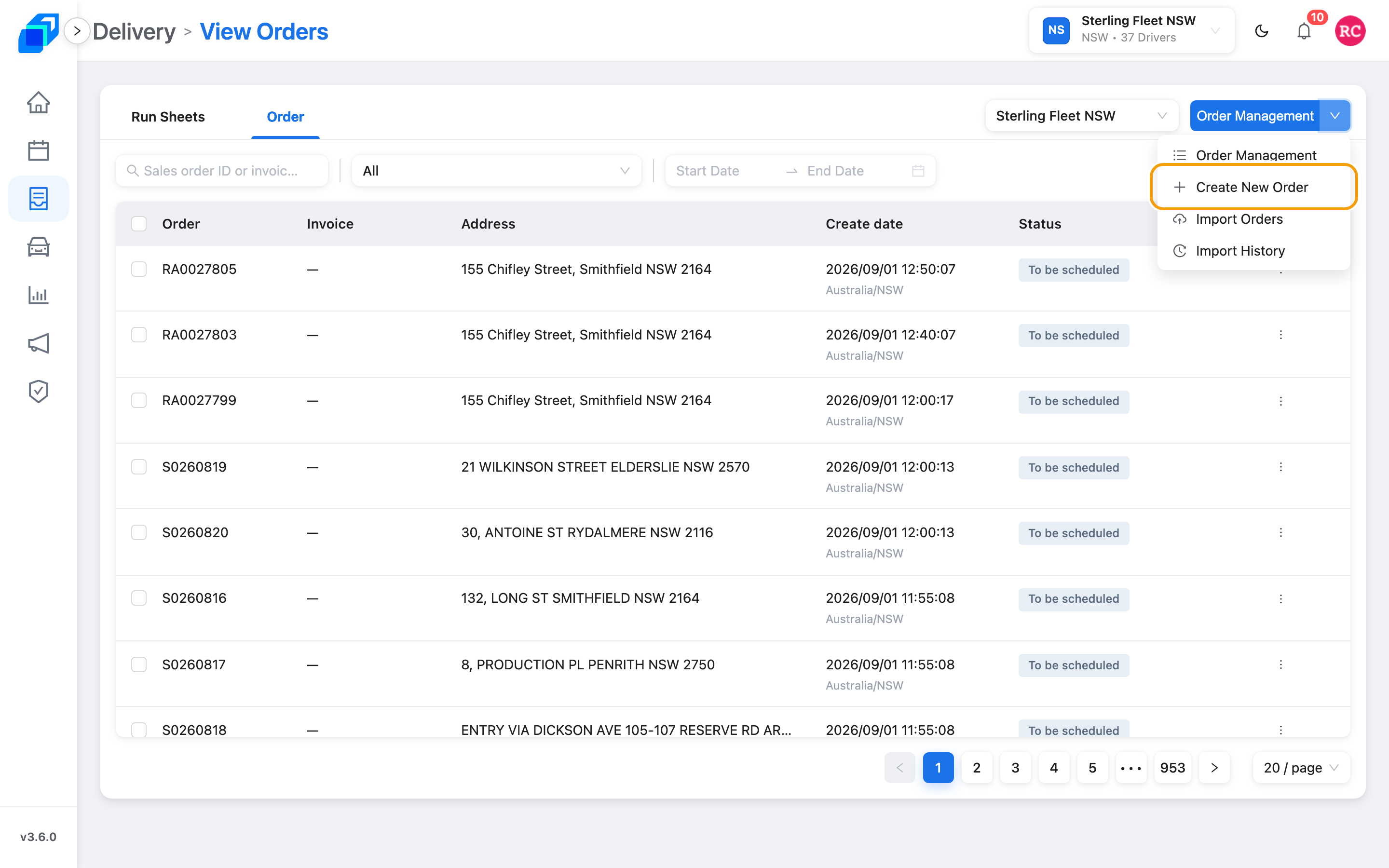
- In the left menu, click Delivery and open the Order tab.
- Click the arrow next to Order Management, then click Create New Order.
- Fill in pickup and delivery details, then click Create Order at the bottom (not Submit). The new order appears in Pending Orders. Field-by-field steps live on Create an order.
1. Open Order Management
All manual dispatching happens in the Order Management board:
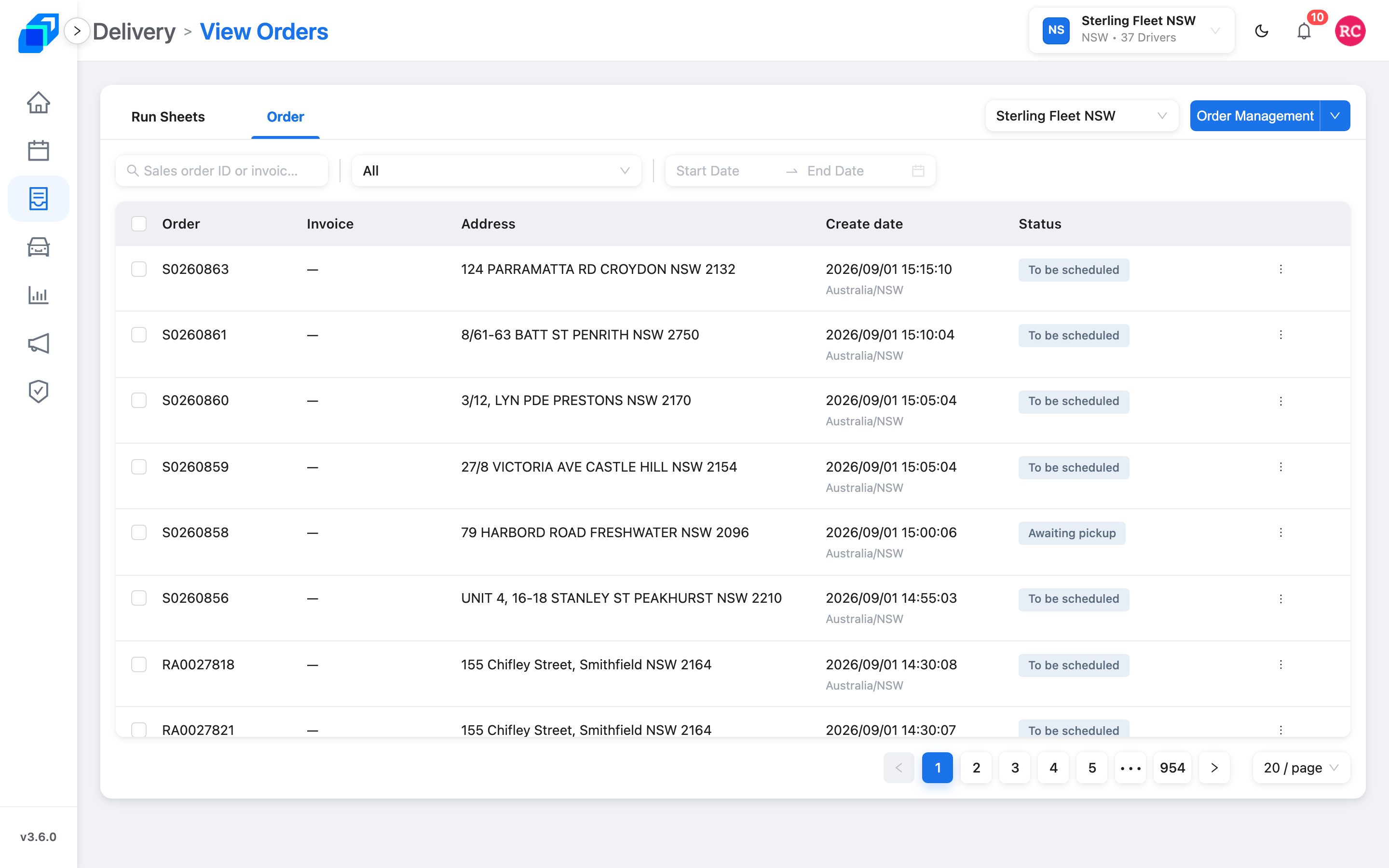
- In the left menu, click Delivery.
- Open the Order tab (next to Run Sheets).
- Click the blue Order Management button in the top right corner to open the three-column board.
The board shows one fleet at a time – the list at the top left of the board says which. Pick another fleet there and the board loads that fleet's run sheets and pending orders.
2. Check pending orders on the board
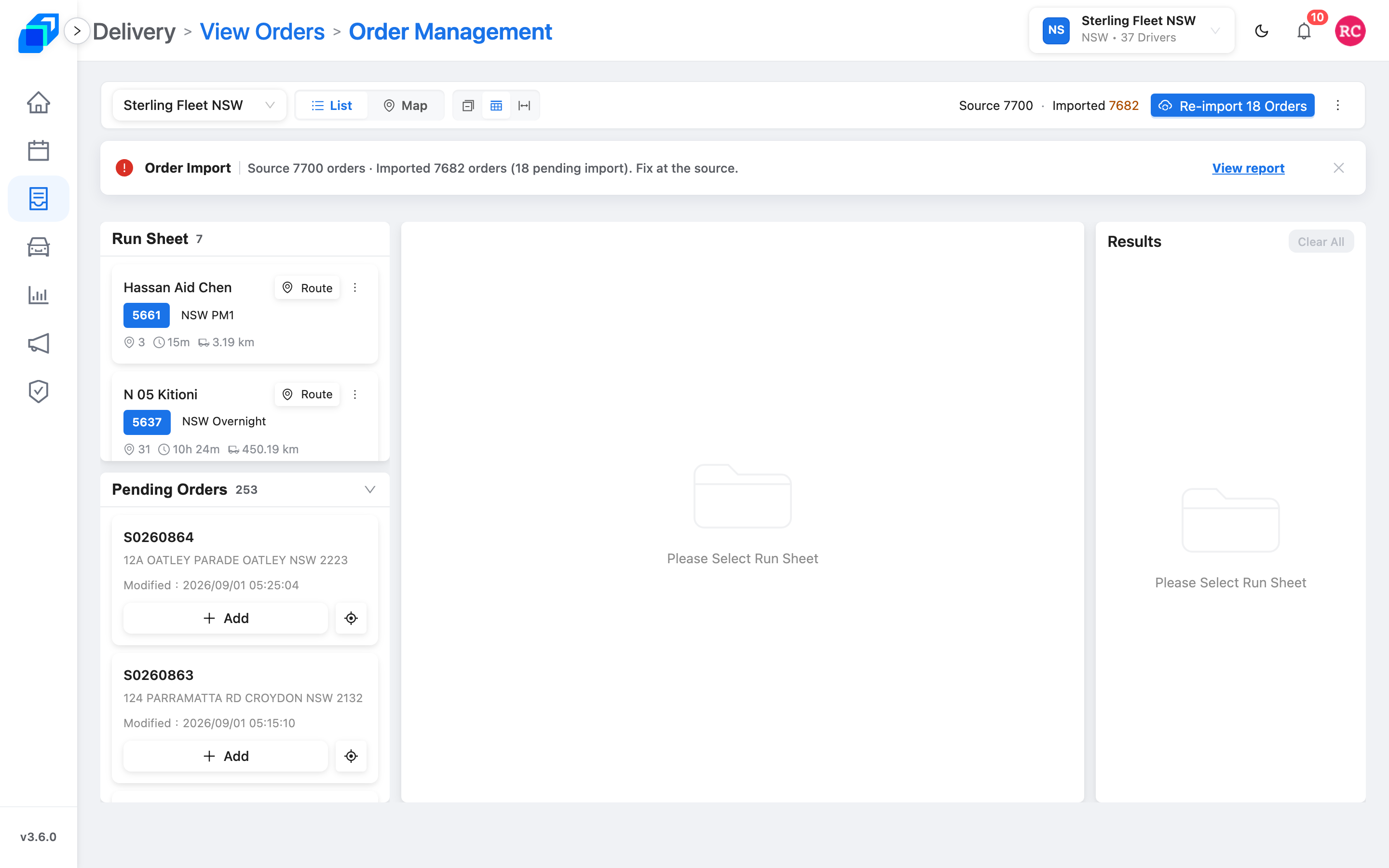
The board has three working panels:
- Left column: Run Sheet (today's scheduled drivers) and Pending Orders (orders waiting to be assigned). Icons at the top let you stack them, put them side by side, or view as tabs. The board remembers your choice in that browser.
- Centre column: Stop-by-stop route details for the selected sheet (shows Please Select Run Sheet until a driver is picked).
- Right column: Results (route optimisation and assignment panel).
Check the Pending Orders list in the lower left to make sure your order is ready to dispatch.
3. Put it on a Run Sheet (Select driver ➔ Add order ➔ Simulate ➔ Assign)
On the board, follow these four steps to dispatch:
- Select the driver: In the Run Sheet list (top left), click the card of the driver who will deliver this order today. The centre header changes to the sheet's title (e.g. Demo Run Sheet).
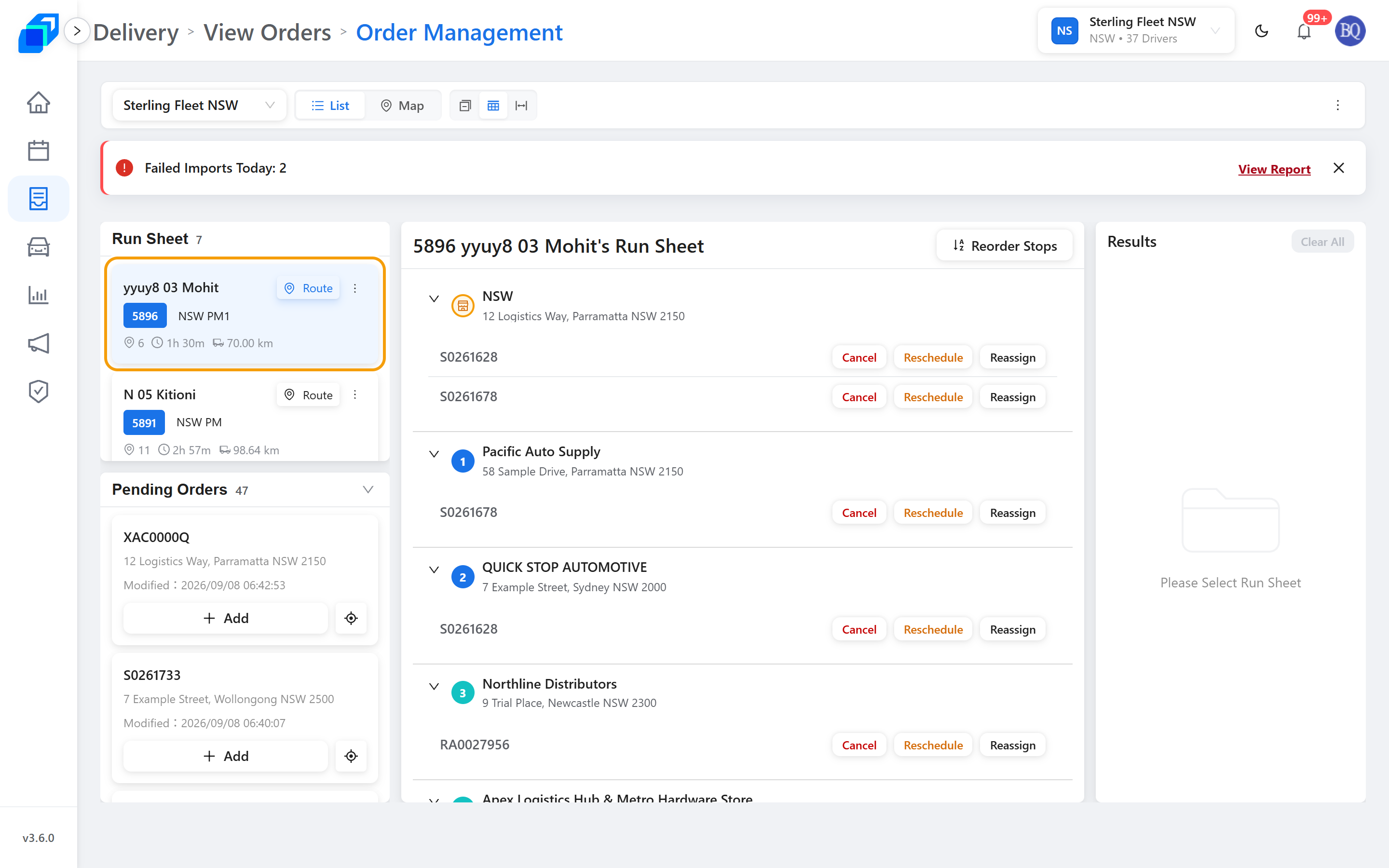
- Add the order: In Pending Orders (bottom left), find the order and click + Add. Simulate lights up in the Results panel on the right.
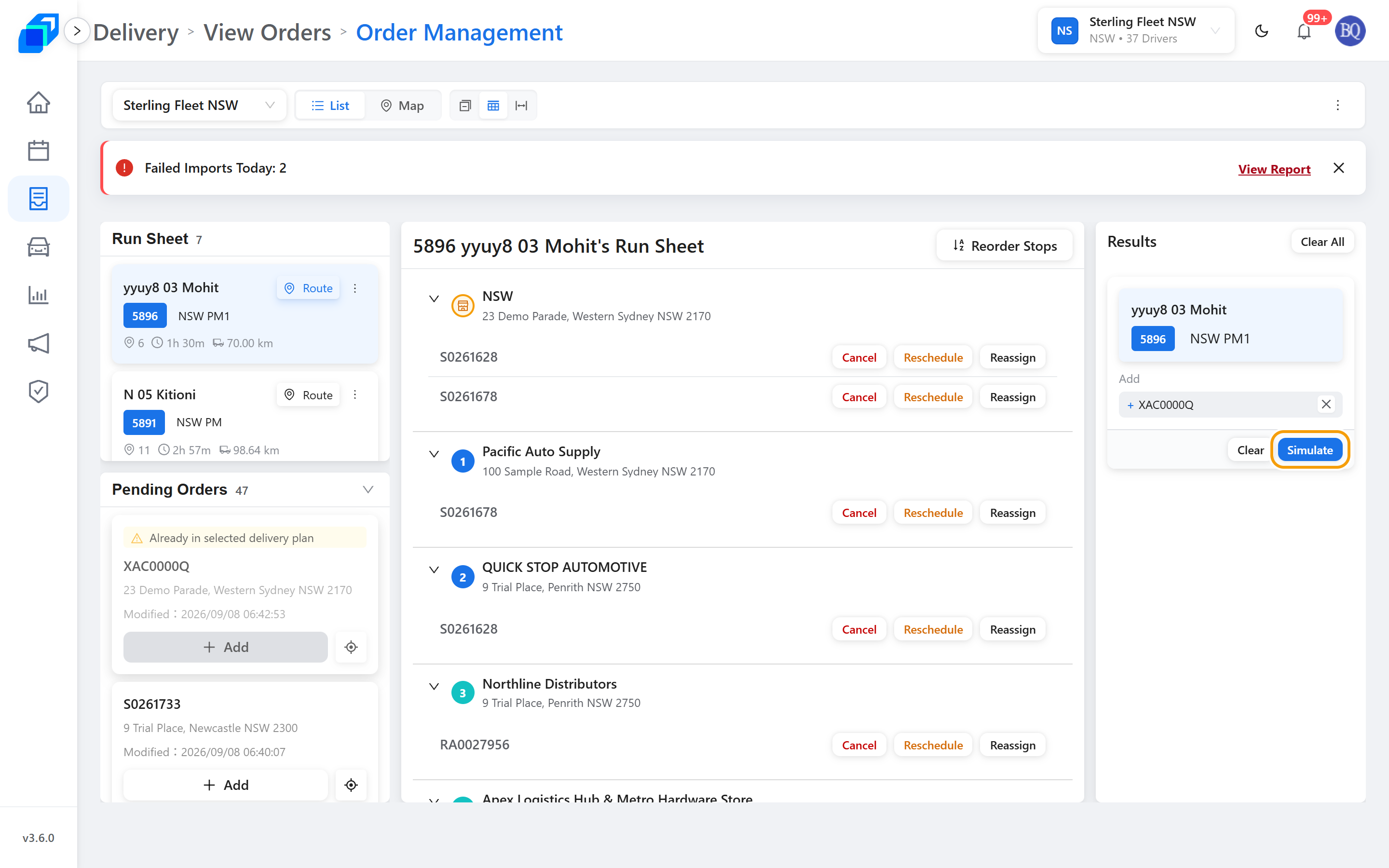
- Simulate the route: Click Simulate. SenditGo recalculates the stop sequence and generates a result card.
- Assign the order: Click Assign on the result card to save the dispatch.
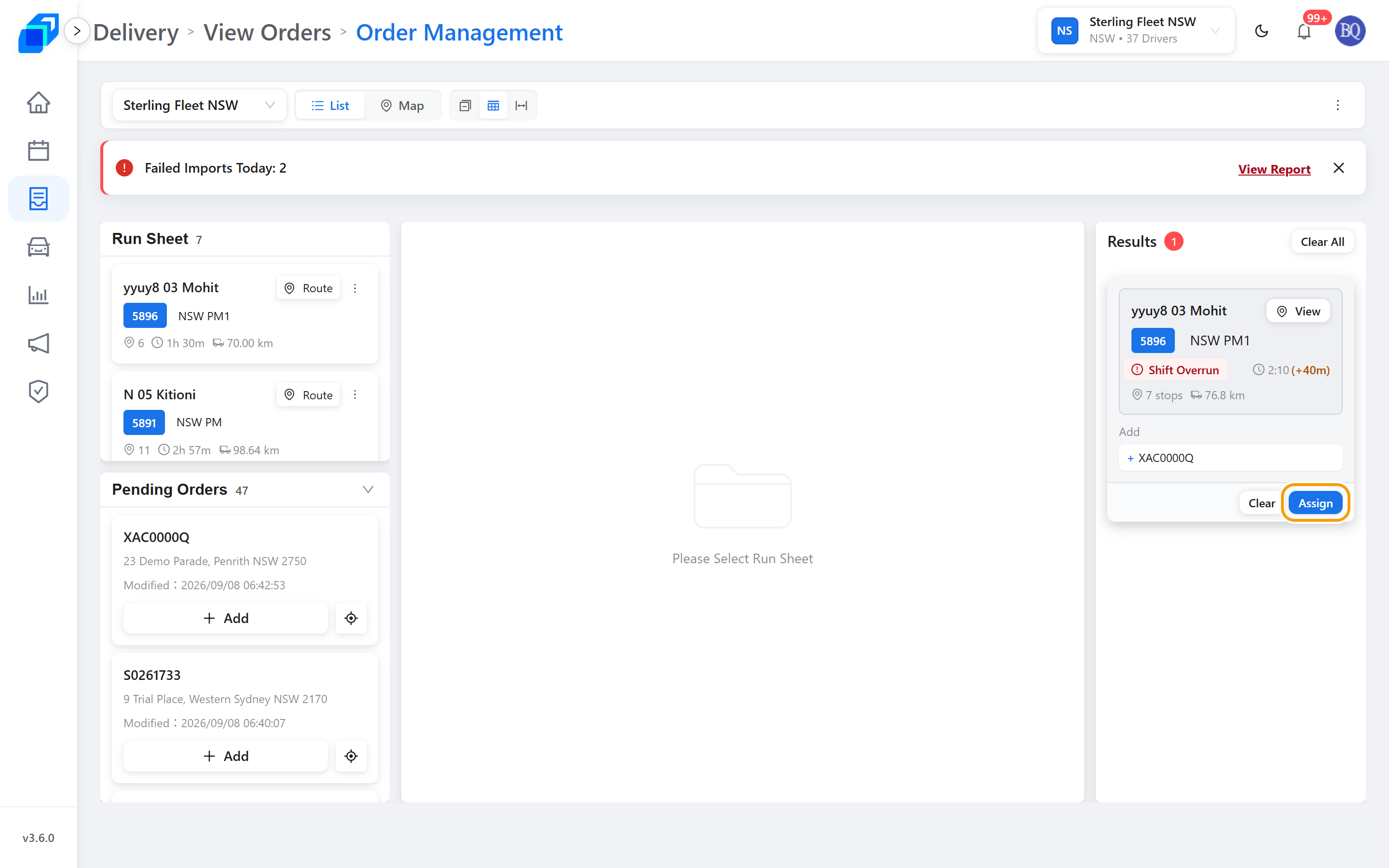
- If the centre still reads Please Select Run Sheet, as long as the driver card is highlighted, click Assign directly on the right-hand card.
- If you add the wrong order, click Clear All at the top of Results to discard unassigned changes and pick again.
You'll know it worked
After clicking Assign, verify the change across both views:
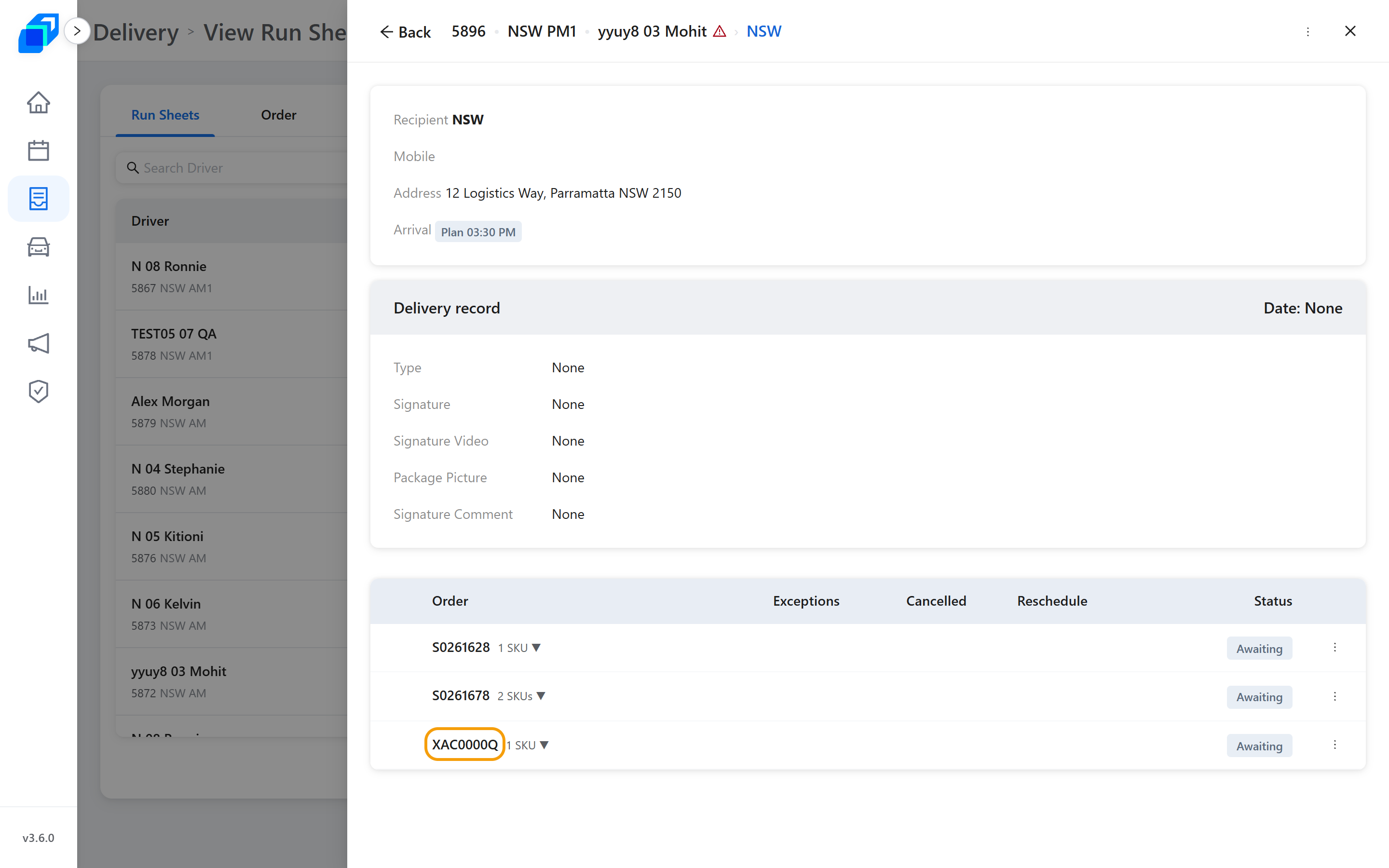
- On the board: The order leaves Pending Orders immediately and appears as a stop in the driver's route in the centre column.
- In the order list: Return to Delivery › Order; the status updates to Awaiting pickup.
Next steps
The driver now runs this sheet in the driver app, and you review the completed proof on the web console:
- Run your first shift – driver app workflow (tap Go! when ready).
- Work a Run Sheet – web console review after the driver completes delivery.
- From dispatch to delivered – end-to-end delivery day overview.
- Import a batch – batch import orders.