From dispatch to delivered
This page maps the whole job. Four loops sit on one page, and the click-by-click steps stay on the pages each row links to.
The order list in the web console shows Awaiting pickup, the driver app shows Go! (not No Route Available), the driver app later shows Stop Complete!, and the same run sheet in the web console shows the stop done and the order Delivered.
| Loop | Who | You'll know | Open |
|---|---|---|---|
| Places | Admin | The Warehouse list has your sites | Warehouses and routes |
| People | Dispatcher | The driver is on Roster this week | Register a Driver |
| One day | Both | Awaiting pickup, then Stop Complete!, then Delivered | Dispatch your first order |
| After | Dispatcher | The same run sheet, plus Insight if your role opens it | Work a Run Sheet |
Places first
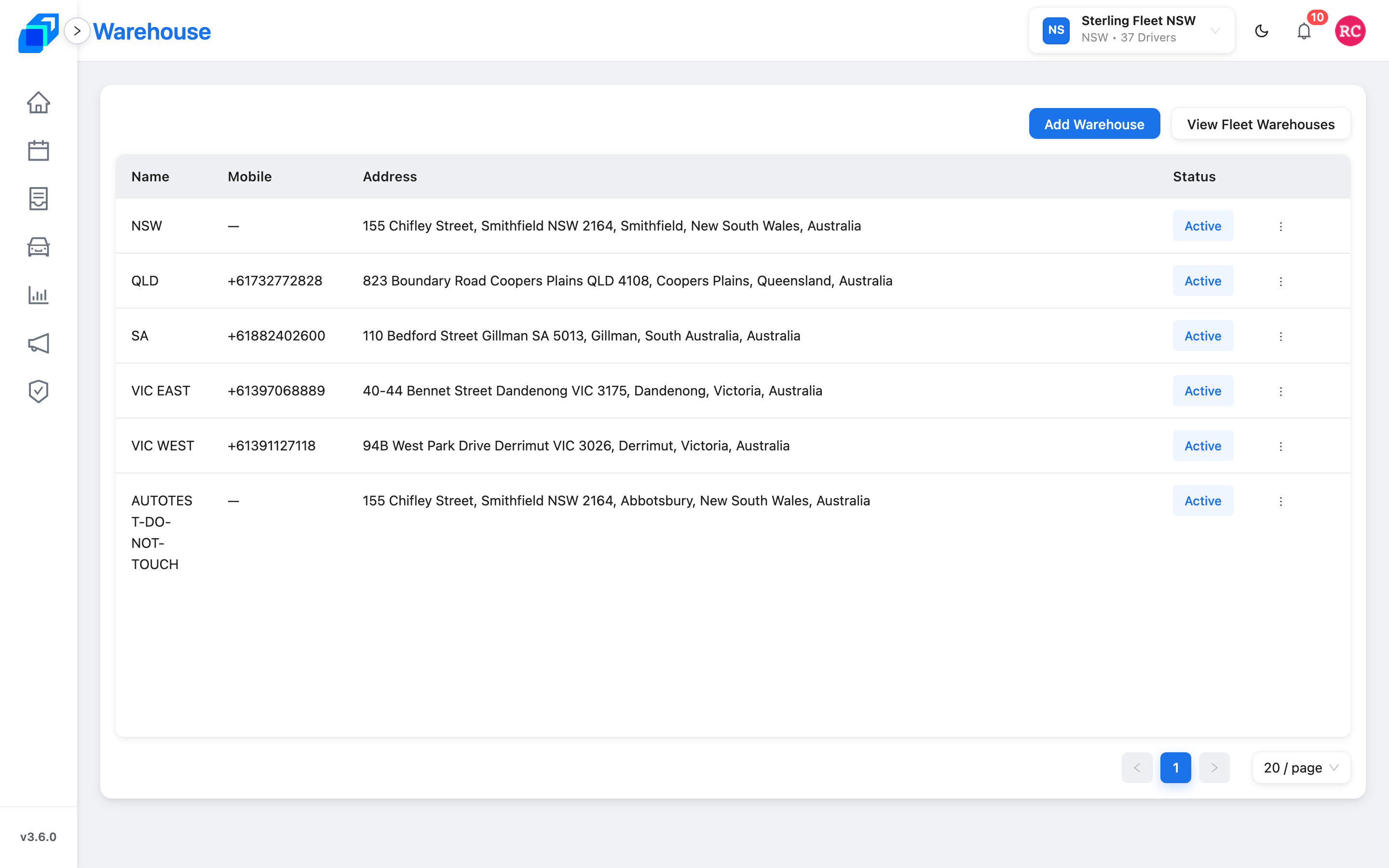
A run sheet needs a Warehouse. Vehicles sit on the fleet.
| When | Who | Where | You'll know | Open this page |
|---|---|---|---|---|
| P1. Sites | Admin | Web console · Company › Warehouse | Your sites are in the list | Warehouses and routes |
| P2. Add a site | Admin | Web console · Add Warehouse | The new row is in the list | Warehouses and routes |
| P3. Routes | Admin | Web console · one warehouse · Edit Warehouse Route | That warehouse has outbound routes | Warehouses and routes |
| P4. Vehicles | Admin | Web console · Fleets › View Vehicles | Number plates are in the list | Vehicles |
People – before the first day
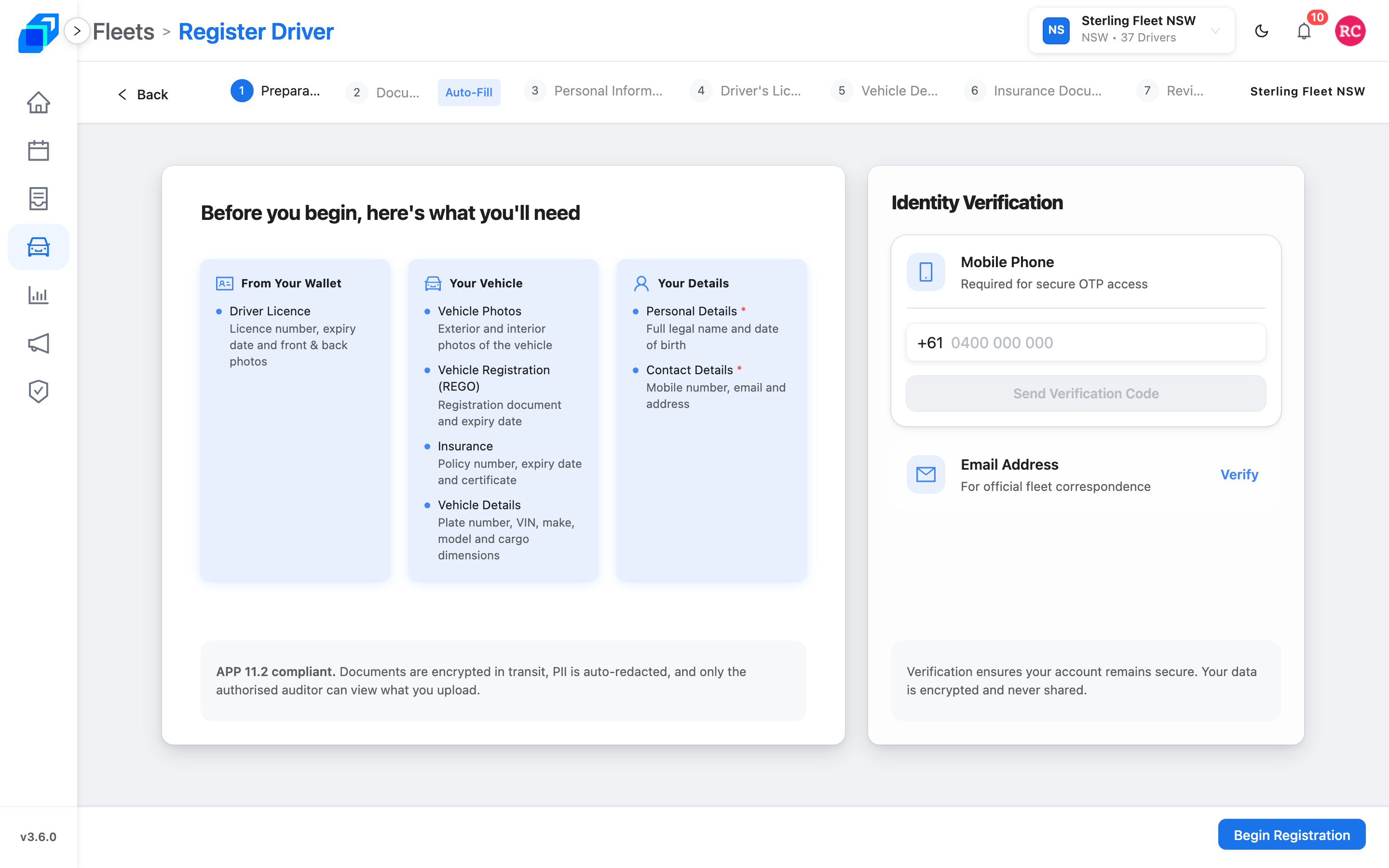
A driver cannot run a sheet until they are on the fleet and on the Roster.
| When | Who | Where | You'll know | Open this page |
|---|---|---|---|---|
| A. Set up | Dispatcher | Web console · Fleets | A fleet is in the list | A driver's record |
| B. Register | Dispatcher | Web console · Fleets › your fleet › Drivers › Register Driver | The wizard opens at Preparation | Register a Driver |
| C. Review | Dispatcher | Web console · Fleets › your fleet › Drivers › Onboarding | The application is in the queue | Review applications |
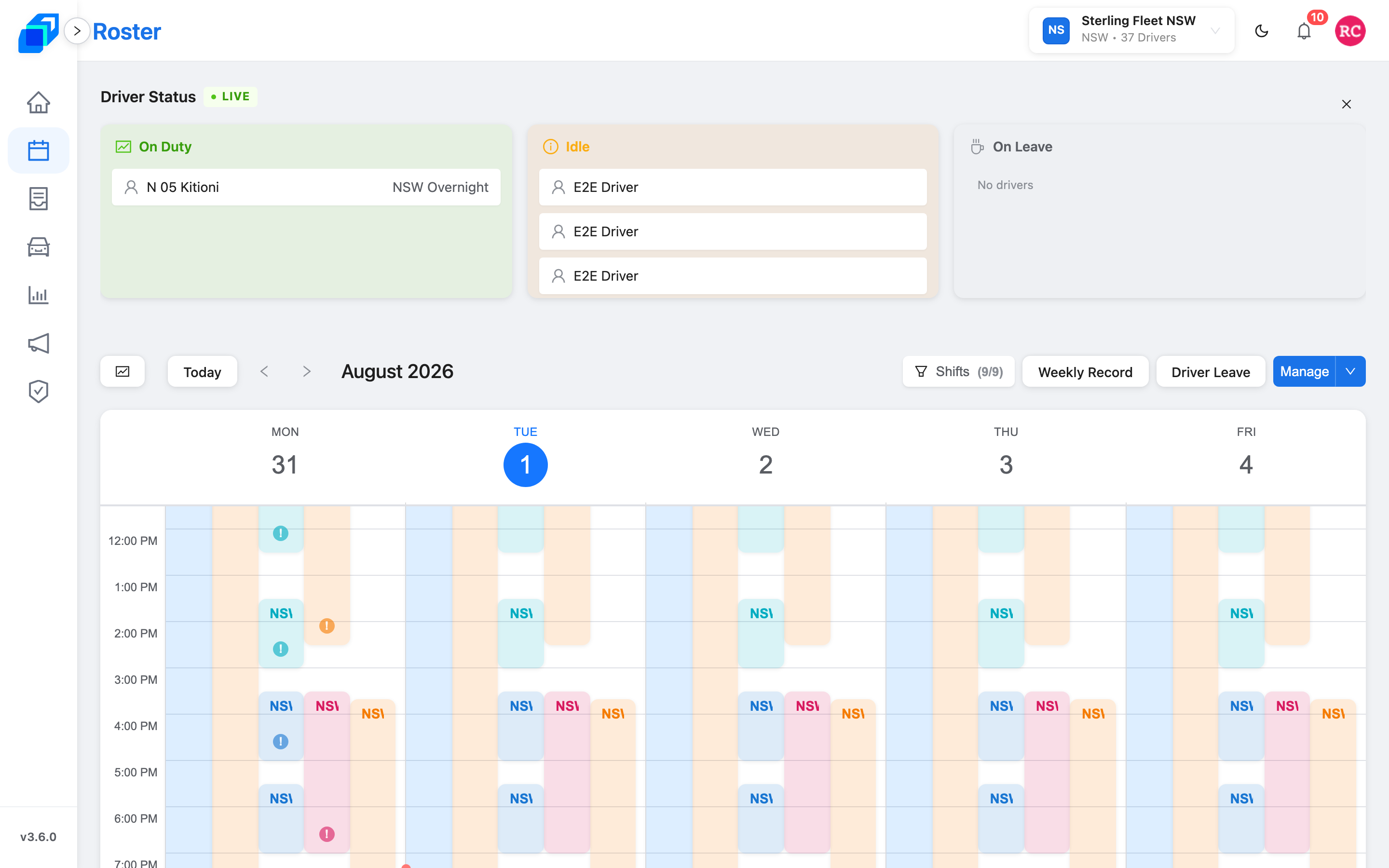
| D. Week | Dispatcher | Web console · Roster | The driver is on a shift this week | Plan the week |
| E. Who can see what | Admin | Web console · Permissions › Roles & Groups | Your groups are listed – admin, the general-manager group, then your own – and a dispatcher can open Order Management | Roles |
One delivery day, in order
| When | Who | Where | You'll know | Open this page |
|---|---|---|---|---|
| 1. Morning | Dispatcher | Web console · Delivery › Order | A new order is in the list | Create an order |
| 2. Morning | Dispatcher | Web console · Order Management | Status Awaiting pickup | Dispatch your first order |
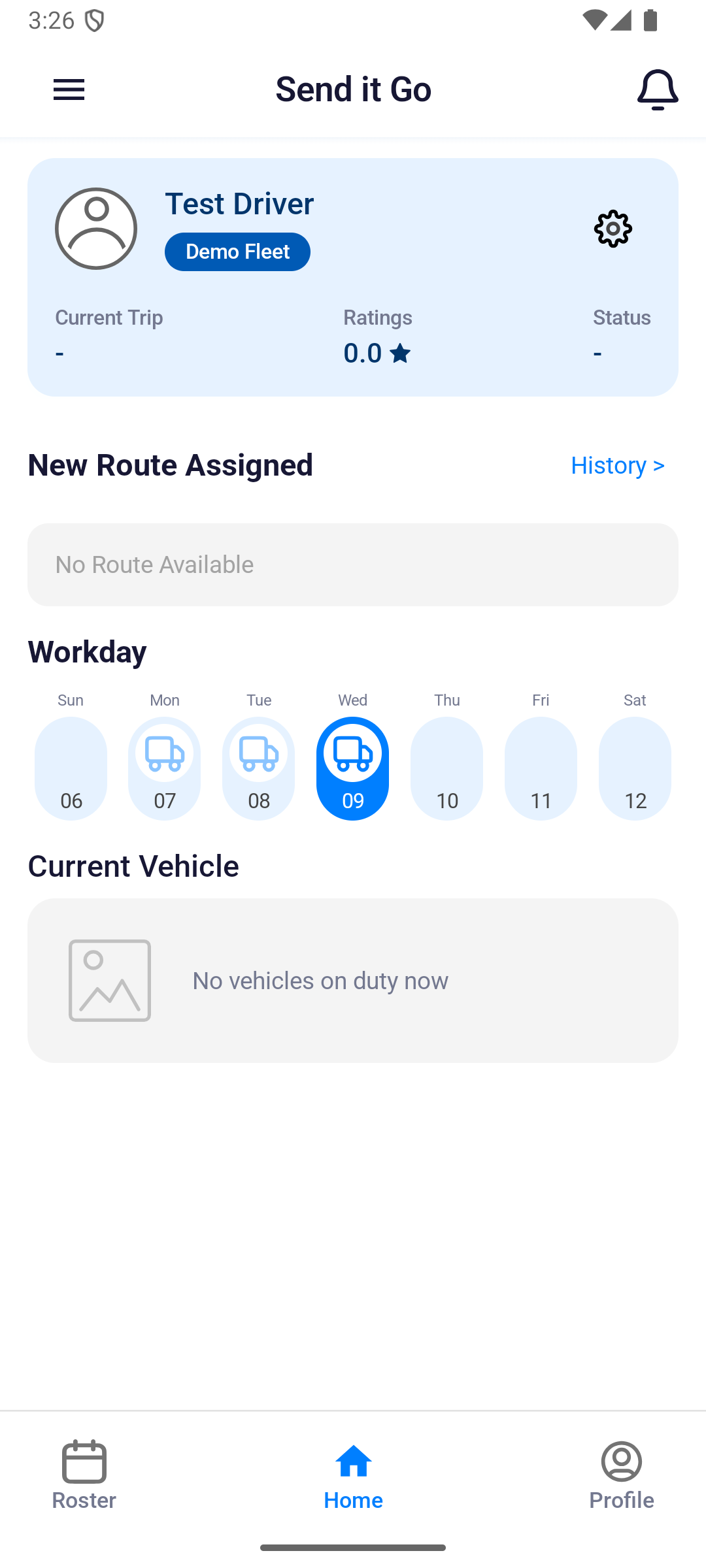
| 3. Handoff | Driver | Driver app · home | The card shows Go! (or Continue). No Route Available means no run sheet is assigned yet – wait | Run your first shift |
| 3b. Route changed | Driver | Driver app | Route Updated, then OK, then home with the new route | Route detail and navigation |
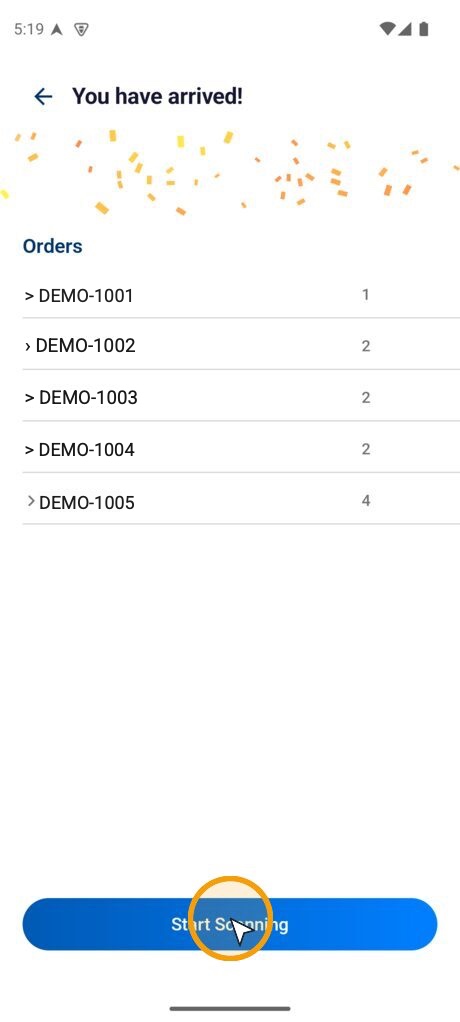
| 4. At the stop | Driver | Driver app | You have arrived!, then scan | Arrive and scan |
| 5. Proof | Driver | Driver app | Stop Complete!, then Route Complete! at the last stop | Proof of delivery |
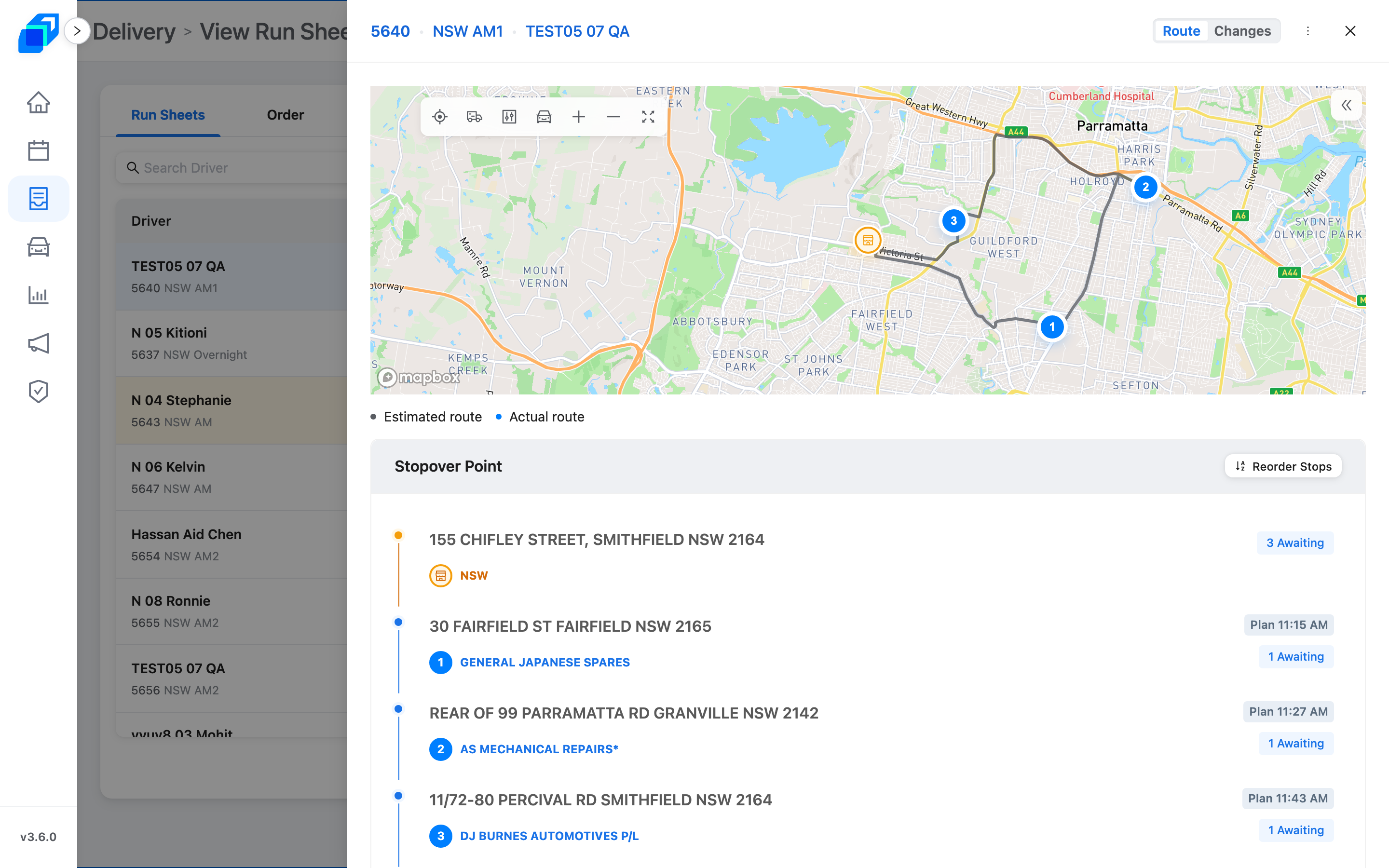
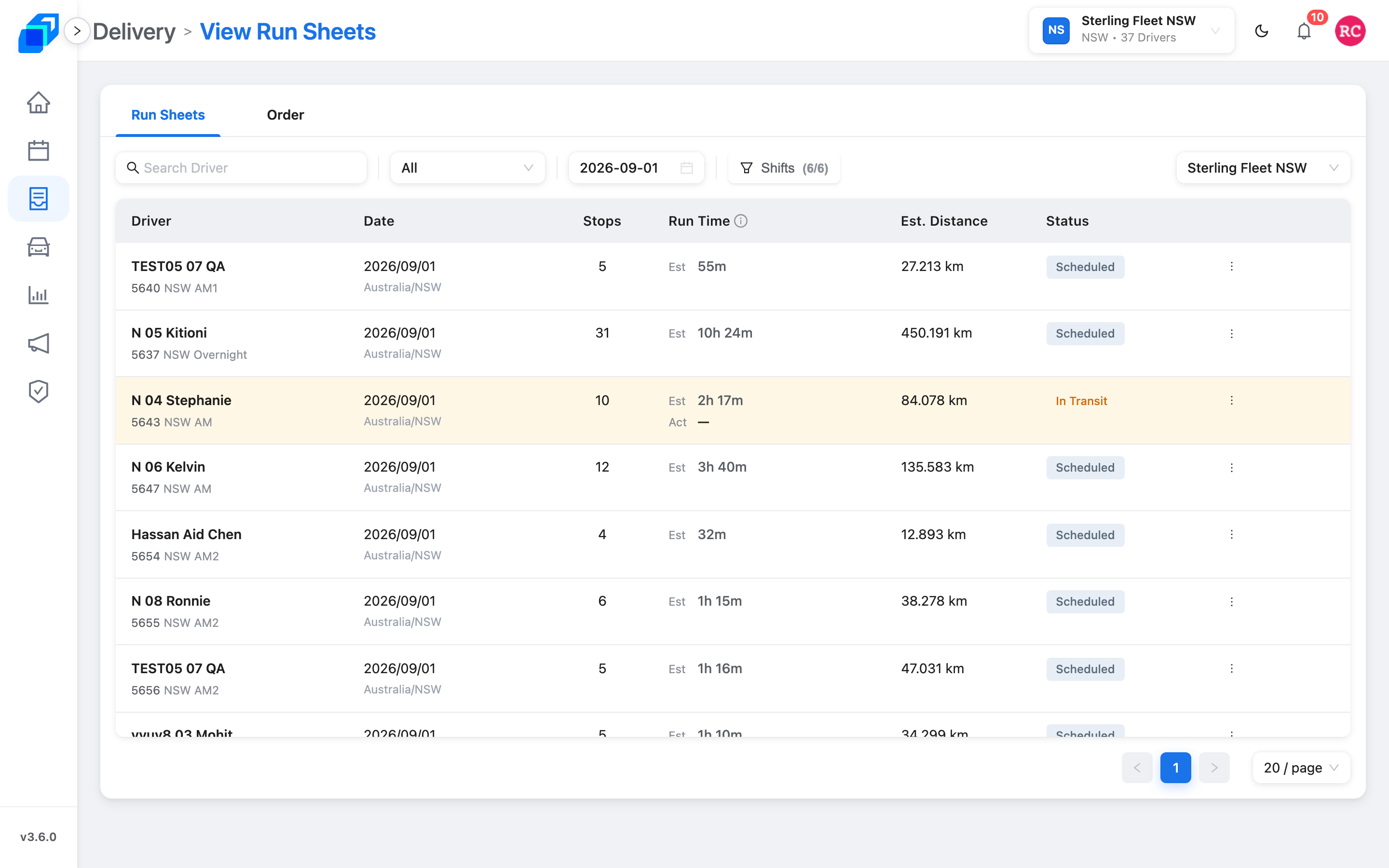
| 6. Back at a desk | Dispatcher | Web console · Delivery › Run Sheets | The same run sheet, the stop done, and the order Delivered | Work a Run Sheet |
On the dispatch board, the button that plans the route is Simulate, and it appears in Results after you click Add.
The same loop runs on iPhone and Android. What differs: iPhone and Android.
A batch instead of one order
Import a file when you have many orders. The file lands in Import History once it is accepted.
The week
Once people are on the fleet, the week is Roster.
| When | Who | Where | You'll know | Open this page |
|---|---|---|---|---|
| W1. Calendar | Dispatcher | Web console · Roster | Shifts sit on the days | Plan the week |
| W2. New shift | Dispatcher | Web console · Roster › Roster Management | The shift is on the calendar | Create a shift |
| W3. Leave | Dispatcher | Web console · Roster › Driver Leave | The off days are listed | Plan the week |
| W4. Weekly records | Dispatcher | Web console · Roster › Weekly Record | Hours and shifts for this week | Weekly Records |
In the driver app, Roster is the driver's own week: Your roster.
After the day
Open the same run sheet. The map and the Stopover Point list show the stops in order, including the ones the driver has already finished in the driver app.
If your role can open Insight, that is the performance view – not a second dispatch board. Driver performance.
Menus your role cannot open are hidden rather than greyed out, so ask your fleet admin if one you need is missing from the left rail.
When something is wrong
| Where | What you see | Open this page |
|---|---|---|
| Driver app, at a stop | Report Exceptions | Report Exceptions |
| Web console | The Notification list (the bell in the header) | Notifications |
| Either | Trouble logging in, or a missing menu | If something goes wrong |
From the package row's more menu, tap Report Exceptions, then choose Missing, Damaged, or Wrong Delivery.
What the handoff looks like
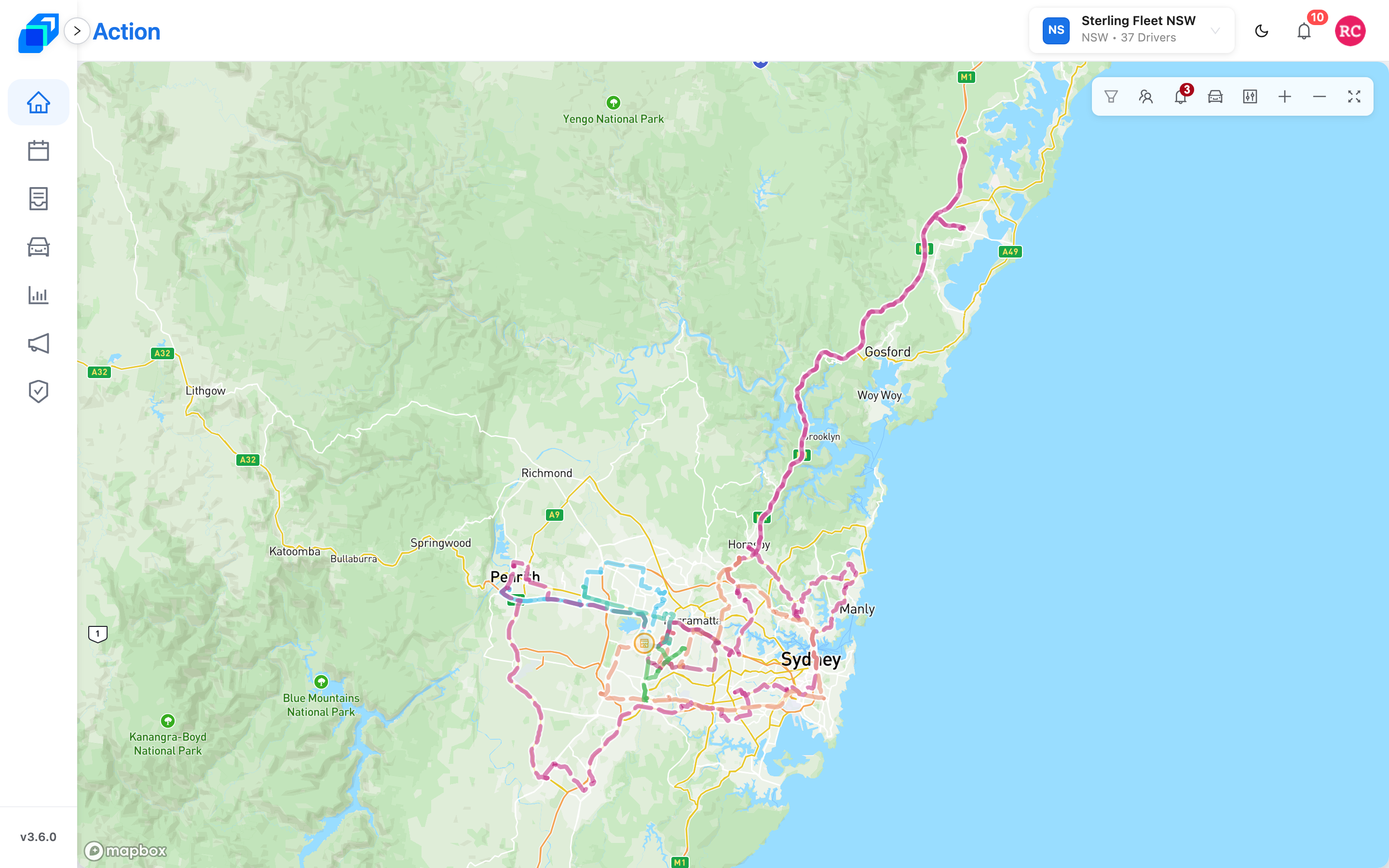
The web console opens on Action. After you click Assign, the driver app can take a moment to pick the route up – that is a wait, not a broken app. At the stop the driver app shows You have arrived!. Once the driver has finished, open the same run sheet in the web console under Delivery › Run Sheets.
Next steps
- Dispatch your first order – create and assign it in the web console
- Run your first shift – the same day from the driver's side
- Work a Run Sheet – check the finished day back in the web console