Logging in
Sign in to the web console with your phone number and a one-time code SenditGo texts to your phone.
Where to find it: your fleet's sign-in link, opened in a browser – the card carrying the SenditGo logo and a Send Verification Code button.
You land on Action, your home page – a live map of today's fleet.
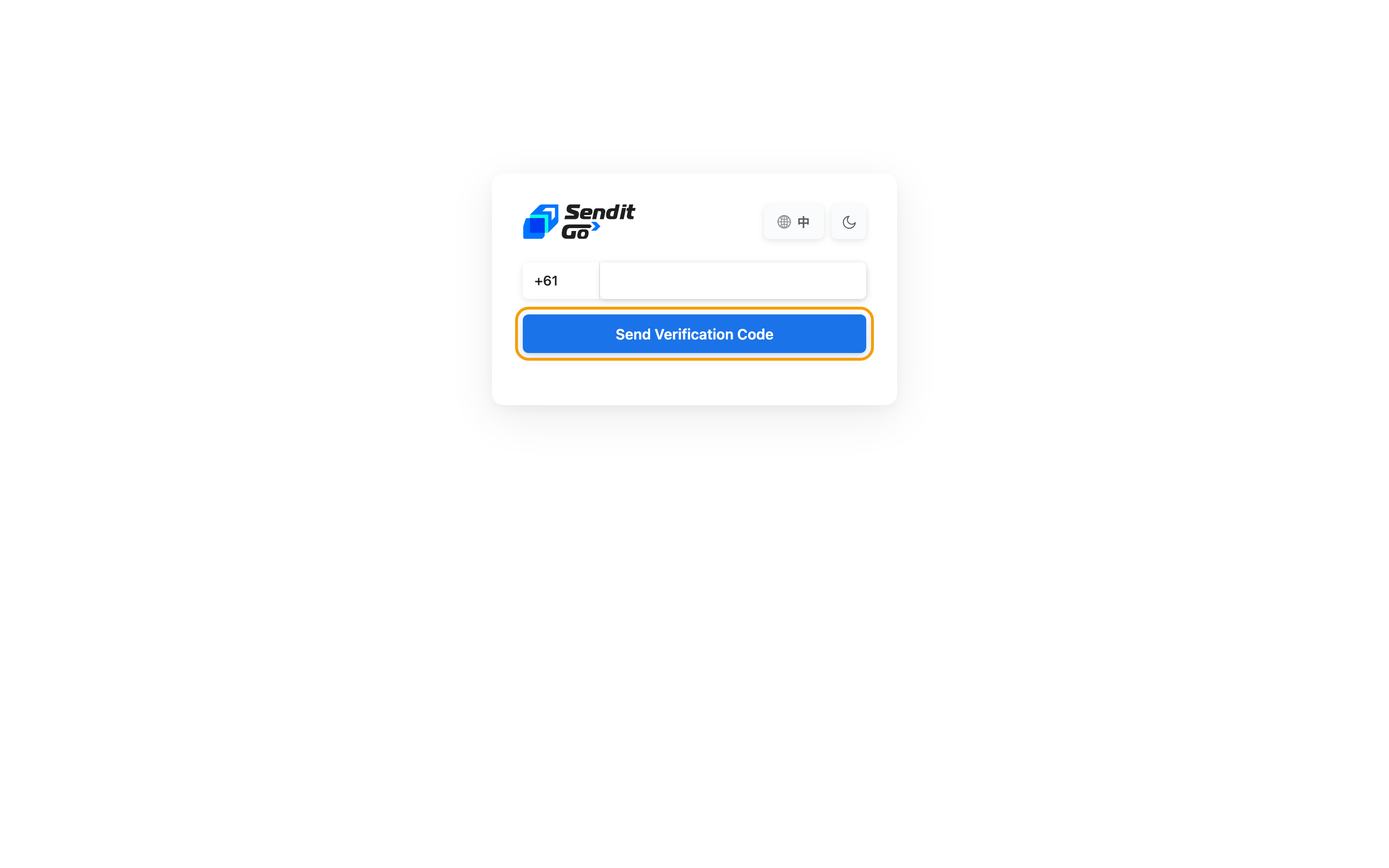
Step 1: Enter your phone number
- Click the country-code list on the left and choose +61 (AU) for Australia or +886 (TW) for Taiwan.
- In the phone number field on the right, type your mobile number. Spaces or no spaces – any format works.
- Click Send Verification Code. The button shows a loading spinner, and a 6-digit code arrives by text in a moment.
Change your number any time before you enter the code: type the correct one and click Send Verification Code again. For 60 seconds after each request the button is dimmed and will not send, and a countdown under it shows how long is left. Wait for the countdown to finish, then send again.
Step 2: Enter the verification code
- After you click Send Verification Code, the card shows Enter the 6-digit code we sent to your phone.
- Type the digits from your text one cell at a time, or paste the whole 6-digit code into the first cell to fill every cell at once.
- As soon as the sixth digit lands, SenditGo checks the code and signs you in. You land on your home page.
Resend the code
If no text arrives, click Resend code. The cells clear and a fresh code arrives by text in a moment.
Resend code sends a new code only once 60 seconds have passed since your last request. Click it sooner and the cells clear, but no code goes out – wait out the minute, then click it again.
Change your phone number
If you typed the wrong number in Step 1:
- Click Wrong number? Change it to go back to the phone screen.
- Pick a different country code, or type a different number.
- Click Send Verification Code again.
Language and dark mode
The top-right corner of the login card has two icon buttons:
- Language – the globe icon shows the language it will switch you to: 中 while you are reading English, EN while you are reading Traditional Chinese (繁體中文). Click it to swap. Your choice is remembered the next time you log in.
- Dark mode – the sun or moon icon switches between light and dark. Your choice is saved and applies across the whole console once you log in.
After you sign in you land on your home page. Your role and permissions decide which menus appear there. To set your details up the first time, click your avatar in the header and choose User Profile.
Next steps
- See what your home page shows → Your Action home
- Get one win now → Dispatch your first order
- Learn why a menu is missing → Why some menus are hidden (your permissions)