Why some menus are hidden (your permissions)
The web console changes to fit your role. Menus and features you cannot use are hidden, not greyed out. This page explains how your permissions decide what you see, and what to do if a feature you need is missing.
The permission system: How it works
When you log in, the console loads your permissions. These set what you are allowed to do. For each menu and button, the console checks whether you have permission.
- If you do → the menu appears, with its buttons and features.
- If you do not → nothing shows. The control is not greyed out and nothing explains its absence – it is not there. Opening the page by address is different, and covered below.
This keeps your screen focused. You only see what you can use.
Which menu sections depend on which permissions
The left sidebar has seven sections. Action and Notification are always there. The other five appear only when your role holds a permission in that area. A hidden section is usually one your job does not need:
| Menu section | What it does | You see it if you can... | Who normally works in it |
|---|---|---|---|
| Action | The home page – a live map of today's drivers and their run sheets | Always shown – no permission needed | Every operator and dispatcher |
| Roster | Shift scheduling, driver rosters, delivery-area management | View or manage shifts or driver leave | Roster coordinators and fleet planners |
| Delivery | View orders, delivery plans, run sheets | View orders or run sheets | Dispatchers and customer service teams |
| Fleets | Driver records, vehicle records, fleet setup | View fleets | Fleet managers and supervisors |
| Insight | Driver performance and the other report screens your fleet has switched on | View driver performance | Managers and supervisors |
| Notification | Messages about your operations – order and route changes, driver leave requests, completed deliveries | Always shown – no permission needed | Every operator |
| Permissions | Roles & Groups, Users, and the Permission Matrix | View or manage roles, groups or users | Your fleet admin, and anyone whose role manages roles, groups or users |
Order Management and Warehouse are not sidebar sections. Order Management is a button on the Order tab of Delivery, shown only with View Order Management. The Warehouse list is under your initials in the header, at Company › Warehouse – see Managing warehouses and routes.
Inside each section: Individual actions
Once a menu section appears, its buttons and actions follow the same rule:
- Create Order button → you see it only if you can create orders
- Edit Fleet pencil icon → you see it only if you can edit the fleet
- Delete Driver Account menu item → you see it only if you can delete driver accounts
Again, if you lack the permission, the button or menu item does not appear.
A control your role cannot use is not there at all. The console never greys out a control for a permission reason.
A greyed-out control is a different thing. You can normally use it, just not yet – the form is missing something, the page is still loading, or an action is running. Wait, or finish the step. There is nothing here for your admin to grant.
How permissions are derived from roles
Your role (for example "Dispatcher", "Fleet Manager", or "Auditor") carries a set of permissions. Your fleet admin grants permissions to roles, then assigns people to those roles. That is how permissions reach you.
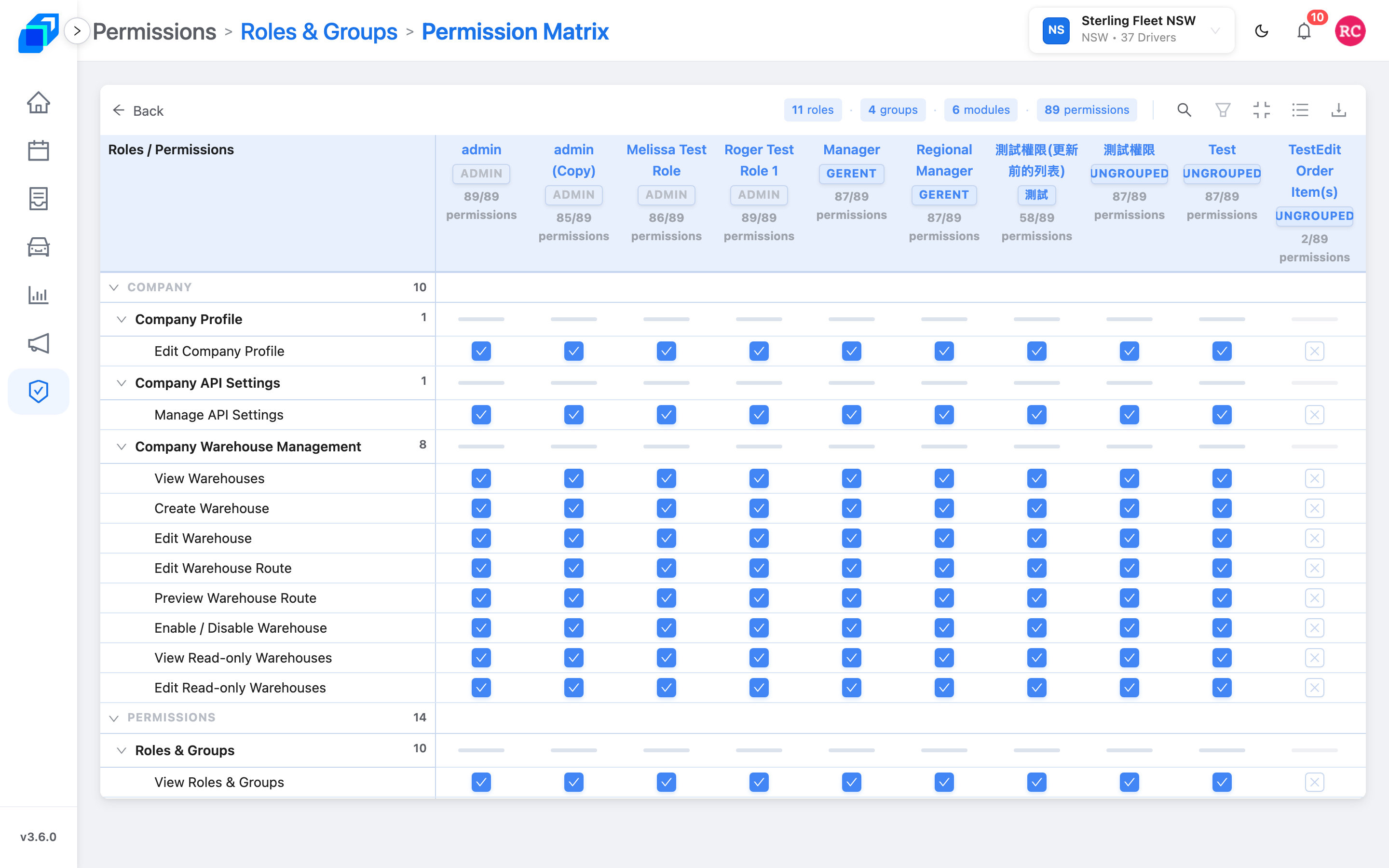
One group of ticks reaches further than the rest. A role holding any one of View Roles & Groups, Create Role, Edit Role, Delete Role or Enable / Disable Role passes every other permission check.
People on that role can open pages you never ticked, including by typing the address. Give a role-management tick only to people you mean to trust with the whole console.
Example: three jobs on the house structure
admin (System) sees every menu.
A Manager role in the general-manager group sees Delivery, Roster, Fleets and usually Permissions, plus Warehouse, under Company in the header.
A dispatcher copied from Manager sees Delivery and Order Management. Permissions leaves their sidebar only when every role, group and user tick is off – the views View Roles & Groups and View Users included.
Leave View Roles & Groups on and the menu stays, and that role reaches every page by address.
What to do if you can't see what you need
If a menu or button you expect is missing:
- Ask your fleet admin. Your role may not include that permission yet, or it may have been removed.
- If you are the fleet admin: go to Permissions › Roles & Groups. Tick the view on that person's role, then ask them to refresh.
- Wait for the grant to reach you. Once your fleet admin ticks it, the menu or button appears the next time you log in or refresh the page.
If you open a page directly (from a bookmark or by typing the address) and you do not have permission for it, you see an Access Denied message instead of the page. Once your fleet admin grants the permission, refresh the page and you can see it.
How permissions are stored and used
Each permission covers one action, such as Create Order, View Fleets, or Edit Fleet. The console keeps the list that applies to your role and checks it every time you move around or use a control.
Some permissions let you view data, such as View Orders. Others let you create, edit, or delete, such as Create Order or Delete Driver Account. View and action permissions often come together: if you can create orders, you can usually also view the order list.
Always visible, whatever your role
These areas are always visible to every logged-in operator, whatever your role:
- Action – the home page, first in the sidebar
- Notification – in the sidebar, and the bell in the header
- User Profile and Settings – under your initials at the top right of the header
These belong to your personal workspace, so no extra permission is needed. See Account and settings.
Next steps
- Roles – set the groups, tick what each role can open by area, then copy, reassign or deactivate
- Create a role – build the role that grants the menu you are missing
- Logging in – how your permissions load when you sign in