Troubleshooting and FAQ
Find answers to common questions and fixes for problems in the SenditGo Carrier platform.
Logging in
I don't receive the SMS code
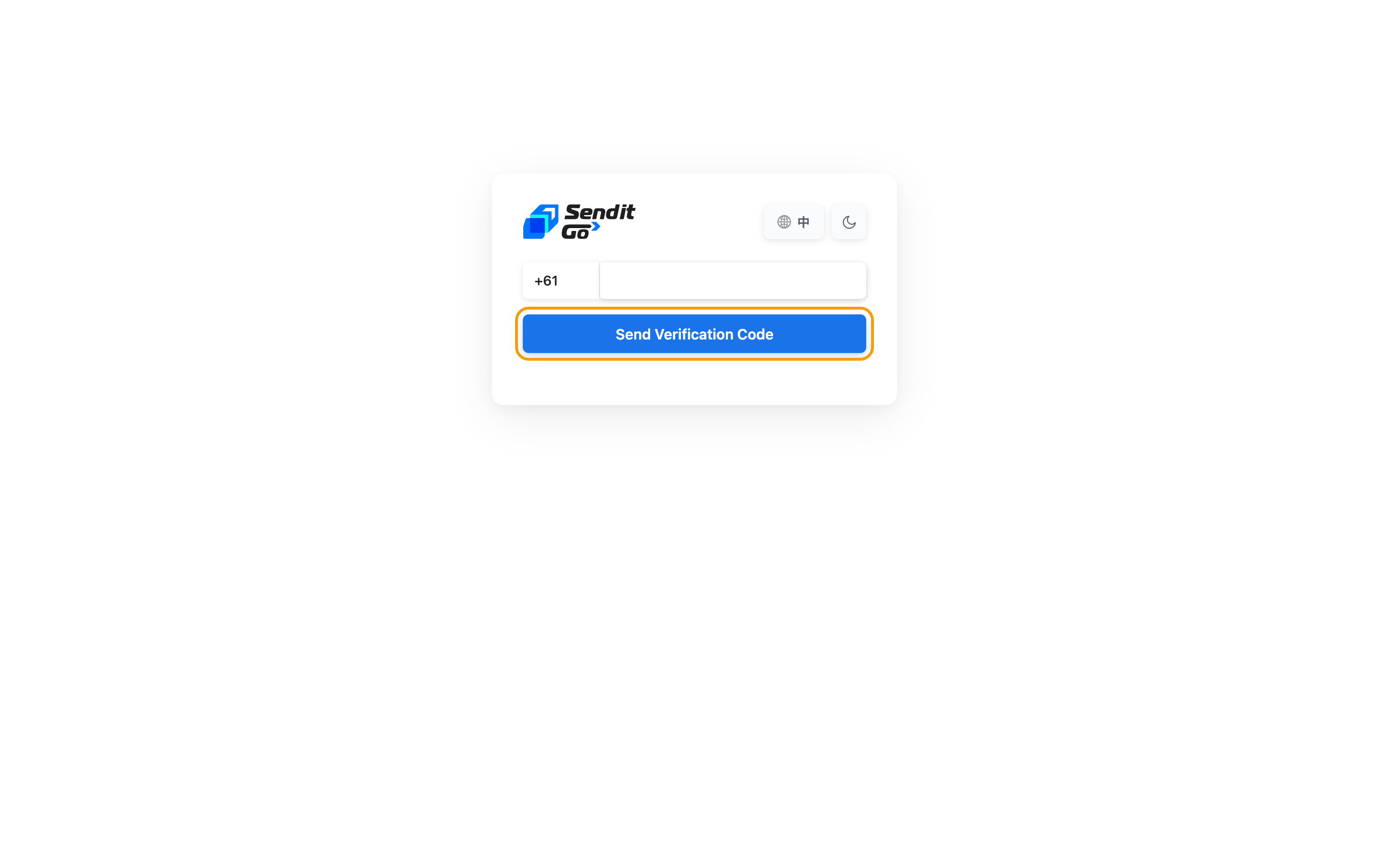
SenditGo texts a one-time code to your phone in seconds. If you do not see it:
- Check your spam or SMS filters. Some phones and carriers block short-code texts. Look in your junk folder.
- Wait 30 seconds, then look again. Texts can arrive slowly on older networks or with weak signal.
- Check your phone number. Did you include the country code, such as +61 for Australia? If the number is wrong, the code goes to the wrong phone.
- Tap Resend if you need to. You must wait 60 seconds between tries. Tap too soon and you'll see: "Please wait before sending another code." Resend once the timer runs out.
- Still nothing? Contact your fleet manager or admin. They can check that your number is registered, or find a carrier issue blocking the texts.
I entered the code but it says "invalid"
The code lasts 5 minutes. If it expired or you mistyped:
- Recheck the digits. The code is 6 digits. Re-read each one and add no spaces.
- If it expired, tap Resend for a new code and enter it within 5 minutes.
- If it still fails after a few tries, wait the full 60 seconds and tap Resend for a fresh code.
The login screen says "account not exist"
Your phone number is not registered in the SenditGo Carrier system. To fix this:
- Recheck your phone number. Make sure you included the country code, such as +61 for Australia.
- Contact your fleet manager or admin. They must register your number and create your account before you can log in.
- Once your account exists, log in with the same phone number.
I'm logged in but the app shows "your account isn't active"
After you log in, SenditGo checks that an admin has activated your account. If you see this message:
- Your account exists but is not active yet. This is normal for a brand-new account.
- Contact your fleet manager or admin. They must activate your account first. Once they do, log in again to get full access.
- Check back in a few minutes. After activation, log out and log in again to see the change.
The web console logged me out while I was working
You logged in from another device or browser. For security, each account allows only one active login at a time. Here's what happened:
- You were using the app or console on Device A.
- You (or someone else with your account) logged in on Device B.
- The session on Device A ended.
To fix: Log in again on the device you want. From then on, stay on that same device or browser.
Navigation and menus
I don't see a menu or button I expect
The SenditGo Carrier platform shows you only the sections and actions your role allows. This is on purpose, not a bug.
Why? Your role sets what you can do. Any menu, button, or feature you cannot use is fully hidden, not greyed out, so your screen shows only what you can act on.
What to do:
- Check your role. Ask your fleet manager or admin what your account can do. Roles see different menus.
- Only dispatchers see the Order Management board.
- Only admins see the Permissions section.
- Only some roles can register drivers, approve registrations, or manage fleet settings.
- Need access? Ask your admin to grant it.
To see which role needs which menu, see What each role can open.
The dispatch board is empty
The Order Management board loads live data. If it shows nothing:
- Refresh the page. The board pulls pending orders and run sheets in real time. A refresh loads the latest.
- Check that orders exist. The board shows orders that have been imported and are waiting to dispatch. With no pending orders, it stays empty.
- Check your permission. Only dispatchers and users with Order Management access see the board. If you have access but still see nothing, ask your admin whether any orders exist for today.
Reports and data
I cannot find Revenue, Driver KPI, or Daily Report
The performance view in the left rail is Insight, and it is the one your fleet uses. See Driver performance.
Revenue and Driver KPI are in the product. Daily Report is not a screen a fleet admin can switch on.
Insight shows no data
- Check the date range. Insight filters by the dates you pick. Make sure you are on the right period – last week will not show today's orders.
- Check that data exists. It counts only orders that are completed or delivered. Pick a period with no orders and it stays empty.
- Give it a few minutes. If you just completed orders, the numbers may take a moment to refresh.
Driver app
I closed the app and now I can't get back in
After you close the driver app, your login stays active on the device. When you reopen it:
- The app loads your dashboard right away if your login is still valid. This is the usual case.
- If your login has expired, you'll be asked to log in again. Tap your profile and enter your phone number and the 6-digit code.
Note: Your login expires after a while or when you log out yourself.
My phone number or device has changed
To use a new phone number or device:
- Open the driver app.
- Log out, then tap Log In.
- Enter your new phone number and the SMS code.
- The app logs you in and loads your dashboard.
Important: To change other profile details, such as your address or contact info, contact your fleet manager or admin. They handle profile changes.
I don't see my route or deliveries
- The dispatcher may not have assigned you a route yet. Ask your fleet manager whether a run sheet is assigned to you.
- Refresh the app. Pull down to load the latest assignments.
- Check the date. The app shows today's routes by default. To see another day, tap Daily Home or the date selector and pick the date.
I cannot edit my profile
Open Profile from the bottom bar, dashboard gear, or Settings. If the page says Under Review, editing is temporarily locked until the review finishes. If it says action is needed, correct the affected section and tap Submit for Review again.
Technical and account issues
The app keeps showing an error code
Error codes show what went wrong. Here are some common ones:
- Param required – The app hit a network or upload problem. Check your internet, then try again. If it keeps happening, contact your fleet manager.
- Illegal token – Your login is no longer valid. Log out and log in again.
- Account not exist – Your phone number is not registered. Confirm the number with your admin.
- Any other code – Contact your fleet manager and give them the code number. They can look it up to see what happened.
The app or web console won't load
- Check your internet. The app and web console need active data or WiFi. On 3G, switch to 4G or 5G if you can.
- Close and reopen the app or browser. This clears stuck connections.
- For the web console, clear your browser cache:
- Windows: Press Ctrl+Shift+Delete
- Mac: Press Cmd+Shift+Delete Then refresh the page.
The app or web console is slow or unresponsive
- Check your internet. A slow or shaky connection makes the app and console feel sluggish.
- Close other apps or tabs. They use up data and processing power.
- On mobile 3G, switch to 4G or 5G if you can. 3G is much slower.
- Restart your device. This clears memory and can speed things up.
The dates or times look wrong
SenditGo stores every time in UTC (Coordinated Universal Time) and shows it in your device's time zone.
If times look off:
- Check your device time zone. Open your phone or computer settings and confirm it is set to your local zone, such as Australia/Sydney, and not UTC.
- Refresh the app or web console. The time zone may need to reload.
- If it keeps happening, contact your admin. Tell them:
- Your time zone, such as AEST, AEDT, ACST, ACDT or AWST
- The time you see on screen
- What the time should be
Still need help?
If your issue isn't listed above:
-
Check the right section of this manual:
-
Contact your fleet manager or dispatcher. They may be able to help right away.
-
If you think it's a bug, give your admin:
- The error code, if one appeared
- A screenshot of the problem
- The time it happened
- What you were trying to do
This helps your admin investigate and fix it faster.
Next steps
- Words you will see – the plain meaning behind a label on screen
- Why some menus are hidden (your permissions) – why a button you expect is not there
- Log in on the phone – the driver-app sign-in, step by step