Weekly Records
VIEW · FILTER
Review the week's hours and distance per driver, as a table, a chart, and from a shift on the calendar.
Where to find it: Roster in the left menu (click Weekly Record).
After selecting a target week, the table lists every driver with expected and actual hours and distance; Chart draws the same week with hours and distance against what was expected; and clicking a shift on the calendar opens that shift's drivers.
1. Weekly driver records overview – VIEW
Opening the Weekly Records page brings all driver hours and distance for the selected week onto a single screen.
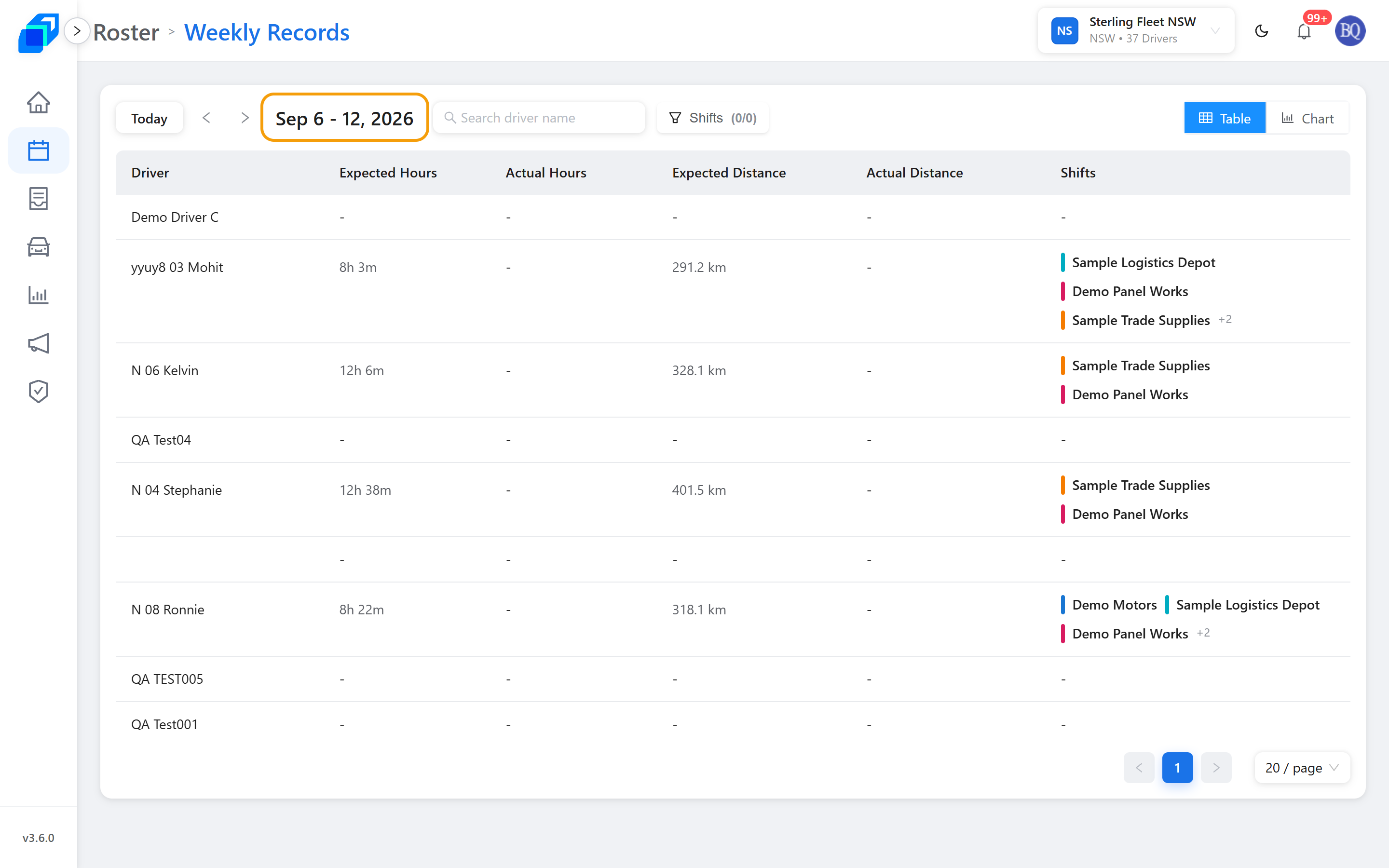
Select the target week
- The week sits at the top as a date range, for example Aug 30 - Sep 5, 2026. That header names the month before the day, so it covers 30 August to 5 September.
- The ‹ and › arrows either side step back and forward a week; Today jumps back to the current week.
- Search driver name narrows the list, and Shifts filters it to chosen shifts.
Driver records details table
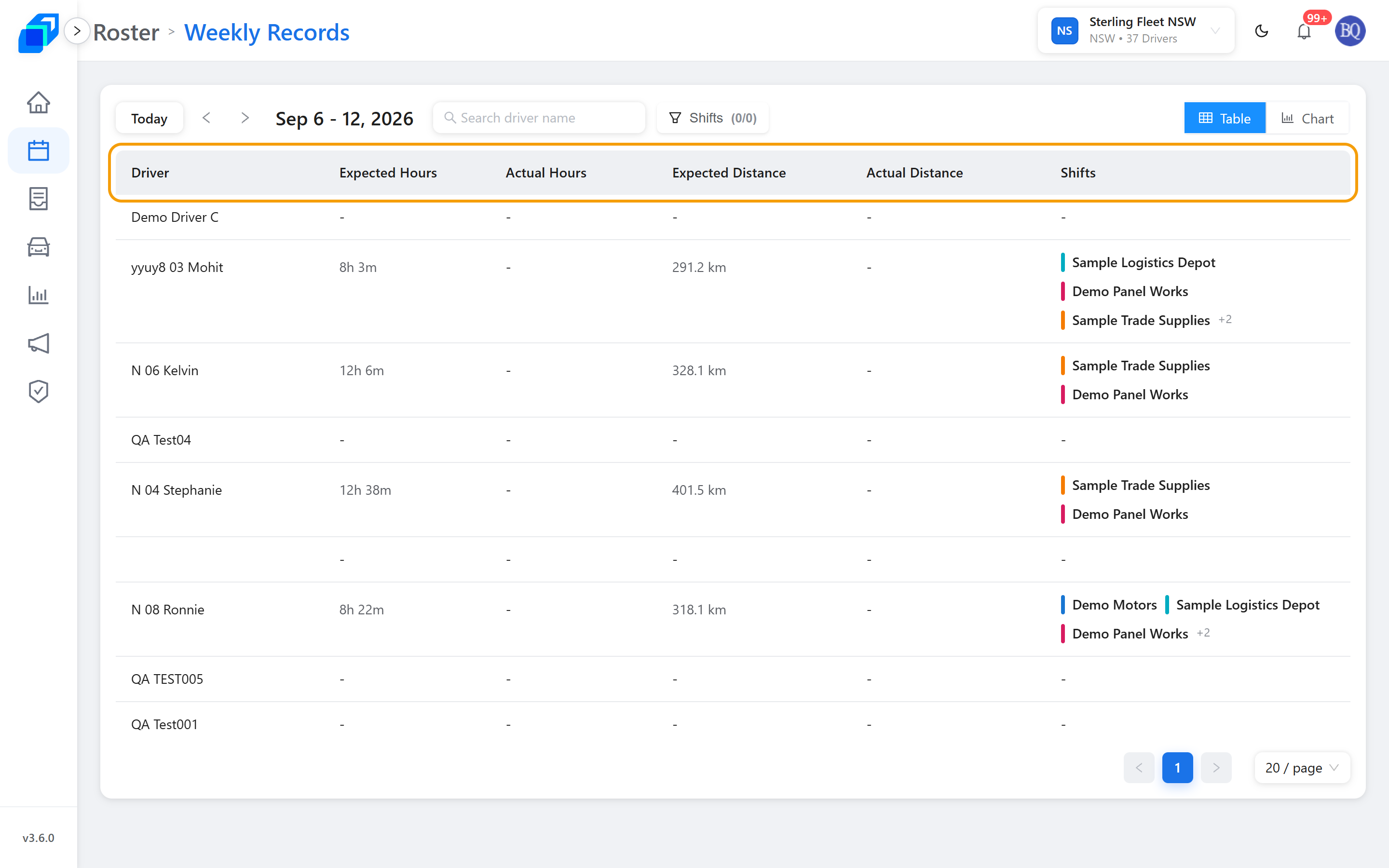
The table displays attendance and capacity for each driver:
- Driver – Driver name.
- Expected Hours and Actual Hours – What the week was planned to take, against what it actually took.
- Expected Distance and Actual Distance – Planned kilometres against actual kilometres.
- Shifts – The shifts that driver worked that week, with +N for any beyond the first three.
- Sort the list – Click a column header to sort ascending or descending, quickly identifying drivers with excessive hours or long routes. Driver and Shifts do not sort.
- Switch pages – When managing a large fleet, use the pagination controls at the bottom right to turn pages or adjust rows per page.
- A dash means nothing was recorded for that driver that week. Actual Hours over Expected Hours turns red – that is the number to look at.
Weekly driver trend chart
Top right, the view switches between Table and Chart.
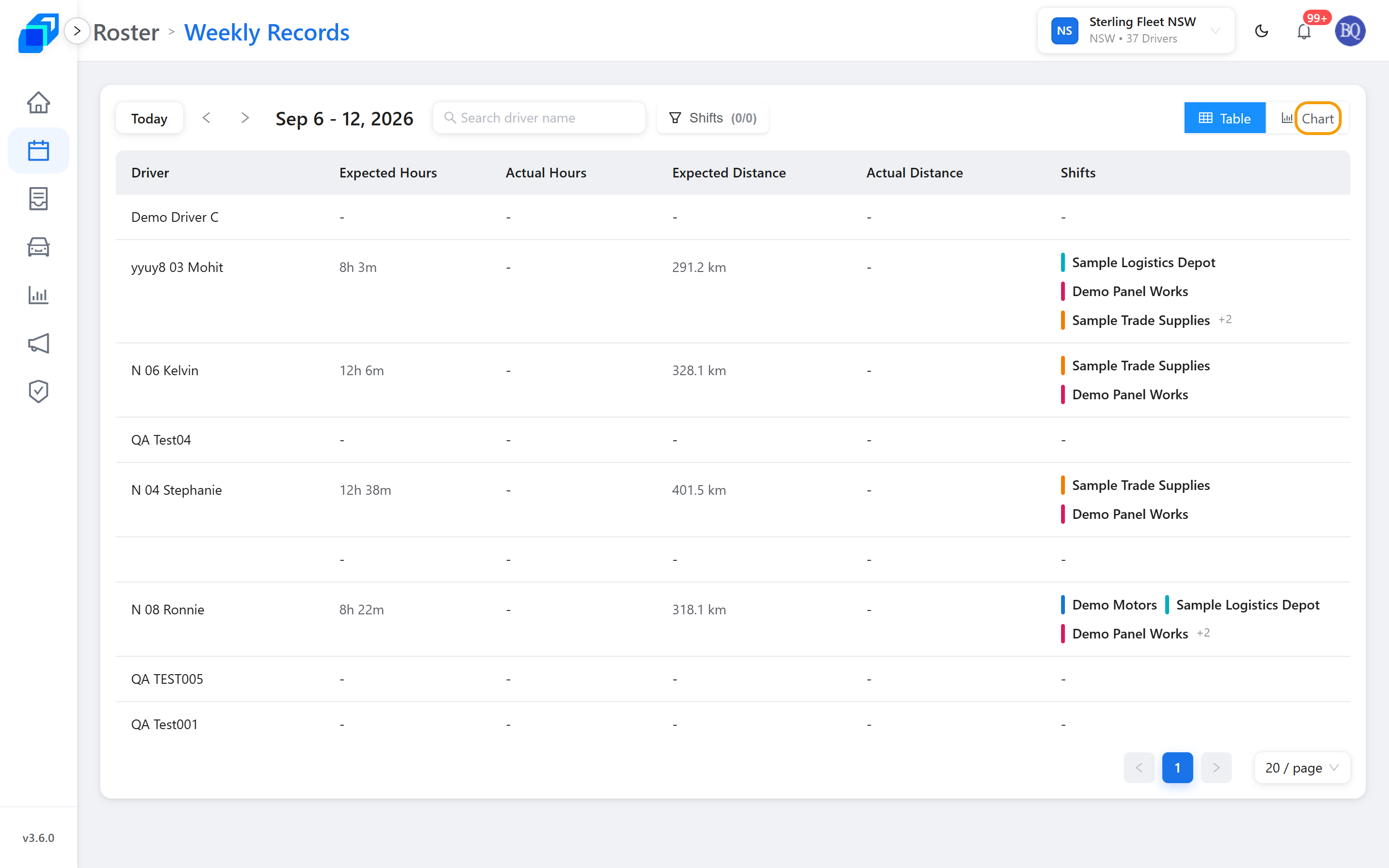
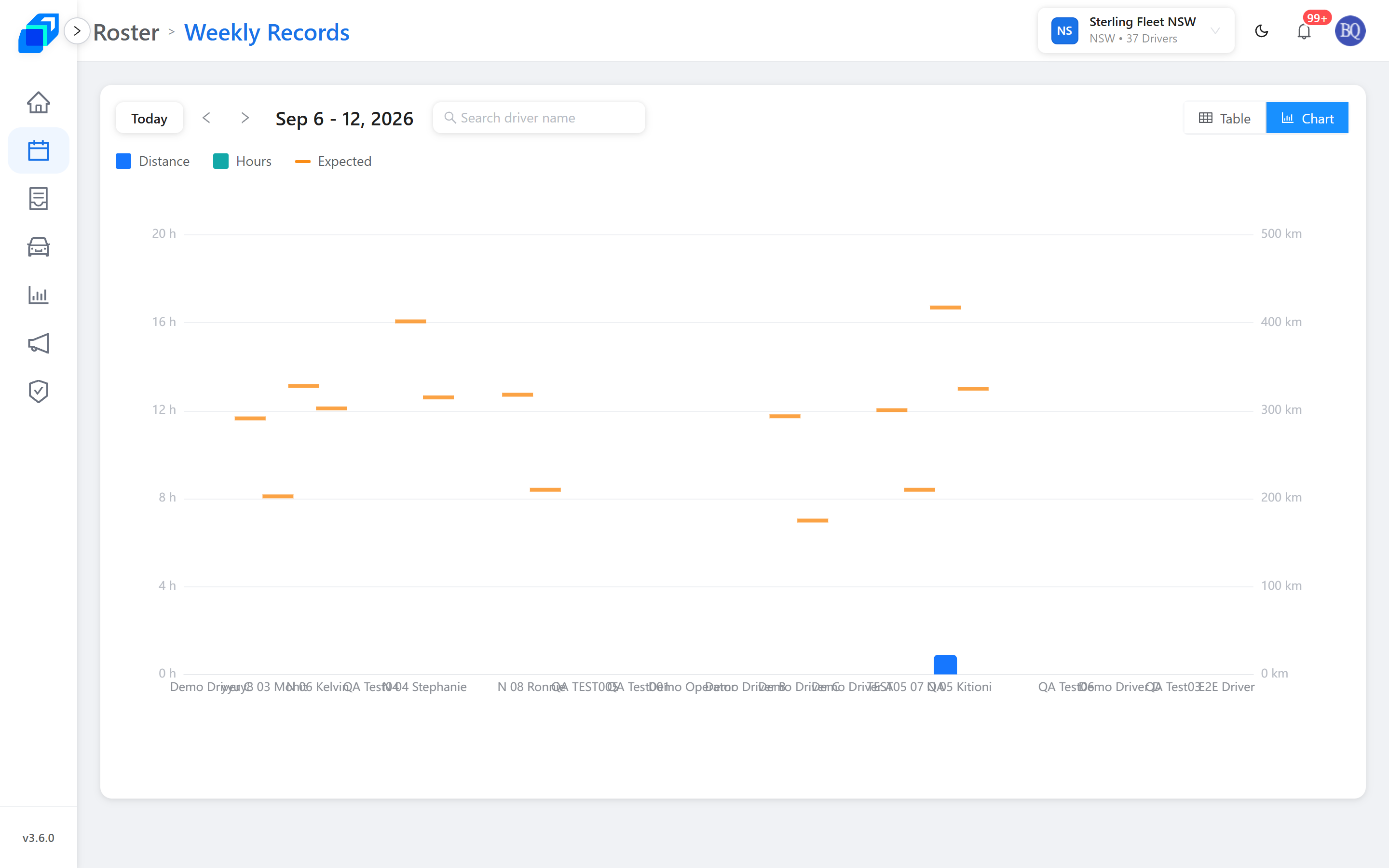
Chart presents the same week with hours and distance side by side:
- Names of all drivers sit along the bottom.
- Hours – Bars showing hours worked. Read them off the left axis, marked in h.
- Distance – Bars showing kilometres travelled. Read them off the right axis, marked in km.
- Expected – A short line drawn across each driver, showing what that driver was expected to do, so an over-run or a shortfall shows at a glance.
- Point to a bar to read its numbers – Move your mouse over any bar to see the exact hours and kilometres.
The week picker and Search driver name work the same in both views.
2. Roster calendar: drivers on a shift – VIEW
In addition to the whole-week overview, you can inspect driver records for any specific shift directly from the calendar:
- Click Roster in the left menu to return to the week calendar.
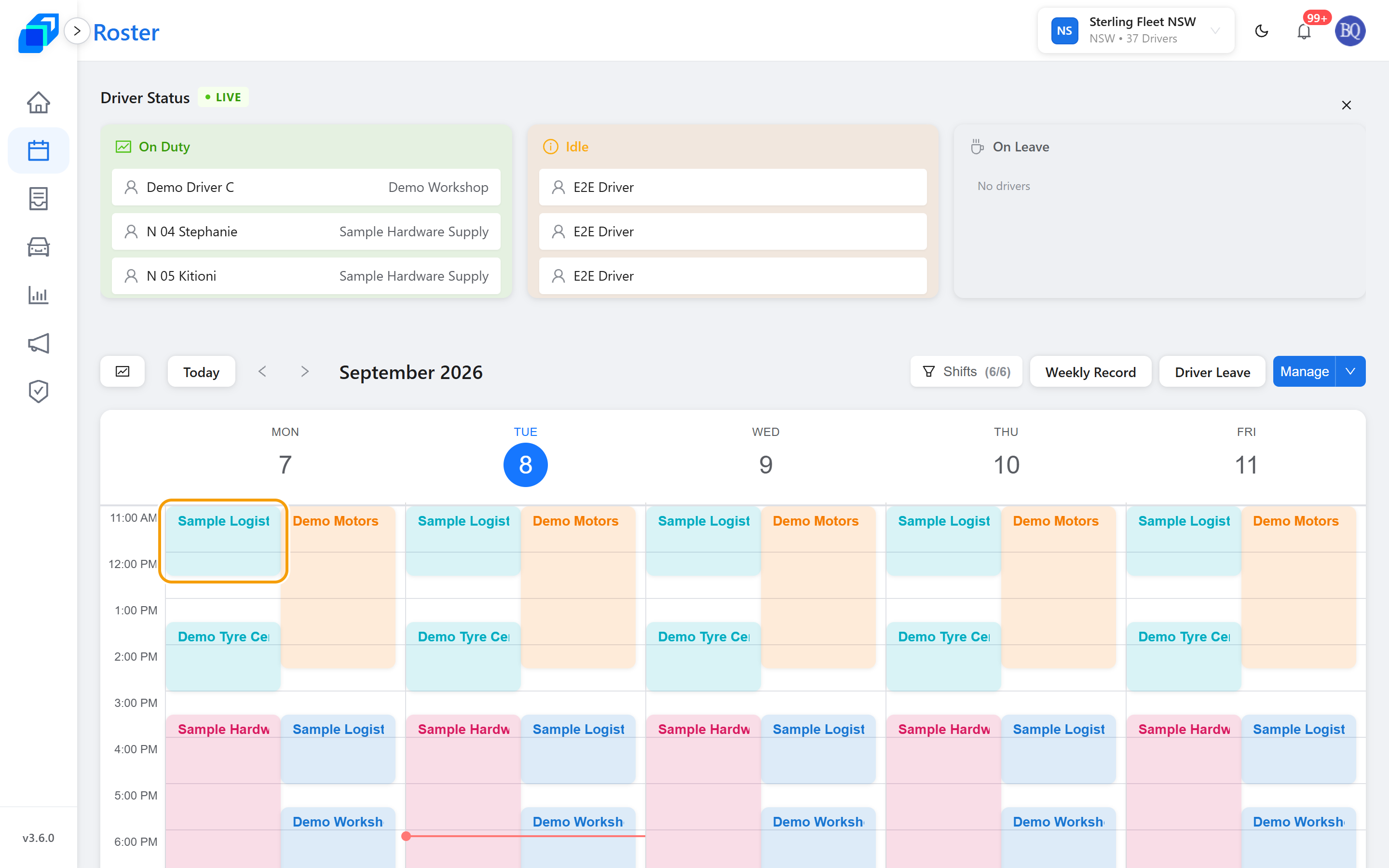
- Click any scheduled shift block on the calendar (for example NSW AM1).
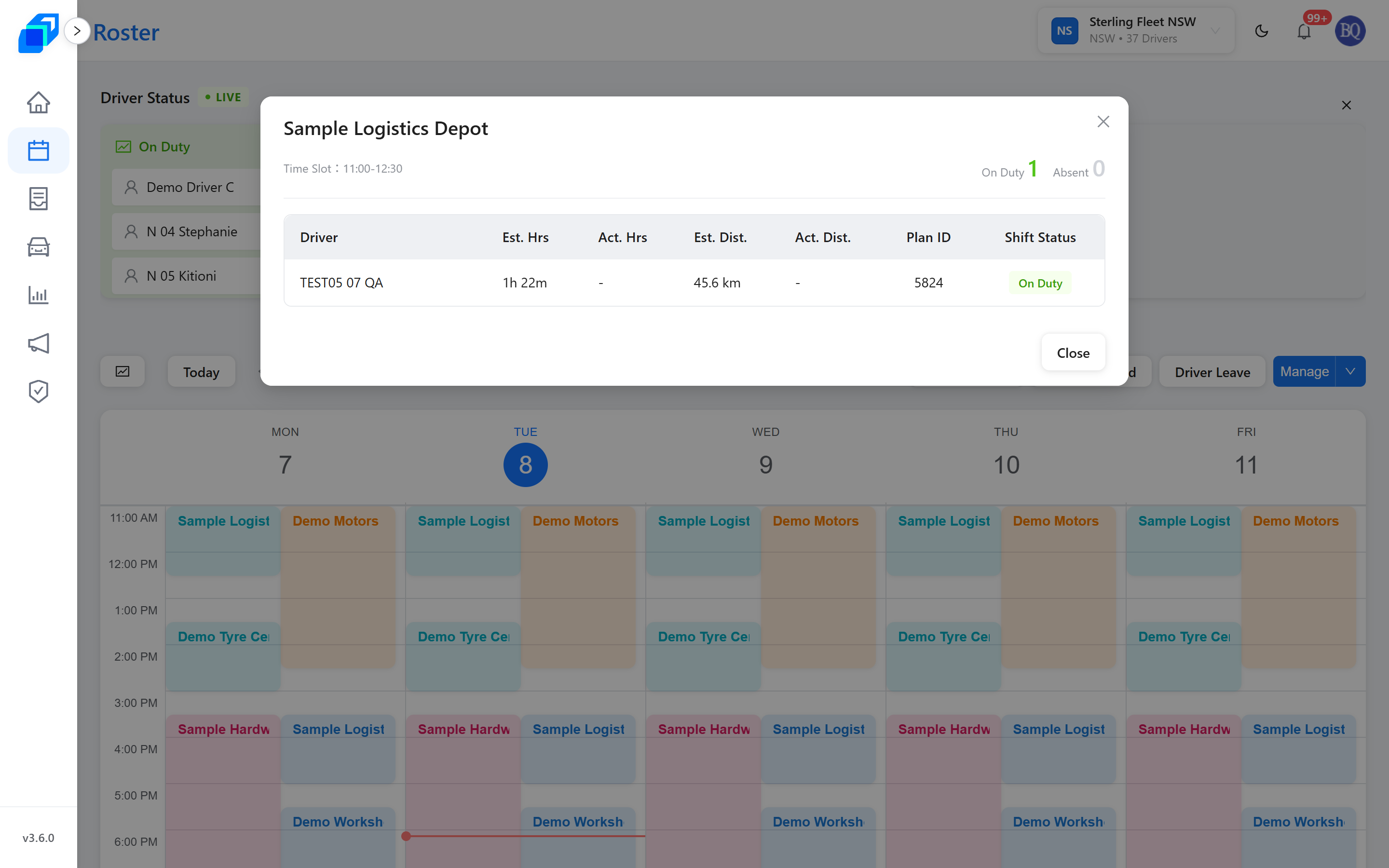
- The shift's driver list opens under that shift's own name, showing its Time Slot, how many drivers are On Duty and Absent, and a row per assigned driver with:
- Est. Hrs and Act. Hrs
- Est. Dist. and Act. Dist.
- Plan ID and a Shift Status badge
- Click Close, the close button (X), outside the list, or press Escape to return to the calendar.
Troubleshooting
If you select a week and the table says No records this week – or No chart data in the Chart view – no completed orders or shifts were recorded for that week. If deliveries did occur, try another week or fleet, or contact your administrator to verify shift and order scheduling.
Next steps
- Plan the week on Roster – Calendar, shift list, drafts, and schedule publish
- Create a shift – Shift times, delivery areas, and assignment rules
- Dispatch your first order